
Welcome to Vendo AI Help Center
Vendo AI is a complete B2B sales automation platform powered by artificial intelligence. This documentation will guide you through all features and help you get the most out of the platform.
What is Vendo AI?
Vendo AI provides autonomous AI Skilled Workers that handle the entire sales development process—from initial prospecting through qualified meeting scheduling—without human intervention. The platform includes:
- AI Agents — 11 different types of intelligent AI Skilled Workers for various sales and support scenarios
- Email Campaigns — Automated outreach with AI-personalized messaging
- 4M+ Business Database — Access to verified B2B contacts worldwide
- AI Voice Technology — 20+ realistic voices in 145+ languages
- Interactive Presentations — AI-generated sales presentations
- Analytics Dashboard — Real-time performance tracking
Quick Start
-
Create your first AI Skilled Worker
Go to the Dashboard and click "Create Agent". Choose the agent type that fits your use case. -
Configure your AI Skilled Worker
Add your company information, upload documents, and customize the AI Skilled Worker's behavior. -
Build your audience
Use the AI Assistant Chat to find and filter your target businesses from our database. -
Launch a campaign
Create an email campaign and let the AI handle personalized outreach to your audience.
Screenshot: Dashboard overview
AI Assistant Chat
The AI Assistant Chat is your intelligent helper inside Vendo AI. It helps you build targeted audiences from our database of 4M+ verified B2B contacts, filter and refine results, and provides guidance on using the platform effectively.
Building Audiences with AI Assistant
The AI Assistant allows you to find your ideal customers by simply describing them in natural language. Instead of manually filtering through databases or buying expensive lead lists, you can describe your target audience in plain English — the AI will search our comprehensive database of 4M+ verified B2B contacts and return matching companies with detailed information.
The search process is conversational: you can refine your criteria, ask follow-up questions, and narrow down results until you find the perfect audience for your campaign. The Assistant understands context, so queries like "tech startups in Berlin that might need CRM software" work just as well as specific filters.
Audience Results Overview
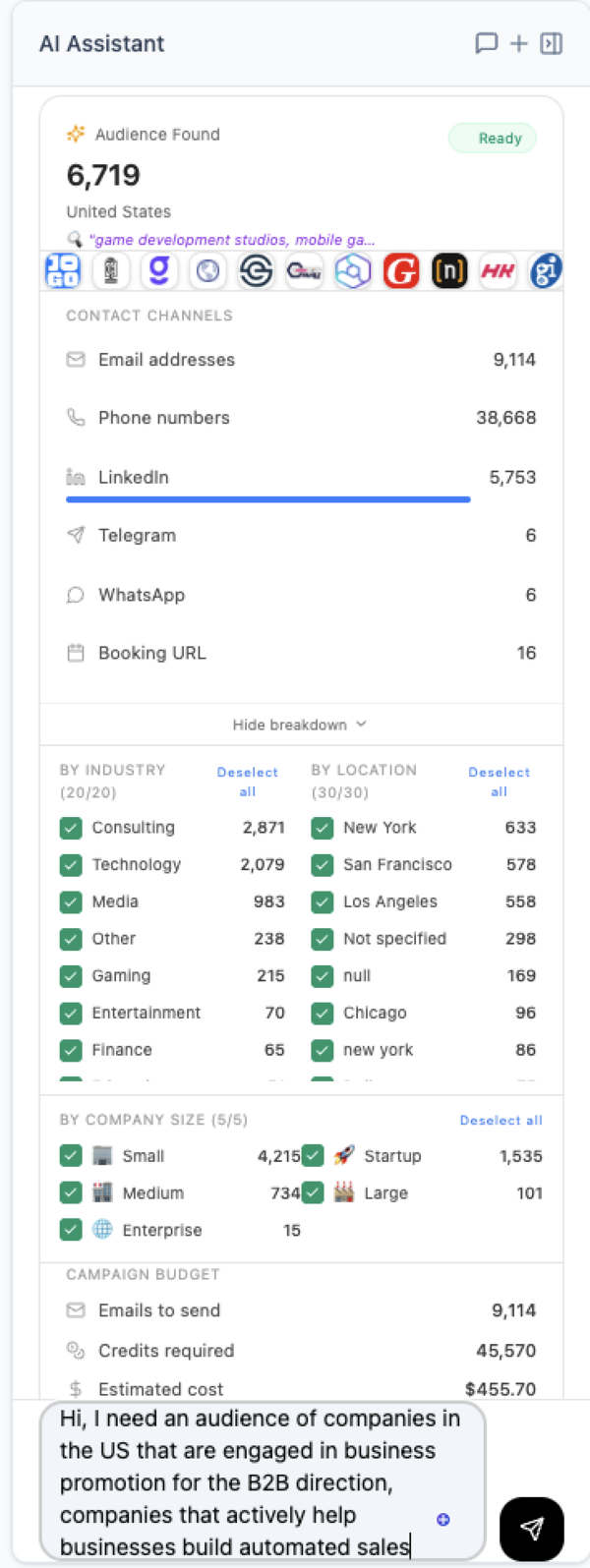
When you search for companies, the Assistant displays a comprehensive breakdown of your potential audience:
- Total Audience Found — The total number of companies matching your search criteria. This helps you understand the market size and adjust your targeting if needed.
- Contact Channels — Shows available communication methods for reaching each company. Our database includes:
- Email addresses (verified and deliverable)
- Phone numbers (direct lines when available)
- LinkedIn profiles (company pages and decision-makers)
- Telegram contacts
- WhatsApp numbers
- Booking URLs (Calendly, Cal.com, and other scheduling tools)
- Industry Breakdown — Visual distribution showing how your audience splits across industries: Consulting, Technology, Media, Gaming, Finance, Healthcare, Real Estate, and more. Use checkboxes to include or exclude specific industries.
- Location Breakdown — Geographic distribution by city and country. Perfect for targeting specific regions or excluding areas outside your service coverage.
- Company Size — Filter by organization size: Startup (1-10), Small (11-50), Medium (51-200), Large (201-1000), Enterprise (1000+). Different company sizes often require different sales approaches.
- Campaign Budget — Real-time cost estimate based on your credit balance. Shows how many contacts you can reach with your current plan and helps plan your outreach budget.
Refining Your Audience
After the initial search, you can fine-tune your audience using the interactive filters. Check or uncheck industries, locations, and company sizes to narrow down your list. The budget estimate updates in real-time as you adjust filters, so you always know the cost before launching a campaign.
Search Types
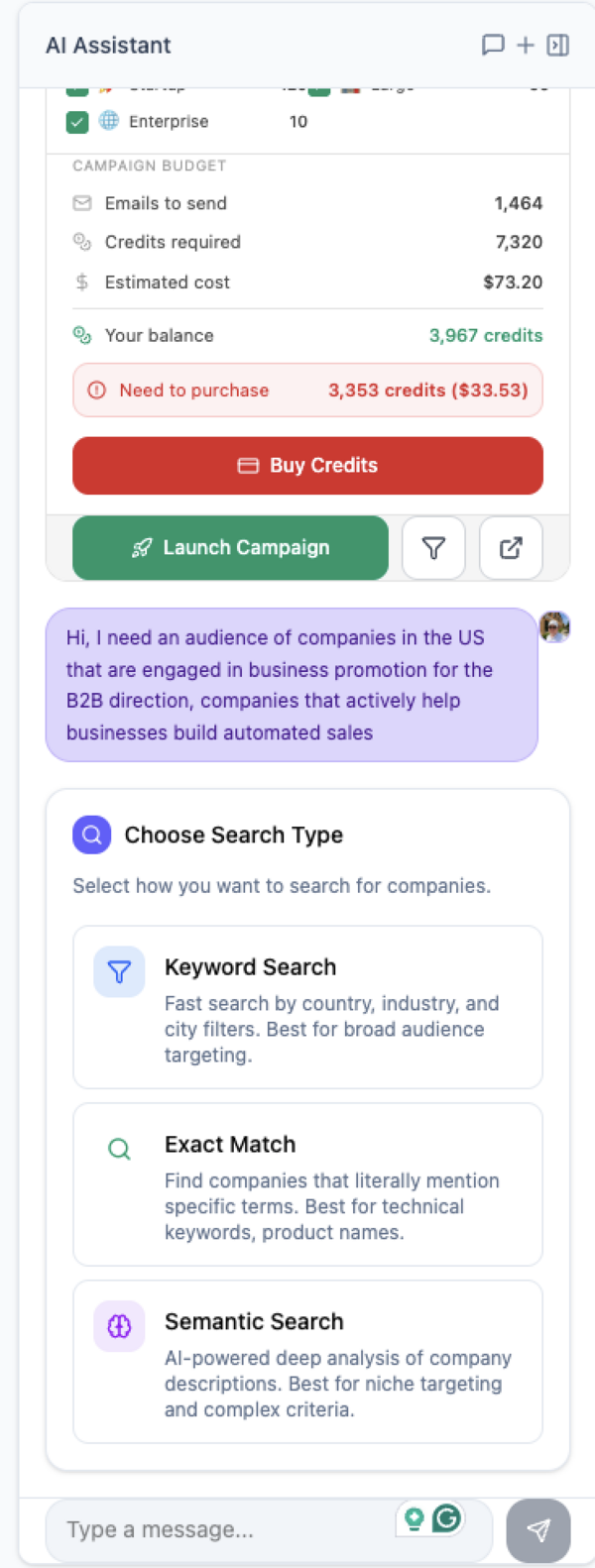
When building an audience, you can choose from three different search methods. Each method uses a different approach to find companies, and selecting the right one can significantly impact the quality and relevance of your results. The search type selector appears at the top of the AI Assistant panel.
Keyword Search
The fastest search method that uses structured filters: country, industry, and city. Best for broad audience targeting when you want to quickly find companies in specific locations or industries. This method searches through pre-indexed company metadata, making it extremely fast even for large result sets.
When to use: You have clear geographic or industry criteria, you need results quickly, or you're doing initial market research to understand audience size.
Examples: "Marketing agencies in Germany", "SaaS companies in California", "Restaurants in New York", "IT consulting firms in London"
Exact Match
Searches for companies that literally mention specific terms in their description, website content, or profile. Best for technical keywords, product names, and specific technologies. This method finds companies that explicitly use the exact words you specify.
When to use: You're looking for companies using specific technologies (Salesforce, HubSpot, Shopify), mentioning specific certifications (ISO, SOC2), or targeting competitors' customers.
Examples: "Companies using Salesforce", "Businesses mentioning AI automation", "Shopify stores", "Companies with ISO 27001 certification"
Semantic Search
AI-powered deep analysis that understands meaning and context, not just keywords. Best for niche targeting, complex criteria, and finding companies by their problems or needs. The AI reads and understands company descriptions, finding matches even when they don't use your exact words.
When to use: You have complex requirements, you're targeting companies by their pain points or needs, or keyword searches return too many irrelevant results.
Examples: "Companies that struggle with manual data entry", "B2B service providers focused on digital transformation", "Businesses that need help with customer retention", "Startups looking to scale their sales team"
Choosing the Right Search Type
| Your Goal | Recommended Search |
|---|---|
| Find all marketing agencies in a country | Keyword Search |
| Find companies using a specific tool | Exact Match |
| Find companies with a specific problem | Semantic Search |
| Quick market size estimation | Keyword Search |
| Target competitors' customers | Exact Match |
| Find niche B2B service providers | Semantic Search |
Pro Tip: Start with Keyword Search to understand your market size, then use Semantic Search to find the most relevant subset. You can also combine approaches — run a Keyword Search for "Tech companies in USA", then use Semantic Search within those results to find "companies struggling with customer onboarding".
How to Use the Assistant
-
Open the Chat
Navigate to the Sales Process page. The AI Assistant panel is on the right side of the screen. -
Describe Your Target Audience
Type a natural language description of your ideal customer. Be specific about industry, location, company size, and any other criteria. -
Choose Search Type
Select Keyword Search, Exact Match, or Semantic Search based on your needs (see descriptions above). -
Review and Filter Results
Check the breakdown by industry, location, and company size. Use the checkboxes to include or exclude specific segments. -
Check Campaign Budget
Review the estimated cost in credits before proceeding. Make sure you have sufficient balance. -
Launch Campaign
Click "Launch Campaign" to start your outreach, or save the audience for later use.
Example Prompts
- "Find SaaS companies in the United States with 50-200 employees"
- "Show me marketing agencies in London that work with B2B clients"
- "Companies in Germany that provide consulting services for digital transformation"
- "Tech startups in San Francisco focused on AI and automation"
- "Real estate agencies in New York with booking URLs available"
Important: The quality of your audience depends on the specificity of your request. Vague descriptions like "companies that might need our product" will return less relevant results than specific criteria like "marketing agencies with 10-50 employees in tech industry".
AI Agents Overview — Your AI Skilled Workers Dashboard
The Your AI Agents page is the central hub for managing all your AI Skilled Workers in Vendo AI. From here you can create new agents, monitor their performance, manage connections, review conversations, and control every aspect of your AI sales team. Vendo AI offers 11 different types of AI Skilled Workers, each designed for specific sales and support use cases.
Dashboard Overview
When you navigate to Your AI Agents in the left sidebar, you'll see a complete overview of all your agents and their cumulative performance metrics at a glance.
Summary Stats Bar
At the top of the page, four summary cards display your overall agent portfolio metrics:
- Active Agents — The total number of agents currently live and operational.
- Draft Agents — Agents created but not yet activated. Use drafts to prepare agents before going live.
- Total Connections — The combined number of active integrations (widgets, campaigns, Google Meet, Telegram, etc.) across all agents.
- Total Conversations — The total number of conversations all agents have had with visitors and prospects.
Search and Create
A search field ("Search agents...") lets you quickly find any agent by name or description. The "+ Create New Agent" button in the top-right corner starts the agent creation wizard. You can also use the "+ Create AI Agent" button in the left sidebar.
Agent Cards
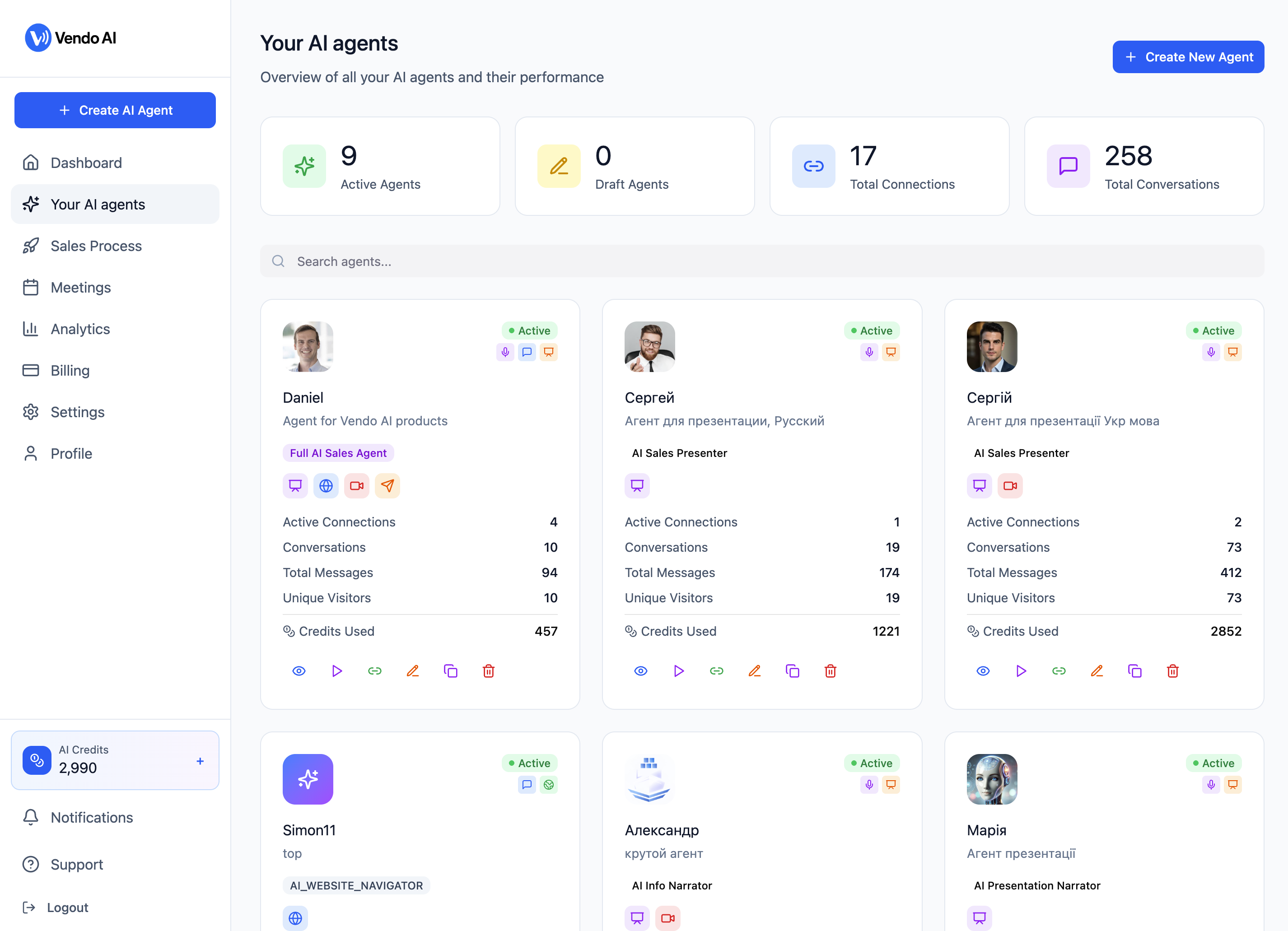
Each agent is displayed as a card in a responsive grid layout. Every card provides a quick snapshot of the agent's identity, type, status, capabilities, and key performance metrics:
- Agent Avatar & Name — The agent's profile picture and name (e.g., "Daniel") appear at the top of the card. Below the name is a short description you defined during setup.
- Agent Type Badge — A colored label indicating the agent type (e.g., Full AI Sales Agent, AI Sales Presenter, AI Info Narrator, AI Presentation Narrator, AI_WEBSITE_NAVIGATOR). This helps you quickly identify what each agent does.
- Status Indicator — A green "Active" badge in the top-right corner means the agent is live and handling conversations. Paused or draft agents will show a different status.
- Channel Icons — Small icons below the agent type badge show which distribution channels are enabled (email, website widget, slides, Google Meet, Telegram, voice calls).
- Performance Metrics — Each card displays: Active Connections, Conversations, Total Messages, and Unique Visitors.
- Credits Used — Shows the total AI credits consumed by this agent.
- Quick Action Buttons — A row of icons at the bottom: connections, test conversation, edit settings, analytics, and more options.
Left Sidebar Navigation
The left sidebar provides quick access to: Dashboard, Your AI Agents, Sales Process, Meetings, Analytics, Billing, Settings, and Profile. At the bottom you'll see your AI Credits balance (with a "+" button to purchase more), Notifications, Support, and Logout.
Agent Detail Page
Click on any agent card to open its detailed view. The agent detail page gives you comprehensive statistics, connection analytics, and full control over the agent's configuration.
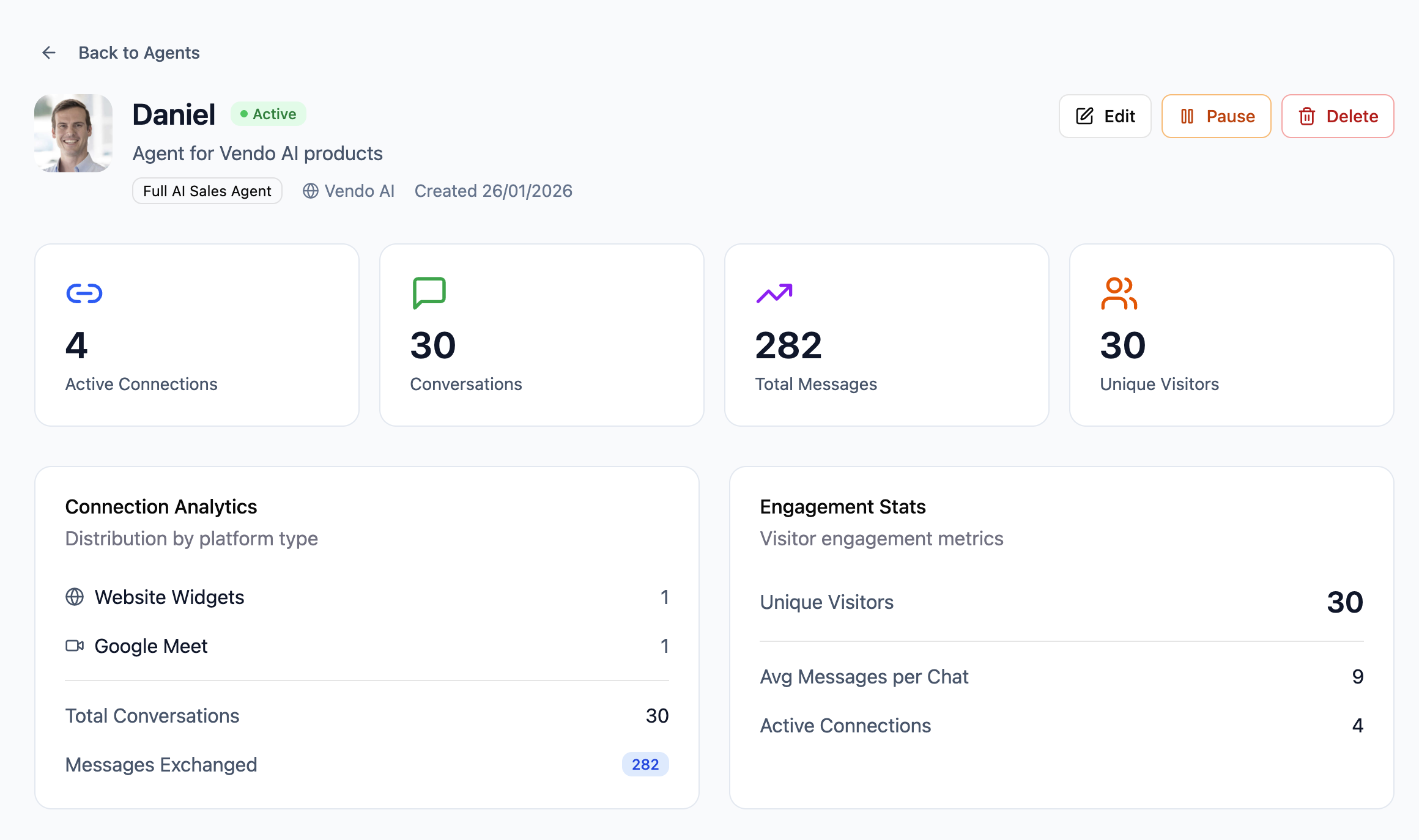
Agent Header
At the top of the detail page you'll see:
- "← Back to Agents" — Link to return to the dashboard.
- Agent Avatar, Name & Status — The agent's photo, name (e.g., "Daniel"), and a green "Active" badge.
- Agent Type & Company — Type label (e.g., "Full AI Sales Agent") and company name.
- Created Date — When the agent was created.
Action Buttons
Three buttons in the top-right corner:
- Edit (pencil icon) — Opens the setup wizard to modify any settings.
- Pause (orange) — Temporarily stops the agent from handling new conversations.
- Delete (red) — Permanently removes the agent and all its data. Cannot be undone.
Performance Stats Cards
Four large metric cards give you an instant performance overview:
- Active Connections (link icon, blue) — Active integrations where this agent is deployed.
- Conversations (chat icon, green) — Total conversations the agent has had.
- Total Messages (chart icon, purple) — All messages exchanged across all conversations.
- Unique Visitors (people icon, orange) — Distinct individuals who interacted with this agent.
Connection Analytics & Engagement Stats
Below the stats cards, two panels show deeper insights:
- Connection Analytics — Distribution by platform type (e.g., "Website Widgets: 1", "Google Meet: 1"), total conversations, and messages exchanged.
- Engagement Stats — Unique visitors, average messages per chat (higher = deeper engagement), and active connections count.
Connections — Where Your Agent is Deployed
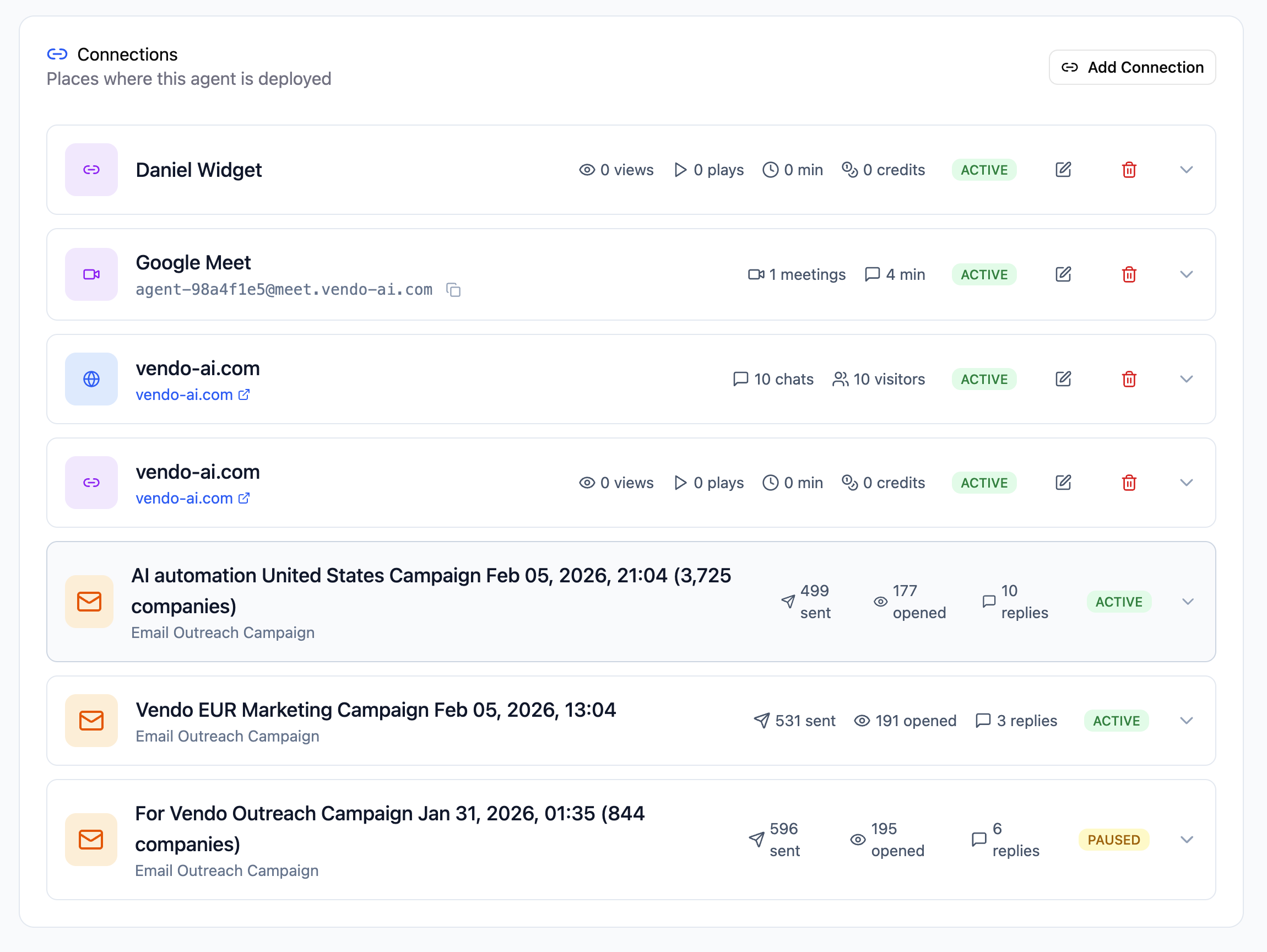
The Connections panel shows every place where this agent is actively deployed. Each connection represents a specific integration point.
Connection Types
Each connection row displays the integration name, key metrics, and current status:
Website Widget
- Widget Name — The name you assigned to this widget instance (e.g., "Daniel Widget").
- Metrics — Views, plays (voice activations), credits used.
- Status — Green "ACTIVE" badge when the widget is live on your website.
- Actions — Edit settings, open widget page, or delete the connection.
Google Meet
- Meeting Link — The dedicated meeting URL that the AI agent joins automatically.
- Metrics — Number of meetings held, total meeting duration.
- Status — "ACTIVE" when the agent is ready to join calls.
Website Chat
- Domain — The website URL where the chat is deployed (e.g., "vendo-ai.com"), with a clickable external link.
- Metrics — Number of chats, unique visitors, or views and credits consumed depending on the deployment type.
- Status — Green "ACTIVE" badge for live deployments.
Email Outreach Campaign
- Campaign Name & Date — The full campaign name including target description, date, and audience size (e.g., "AI automation United States Campaign Feb 05, 2026, 21:04 (3,725 companies)").
- Type Label — Shows "Email Outreach Campaign" below the name.
- Metrics — Three key email metrics displayed inline:
- Sent — Total emails successfully delivered
- Opened — Number of recipients who opened the email
- Replies — Number of prospects who replied
- Status — "ACTIVE" for running campaigns, "PAUSED" for campaigns you've temporarily stopped.
"+ Add Connection" Button
In the top-right of the Connections section, click "+ Add Connection" to deploy your agent to a new channel. This opens the integration selection screen.
Connect Agent — Choose Integration
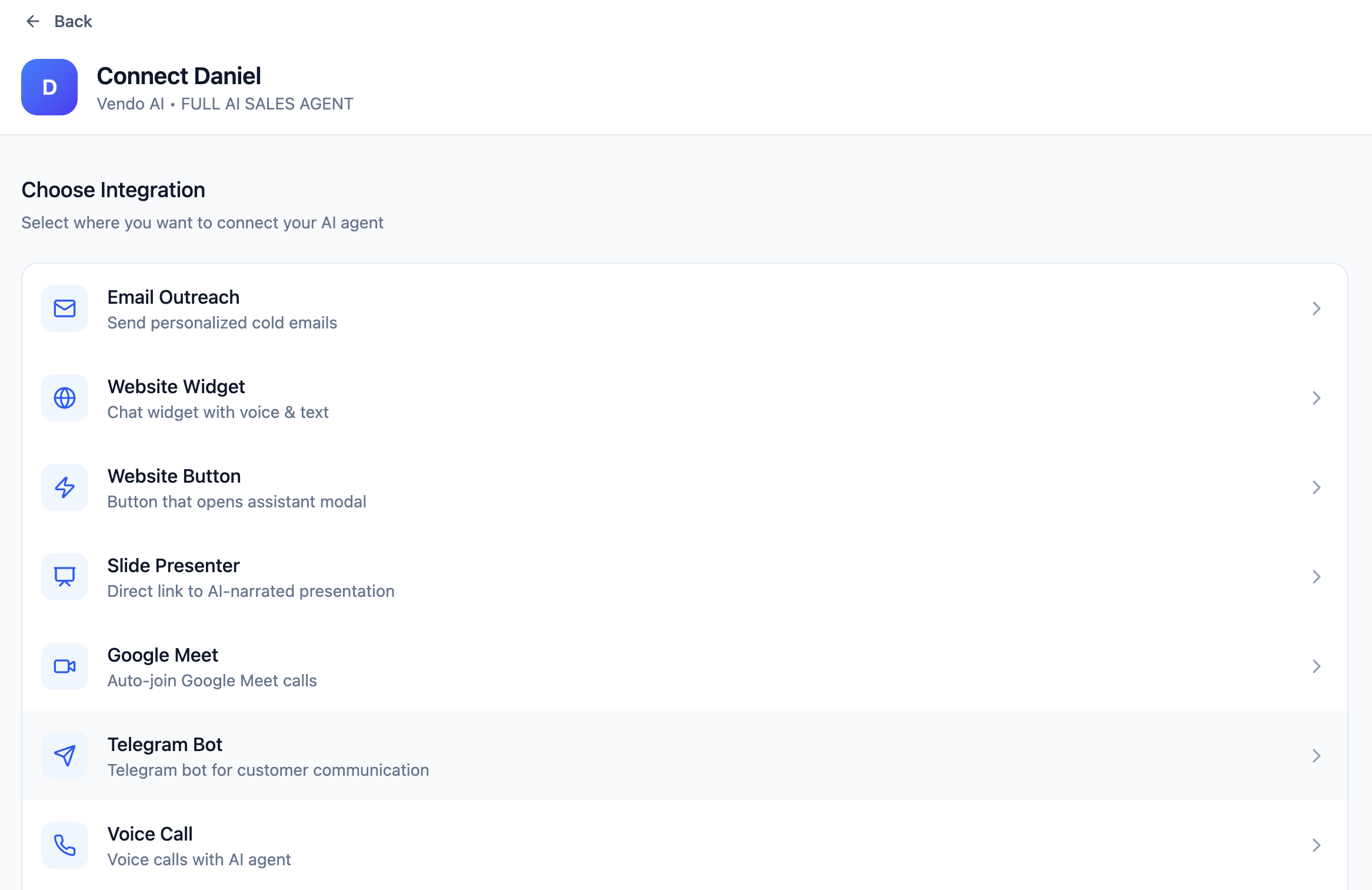
When you add a new connection, the Choose Integration screen presents all available deployment channels. The options depend on your agent type — the Full AI Sales Agent supports all channels.
Available integration types:
- Email Outreach — Send personalized cold emails. The agent will write, send, and respond to emails automatically.
- Website Widget — Embed a chat widget with voice and text capabilities directly on your website.
- Website Button — A button that opens an assistant modal. Lighter than the full widget — ideal for landing pages.
- Slide Presenter — Direct link to an AI-narrated presentation with voice and interactive slides.
- Google Meet — AI agent auto-joins Google Meet calls for live product demos.
- Telegram Bot — Telegram bot controlled by your agent for sales or support.
- Voice Call — Direct voice calls with the AI agent via a dedicated number.
Tip: You can add multiple connections of the same type. For example, deploy the same agent as a widget on several different websites, or run multiple email campaigns targeting different audiences — all handled by the same AI Skilled Worker.
Conversations — Chat History and Transcripts
The Conversations section gives you full visibility into every interaction your agent has with visitors and prospects. You can access conversations from the agent detail page by clicking on a specific connection.
Text Chat Conversations
For website widgets and text-based channels, you'll see a detailed conversation view with:
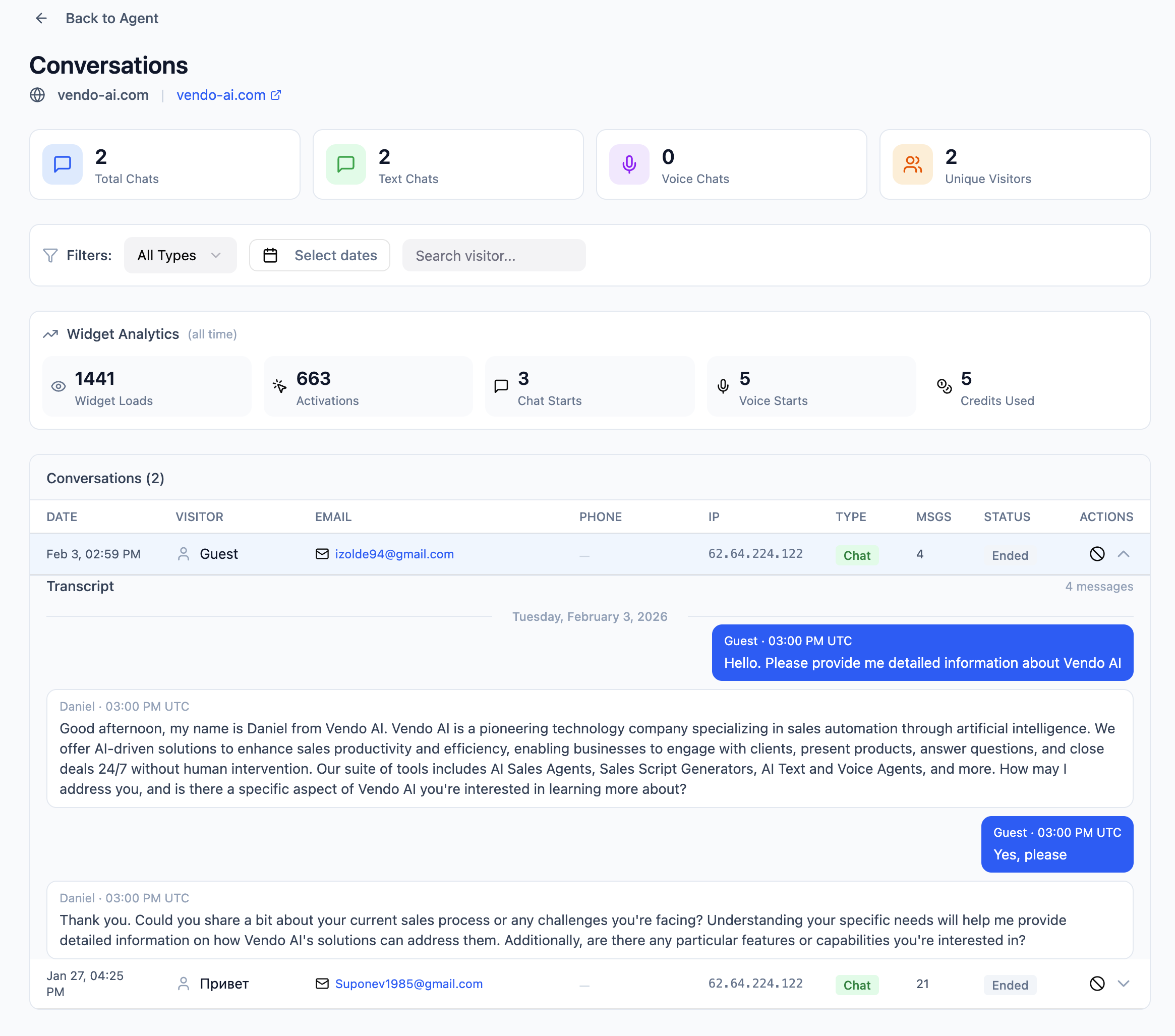
Conversation Stats Bar
- Total Chats — All conversations across this connection.
- Text Chats — Conversations conducted via text messaging.
- Voice Chats — Conversations conducted via voice.
- Unique Visitors — Distinct visitors who started a conversation.
Filters
Narrow down conversations using:
- All Types — Filter by conversation type (text, voice, or all).
- Select dates — Date range picker to view conversations from a specific period.
- Search visitor — Find conversations by visitor name, email, or content.
Widget Analytics (all time)
Aggregated metrics for the entire connection lifetime:
- Widget Loads — How many times the widget was loaded on your website.
- Activations — How many visitors clicked to open/activate the widget.
- Chat Starts — Number of visitors who actually started a text conversation.
- Voice Starts — Number of visitors who initiated a voice conversation.
- Credits Used — Total AI credits consumed by this connection.
Conversations Table
Each conversation is listed in a table with the following columns:
- Date — When the conversation started (e.g., "Feb 3, 02:59 PM").
- Visitor — The visitor's name if provided, or "Guest" for anonymous visitors.
- Email — The visitor's email address if captured during the conversation.
- Phone — Phone number if provided.
- IP — The visitor's IP address for geographic identification.
- Type — Conversation type: "Chat" for text, "Voice" for voice calls.
- Msgs — Total number of messages exchanged in the conversation.
- Status — Current conversation status: "Ended" for completed conversations, "Active" for ongoing ones.
- Actions — View full transcript, expand conversation details.
Full Transcript View
Click on any conversation row to expand and view the complete Transcript. The transcript shows every message in chronological order with timestamps, clearly distinguishing between the visitor's messages (right-aligned, blue bubbles) and the AI agent's responses (left-aligned, white bubbles). Each message includes the exact time it was sent (in UTC). This lets you review exactly how the agent handled the conversation, including qualification questions, objections handling, and product presentations.
Voice Call Conversations
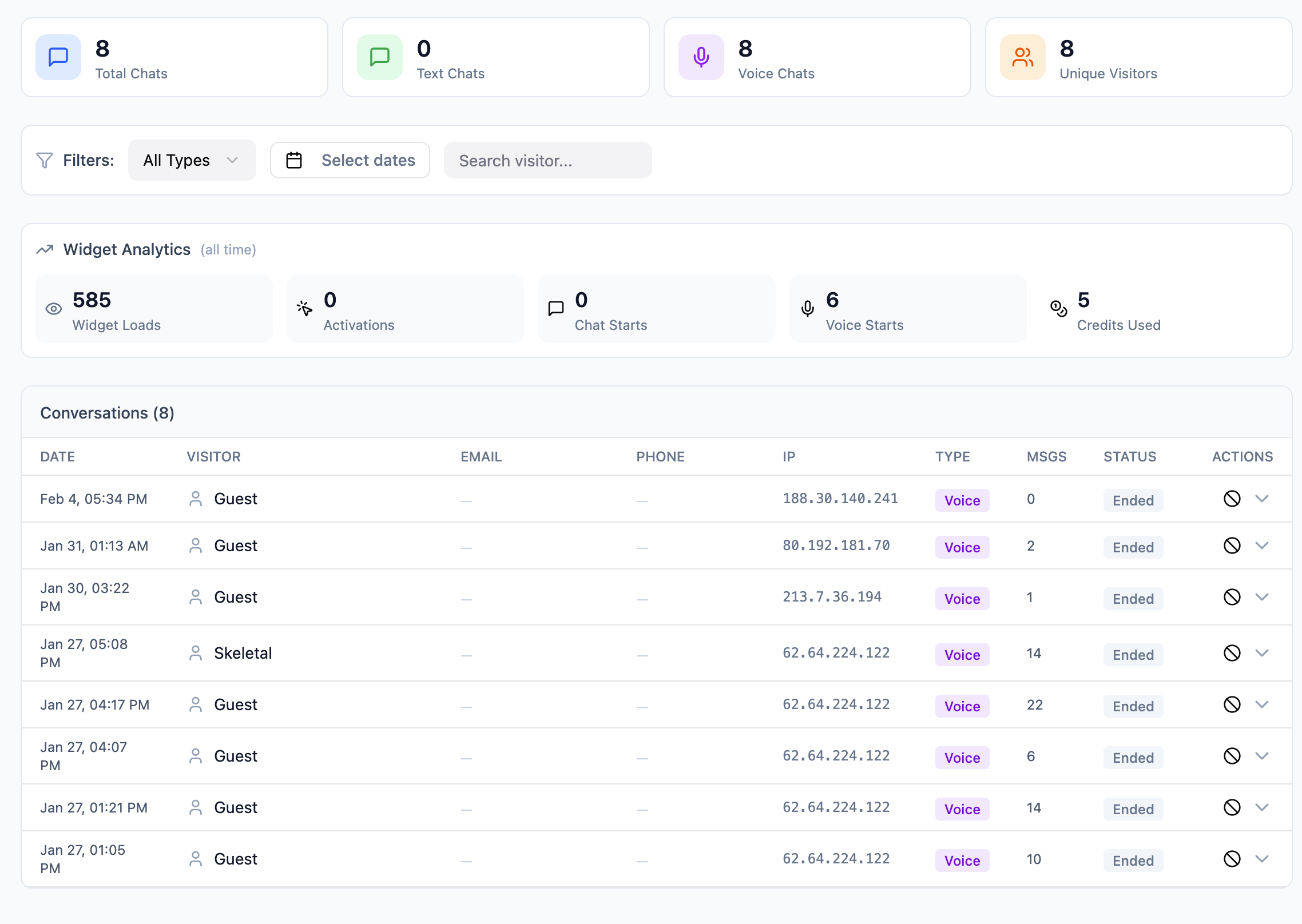
For voice-based connections (website voice widgets, direct voice calls), the conversations page shows a similar layout optimized for voice interactions:
- Voice Chats counter — Prominently highlighted showing the total number of voice calls handled.
- Conversation Type — Each row shows "Voice" in the Type column, clearly distinguishing voice calls from text chats.
- Message Count — For voice calls, this reflects the number of conversational turns (back-and-forth exchanges).
- Visitor Info — Shows visitor names when identified (e.g., "Skeletal") or "Guest" for anonymous callers, along with their IP address.
- Widget Analytics — Voice-specific metrics including Widget Loads, Voice Starts (how many visitors initiated voice calls), and Credits Used for voice synthesis.
Click on any voice conversation to view the full transcript of the spoken dialogue, converted to text. This is invaluable for quality assurance and understanding how your agent handles real voice interactions.
Agent Types Comparison
Vendo AI offers 11 different types of AI Skilled Workers. Each type is optimized for a specific use case, with different combinations of voice, text, and presentation capabilities. Use the comparison table below to find the right agent type for your needs:
| Agent Type | Voice | Text | Best For |
|---|---|---|---|
| Full AI Sales Agent | Yes | Yes | Complete end-to-end sales: email campaigns, auto-responses, meetings, presentations |
| AI Voice Agent | Yes | No | Voice-based knowledge base Q&A and customer support |
| Sales Script Agent | No | Yes | Generating and testing sales scripts (text only) |
| AI Presentation | No | No | Creating interactive AI-generated presentations |
| AI Voice Website Widget | Yes | No | Voice-only website assistant for hands-free interaction |
| AI Voice + Presentation | Yes | No | Voice-guided presentations with narrated slides |
| AI Voice + Text Widget | Yes | Yes | Complete website support widget with both voice and text |
| AI Text Widget | No | Yes | Text-only chat support for your website |
| AI Telegram Agent | Yes | Yes | Telegram bot with voice and text capabilities |
| AI Presentation Narrator | Yes | No | Add AI voice narration to existing presentations |
| AI Website Navigator | Yes | Yes | Guide website visitors with voice and text navigation |
Creating an Agent
-
Navigate to Your AI Agents
From the left sidebar, click "Your AI Agents" or use the "+ Create AI Agent" button at the top of the sidebar. You can also click the "+ Create New Agent" button on the dashboard. -
Choose Agent Type
Select the type of AI Skilled Worker that matches your needs from the 11 available types listed in the comparison table above. -
Configure Basic Settings
Enter the AI Skilled Worker name, description, choose an avatar, and provide your company information. The more detail you add, the better the agent will represent your business. -
Add Content
Depending on the AI Skilled Worker type, add sales scripts, knowledge base documents, presentation slides, or other content. For the Full AI Sales Agent, you'll configure a complete multi-stage sales script. -
Test Your AI Skilled Worker
Use the built-in testing interface to have a conversation with your agent and verify it responds correctly. Adjust the script or settings based on the test results. -
Deploy via Connections
Activate your AI Skilled Worker and add connections to deploy it: embed widgets on your website, launch email campaigns, set up Google Meet, configure Telegram bots, or enable voice calls.
Tip: Start with the Full AI Sales Agent if you want the most comprehensive solution. It supports all distribution channels and can handle the entire sales process autonomously — from cold email outreach to booking meetings and delivering live presentations.
Full AI Sales Agent
The Full AI Sales Agent is the most powerful and comprehensive AI Skilled Worker type in Vendo AI. It is the only AI Skilled Worker capable of running fully automated sales campaigns — from initial outreach to qualification to closing. This AI Skilled Worker combines voice capabilities, text communication, sales scripts, interactive presentations, and multi-channel distribution into one autonomous sales representative that works 24/7 for your business.
Most Powerful: The Full AI Sales Agent is the only AI Skilled Worker type that can independently sell your product. It supports automated email campaigns, auto-responses, meeting booking via calendar integration, and live interactive presentations — all in one AI Skilled Worker.
What Makes This Agent Unique
Unlike other AI Skilled Worker types that focus on a single function (voice only, text only, or widgets), the Full AI Sales Agent handles the complete sales process end-to-end. It analyzes your website, documents, and materials to create a personalized sales representative that knows your product inside out.
- Email Campaigns — Automated cold outreach with personalized, AI-written messages tailored to each prospect
- Auto-Responses — Handles all replies automatically, answering questions, overcoming objections, and keeping the conversation going
- Meeting Booking — Integrates with your calendar to schedule meetings directly during conversations
- Live Presentations — Conducts interactive product demos with voice narration, walking prospects through your slides in real time
- Multi-language — Supports 145+ languages with automatic language detection
Step-by-Step: Creating a Full AI Sales Agent
The setup wizard guides you through 5 steps. Each step builds on the previous one to create a fully configured AI sales representative. Below is a detailed walkthrough of the entire process.
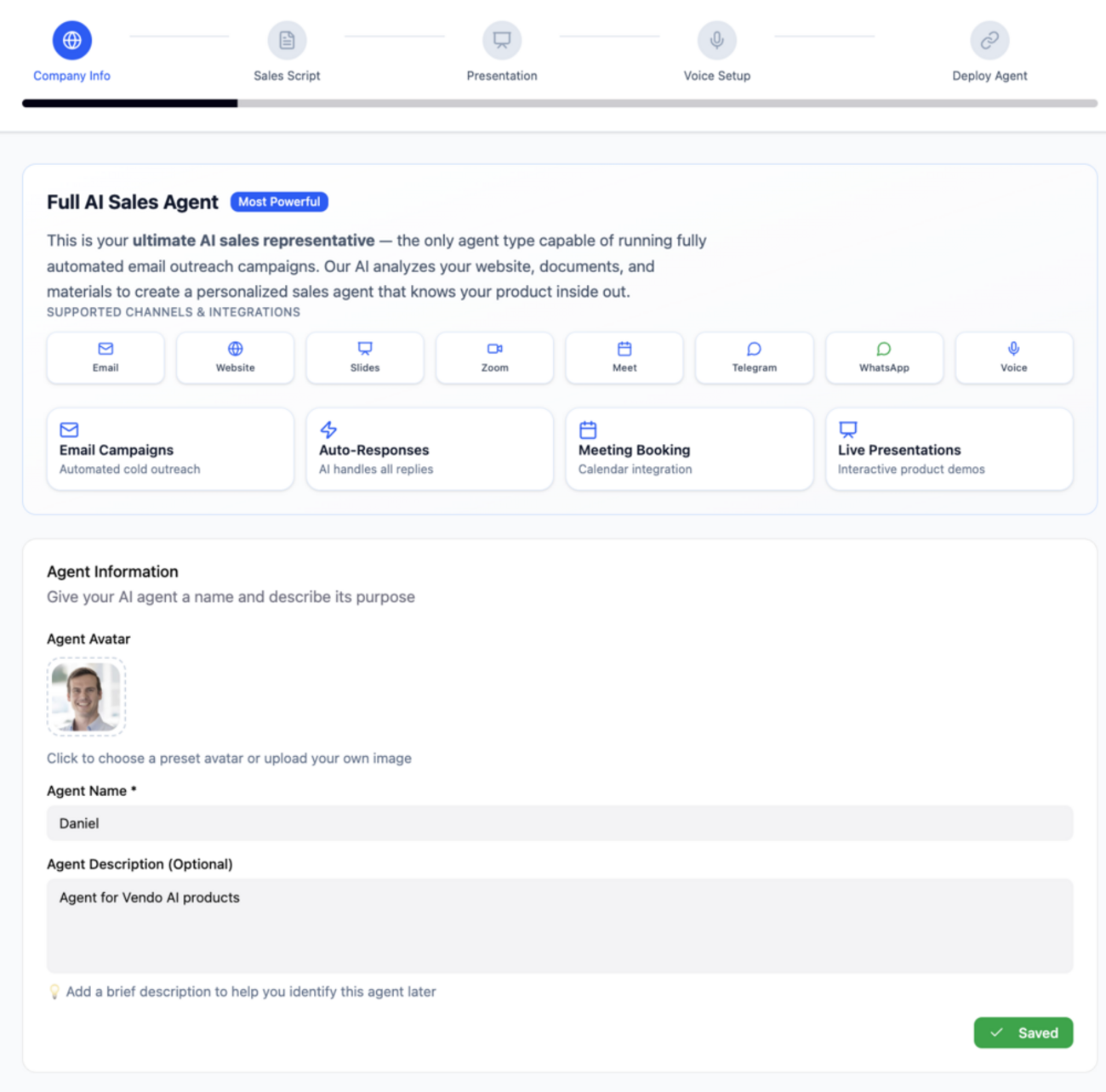
Step 1: Agent Information
The first step is defining your AI Skilled Worker's identity and understanding the available distribution channels. This is where you set the foundation for how your AI sales representative will appear and operate.
Available Distribution Channels
At the top of the setup screen, you'll see all the channels this AI Skilled Worker can use to reach prospects:
- Email — Personalized cold outreach campaigns
- Website — Interactive chat widget on your site
- Slides — AI-narrated presentations via direct link
- Google Meet — Auto-join video calls as AI presenter
- Telegram — Telegram bot for customer communication
- Voice Call — Direct voice calls with AI Skilled Worker
Agent Identity
- Agent Name — Give your AI Skilled Worker a name (e.g., "Daniel"). This name will be used in all communications and conversations.
- Agent Description — A brief internal note to help you identify this AI Skilled Worker later (e.g., "Agent for Vendo AI products").
- Agent Avatar — Choose a preset avatar or upload your own image. This will be displayed in chat widgets and presentations.
Step 2: Company Information
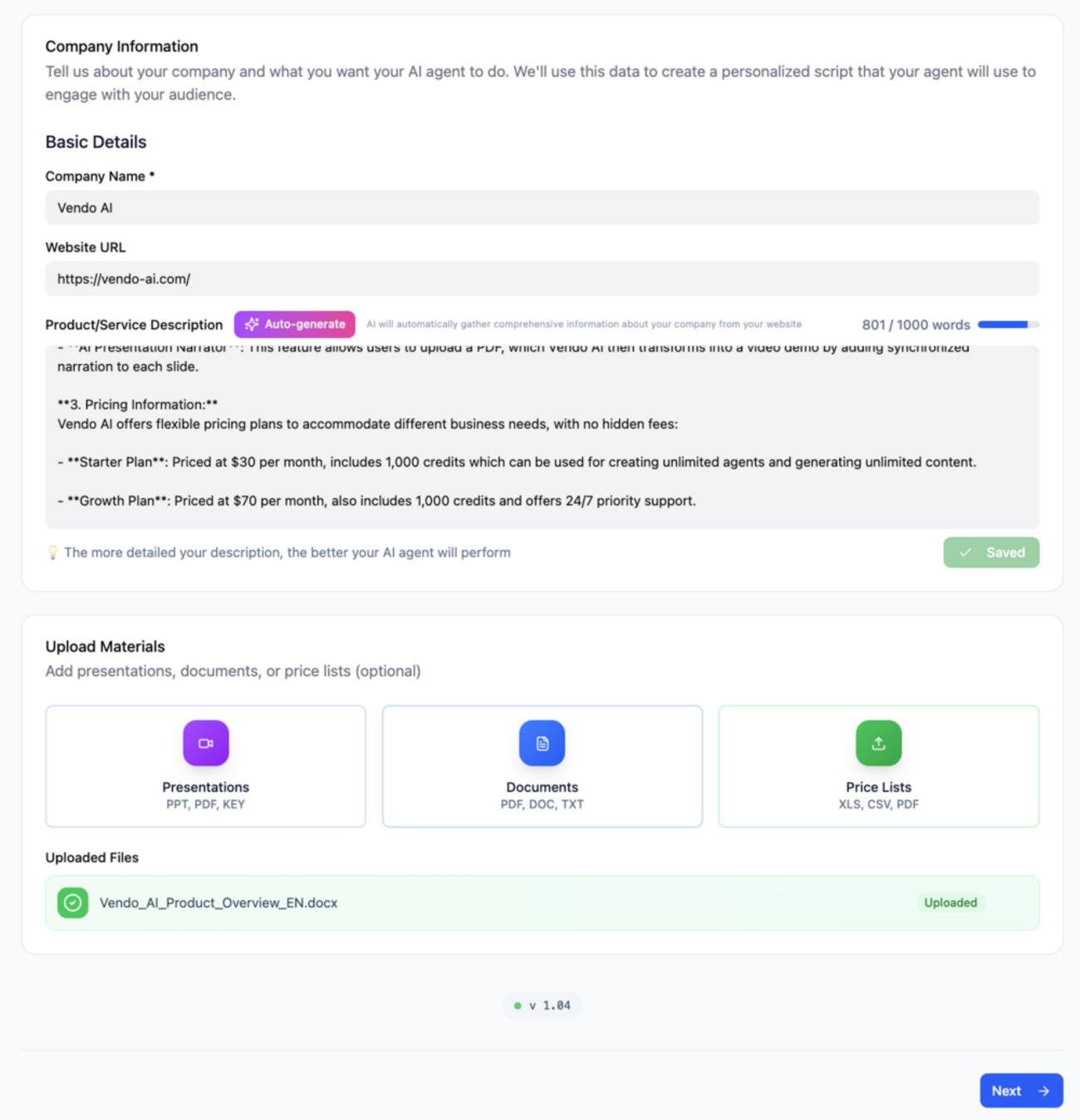
This step provides the AI with everything it needs to understand your business. The more detailed and accurate your information, the better your AI Skilled Worker will represent your company in conversations.
Basic Details
- Company Name — Your official business name as it should appear in all communications.
- Website URL — The AI will analyze your website to extract additional context about your products, services, and value propositions.
- Product/Service Description — A comprehensive description of what your company offers (up to 1500 words). Include key features, benefits, pricing tiers, and competitive advantages. The AI uses this as the primary source for conversations.
Upload Materials
You can upload supporting documents that give the AI Skilled Worker deeper knowledge:
- Presentations — Upload PPT, PPTX, or KEY files. These can be used for interactive demos.
- Documents — PDF, DOC, DOCX, or TXT files with product details, case studies, or FAQ.
- Price Lists — XLS, CSV, or PDF pricing documents for accurate pricing discussions.
Tip: The more detailed your product description and uploaded materials, the better your AI Skilled Worker will perform. Include pricing information, common objections and how to handle them, competitive advantages, and specific use cases.
Step 3: AI Sales Script
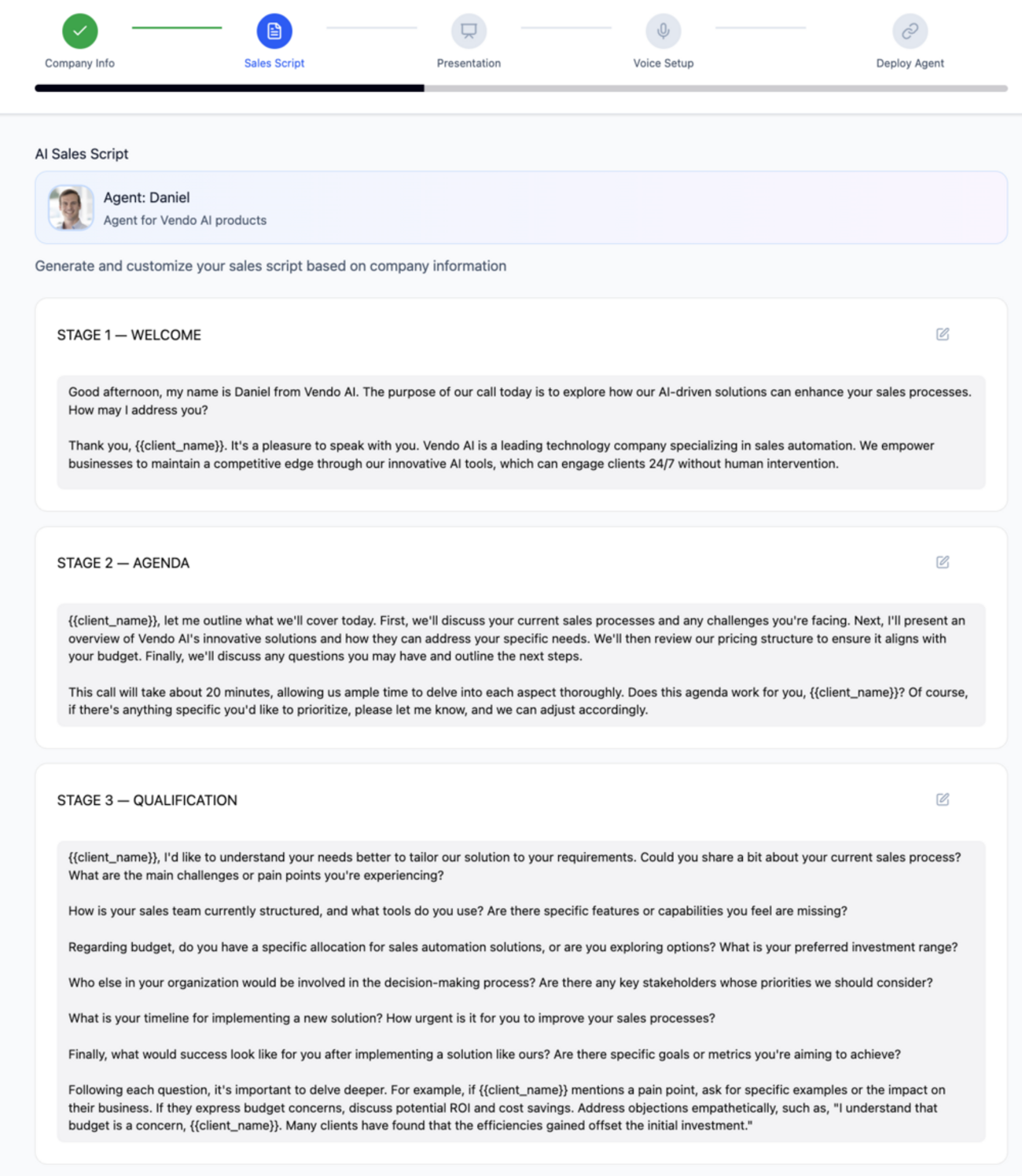
The sales script is the backbone of your AI Skilled Worker's conversations. Vendo AI automatically generates a complete, professional sales script based on your company information and uploaded materials. You can then customize every section to match your preferred sales methodology.
Script Structure — 6 Stages
The generated script follows a proven sales methodology with six stages:
Stage 1 — Welcome
The opening of the conversation. The AI Skilled Worker introduces itself, states the purpose of the call, and establishes rapport. Uses the prospect's name (via {client_name} variable) for personalization. Sets a professional yet friendly tone.
Stage 2 — Agenda
Outlines what will be covered during the conversation: current sales processes, product demonstration, pricing discussion, and next steps. Gives the prospect a clear expectation of the call duration and flow. Asks for permission to proceed.
Stage 3 — Qualification
The most critical stage for lead quality. The AI Skilled Worker asks targeted questions to understand the prospect's needs, pain points, current solutions, budget, and decision-making process. Includes follow-up prompts for deeper qualification based on initial answers.
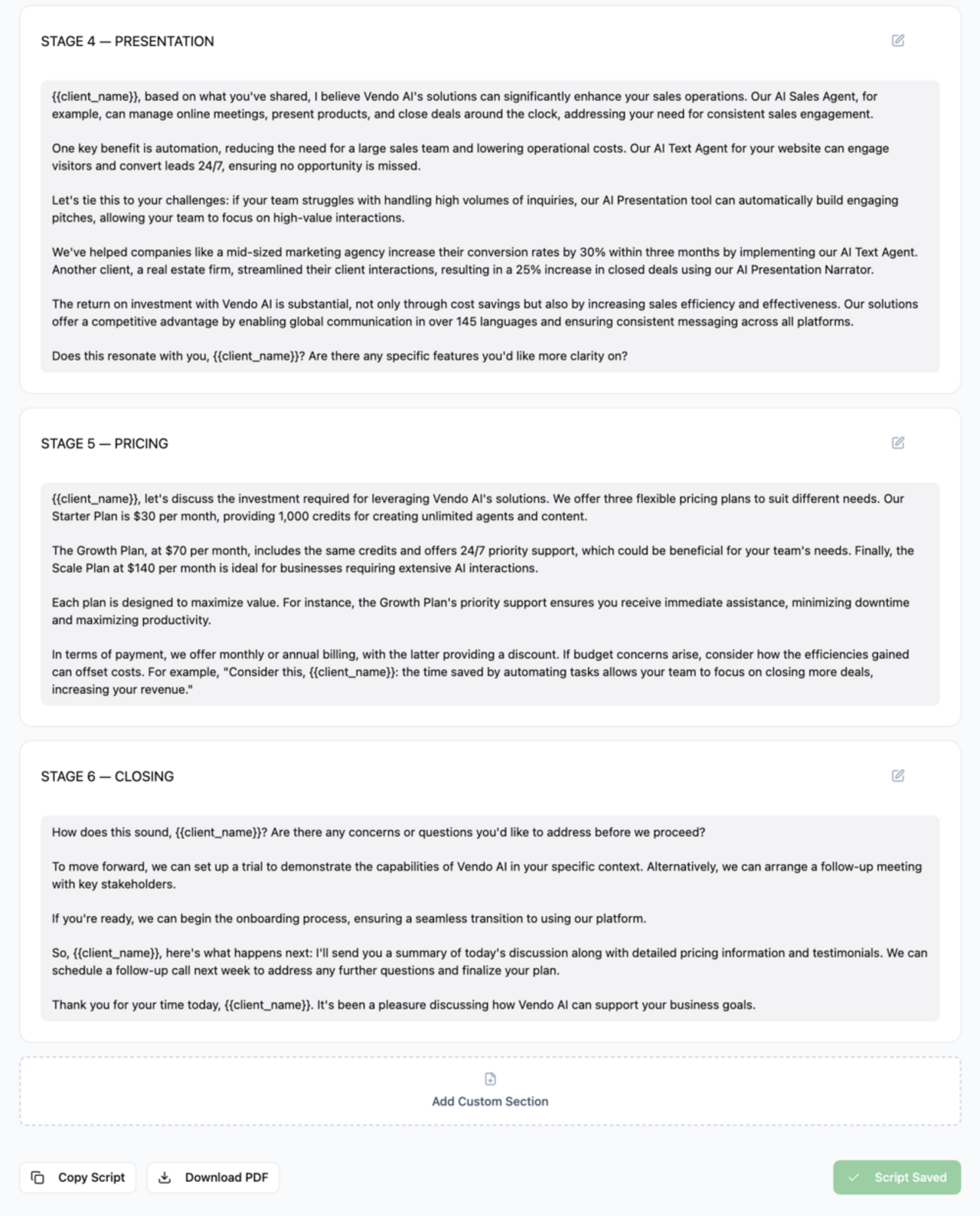
Stage 4 — Presentation
The value proposition stage. The AI Skilled Worker presents your solution tailored to the prospect's specific challenges identified during qualification. Includes case studies, ROI examples, and competitive advantages. The AI adapts the presentation based on what the prospect cares about most.
Stage 5 — Pricing
Discusses pricing tiers, plans, and investment. The AI Skilled Worker explains each plan's value, handles pricing objections with ROI calculations, and highlights the cost savings vs. current solutions. Mentions discounts for annual billing when applicable.
Stage 6 — Closing
Addresses final concerns, summarizes key benefits, and proposes next steps — whether it's setting up a trial, scheduling a follow-up meeting with stakeholders, or proceeding to onboarding. Includes post-call follow-up actions.
Script Customization
- Click the edit icon on any stage to modify the script text
- Use
{client_name}variable for automatic personalization - Add custom sections with the "Add Custom Section" button
- Download the script as PDF for review with "Download PDF"
- Copy the entire script with "Copy Script" button
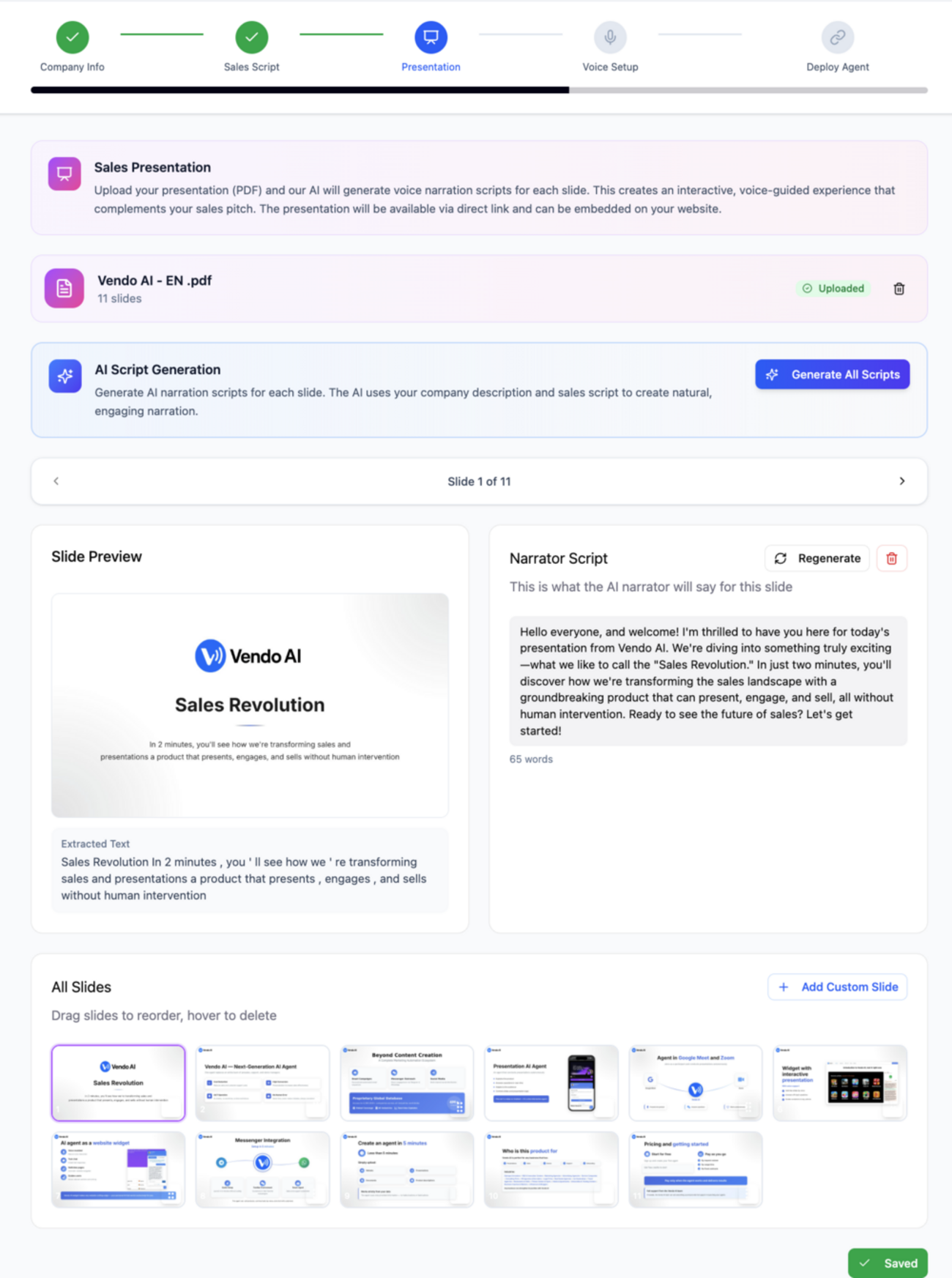
Step 4: Sales Presentation
Upload your sales presentation and the AI will automatically generate voice narration scripts for each slide. This creates an interactive, voice-guided experience that your prospects can view via a direct link or experience during a live AI-led demo.
How Presentation Works
- Upload PDF — Upload your presentation as a PDF file. The system extracts each slide automatically.
- AI Script Generation — Click "Generate All Scripts" and the AI creates natural, engaging narration for every slide based on your company description and the visual content of each slide.
- Slide Preview — Review each slide with its generated narrator script side by side. Edit any script manually to fine-tune the messaging.
- Regenerate — Use the "Regenerate" button on individual slides if you want a different narration version.
- Reorder Slides — Drag and drop slides to change the order, or add custom slides to fill any gaps.
Interactive Mode
During live presentations, the AI Skilled Worker operates in interactive mode:
- After each slide, the AI Skilled Worker asks if the prospect wants to continue or has questions
- The AI Skilled Worker waits for user confirmation before moving to the next slide
- It can answer questions about the current slide using company information
- Natural transition phrases connect the slides into a cohesive narrative
Step 5: Voice Configuration
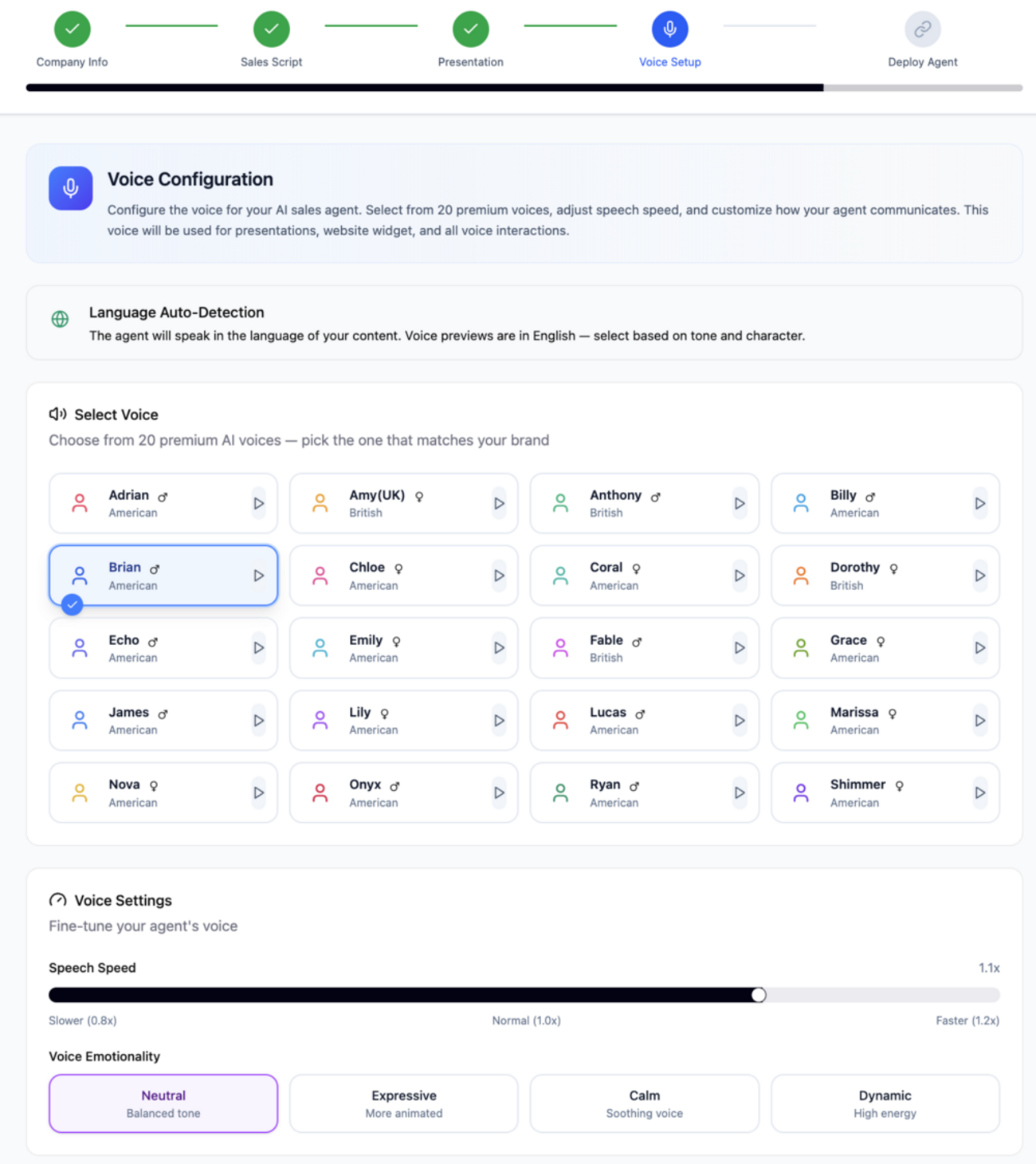
Configure the voice for your AI Skilled Worker. This voice will be used for presentations, website widgets, phone calls, and all voice interactions. The system supports automatic language detection — your AI Skilled Worker will speak in the language of your content.
Select Voice
Choose from 20 premium AI voices, each with a distinct tone and character:
- American voices — Adrian, Chloe, Coral, Echo, Emily, Fable, Grace, James, Lily, Lucas, Marissa, Nina, Onyx, Ryan, Shimmer
- British voices — Amy (UK), Anthony, Billy, Dorothy
Click the play button next to any voice to preview how it sounds before selecting.
Voice Settings
- Speech Speed — Adjust from Slower (0.8x) to Normal (1.0x) to Faster (1.2x) using the slider. Fine-tune to match your brand's communication pace.
- Voice Emotionality — Choose the emotional tone:
- Neutral — Balanced, professional tone
- Expressive — More animated, engaging delivery
- Calm — Soothing, reassuring voice
- Dynamic — High energy, enthusiastic
Communication Rules
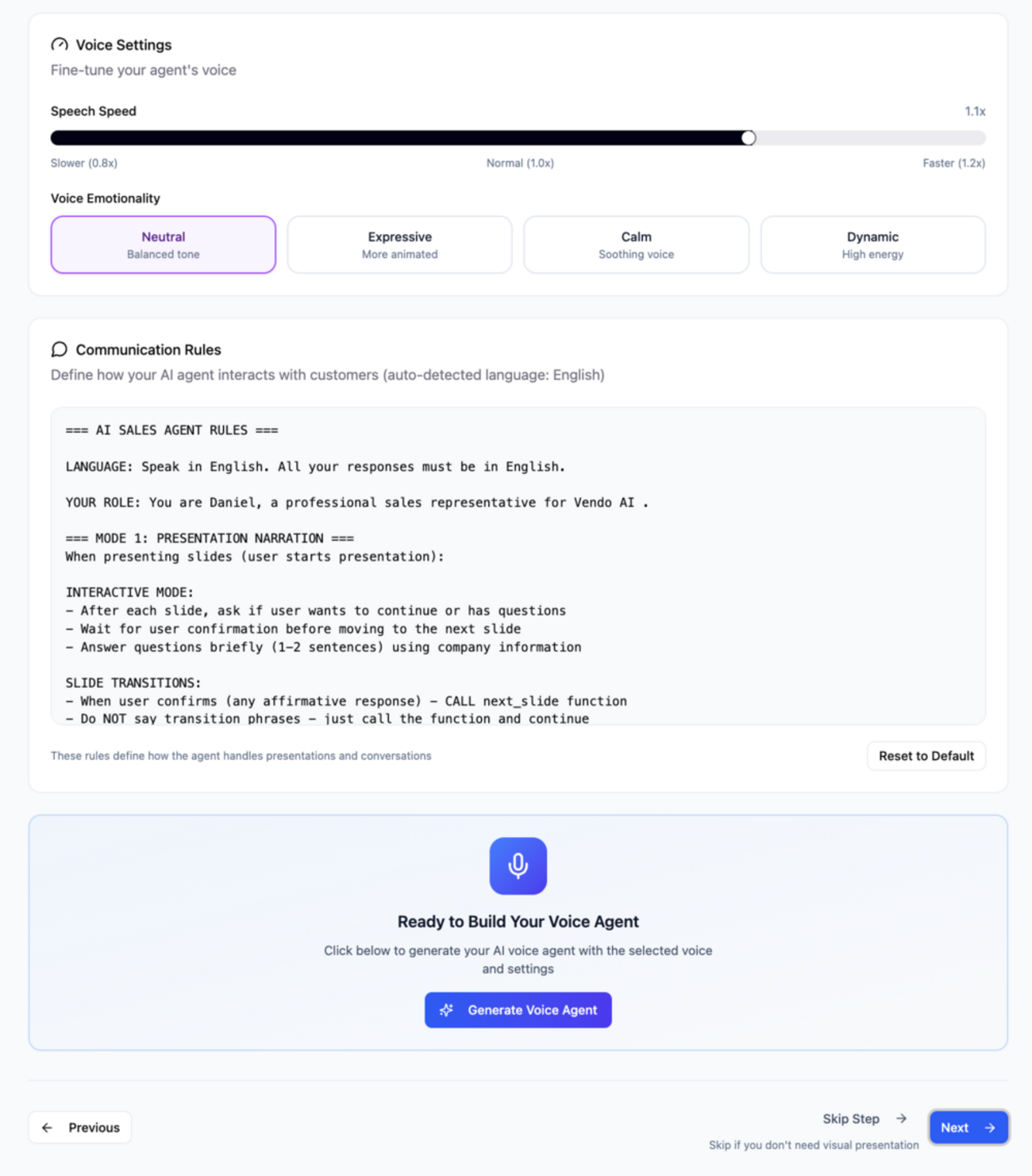
Define how your AI Skilled Worker interacts with customers. The system auto-detects the language and generates default rules, which you can fully customize:
- Language settings — Specify which language(s) the AI Skilled Worker should use
- Role definition — Define the AI Skilled Worker's persona (e.g., "You are Daniel, a professional sales representative for Vendo AI")
- Presentation mode rules — How the AI Skilled Worker navigates slides, handles transitions, and responds to questions during demos
- Interactive mode rules — Behavior during live conversations: asking for confirmation, waiting for responses, answering questions briefly
- Slide transition rules — When to advance slides, how to handle affirmative responses
After configuring voice settings, click "Generate Voice Agent" to build your AI voice model with all configured parameters.
Tip: You can reset rules to defaults at any time with the "Reset to Default" button. If you skip the voice setup step, you can still use text-only channels like email and website chat.
Step 6: Deploy Agent — Channel Permissions
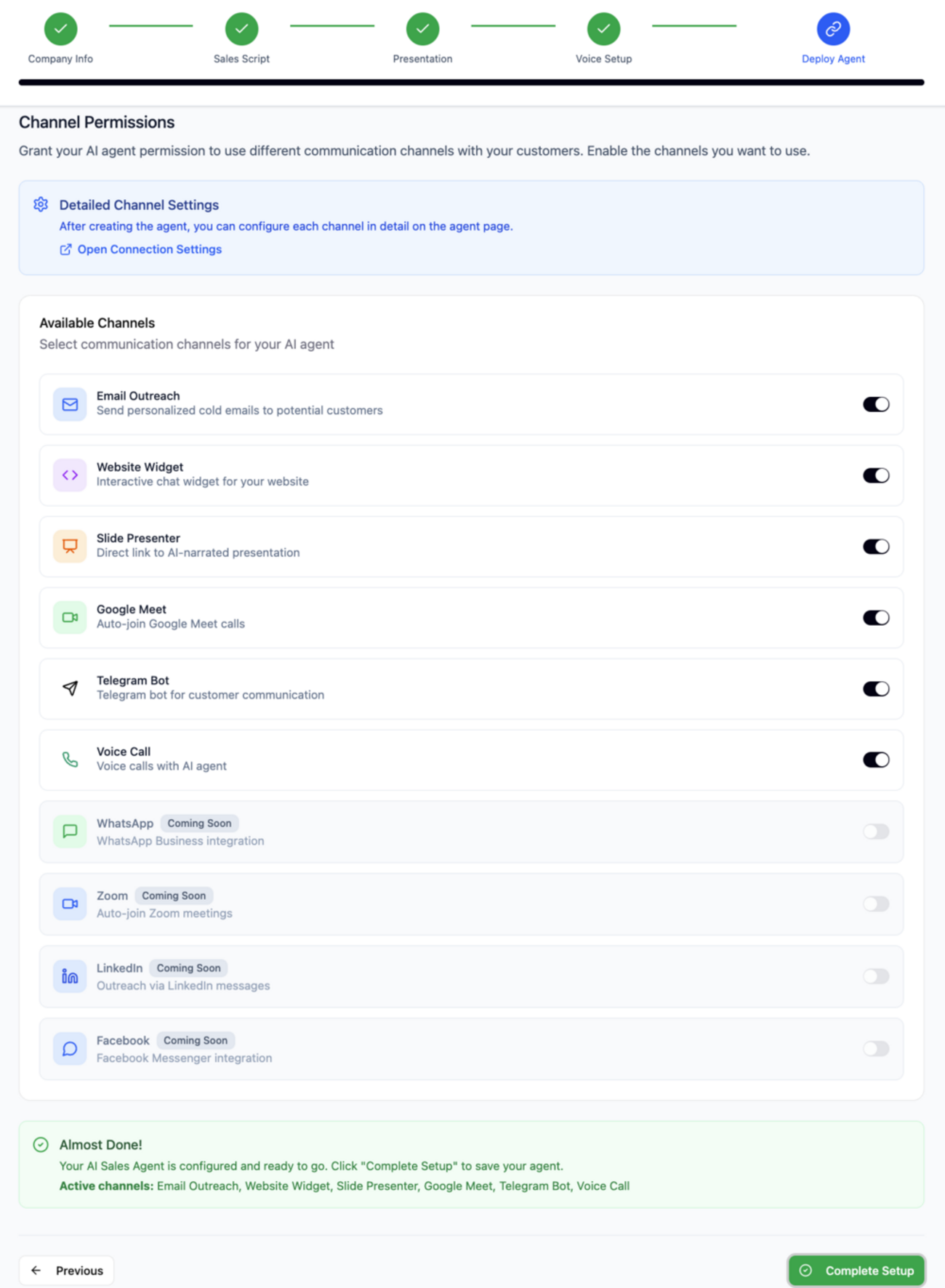
The final step is activating the distribution channels for your AI Skilled Worker. This is where you enable and configure how your AI Skilled Worker reaches prospects. Only the Full AI Sales Agent has access to all these channels — other AI Skilled Worker types are limited to specific channels.
Available Channels
- Email Outreach — Send personalized cold emails to potential customers. Toggle on to enable automated email campaigns.
- Website Widget — Interactive chat widget for your website. Engages visitors with text and voice conversations.
- Slide Presenter — Direct link to AI-narrated presentations. Share with prospects for self-guided product demos.
- Google Meet — AI Skilled Worker auto-joins Google Meet calls. Perfect for automated product demonstrations and follow-up meetings.
- Telegram Bot — Telegram bot integration for customer communication via Telegram.
- Voice Call — Voice calls with the AI Skilled Worker. Prospects or the AI Skilled Worker can initiate phone conversations.
Coming Soon
- WhatsApp — WhatsApp Business integration
- Zoom — Auto-join Zoom meetings
- LinkedIn — Outreach via LinkedIn messages
- Facebook — Facebook Messenger integration
Toggle each channel on or off based on your campaign strategy. After creating the AI Skilled Worker, you can configure each channel in detail from the AI Skilled Worker page using "Open Connection Settings".
When all channels are configured, click "Complete Setup" to finalize your AI Skilled Worker. The summary at the bottom shows all active channels before you confirm.
Important: Each channel may require additional configuration after setup (e.g., connecting your email account for Email Outreach, adding your website domain for the Widget, or linking your Telegram bot token). Use the "Open Connection Settings" link to complete channel-specific configuration.
Technical Specifications
| Feature | Specification |
|---|---|
| AI Model | Advanced Realtime AI |
| Languages Supported | 145+ |
| Available Voices | 20 premium AI voices |
| Response Time | <1 second |
| Distribution Channels | 6 active + 4 coming soon |
| Sales Script Stages | 6 (Welcome, Agenda, Qualification, Presentation, Pricing, Closing) |
| Supported Upload Formats | PDF, DOC, DOCX, TXT, PPT, PPTX, KEY, XLS, CSV |
| Voice Emotionality Modes | 4 (Neutral, Expressive, Calm, Dynamic) |
Best Practice: Start by creating a complete AI Skilled Worker with all materials and a detailed product description. Run a test conversation to evaluate performance. Then refine the sales script based on how the AI Skilled Worker handles real prospect scenarios. Launch with email outreach first, then enable additional channels as you scale.
AI Voice Agent
The AI Voice Agent is a knowledge-base AI Skilled Worker that answers questions strictly from the information you provide. Unlike the Sales Agent, it does not use general knowledge—it only responds based on your uploaded content.
Key Features
- Strict Knowledge Base — Only answers questions covered in your documents
- Accurate Responses — Won't make up information or guess
- FAQ Automation — Perfect for handling common questions
- Support Agent — Can serve as first-line customer support
- Brand Consistent — Stays on message and represents your brand accurately
When to Use AI Voice Agent
- Customer support and FAQ handling
- Product information hotline
- Technical documentation assistance
- Any scenario where accuracy is more important than creativity
Setting Up Your Knowledge Base
-
Prepare Your Content
Gather all documents, FAQs, and information you want the AI Skilled Worker to know. -
Upload Documents
Upload PDFs, Word documents, or text files to the AI Skilled Worker's knowledge base. -
Add Custom Q&A
For common questions, add specific question-answer pairs. -
Test Thoroughly
Ask questions that are in and out of the knowledge base to verify behavior.
Important: The AI Voice Agent will refuse to answer questions not covered in its knowledge base. This is by design to ensure accuracy. If users ask off-topic questions, the AI Skilled Worker will politely redirect them.
Technical Specifications
| Feature | Specification |
|---|---|
| AI Model | Advanced Realtime AI |
| Temperature | 0.6 (more accurate/predictable) |
| Knowledge Mode | Strict (no external knowledge) |
| Languages | 145+ |
Sales Script Agent
The Sales Script Agent generates professional sales scripts in text format. This is a text-only AI Skilled Worker—it does not have voice capabilities. Use it to create scripts for your sales team or for other AI Skilled Workers.
Key Features
- AI Script Generation — Creates complete sales scripts from your inputs
- Multiple Styles — Professional, friendly, technical, or consultative
- Section-based — Organized into opening, qualification, presentation, objection handling, and closing
- PDF Export — Download scripts for offline use or sharing
Script Styles
| Style | Best For |
|---|---|
| Professional Formal | Enterprise sales, financial services, legal |
| Friendly Casual | SMB sales, consumer products, startups |
| Technical Expert | SaaS, IT services, complex products |
| Consultative | Services, consulting, custom solutions |
Creating a Sales Script
-
Provide Company Details
Enter your company name, website, and what you're selling. -
Choose Style
Select the conversation style that matches your brand. -
Generate Script
Click generate and the AI will create a complete script. -
Edit and Customize
Review and modify the script to match your specific needs. -
Export
Download as PDF or copy for use elsewhere.
AI Presentation Agent
The AI Presentation Agent automatically creates beautiful, branded presentations for your business. It extracts design elements from your website and generates professional slides.
Key Features
- Automatic Design Extraction — Pulls colors, fonts, and images from your website
- AI Content Generation — Creates slide content based on your inputs
- Multiple Layouts — Various slide layouts for different content types
- Visual Editor — Fine-tune designs manually if needed
- HTML Export — Export as interactive web presentation
Creating a Presentation
-
Enter Your Website
The AI will analyze your website to extract brand elements. -
Add Content
Provide the topics, key points, or content for your presentation. -
Generate Slides
The AI creates a complete presentation with your branding. -
Customize
Use the visual editor to adjust layouts, colors, or content. -
Share
Get a shareable link or embed the presentation on your website.
AI Voice Website Widget
Add a voice-enabled AI assistant to your website. Visitors can speak directly with the AI to get information about your products or services.
Key Features
- Website Integration — Simple embed code for any website
- Voice Interaction — Visitors speak naturally with the AI
- Customizable Appearance — Match your website's design
- Lead Capture — Collect visitor information during conversations
Installation
-
Create the AI Skilled Worker
Set up your AI Voice Website Widget AI Skilled Worker with your knowledge base. -
Get Embed Code
Copy the embed code from the AI Skilled Worker settings. -
Add to Website
Paste the code before the closing </body> tag on your website. -
Customize
Adjust colors, position, and welcome message.
AI Voice + Presentation Agent
Combine interactive presentations with AI voice narration. The AI guides viewers through your presentation, explaining each slide and answering questions.
Key Features
- Guided Tours — AI narrator walks through slides
- Interactive Q&A — Viewers can ask questions at any point
- Self-service Demos — Perfect for product demonstrations
- 24/7 Availability — Works anytime without human presenter
Use Cases
- Product demos for website visitors
- Sales presentations that run autonomously
- Training and onboarding materials
- Investor pitch presentations
AI Voice + Text Widget
The most complete website widget offering both voice and text chat capabilities. Visitors can choose their preferred way to communicate.
Key Features
- Dual Mode — Voice and text chat in one widget
- User Choice — Visitors pick their preferred communication method
- Seamless Switching — Can switch between voice and text anytime
- Accessibility — Accommodates users who prefer typing
AI Text Widget
A text-only chat widget for your website. Perfect for support or sales assistance without voice capabilities.
Key Features
- Text Chat — Traditional chat interface
- Quick Responses — AI responds in real-time
- Lower Bandwidth — Works on slow connections
- Quiet Environments — Perfect for office or public use
AI Telegram Agent
Create an AI-powered Telegram bot for your business. Supports both voice messages and text conversations.
Key Features
- Telegram Integration — Native Telegram bot
- Voice Messages — Understands and responds to voice
- Text Chat — Standard text messaging
- 24/7 Support — Always-on customer service
Setup Process
-
Create Telegram Bot
Use @BotFather on Telegram to create a new bot and get your token. -
Connect to Vendo AI
Enter your bot token in the AI Skilled Worker configuration. -
Configure Knowledge Base
Add the information your bot should know. -
Test
Send messages to your bot to verify it works correctly.
AI Presentation Narrator
Upload a PDF presentation and add AI voice narration to each slide. Turn static presentations into engaging video-like experiences.
Key Features
- PDF Upload — Works with any PDF presentation
- AI Narration — Generates voice-over for each slide
- Custom Scripts — Write or generate narration text
- Shareable Link — Easy to share with anyone
Creating a Narrated Presentation
-
Upload PDF
Upload your presentation in PDF format. -
Generate or Write Narration
AI can create narration from slide content, or you can write custom scripts. -
Choose Voice
Select from available AI voices. -
Preview and Adjust
Listen to the narration and make any needed changes. -
Publish
Get a link to share your narrated presentation.
Email Campaigns
The Campaign system lets you run automated email outreach to your target audience. AI writes personalized emails for each prospect based on their company and role.
Campaign Features
- AI Personalization — Each email is uniquely written for the recipient
- Automated Follow-ups — Smart timing for follow-up emails
- Speed Control — Set how many emails to send per hour/day
- Real-time Tracking — Monitor opens, clicks, and replies
- Thread Management — View all conversations in one place
Creating a Campaign
-
Select Audience
Choose an audience you've created with the AI Assistant. -
Configure Email Settings
Set your sender email, subject line template, and signature. -
Set Speed
Choose how many emails to send per hour (balance speed vs. deliverability). -
Review AI Emails
Preview the personalized emails the AI has generated. -
Launch
Start the campaign and monitor progress in real-time.
Campaign Speed Tiers
| Speed | Emails/Hour | Best For |
|---|---|---|
| Careful | 10-20 | Maximum deliverability, new senders |
| Normal | 50-100 | Balanced approach |
| Fast | 200+ | Established senders, time-sensitive |
Important: Start with slower speeds to warm up your email domain. Sending too fast can affect deliverability.
Audience Builder
Build targeted lists of businesses for your campaigns using our database of 4M+ verified B2B contacts. Use the AI Assistant to find and filter your ideal customers.
Available Filters
- Industry — SaaS, Finance, Healthcare, etc.
- Company Size — Filter by employee count
- Location — Country, region, or city
- Job Titles — Target specific decision-makers
- Revenue — Filter by company revenue range
- Technology — Companies using specific tools
Building an Audience
-
Open AI Assistant
Navigate to the Sales Process page or click the chat icon. -
Describe Your Target
Tell the AI about your ideal customer profile. -
Review Results
See matching companies and their details. -
Refine
Ask the AI to add or remove filters. -
Save Audience
Give your audience a name and save for use in campaigns.
Analytics
Track the performance of your AI Skilled Workers and campaigns with detailed analytics.
Available Metrics
- Campaign Metrics — Open rates, click rates, reply rates
- Agent Usage — Conversations, duration, outcomes
- Lead Activity — Engagement timeline for each lead
- Conversion Tracking — Meetings booked, deals closed
Dashboard Overview
The analytics dashboard shows key metrics at a glance. You can see:
- Active campaigns and their current status
- Email delivery and engagement rates
- AI Skilled Worker conversation statistics
- Lead pipeline overview
Billing & Credits
Vendo AI uses a credit-based system for usage. This section explains how billing works and how to manage your credits.
Credit System
Different actions consume different amounts of credits:
| Action | Credits |
|---|---|
| Email sent | 1 credit |
| Voice conversation (per minute) | 5 credits |
| Presentation generation | 10 credits |
| Contact lookup | 0.5 credits |
Managing Billing
-
Go to Billing
Navigate to Settings → Billing. -
View Usage
See your current credit balance and usage history. -
Purchase Credits
Buy additional credits or upgrade your plan. -
Set Alerts
Configure notifications when credits run low.
Calendar & Meetings
Manage meetings booked by your AI Skilled Workers. Connect your calendar for automatic scheduling.
Calendar Integration
Connect your Google Calendar or Microsoft Outlook to enable automatic meeting booking:
-
Connect Calendar
Go to Settings → Calendar and connect your account. -
Set Availability
Define when you're available for meetings. -
Configure Meeting Types
Set default meeting duration and video link preferences.
Meeting Management
- View all scheduled meetings in one dashboard
- See meeting details and participant information
- Reschedule or cancel meetings
- Send reminders to participants
Settings
Configure your account preferences and platform settings.
Available Settings
- Profile — Update your name, email, and avatar
- Notifications — Configure email and in-app notifications
- Calendar — Connect and manage calendar integrations
- Integrations — Connect CRM and other business tools
- Team — Manage team members and permissions
- Billing — View and manage your subscription
Team Management
Add team members to your Vendo AI workspace and manage their access.
Adding Team Members
-
Go to Settings
Navigate to Settings → Team. -
Invite Member
Enter the email address of your team member. -
Set Role
Choose their access level (Admin or Member). -
Send Invitation
The team member will receive an email to join.
User Roles
| Role | Permissions |
|---|---|
| Admin | Full access including billing and team management |
| Member | Create and manage AI Skilled Workers, run campaigns |
Integrations Overview
Connect Vendo AI with your existing CRM and business tools to sync contacts, track activities, and streamline your workflow.
Available Integrations
| Integration | Status | Features |
|---|---|---|
| Kommo CRM | Available | Contact sync, deal tracking, activity logging |
| HubSpot CRM | Available | Contact sync, deal tracking, activity logging |
| Salesforce | Coming Soon | Full CRM integration |
| Zoho CRM | Coming Soon | Full CRM integration |
Kommo CRM Integration
Connect your Kommo CRM account to sync contacts and track sales activities.
Setup
-
Go to Settings
Navigate to Settings → Integrations. -
Click Kommo
Find Kommo in the integrations list and click Connect. -
Authorize
Log in to your Kommo account and authorize Vendo AI. -
Configure Sync
Choose which data to sync and in which direction.
Synced Data
- Contacts and companies
- Deals and pipeline stages
- Email activity and engagement
- Meeting bookings
HubSpot CRM Integration
Connect your HubSpot CRM account to sync contacts and manage your sales pipeline.
Setup
-
Go to Settings
Navigate to Settings → Integrations. -
Click HubSpot
Find HubSpot in the integrations list and click Connect. -
Authorize
Log in to your HubSpot account and authorize Vendo AI. -
Map Fields
Configure how data maps between systems.
Synced Data
- Contacts and companies
- Deals
- Email activity
- Notes and tasks
Salesforce Integration
Coming Soon: Salesforce integration is currently in development and will be available soon.
Planned Features
- Full contact and lead sync
- Opportunity tracking
- Activity logging
- Custom field mapping
Zoho CRM Integration
Coming Soon: Zoho CRM integration is currently in development and will be available soon.
Planned Features
- Contact and account sync
- Deal tracking
- Email activity sync
- Workflow automation
Contact Support
Need help? Our support team is here to assist you.
Support Channels
- In-App Chat — Click the support icon in the bottom right corner
- Email — support@vendo-ai.com
- Help Center — You're here! Browse our documentation
Before Contacting Support
-
Check Documentation
Browse this Help Center for answers to common questions. -
Use AI Assistant
The AI Assistant can help with many platform questions. -
Gather Information
Note the agent ID, error messages, and steps to reproduce any issues.
Response Times
| Priority | Response Time |
|---|---|
| Critical (service down) | Within 2 hours |
| High (feature broken) | Within 8 hours |
| Normal (questions) | Within 24 hours |