
Vendo AI Help Center
How every screen and button works
A walk through the whole Vendo AI app: 49 screens, 244 controls, each with a screenshot and a numbered explanation. Search on the left, or start with the top bar and the AI Assistant.
Each control has a one-line answer. Click More details under any item for the full explanation: what it is for, how to set it up, what happens next and what it costs.
Getting started
Signing in, the four products, the top bar and the AI Assistant that can run most of the platform for you.
Sign in and create an account
app.vendo-ai.com/
app.vendo-ai.com opens on the sign-in screen. New users create an account here or arrive from vendo-ai.com with their website already filled in.
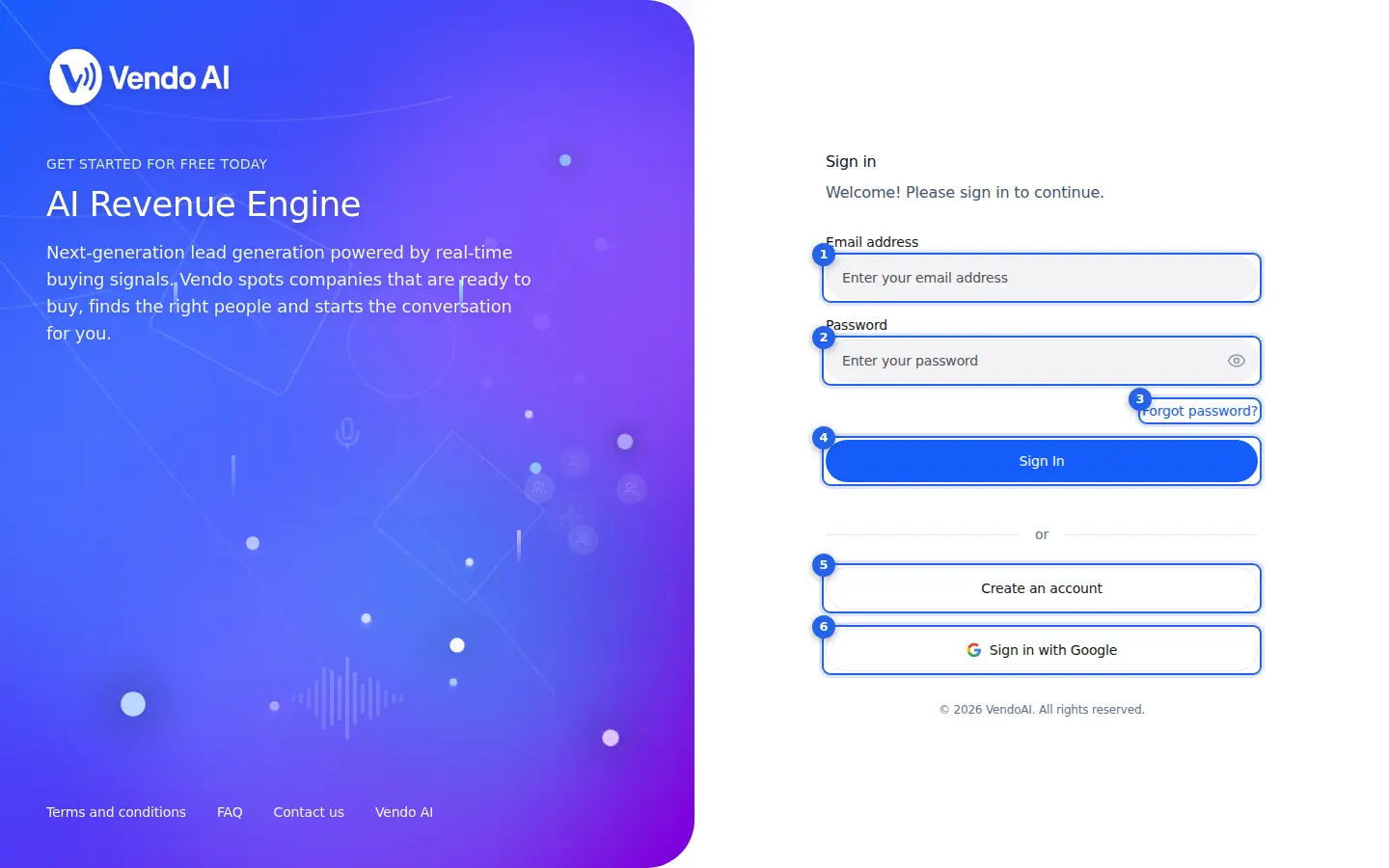
- EmailThe email you registered with. It is your login and is used for receipts and notifications.
More details
The email address you registered with. It is your login everywhere in Vendo AI, on the web and in the mobile app, and it cannot be changed later in Profile or Settings. Receipts, sign-in codes, password reset links and team invitations all go to this address, so use a mailbox you actually read.
- If you created the account with Google, use Sign in with Google instead.
- The sign-in form allows 5 attempts per 15 minutes from one network. After that it is blocked for a while and the error message says how long to wait.
- PasswordAt least 8 characters. If you sign in from a new browser or device, Vendo AI may email you a 6-digit code to confirm it is you (Profile, Sign-in protection).
More details
Your account password. The eye icon shows what you typed. A password must have at least 8 characters and one uppercase letter.
If Sign-in protection is turned on in Profile and you sign in from a browser Vendo AI does not know, the next screen asks for a 6-digit code sent to your email. The code is valid for 10 minutes. A browser counts as known when you already have an active session on it from the last 90 days. Google sign-in never asks for this code.
A wrong email or password shows "Invalid email or password". For security it does not say which of the two is wrong.
- Forgot password?Sends a reset link to your email. The link opens a page where you set a new password.
More details
Opens a short form: enter your email address and send. If an account exists for it, Vendo AI emails a password reset link. The page shows the same message either way, so it never reveals whether an address is registered. The link is valid for 1 hour and opens a page where you enter a new password (at least 8 characters, one uppercase letter). Then sign in as usual.
- If the link does not open the page, the same form accepts the reset token from the email.
- Nothing arrived? Check spam. Reset requests are limited to 3 per hour from one network.
- Sign InSigns you in and opens the SDR Dashboard. Use the product switcher to move to Agents or CRM.
More details
Checks your email and password and signs you in. If Sign-in protection is on and the browser is new, you first enter the 6-digit code from your email and press Confirm and sign in (Back to sign in returns to the form).
If you opened a team invitation link before signing in, the invitation is accepted at this moment and you join that workspace.
The app then opens on the Dashboard. Use the product switcher in the top bar to go to Agents, CRM or Flow. Your session renews itself in the background, so you stay signed in on this browser as long as you come back within 14 days.
- Create an accountStarts registration with name, email and password. You confirm the email with a code, then onboarding begins.
More details
Switches the form to registration: Full Name, Email address, Password and Confirm Password, a terms and conditions checkbox and an automatic robot check. The password needs at least 8 characters and one uppercase letter, and both password fields must match.
After Create Account, Vendo AI emails an 8-digit verification code that is valid for 15 minutes. Enter it on the next screen and press Verify Email; Resend Code sends a new one. Once the email is confirmed you are signed in.
- Disposable email addresses are refused.
- Invited by a colleague? Register with the invited email. The invitation is accepted right after verification.
- Registration is limited to 5 attempts per hour from one network.
- Sign in with GoogleOne-click sign-in or sign-up with your Google account. Apple sign-in is available in the mobile app.
More details
Signs you in with your Google account in a pop-up window; on a phone the page redirects to Google and back. If there is no Vendo AI account for that Google email yet, one is created automatically and the email counts as verified, so no code is needed. If an account with the same email already exists, Google is linked to it.
- Google sign-in skips the new-device code of Sign-in protection, because Google already confirms it is you.
- If nothing opens, allow pop-ups for app.vendo-ai.com.
- Apple sign-in is available only in the mobile app.
Also on this screen
- Sign-in codeThe 6-digit code step that appears when Sign-in protection meets a new browser.
More details
Appears after a correct password when Sign-in protection is on in Profile and this browser has no active session from the last 90 days. Vendo AI emails a 6-digit code to the address shown on screen; the email also names the browser and IP address of the attempt. Type the code and press Confirm and sign in. The code works for 10 minutes; if it expires, go Back to sign in and enter the password again to get a new one. After a successful code the browser becomes known and is not asked again while you keep using it. If you did not try to sign in and receive such a code, someone knows your password: change it in Settings, Account.
- Verification CodeThe 8-digit code that confirms your email after registration.
More details
Shown right after Create Account. Vendo AI sends an 8-digit code to the email you registered; enter it and press Verify Email. The code expires after 15 minutes. Resend Code sends a fresh one; Back returns to the form if you mistyped the address. Until the email is verified you cannot use the account. Accounts created with Google skip this step because Google has already verified the address.
- Reset Token and New PasswordThe second step of password reset.
More details
The reset link from the email opens this step with the token already filled in. Enter a new password (at least 8 characters with one uppercase letter) and confirm. After the success message, sign in with the new password. The token is valid for 1 hour and works once; if it has expired, start again with Forgot password?
- Invitation noticeBanner shown when you open a workspace invitation link.
More details
When a colleague invites you, the email link opens this screen with a note that you have been invited to a workspace. Create an account (or sign in if you already have one) with the invited email address. The invitation is accepted automatically after sign-in or email verification, and you land in the colleague's workspace with the access they gave you. Invitations are valid for 7 days; after that ask the colleague to send a new one.
The top bar and the product switcher
app.vendo-ai.com/
Vendo AI is four products on one account and one credit balance. The left menu changes with the product you pick.
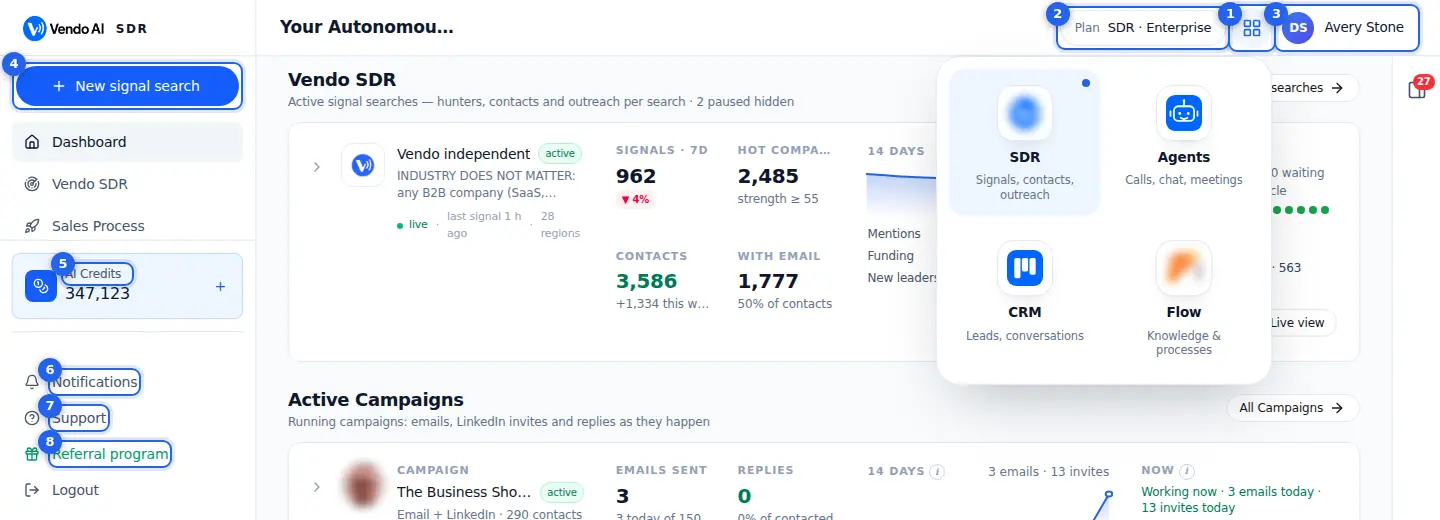
- Product switcherChoose the product: SDR (signals, contacts, outreach), Agents (AI agents for chat, calls and meetings), CRM (leads and conversations) or Flow (knowledge and processes). The menu on the left shows the pages of the chosen product.
More details
The grid icon opens the launcher with four products that share one account and one credit balance: SDR (signals, contacts, outreach), Agents (calls, chat, meetings), CRM (leads, conversations) and Flow (knowledge and processes). A blue dot marks the product you are in. Each product opens in a new browser tab, so you can keep CRM and SDR side by side. Flow is a separate app at flow.vendo-ai.com.
The left menu shows only the pages of the current product plus the shared ones: Analytics, Billing, Settings and Profile. Settings, Profile, Notifications, Support and Referral keep the product you came from. Inside CRM, Analytics and Billing each offer an SDR and an Agents version.
- PlanYour current plan. Click it to open Billing.
More details
Shows the subscription of the whole workspace, for example "SDR · Scale" or "Agents · Growth", with the word trial during a free trial. Hover over it to see the monthly price. Click it to open the matching billing page (SDR billing or Agents billing). Without an active plan it reads Choose a plan.
There is one subscription per workspace. It covers agents, SDR and CRM, and its monthly credits go to the same balance. The label refreshes when you come back to the tab or leave Billing.
- ProfileYour name and photo. Opens Profile: account details, sign-in protection and team.
More details
Your photo (or initials), your name and, if you filled them in, your job title and company. Click it to open Profile: change your details and photo, turn on Sign-in protection, and, if you are an admin, invite teammates and set what each of them can open. Profile is the same page in SDR, Agents and CRM. Name and photo here update as soon as you save them.
- Main actionThe main action of the product you are in: New signal search in SDR, Create AI Agent in Agents.
More details
The blue button at the top of the left menu starts the most common job of the product you are in.
- SDR: New signal search opens the search builder, where you set who you want to reach and the hunters start watching for buying signals.
- Agents: Create AI Agent opens the agent builder.
- CRM has no such button. Leads arrive from your campaigns and agents by themselves; to add one by hand use Add lead on the Pipeline.
Opening a builder changes nothing yet. What it later costs depends on what the search or agent does; see AI Credits and Billing.
- AI CreditsYour credit balance, shared by all products. 1 credit = 1 cent. The + button buys more credits.
More details
Your current credit balance, shared by every product and every member of the workspace. 1 credit = 1 cent, so 100 credits = $1. Credits pay for SDR contacts, emails and LinkedIn touches, agent chat replies (1 credit) and voice minutes (14), AI Assistant messages (1 credit each) and other AI work. The number refreshes every 30 seconds while the tab is open.
Click the card or + to open Billing. There you buy additional credits (from 100 at a time, paid plan required) or change the plan. A plan adds its monthly allowance on every renewal; bought credits never expire. When the balance runs out, paid work such as SDR contact enrichment stops until you top up.
- NotificationsAccount news: payments, credits, meetings, invitations and product updates. Lead and reply alerts arrive in the CRM bell and the Assistant chat.
More details
Opens the Notifications page with messages about your account: payments, credits, meetings, invitations and product news. The red badge shows how many are unread (99+ above 99). Rows are grouped by day and unread ones have a blue dot. Hover a row to mark it read or delete it, or press Mark all read.
Lead and CRM alerts are not on this page: new or reassigned leads and mentions live in the bell inside CRM, and new leads and replies also arrive as cards in the AI Assistant chat. Which notifications you get, and by which channel, is set in Settings, Notifications.
- SupportAsk the AI Assistant or open a request to the team.
More details
Opens the Support page. Start with the AI Assistant in the right-hand panel: it answers most product questions instantly and can change settings for you. If it cannot help, press New request to write to the Vendo AI team. Your requests and the team's answers stay on this page with their status (Open, In progress, Resolved, Closed). The page lists typical response times: technical issues within 2 hours, general questions within 24 hours.
- Referral programYour referral links: earn 40% of every payment of the customers you bring.
More details
Opens the Referral program. Create named links, share them, and earn 40% of every subscription payment and credit purchase made by the people who sign up through them, for as long as they pay. The page shows visits, sign-ups, paying customers, revenue and your share for each link, and lets you request a payout once your available balance reaches $50.
Also on this screen
- Page titleName and short description of the page you are on, at the left of the top bar.
More details
The left side of the top bar names the current page and, on wider screens, adds a one-line description of what it is for. It replaces the old in-page headings, so you always know where you are even when the left menu is collapsed or you came from a link. It is information only and has no actions.
- Left menuPages of the current product plus Analytics, Billing, Settings and Profile.
More details
The menu changes with the product. SDR: Dashboard, Vendo SDR, Sales Process, Audiences. Agents: Your AI agents. CRM: CRM, with your branches listed under it when you have more than one. Below them come the shared Analytics, Billing, Settings and Profile, then AI Credits, Notifications, Support and Referral program. Items you have no permission for are hidden: an admin sets that per member in Profile, Team Members, Access. If a teammate cannot find a page, check their access there first.
- Open menuOn a phone the left menu sits behind a menu button.
More details
On narrow screens the left menu is hidden to free space. The menu button at the top opens it with the same items, including the main action, AI Credits, Notifications, Support and Referral program, and closes it again after you pick a page.
AI Assistant
app.vendo-ai.com/
The AI Assistant lives in the right-hand panel on every page. Ask it in plain language to find an audience, launch or explain a campaign, create an agent or read your analytics. It also posts new leads, replies and daily reports into this chat.
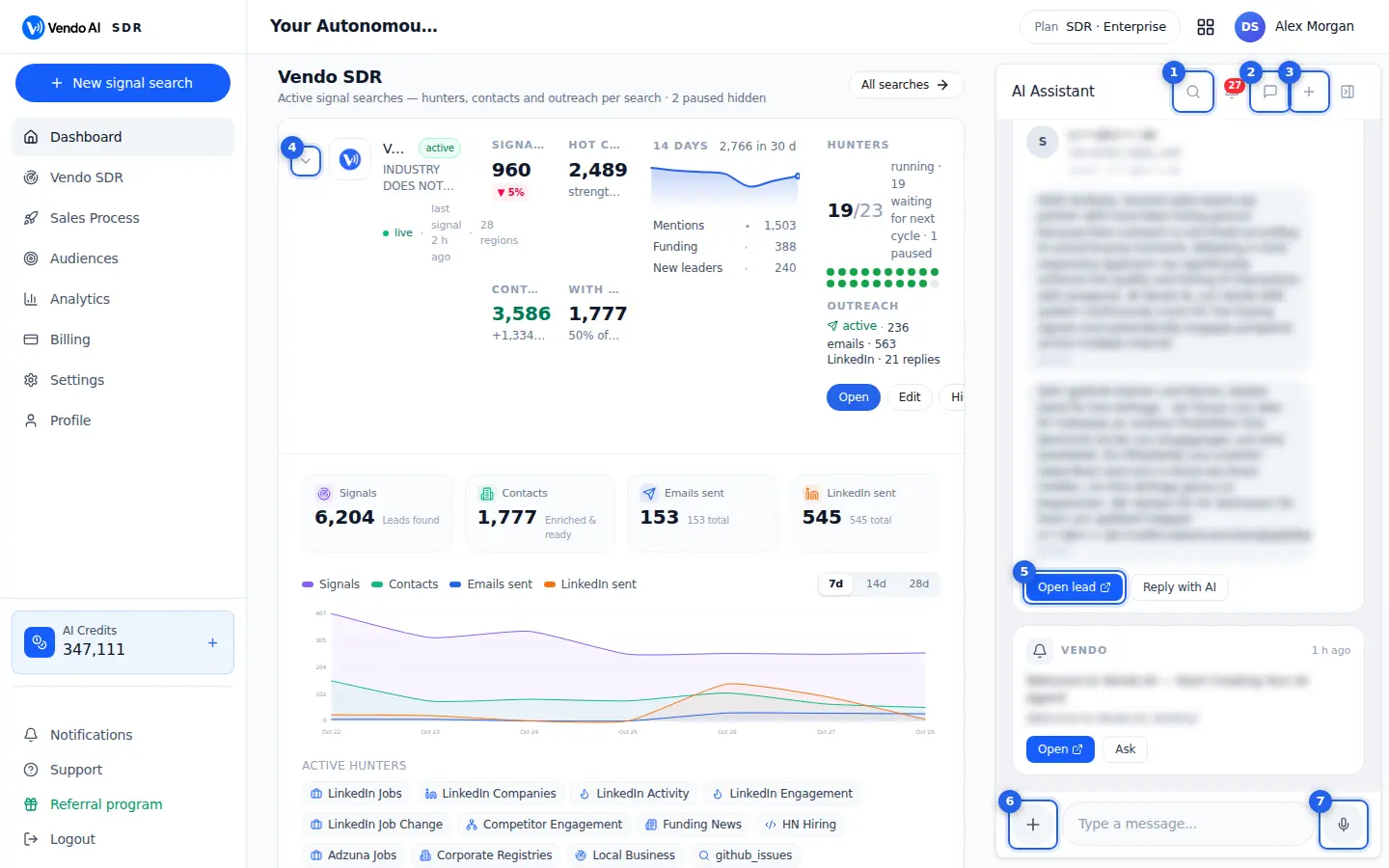
- Search in this chatFinds a word or a name in the conversation.
More details
Opens a search box at the top of the open conversation. Type a lead name, a company, an audience or any word: matches are highlighted in messages and inside cards, and the current match gets a stronger highlight. Enter jumps to the next match, Shift+Enter to the previous one, and Esc closes the box and clears the highlights. While the box is open the chat does not jump to new messages, so you do not lose your place. It searches only the conversation that is open, not your other chats, and it costs nothing.
- Chat historyYour previous conversations with the Assistant.
More details
Opens the list of your conversations with the Assistant, each with its name and the date it started. Click one to continue it where you left off; the Assistant still sees the earlier messages of that chat. A conversation is named after its first message (up to 50 characters).
The delete button next to a conversation removes it for good. If you delete the last one, a fresh chat is created. Conversations are stored on the server, so you find them on any browser you sign in from.
- New chatStarts a clean conversation. Earlier chats stay in the list and are saved on the server, so they open in any browser.
More details
Starts an empty conversation and makes it the active one; older chats stay in Chat history. Start a new chat when you switch topics, so the Assistant does not carry over context from an earlier task, such as an old audience or campaign it was discussing.
New lead, reply and daily report cards are delivered into the conversation you have open, so they will show up in the new chat as well. Starting a chat is free; every message you send costs 1 credit.
- CollapseHides the panel. The Open AI Assistant button on the right edge brings it back.
More details
Hides the Assistant panel so the page gets the full width. A round Open AI Assistant button stays on the right edge; a red number on it shows how many lead and reply cards are unread. Click it to bring the panel back exactly where you were. Whether the panel is open or closed is remembered on this browser. Nothing stops while it is hidden: cards keep arriving and wait for you.
- Lead cardsNew leads and replies appear as cards. Open lead jumps to the lead in the CRM; Reply with AI drafts an answer for you to check.
More details
The Assistant posts product events into the chat as cards: New lead (with the latest messages of the thread), Email reply and LinkedIn reply (with the text), CRM reassignments and mentions, the Daily report, and credit warnings. An unread card stays highlighted until it has been on screen for about a second. The bell button in the panel header shows the unread count and scrolls to the first unread card.
- Open lead opens the lead in the CRM. Reply cards show Open conversation; reports show Open Vendo SDR or Open dashboard.
- Reply with AI asks the Assistant to sum up what is known about the person and draft an answer. Nothing is sent until you approve the draft in the chat. The request is an ordinary message and costs 1 credit.
- AttachAttach a document, a photo, a voice note or an audience file to your message.
More details
The + button opens a menu: Voice message, Photo or screenshot, Document, Audience file. You can also paste a screenshot or drag files onto the message box. Files wait as chips above the box and upload when you send, up to 6 per message.
- Photo: PNG, JPG, WebP or GIF up to 8 MB. The Assistant reads what is on the image.
- Document: PDF, DOCX, TXT, MD, JSON, HTML, CSV or XLSX up to 25 MB.
- Audience file: CSV, XLSX, XLS or TSV. The Assistant describes the columns and can turn the file into an audience and then a campaign, asking a short question first.
Old Word .doc, PowerPoint and audio files are not supported. In later messages the Assistant keeps only a short summary of a file, so attach an image again if it needs to look at it once more.
- Voice messageSpeak instead of typing; the Assistant transcribes and answers.
More details
When the message box is empty, the button on the right is a microphone. Press it, allow microphone access, and speak. A red bar shows the timer with Cancel and Stop; recording stops by itself after 3 minutes. Your speech is transcribed into the message box as text, so you can correct names or numbers before you press send. A recording that is too short is rejected. The message then costs 1 credit like a typed one. If the browser says microphone access was denied, allow the microphone for app.vendo-ai.com in the browser's site settings.
Also on this screen
- Message boxAsk in plain language; the Assistant works with the same tools you use in the app.
More details
Type a request the way you would ask a colleague: "find marketing directors at UK fintechs", "pause my LinkedIn campaign", "how many replies did we get last week", "create an agent for our website". The Assistant can read and act across SDR searches, audiences, campaigns, agents, CRM leads, meetings, analytics, team and billing information. It knows which page you are on and uses it as context. Each message costs 1 credit; an audience search costs 5 credits (keyword) or 7 credits (semantic). It cannot take payments, register accounts, buy phone numbers or delete your account; do those yourself in the app.
- Confirmation cardsChanges and risky actions are shown as a preview first.
More details
Before the Assistant saves an agent edit, changes campaign settings, launches something or deletes anything, it shows a preview card with what will change. Nothing happens until you press the confirm button on the card (for example Save Changes). If the preview is wrong, say what to change in the chat and it prepares a new one. This is the safe way to let the Assistant work for you: read the card, then confirm.
- Unread updatesThe bell button in the panel header.
More details
Shows how many lead, reply and report cards in the open chat you have not seen yet. Click it to scroll to them. Cards are marked read after they have been on screen for about a second or when you hover them. With no unread cards the button says No unread updates.
- DownloadFiles the Assistant prepares for you, such as CSV exports or QR codes.
More details
Ask the Assistant to export companies or contacts to CSV, save a list as a file or make a QR code for your referral link. The file appears under its answer as a card with its name, size and type, and a Download button. Files stay in the conversation, so you can download them again later from Chat history.
Vendo SDR: signals and contacts
Signal searches watch the market for buying signals, find the decision-makers at those companies and hand them to outreach.
Dashboard
app.vendo-ai.com/
The SDR home page: your signal searches, running campaigns and credit use at a glance.
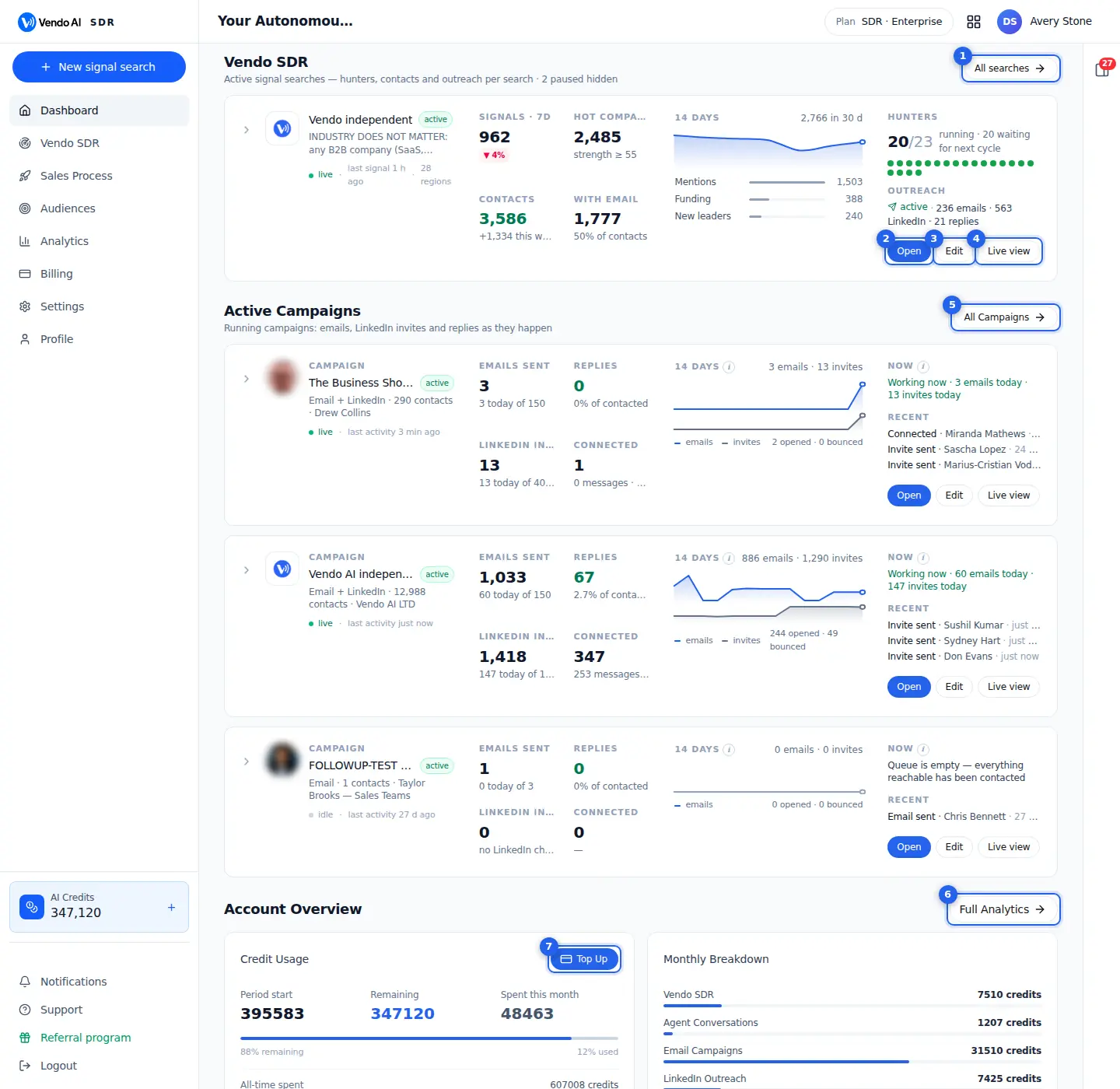
- All searchesOpens the list of signal searches.
More details
Opens the list of all your signal searches at /vendo-sdr.
The dashboard shows only active searches. Paused and draft searches are hidden here; the section subtitle tells you how many are hidden, and if none is active you see "No active signal searches right now" with a button to open Vendo SDR. The full list, including paused searches, the comparison chart and the New Signal Search button, is behind All searches.
Go there to resume a paused search (open it, then press Resume), to delete a search you no longer need, or to compare how many signals each search brings in per day over 7, 14 or 28 days.
- Open a searchThe search monitor: hunters, signals, contacts and outreach of this search.
More details
Opens the search monitor of this search: hunter cards with their statuses, KPI cards for contacts, signals, hunters and credits spent, hot companies, the latest signals, ICP review and the state of outreach. Clicking the search name or logo on the card does the same.
The card on the dashboard is the same card as on the search list: status, signals in the last 7 days with the week-over-week change, hot companies, contacts with new ones this week, contacts with email, a 14-day sparkline, the top signal types, hunters running and the outreach line.
Opening a search is free and changes nothing.
- Edit a searchChange the company profile, regions, roles or hunters of the search.
More details
Opens the search in the edit wizard, starting at Regions. Three steps: Regions (countries, US states, cities, company size), Hunters (which hunters are on) and Review, where you edit the search name, What you sell, Who buys, Industries, Decision-makers, Exclude words and the LinkedIn searches.
Changes take effect only after Save changes on the last step. An active search then keeps hunting with the new settings; a paused one stays paused.
The company research is not re-run from Edit. Contacts already found keep their verdicts; the new profile applies to what the hunters find next. "What you sell" and "Who buys" cannot be left empty, and at least one region and one hunter are required.
- Live viewA live feed of what the hunters and outreach are doing right now: the ticker moves every 6 seconds, the numbers refresh every 30 seconds.
More details
Expands the card into a live view of this search without leaving the dashboard. The button then reads Hide live. The expanded part contains:
- four KPI tiles: Signals, Contacts, Emails sent and LinkedIn sent (with the total including queued);
- one chart with signals, contacts, emails and LinkedIn per day, switchable to 7, 14 or 28 days;
- the hunters of the search;
- a live ticker of what is happening: contacts found, emails queued and sent, opens, replies, bounces, LinkedIn invites, connections and replies, websites read.
While expanded, the ticker refreshes every 6 seconds and the numbers every 30 seconds. Collapsed cards do not poll. Your choice of expanded or collapsed is remembered in this browser.
- All CampaignsOpens Sales Process with every campaign and SDR process.
More details
Opens Sales Process, where every outreach process lives in one list: Vendo SDR processes and classic campaigns (one audience, one sequence, sent from your sender agent).
The Active Campaigns section on the dashboard shows only classic campaigns that are running, each with its emails, LinkedIn invites and replies. Each card has Open and Edit and can be expanded like the SDR cards. The section is hidden when no classic campaign is active.
Use All Campaigns to launch a new classic campaign, to see paused or archived ones, or to manage SDR outreach and classic campaigns side by side.
- Full AnalyticsOpens Analytics (/analytics) with every chart for any period.
More details
Opens the Analytics page (/analytics), where you choose the period and see the numbers in detail. SDR Analytics (/analytics/sdr) gives the day-by-day picture of signals, ICP fit, contacts, emails found, messages sent and replies for any date range.
The Account Overview block next to this button is a quick monthly view: Credit Usage, Monthly Breakdown by product and Campaign Health for email and LinkedIn. The Email Outreach and LinkedIn Outreach cards also open the campaigns tab of Analytics when clicked.
- Top UpBuy additional credits. They land on the same balance and never expire.
More details
Opens the Billing page to buy additional credits. The whole Credit Usage card is clickable and does the same.
Additional credits are a one-time top-up on top of your monthly plan allowance, at 1 cent per credit. They land on the same workspace balance, never expire and are spent on any contact, email or LinkedIn touch. Top-ups are available on a paid plan and go through secure checkout.
When to top up: if Remaining is running low before your renewal date. With too few credits the SDR cannot complete new contacts (each usable contact costs 5 credits) and the owner gets a low-credit alert. Hunting itself continues.
Also on this screen
- Credit UsageCredits at the start of the period, remaining, spent this month and all-time spent.
More details
The card shows three numbers. Period start is your current balance plus what you spent this month. Remaining is your balance now. Spent this month is the total charged since the start of the month. A bar shows the remaining and used shares, and the bottom line shows all-time spent credits.
1 credit = 1 cent. Top Up and a click anywhere on the card open Billing.
If Remaining falls quickly, check the Monthly Breakdown next to it to see which product is spending.
- Monthly BreakdownCredits spent this month per product: SDR, agents, email, LinkedIn, phone, audience search.
More details
Splits this month's spending into six lines with a bar each: Vendo SDR, Agent Conversations, Email Campaigns, LinkedIn Outreach, Phone Calls and Audience Search. The bar shows each line's share of the month's total, and Total this month sums them.
Vendo SDR here is what your signal searches charge: 1 credit per buying signal that fits and 5 credits per usable contact (2 and 10 from hunters on paid data). The monthly fee for connected accounts (500 credits each) is counted in the LinkedIn Outreach line. Emails and LinkedIn touches sent by outreach appear under their own lines.
If nothing was spent yet, the card says "No spending this month yet". For other periods and per-search detail, use Full Analytics and the Billing page.
- Campaign HealthEmail sent, open rate, reply rate; LinkedIn invites, connect rate, reply rate.
More details
Two cards summarise outreach performance.
- Email Outreach: emails sent, open rate and reply rate.
- LinkedIn Outreach: invites sent, connect rate and reply rate. Shown when there is LinkedIn data.
Click either card to open the campaigns tab of Analytics, where you can pick the period and see each campaign.
A low reply rate with a normal open rate usually points to the message; a low connect rate on LinkedIn usually points to targeting or the invite text. The block appears only when there is campaign data to show.
- Some of this page could not be loadedAmber warning when part of the dashboard failed to load; Try again reloads it.
More details
If the dashboard could not load some of its data, an amber banner says so: the numbers below may be incomplete and this is a problem on Vendo AI's side, not an empty account.
Click Try again to reload the data. If the banner keeps coming back, contact support. Do not judge your searches or campaigns by the numbers while the banner is visible.
The banner does not mean anything stopped: hunters and outreach run on the server independently of this page. Open the search monitor or Sales Process directly to see their real state.
Dashboard: live view
app.vendo-ai.com/
Live view opens a live panel under an active search on the dashboard: its signals, contacts, hunters and outreach, the activity chart and a live feed.
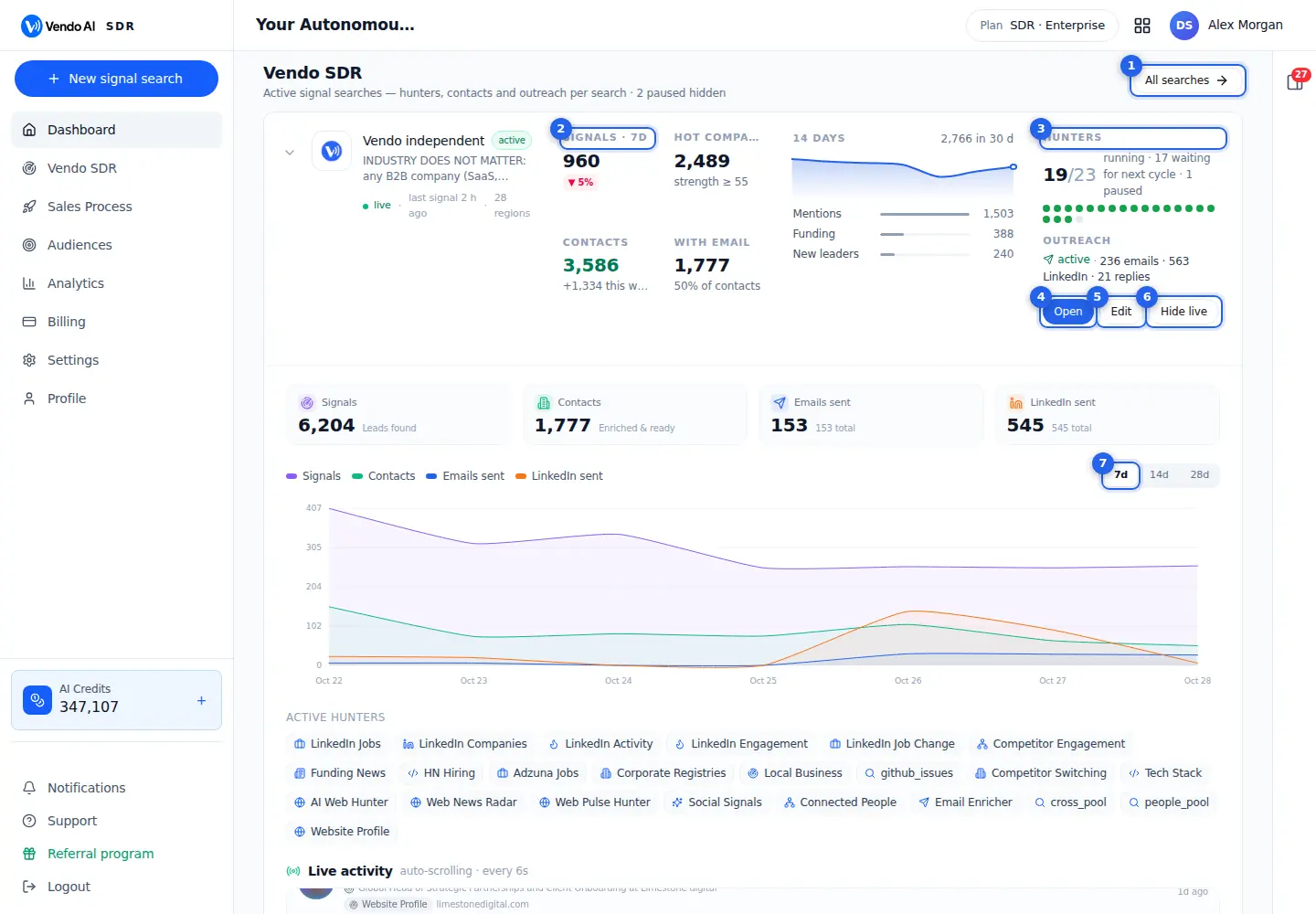
- All searchesOpens the list of all your signal searches, including paused ones.
More details
Opens the Vendo SDR page with the list of all your signal searches, including paused ones and drafts.
The dashboard itself shows only active searches. When some searches are paused, the line under the Vendo SDR title says how many are hidden, for example "2 paused hidden". Go to All searches to resume them, edit them or delete them.
Opening the list is free and changes nothing.
- Search summarySignals in the last 7 days, hot companies, contacts and contacts with email for this search, with the 14-day trend by signal type.
More details
The summary of one search, refreshed every minute while the tab is open:
- Signals · 7d: buying signals saved in the last 7 days, with the change against the 7 days before. Signals blocked by the quality checks or judged not a fit are not counted.
- Hot companies: companies with at least one live signal of strength 55 or more.
- Contacts: people found for this search, with how many were added this week.
- With email: contacts with a verified email address, and their share of all contacts.
Next to it, the 14 days chart shows signals per day and the three most common signal types of the last 30 days, such as Mentions, Funding or New leaders.
- HuntersHow many hunters of this search are running and how many wait for the next cycle.
More details
Shows how many of the search's hunters are working right now out of all the hunters you enabled, for example 19/23. The text next to it says how many are waiting for their next cycle and how many are paused. Each dot is one hunter: green is running, grey is not.
Waiting for the next cycle is normal: hunters work in rounds and rest between them. Many paused hunters usually means you paused them on purpose, or the search was paused for lack of credits.
Under Hunters, the Outreach line shows the outreach status with emails sent, LinkedIn invites sent and replies. If outreach has not started, it says how many contacts with email are ready.
- OpenOpens the dashboard of this search.
More details
Opens the dashboard of this search: the hunter cards, the hot companies, the contacts with their ICP groups, signals and the outreach setup. Clicking the search name or logo does the same.
Use it when you want to act: pause or run hunters, review contacts, open a company card or set up outreach. Opening it costs nothing.
The Live view panel on the dashboard is a quick look; the search dashboard is the full control room.
- EditOpens the search wizard to change the ideal customer, regions and hunters.
More details
Opens the search in the edit wizard. You go through Regions, Hunters and Review. On Review you can change the name, what you sell, who buys, industries, decision-makers, exclude words and the LinkedIn searches.
Nothing changes until you press Save changes on the last step. An active search keeps hunting with the new settings right away; a paused one stays paused. Contacts already found are kept, and the new settings apply to what the hunters find next.
The company research is not run again from Edit.
- Hide liveFolds the live panel of this search back into its summary card. Hunters and outreach keep running.
More details
Folds the live panel of this search back, so only the summary card stays on the dashboard. Press Live view on the card to open it again.
The dashboard remembers, per search, whether you left it open or folded, in this browser. While the panel is folded it stops refreshing, so a dashboard with many searches stays light.
Folding the panel does not pause anything: hunters and outreach keep running.
- Chart periodSignals, contacts, emails and LinkedIn messages per day for 7, 14 or 28 days.
More details
Switches the activity chart between the last 7, 14 or 28 days. The chart has four lines on one scale:
- Signals (violet): buying signals saved per day;
- Contacts (green): contacts found per day;
- Emails sent (blue);
- LinkedIn sent (orange): connection invites sent.
Click a name in the legend above the chart to hide or show that line, which helps when one line flattens the others. Hover a day to see its numbers.
The four cards above the chart show the totals: signals, contacts, emails sent and LinkedIn invites sent, with the queued messages included in "total". The panel refreshes every 30 seconds while open.
Also on this screen
- Active huntersThe hunters enabled for this search, as chips.
More details
The list of hunters switched on for this search, for example LinkedIn Jobs, Funding News or Corporate Registries. Each hunter watches one kind of source for buying signals.
The chips are for reading only. To switch hunters on or off, use Edit (Hunters step) or the hunter cards on the search dashboard.
Hunters you switched off are not listed. A hunter in the list may still be waiting for its next cycle; the Hunters figure in the summary tells you how many run right now.
- Live activityA feed of what the search is doing right now, refreshed every 6 seconds.
More details
One running list of the latest events of this search: companies and people found, contacts saved, emails sent and LinkedIn invites. Each row is tagged with its event type and time.
The list scrolls by itself and pauses while your mouse is over it. If your system asks for reduced motion, it does not scroll and you can scroll it by hand. Click a row to open the search dashboard.
- Expand arrowThe small arrow left of the logo opens or folds the live panel.
More details
The arrow next to the search logo does the same as Live view and Hide live: it opens or folds the live panel of this search. Your choice is remembered per search in this browser.
While the panel is folded it stops refreshing; while it is open, the numbers refresh every 30 seconds and the live feed every 6 seconds. Folding or opening the panel never pauses the search or its outreach.
Signal searches
app.vendo-ai.com/vendo-sdr
Every signal search in your workspace. Each search hunts for one market, around the clock.
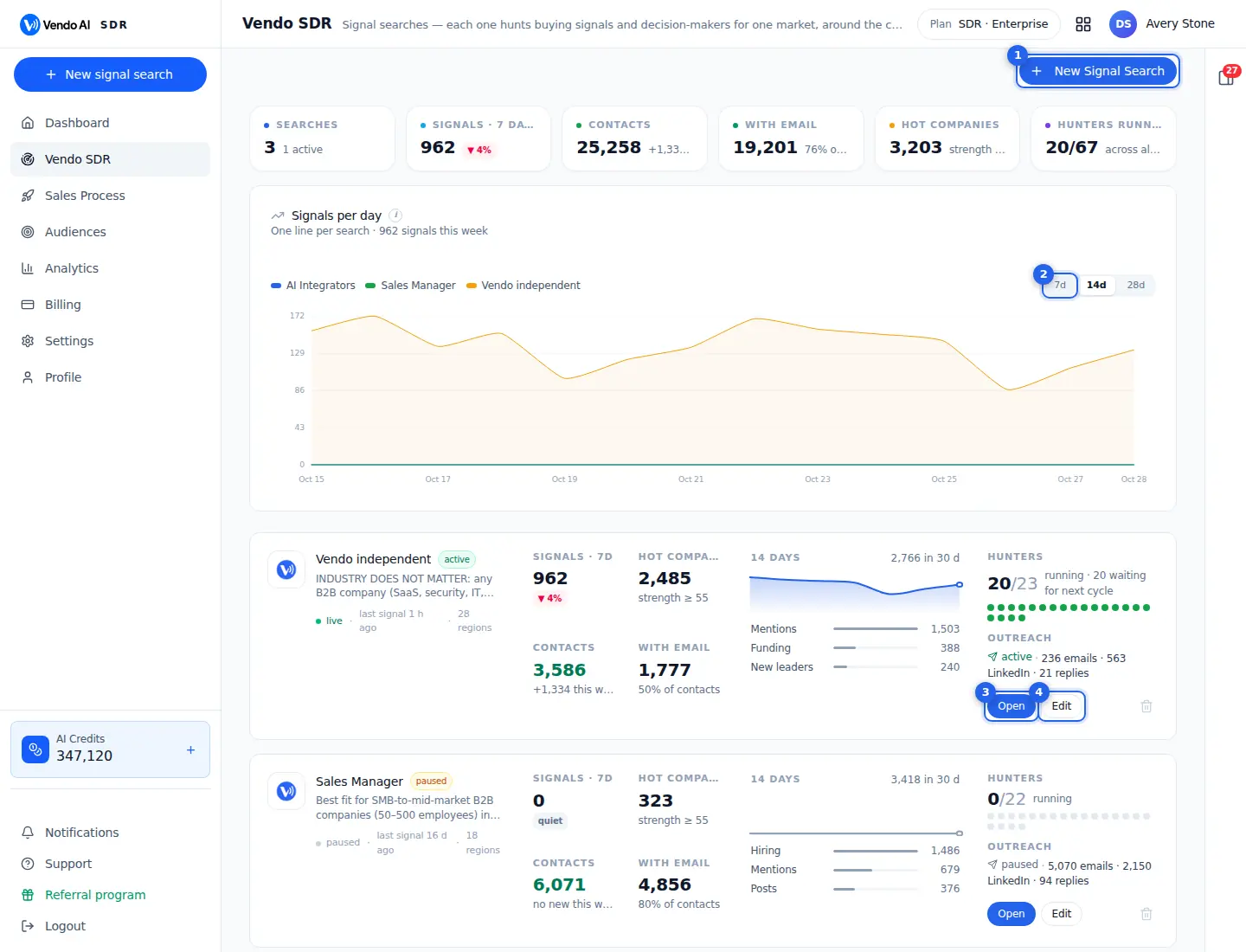
- New Signal SearchStarts the 6-step wizard for a new search.
More details
Opens the wizard that builds a new signal search at /vendo-sdr/new. A signal search is one market you want to hunt in: one company profile, one ideal customer profile (ICP), a set of regions and a set of hunters.
The wizard has six steps: Name, Company, Research, Regions, Hunters and Review. Nothing starts and nothing is sent to anyone until you press Create & Start on the last step. At that moment the search is saved, switched to active and every enabled hunter starts working.
When to create a second search instead of editing the first:
- you sell to a clearly different market (another country group, another industry or another buyer role);
- you want to compare two angles side by side in the chart on this page.
Common mistake: putting several unrelated markets into one search. The ICP check then judges contacts against a blurred profile and more people end up Uncertain or Not a fit.
- PeriodSignals per day for the last 7, 14 or 28 days. Each line is one search; click a name in the legend to hide its line.
More details
Switches the Signals per day chart between the last 7, 14 or 28 days. Each coloured line is one search and shows how many buying signals its hunters saved on each day. The chart shows up to six searches, the ones with the most signals in the last 30 days.
Click a search name in the legend to hide or show its line. This is handy when one large search flattens the lines of the smaller ones.
How to read it:
- a rising line means the search is picking up;
- a flat or falling line usually means the hunters are starved (budget waits, paused hunters) or the market went quiet;
- a line at zero for a search you expect to be live: open it and check the hunter statuses.
The page refreshes its numbers every minute while the tab is visible. Changing the period costs nothing.
- OpenThe search monitor with all hunters, signals and contacts.
More details
Opens the search monitor for this search: the live view of every hunter, the signals they captured, the hot companies, the decision-maker contacts found so far and the state of outreach.
Clicking the search name or logo on the card does the same thing. Use the monitor to answer three questions: are the hunters running, are they producing signals, and are those signals turning into contacts with a verified email.
Opening a search is free and changes nothing. All controls that do change something (Pause all, Edit search, outreach setup) are on the monitor itself.
- EditChange the search settings. Hunting continues with the new settings.
More details
Opens the search in the same wizard you used to create it, but starting at Regions. In edit mode you see three steps: Regions, Hunters and Review. On Review you can change the search name, What you sell, Who buys, Industries, Decision-makers, Exclude words and the LinkedIn searches.
Changes are saved only when you press Save changes on the last step. The status of the search is not touched: an active search keeps hunting with the new settings right away, a paused search stays paused.
Good to know:
- the company research is not re-run from Edit; the Company and Research steps are not shown;
- contacts already found stay where they are; new settings apply to what the hunters find next;
- "What you sell" and "Who buys" cannot be empty, and you need at least one region and one hunter to save.
Also on this screen
- Totals stripWorkspace-wide numbers across all searches: searches, signals in 7 days, contacts, with email, hot companies, hunters running.
More details
Six tiles sum up every search in the workspace.
- Searches: how many searches exist and how many are active.
- Signals · 7 days: buying signals saved this week, with the change against the previous 7 days.
- Contacts: all contacts found, plus how many were added this week.
- With email: contacts that have an email, and their share of all contacts.
- Hot companies: companies whose live signal strength is 55 or more right now. Signal strength fades over time, so this number can go down even when nothing is wrong.
- Hunters running: hunters working right now out of all hunters enabled across your searches.
Use the strip as a health check. If Signals goes up but With email stays flat, contacts are being found without a usable email; look at the hunter cards on the monitor.
- Search cardOne wide card per search with its status, numbers for the last 7 days, a 14-day sparkline, signal types, hunters and outreach.
More details
Each search gets one card, read left to right:
- Identity: name, status badge (active, paused or draft), the start of the ICP text, a live, paused or idle dot, when the last signal arrived and how many regions are targeted.
- Numbers: signals in the last 7 days with the week-over-week change, hot companies (strength 55 or more), contacts with new ones this week, and contacts with email.
- 14 days: a sparkline of daily signals, the total for 30 days and the top three signal types (for example Hiring, Funding, New leaders).
- Hunters: running out of enabled, with how many are waiting for their next cycle or paused.
- Outreach: status with emails, LinkedIn messages and replies, or "Not started" with the number of contacts ready.
"Live" means the search is active and at least one hunter is running.
- Delete (bin icon)Removes the search from your list after a confirmation.
More details
The bin icon at the bottom right of a search card deletes the search. You are asked to confirm first.
The confirmation says it plainly: the signals and contacts the search found stay in the database. What disappears is the search itself: it no longer appears in this list or on the dashboard.
Before deleting, think about what you still need:
- download the contacts as CSV or export them to a Custom Audience from All found contacts;
- if you only want the hunting to stop for a while, use Pause all on the monitor instead. Pause is reversible with Resume and keeps everything in place.
If you might restart the search later, pausing is the safer choice.
- Start your first Signal SearchShown instead of the list when the workspace has no searches yet.
More details
When the workspace has no signal searches, the page shows a welcome screen instead of the chart and cards. It explains the flow in four steps: hunters watch the market for signals, the decision-maker behind each signal is identified, email and LinkedIn are resolved so the person becomes contactable, and replies feed back so hunters lean toward what converts.
The Start your first Signal Search and Create Signal Search buttons open the same six-step wizard as New Signal Search.
Have your company name and website ready. The research in step 3 reads your website and the open web, so a site that clearly describes what you sell gives a much better starting profile.
Create a signal search
app.vendo-ai.com/vendo-sdr/new
Six steps: name, your company, research of your ideal customer, regions, hunters and review. Nothing runs until you launch on the last step.
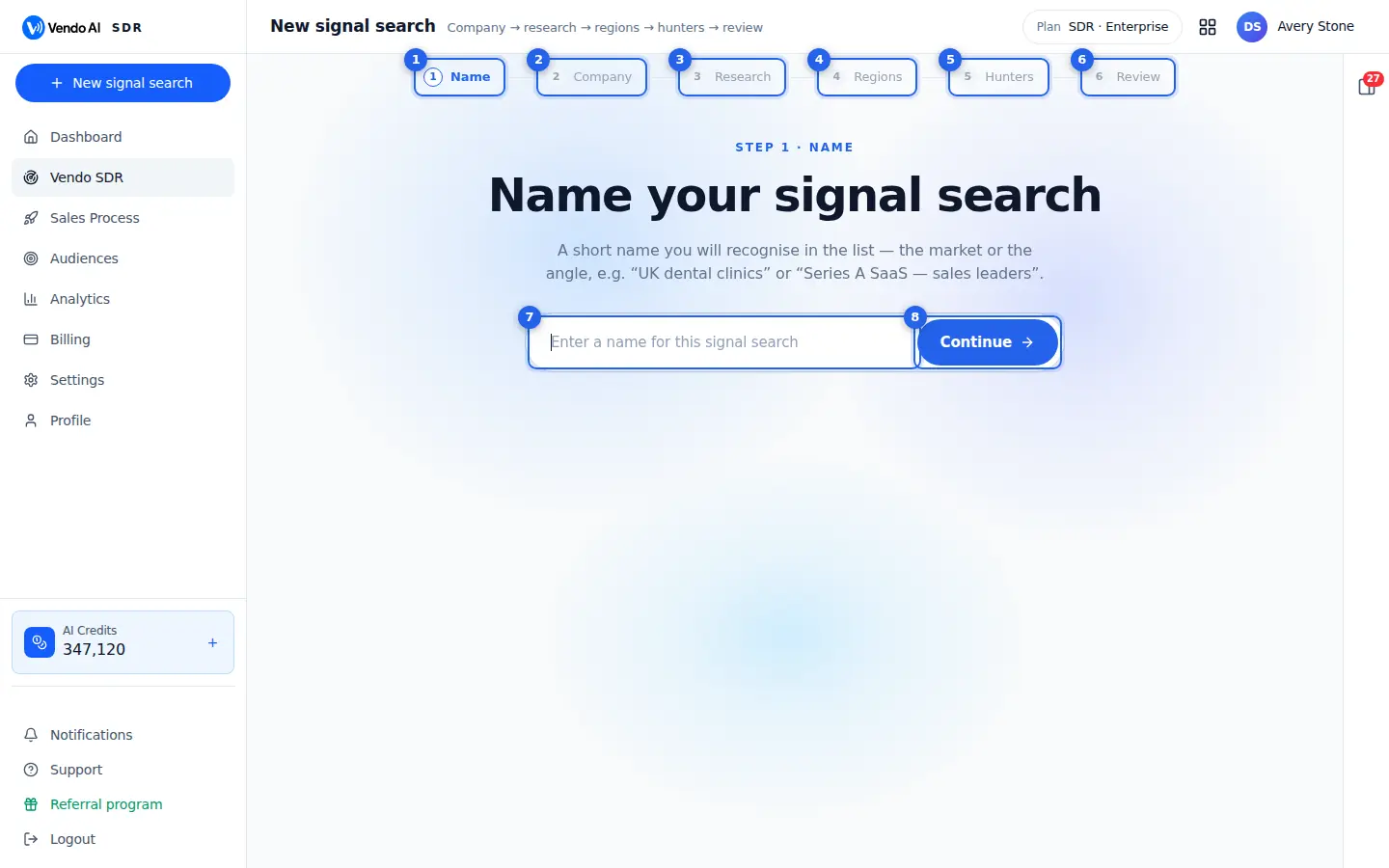
- NameA short name you will recognise later, for example the market or the angle.
More details
Step 1 asks for one thing: a name for the search. It is only a label for you and your team. You will see it in the search list, on the dashboard, in SDR Analytics and on the monitor.
Good names describe the market or the angle, for example "UK dental clinics" or "Series A SaaS, sales leaders". If you plan several searches, put the difference into the name (country, industry or buyer role), so the lines in the Signals per day chart are easy to tell apart.
The name does not influence what the hunters look for. You can change it later on the Review step or through Edit. If you leave it empty you cannot continue; the wizard asks you to give the search a name.
- CompanyYour website and product. Vendo AI reads the site to understand what you sell.
More details
Step 2 asks for your company name and website. These two fields are the whole input for the research: Vendo AI reads your site and the open web to work out what you sell, where and who actually buys.
- Company name: required.
- Website: required, a domain such as acme.com is enough.
Press Research to start. The page says it takes two to four minutes and that nothing is sent to anyone.
If the workspace already knows this domain, a line says the research will be reused. A finished research younger than 24 hours is reused as is; an older one is run again from scratch.
Common mistake: entering a parent company or a landing page that does not describe the product you want to sell. The profile can only be as precise as the site it reads.
- ResearchThe AI proposes your ideal customer profile: industries, company size, roles to contact and signals that matter. You can edit every line.
More details
Step 3 runs by itself. The left side shows the stages with progress bars, the right side a live feed of what the research is doing. Stages: Reading your website, Researching your market on the web, Building your ideal customer profile, Checking the profile for consistency, Preparing your hunting plan, Finding your first buyers in our database.
The result is an editable profile: what you sell, who buys, industries, decision-maker roles, exclude words, buying signals with weights, LinkedIn search phrases, suggested regions with the reason for each, and a hunting plan. When it is done the wizard moves to Regions on its own.
If something fails you see "We hit a snag" with Edit company and Try again. Reused research shows a banner with Run a fresh research. Every line can be edited on the Review step.
- RegionsCountries and cities where the hunters look for companies.
More details
Step 4 sets where the hunters look. Regions are pre-selected from the research, with the evidence behind each country.
- Map: click any country to add or remove it. Zoom in on the US to pick single states.
- Search box and AI suggestions: add countries by name or accept what the research proposed.
- Quick presets: Northern America, Europe Western, Nordics, DACH, UK Only, APAC, India + South Asia, Middle East, LATAM, Ukraine + CIS.
- Cities (optional): Choose cities inside the picked countries. With cities set, only contacts located there are kept; contacts with no city in their profile are kept too.
- Company size (optional): a preset or your own text. It is folded into the ICP so hunters prioritise that size; it is not a hard filter.
Leads from outside the selected regions are dropped. You need at least one region to continue.
- HuntersWhich of the 24 hunters run for this search: job posts, company news, funding, competitor engagement, registries, local businesses and more.
More details
Step 5 lists every hunter as a card with a tick box. All 24 are on by default. Each card says where the hunter looks and, when the research produced a plan, why it matters in your case.
Hunters cover LinkedIn (hiring, company announcements, buying-intent posts, post engagement, new-in-role, competitor engagement), job boards and Hacker News, funding news, executive appointments from registries, local businesses, website profiles, GitHub, competitor switching, tech-stack changes, three open-web news engines, social buying intent, and internal helpers such as Decision-maker matching, Email discovery, Shared signals and Contact pool.
Cards marked "paid" run on paid web-search providers.
Switch off a hunter only when it clearly does not fit, for example Local businesses for an enterprise ICP. Turning off internal helpers like Email discovery cuts the number of usable contacts. At least one hunter must stay on.
- ReviewCheck everything and launch. Credits are charged only for usable contacts (5 credits each).
More details
Step 6 shows a summary first: pages of your site read, web sources used, industries, buying signals, hunters on and buyers already found in the Vendo database. Below are the map with the reason for each market, who buys (roles at industries, plus company size), the strongest buying signals with their weights, and sample contacts.
- Create & Start: saves the search, makes it active and starts all enabled hunters. You land on the search monitor.
- See the full research: opens the editor for every field.
- Back to hunters, Change regions, Regenerate: go back or re-run the research.
Credits: 1 credit per buying signal that fits your profile and 5 credits per usable contact; hunters on paid data charge 2 and 10. A contact is charged when a verified email is found and it passes the ICP pre-check. Signals and contacts judged Not a fit are free; Uncertain contacts are free until you accept them or an outreach segment queues them. Companies are not charged.
- Search nameType the name and press Continue.
More details
The text field on step 1. Type the name of the search and press Continue or Enter.
Keep it short and specific, for example the market plus the buyer: "DACH logistics, operations heads". Avoid generic names like "Test" or "Search 1"; after a few weeks you will have several searches and the name is the only quick way to tell them apart in lists, charts and analytics.
If you leave the field empty, the wizard will not move on. If you skip naming carefully now, you can still change it on the Review step or later with Edit.
- ContinueGoes to the next step.
More details
Moves to the next step of the wizard. On step 1 it is enabled once the name is filled in.
Each later step has its own forward button: Research on the Company step, Hunters on Regions (needs at least one region), Review on Hunters (needs at least one hunter) and Create & Start on Review. The Research step has no button; it advances by itself when the research is ready.
Steps you have completed turn into ticks in the stepper at the top. You can click a completed step to go back to it. Moving between steps never starts hunting and never sends anything.
Also on this screen
- Research (Company step)Starts the market research from your company name and website.
More details
The Research button on step 2 checks that both fields are filled and that the website looks like a domain (for example acme.com). Then it starts the research and moves you to step 3.
Behind the scenes Vendo AI either reuses the profile it already has for this domain or reads the site fresh. A finished research for the same domain that is younger than 24 hours is reused, and a banner on the next steps tells you how many minutes ago it ran. Older research is always run again.
The page states that the research takes two to four minutes and that nothing is sent to anyone. You can watch it live; there is nothing to do until it finishes.
- Run a fresh researchBanner link that discards the reused research and runs it again.
More details
Appears on the Regions step when the research was reused from an earlier run of the same domain. The banner says how many minutes ago that run happened and that nothing was re-scanned.
Click Run a fresh research when your website or offer changed since the last run, or when the proposed profile looks off. The wizard goes back to the Research step and starts a new run; when it finishes, the new profile replaces the old one on the following steps.
The same action is offered on the Review step as Regenerate (summary) and Regenerate the research (full editor). Any manual edits you made to the old profile are replaced by the new result.
- Region map and presetsPick countries, US states or a preset group; the research pre-selects the first set.
More details
The map works like a picker. Click a country to add it, click again to remove it. Zoom in on the US to select individual states. Selected regions appear as chips you can remove one by one.
Quick presets add a whole group at once: Northern America (US, CA), Europe Western (GB, DE, FR, NL, IE, ES, IT, BE), Nordics, DACH, UK Only, APAC, India + South Asia, Middle East, LATAM and Ukraine + CIS.
The research suggestion comes with a reason for each country, shown again on the Review summary.
Leads from regions you did not select are dropped. Picking very many countries spreads the hunters thin; start with the markets where you can actually sell and add more later with Edit.
- CitiesOptional cities inside the selected countries; empty means the whole countries.
More details
Below the map, Choose cities opens a picker with the main cities of up to five of your selected countries. For any other city, type at least three letters to search the full list.
Once you add cities, only contacts located in those cities are kept. Contacts whose profile has no city at all are kept too, so you do not lose people who simply did not fill in their location.
Leave the list empty to hunt across the whole of the selected countries. Clear cities removes all of them at once.
Use cities for local businesses or field sales. For national B2B offers they mostly shrink your volume.
- Company size (optional)A preferred company size folded into the ICP so hunters prioritise it.
More details
On the Regions step you can choose Any size or one of the presets: 1-10, 11-50, 51-200, 201-500 or 500+ employees. You can also type your own text, for example "up to 100 employees". The research may pre-fill it.
The value is added to the ICP text as a line "Preferred company size: ...". The hunters and the ICP check read it as a preference.
It is not a hard filter: a great fit at a slightly larger company is not thrown away automatically. If you need a strict cut-off, write it explicitly into Who buys on the Review step.
- Hunter card (paid label)Tick or untick a hunter; paid hunters run on paid web-search providers.
More details
Each card on the Hunters step shows the hunter name, where it looks and what it will look for. When the research produced a hunting plan, the card text explains why this hunter matters for your profile.
Four hunters carry a "paid" label: AI web hunter, Web news radar, Web pulse hunter and Social buying intent. They search the open web through paid providers. The system limits idle spending: after six paid cycles in a row that produced nothing, that hunter skips paid runs for that search for 24 hours.
The heading shows how many hunters are on out of the total. Untick only hunters that clearly cannot find your buyers.
- Create & StartSaves the search, activates it and starts every enabled hunter.
More details
The main button on the Review step. One click does three things: the search is created with everything you set, it is switched to active, and every enabled hunter starts. The buyers found in the Vendo database during research are added to the search in the background. You are taken to the search monitor and a message confirms that hunters are running.
Checks before saving: What you sell and Who buys must not be empty, at least one region and at least one hunter are needed.
Creating the search does not start outreach. Nobody is contacted until you set up and launch outreach from the monitor. Credits are charged per buying signal that fits (1 credit) and per usable contact (5 credits) as they are found; hunters on paid data charge 2 and 10.
- See the full researchOpens the full editor of the profile before you start.
More details
Switches the Review step from the summary to the full editor. Fields:
- Search name.
- What you sell: your offer in plain words.
- Who buys: the ICP text the ICP check reads for every contact. Be concrete.
- Industries: a company must match one of these to qualify.
- Decision-makers: job titles that decide or champion the purchase. Contacts are searched for these roles first.
- Exclude: kill-words; anything matching them is dropped.
- Buying signals we watch: signal types and topics with their weights (shown, not edited here).
- LinkedIn searches: phrases your buyers write on LinkedIn. Click the cross to drop one, type and Enter to add, or paste a list.
- Why this plan: the reasoning of the research.
Back to the summary returns without losing edits.
Search monitor
app.vendo-ai.com/vendo-sdr/search/{search}
The live monitor of one signal search: what each hunter is doing, how many signals and contacts it produced and what outreach does with them.
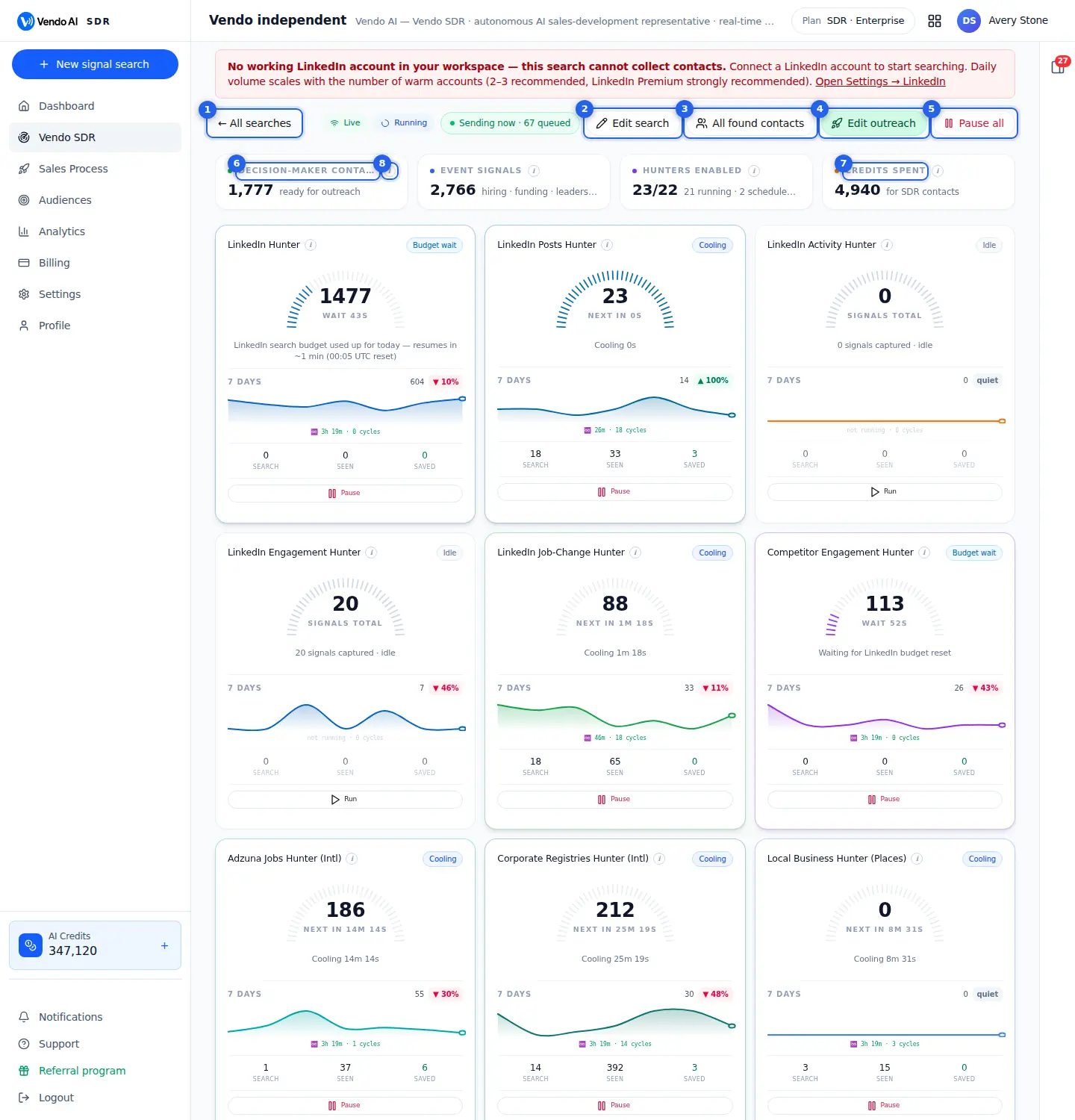
- All searchesBack to the list of searches.
More details
Returns to the list of all signal searches (/vendo-sdr). Nothing on this monitor changes when you leave it: hunters keep running on the server whether or not the page is open, and outreach keeps sending inside its working window.
From the list you can open another search, create a new one or compare searches in the Signals per day chart.
Use it when you manage several markets: the list shows every search side by side with signals in the last 7 days, contacts, contacts with email, hunters running and the outreach line, so you can spot the one that needs attention before opening it. Paused searches are listed there too, unlike on the dashboard.
- Edit searchChange ICP, regions, roles or hunters of this search.
More details
Opens the search in the wizard, starting at Regions. You can change regions and cities, company size, which hunters are enabled, the search name, What you sell, Who buys, Industries, Decision-makers, Exclude words and the LinkedIn searches.
Nothing is saved until you press Save changes on the Review step. After saving you come back here with the message that hunters will use the new profile. The search status is not changed: if it was running it keeps running with the new settings, if it was paused it stays paused.
Typical reasons to edit:
- too many contacts land in Not a fit: sharpen Who buys and add Exclude words;
- the wrong people are found: fix Decision-makers;
- you want a new market: add regions.
Contacts already found are not re-judged by the edit itself.
- All found contactsEvery decision-maker the search found, with ICP verdicts and export.
More details
Opens the Connected People page of this search: every contact the hunters found, with the ICP verdict for each person (Fits, Uncertain, Not a fit or Unchecked).
There you can filter by verdict, role and company, open any person to see why they were selected, correct a verdict by hand, delete contacts, run the ICP check on demand, download a CSV or copy the contacts into a Custom Audience.
Opening the page is free. Note that changing a contact from Not a fit or Uncertain to Fits there can charge 5 credits, because you are accepting a contact that was kept free.
- Edit outreachWho to contact, channels, mailboxes, LinkedIn accounts, working window and CRM branch.
More details
Opens the outreach setup of this search. The button reads Start outreach when no outreach is running yet and Edit outreach once it is active; the toolbar then also shows "Outreach active" or "Sending now" with the number queued.
The setup covers who to contact (Fit only, Fit + Uncertain or All contacts), channels (email, LinkedIn or both), the email sender (managed senders or your own mailboxes), which LinkedIn accounts send, the working window with timezone and weekends, the message texts and the CRM branch for replies.
Hunting and outreach are separate. Hunting never stops on its own; sending happens only inside the working window. Uncertain contacts cost 5 credits each when a segment that includes them puts them in the queue.
- Pause allStops all hunters and outreach of this search. Resume continues where it stopped.
More details
Stops the whole search. The search is set to paused and every hunter of this search is asked to stop. The outreach campaign of the search is paused together with it: emails, LinkedIn invites and follow-ups stop, and the queue is kept.
While the search is paused the button turns into Resume. Resume sets the search back to active, clears the pause on the hunters and brings back an outreach campaign that was paused this way.
Use it when your ICP is wrong and you want to fix it before more contacts are found, when credits are running low, or during a holiday. Pausing costs nothing and deletes nothing. A paused search is hidden from the dashboard, which shows only active searches.
To stop only one hunter, use Pause on its card instead.
- Decision-maker contactsPeople at companies with a live signal, matched to your ICP roles, with LinkedIn profile and, where found, a verified email.
More details
The number of decision-makers this search has found and that are ready for outreach. These are people at companies with a live signal who match your Decision-makers roles. Each has a LinkedIn profile and, where it could be found, a verified email.
This is the list outreach writes to. The number counts people, not signals and not companies; one company with a signal can produce several contacts.
Why it may grow slower than signals:
- some signals are at companies where no matching decision-maker is found;
- contacts without a working LinkedIn account in your workspace cannot be collected (a red banner warns you);
- with an empty credit balance, newly found contacts are not completed.
Click All found contacts for the full list.
- Credits spentContact charges of this search: 5 credits per usable contact (10 from hunters on paid data), nothing for companies or contacts that fail the ICP check. Signals that fit are charged separately, 1 credit each (2 on paid data).
More details
Credits this search has spent on SDR contacts. 1 credit = 1 cent.
You pay 5 credits per usable contact (10 from hunters on paid data), and only at these moments:
- a verified email is found for a contact that passes the ICP pre-check;
- you change a free Uncertain or Not a fit contact to Fits by hand;
- an outreach segment that includes Uncertain puts such a contact in the queue.
Not counted here: signals. Each signal that fits costs 1 credit (2 from hunters on paid data) and is listed in Analytics, Credits. Not charged at all: companies, signals and contacts judged Not a fit, Uncertain contacts nobody uses, and duplicates of a contact already paid for.
If the balance cannot cover a contact, that contact is not completed and the workspace owner gets a low-credit alert. Top up on the Billing page; hunting continues. Outreach emails and LinkedIn touches are counted separately on Billing and in Analytics.
- Hunter cardEach card is one hunter: where it looks, signals found, status (running, cooling down, waiting for budget), a 7-day chart and Pause / Run. Click the number to open the hunter page.
More details
Each card is one hunter of this search. Top: name, an info icon with where it looks and how, and a status badge:
- Active: working right now, with what it is doing.
- Cooling: resting between cycles, with a countdown.
- Budget wait: a provider limit is used up, for example the daily LinkedIn search budget; it resumes by itself.
- Scheduled: waiting for its budgeted slot.
- Paused or Idle.
The gauge shows total signals; click it to open the hunter page. Below: a 7-day sparkline with the week-over-week change, running time and cycles (green when a cycle finished in the last 5 minutes, red when stalled), and Search, Seen, Saved for the current run.
Button: Pause stops only this hunter; Run starts an idle one; Resume continues a paused one.
Also on this screen
- Event signalsDated events at companies in the last 30 days: hiring, funding, new leaders, tech changes, posts.
More details
The second KPI card counts the signals this search saved in the last 30 days. A signal is something that happened at a company: a job post for a relevant role, a funding round, a new executive, a tool adopted or dropped, a post about the problem you solve.
A signal is the reason to reach out now, not later. It is the top of the funnel: a company event before any person is found. Signals are never charged.
If this number grows but Decision-maker contacts does not, decision-makers are not being found at those companies. Check the Decision-maker matching and Email discovery hunter cards.
- Hunters enabledHunters switched on for this search, how many run now, how many are scheduled and how many have produced signals.
More details
The third KPI card shows enabled hunters out of all hunters, then three numbers: running right now, scheduled (enabled but not running at the moment, for example cooling down or waiting for a budget), and with signals (hunters that actually produced at least one signal in the last 30 days).
A large gap between enabled and with signals is normal at the start and for narrow ICPs: not every source has your buyers. If many hunters stay at zero for weeks, review the regions and the ICP with Edit search, or switch off hunters that cannot fit your market.
- Outreach deliveryLive state of this search's outreach: recipients, queued, processed, email sent, LinkedIn sent, failed.
More details
Appears once outreach has been set up. Six numbers:
- Recipients: contacts in the campaign.
- Queued: waiting to be sent.
- Processed: sent, skipped or failed.
- Email sent and LinkedIn sent.
- Failed: delivery errors across email and LinkedIn.
Under the numbers a note shows the working window. Green: "Sending now" with the hours and timezone. Amber: paused outside working hours, how many contacts are waiting and when sending starts, plus "weekends off" if set.
A growing Queued count outside working hours is expected. Change the window with Edit outreach.
- Hot Companies and Export CSVCompanies ranked by live signal strength; Export CSV downloads all of them.
More details
The list ranks companies by signal strength. Strength fades over time (a job post halves in about two weeks, a funding round in about a month), so companies with fresh and multiple signals rank highest. Each row shows the ICP verdict for the company and whether contacts were found or are still being searched. Click a company for its card, people and signals.
Export CSV downloads every company found by signal for this search, with columns Company, Domain, Heat, ICP fit, Signal count, Signal types, Contact status and Contacts found. The file opens correctly in Excel.
Exporting is free. The file lists companies, not people; use Download contacts on the contacts page for people.
- Signal LearningWhich signal types lead to replies in this search; hunters speed up on types above 50.
More details
Signal Learning measures which signal types lead to replies and meetings in this search and writes a weight per type. 50 is the average for this search.
- Green, 60 or more: above average; hunters run faster on this type.
- Red, 40 or less: below average; hunters slow down on it.
- Grey: average, or low data (fewer than 10 outcomes).
Until outreach has produced results, the panel has nothing to learn from. The weights adjust by themselves; there is nothing to set.
- ICP Review and Review nowUncertain contacts are re-checked every Saturday; Review now runs the same check on demand.
More details
Contacts the ICP check could not decide on are re-checked every Saturday using what Vendo AI already holds: the contact card, the post or job that surfaced them and colleagues found at the same company. Founders and C-level at small companies count as buyers.
The panel shows the last review (recovered as a fit vs ruled out, and how many stayed Uncertain because the evidence is too thin), how many wait for review, how many were reviewed so far and when the next review runs.
Review now runs the same pass immediately. It is disabled when nothing is waiting. It makes no site visits and no web search. Contacts are never deleted, only their status changes, and you can override any verdict.
- Vendo SDR thinkingA running narrative of what the hunters do: queries, finds, skips and why.
More details
A live feed of what the hunters of this search are doing: which query they run, what they found, what they skipped and the reason. The time of the last update is shown at the top right.
Use it to understand a quiet hunter. If a card has shown zero new signals for a long time, the feed usually says why: budget used up, candidates outside your regions, companies dropped by Exclude words or by the industry match.
Reading the feed costs nothing and changes nothing.
- Signals capturedThe newest signals as they arrive; click one for details.
More details
The newest signals of this search, refreshed automatically whenever a new one arrives. Each row is one event at one company. At the top right, Last shows how long ago the latest signal came in: green when it is under 10 minutes old, amber when it is older.
Click a row to open the signal details and go through to the company and the people found there.
A long gap since the last signal on an active search is the first thing to check when contact numbers stop growing.
- Signal profile and RegenerateWhat the research concluded about your market; Regenerate rebuilds the profile.
More details
The block at the bottom summarises the profile the hunters work from: what you sell, who buys, which industries and roles qualify, which buying signals matter and how much.
Regenerate asks the AI to rebuild this signal profile and then reloads the page data. Use it only when the profile is clearly out of date; for small corrections use Edit search, where you control every field.
The profile is edited from the search settings (Edit search), not in this block.
- No working LinkedIn account bannerRed warning: without a working LinkedIn account this search cannot collect contacts.
More details
A red banner at the top appears when your workspace has no working LinkedIn account. Without one the search cannot collect contacts.
If accounts exist but were restricted by LinkedIn, the banner says how many need a reconnect. Fresh non-Premium accounts can get restricted for prospecting load even with zero invites sent; after reconnecting, an account continues at its warm-up level.
Daily volume scales with the number of warm accounts: 2-3 accounts are recommended, and LinkedIn Premium is strongly recommended. Open Settings → LinkedIn takes you to the connection page.
Company card
app.vendo-ai.com/vendo-sdr/search/{search}
Click any company in a search to see why it is hot: what we know about it, the decision-makers we found and every signal with its source.
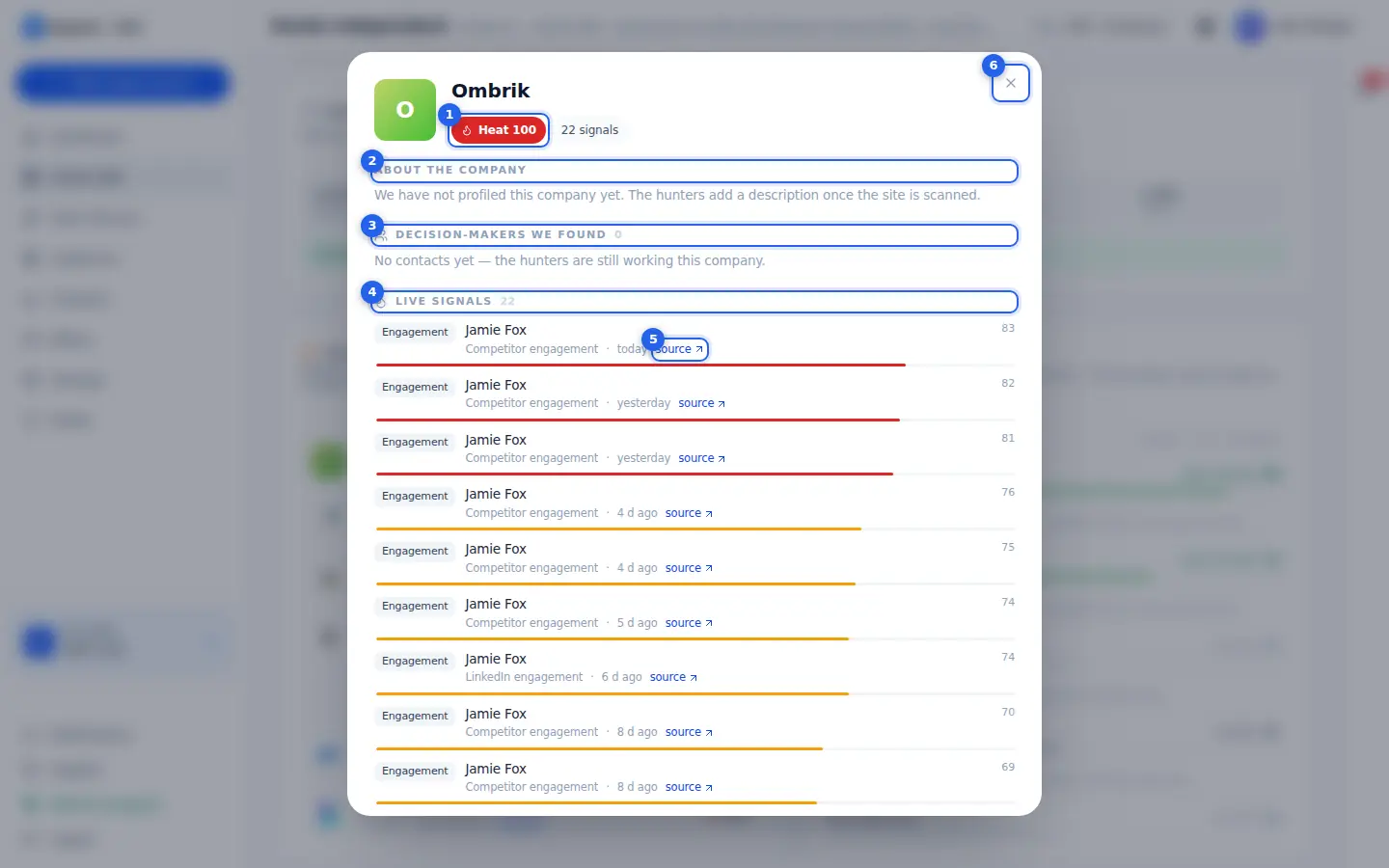
- HeatHow hot the company is right now, 0 to 100: more, fresher and stronger signals mean more heat.
More details
How hot the company is right now, from 0 to 100. The colour of the badge follows the number.
Heat is built from the live strength of all the company's signals. Every signal starts at its confidence and loses strength over time, at a speed that depends on its type: news fades in about a week, a job post in about two weeks, funding in about a month, a new leader over about three months. Signals that have faded below 15 no longer count.
Several fresh signals push the heat up, so three small but recent signals can outrank one strong old one. The number is recalculated every hour.
Next to it you see the ICP verdict for the company, if there is one, and how many signals it has in this search.
- About the companyA short profile written once the hunters scan the company website.
More details
A short profile of the company: what it does, and when known its website, location, size facts, address, LinkedIn page and a public email you can copy with one click.
The profile is written once the hunters have scanned the company website. Until then you see "We have not profiled this company yet". If the company database does not answer in time, the card says the profile is not available right now, and the signals and people below are still live.
Reading the card is free.
- Decision-makersPeople at this company the hunters found for your search, with title, fit score, email and LinkedIn.
More details
The people at this company that the search found for you, up to 20, best match first. For each person you see:
- name, title and location;
- the fit score in percent with a short reason, when the AI rated them, or an ICP fit badge;
- the email, if one was found (click it to copy);
- a blue button that opens their LinkedIn profile.
"No contacts yet" means the hunters are still working on this company. Below the list there may be a line "Also at this company, from the Vendo database" with more people from the shared people database; those are links to LinkedIn profiles, not contacts of this search.
- Live signalsEvery signal with its type, the hunter that found it, when, and a strength score from 0 to 100.
More details
Every signal this company produced in your search, strongest first, up to 40. Each row shows:
- the type, such as Engagement, Hiring or Funding;
- what happened, for example the job title or the person who engaged;
- the hunter that found it and how long ago;
- a source link when there is a public page;
- the live strength from 0 to 100, with a bar in the same colour scale as Heat.
Strength drops over time, so the same signal shows a lower number next week. The number in the section title is the count of signals listed.
- sourceOpens the public page where the hunter saw the signal.
More details
Opens, in a new tab, the public page where the hunter saw this signal: a job post, a news article, a LinkedIn post or a registry entry.
Use it to check the signal yourself before you write to the company, or to quote it in a personal message. Some signals have no public page, and then there is no source link.
Opening the source costs nothing.
- CloseCloses the card.
More details
Closes the company card and returns you to the search. You can also press Escape or click the dark area around the card.
Nothing on the card is saved or changed by closing it.
Open another company from the list to see its card. The signals and people load fresh each time you open a card, so closing and opening it again shows the latest state.
Also on this screen
- Copy emailClick any email on the card to copy it.
More details
Emails on the company card, both the company email and the emails of decision-makers, are copy buttons. One click puts the address on your clipboard and shows "Email copied".
Paste it into your own mail client if you want to write a manual note. Copying is free and does not add the person to outreach or the CRM; contacts enter outreach only through the search's outreach setup.
- Also at this companyMore people at the company from the shared Vendo people database.
More details
When the company card loads, it can also list people who work at this company according to the Vendo people database, as small LinkedIn links with their titles.
They are not contacts of this search yet: no email was looked for and nothing was charged. Use them to see who else is there, or to pick a name for a manual message.
Hunter page
app.vendo-ai.com/vendo-sdr/search/{search}/hunter/linkedin_jobs
One hunter in detail: what it watches, its live radar of found people, its daily signals and contacts, and the people it found.
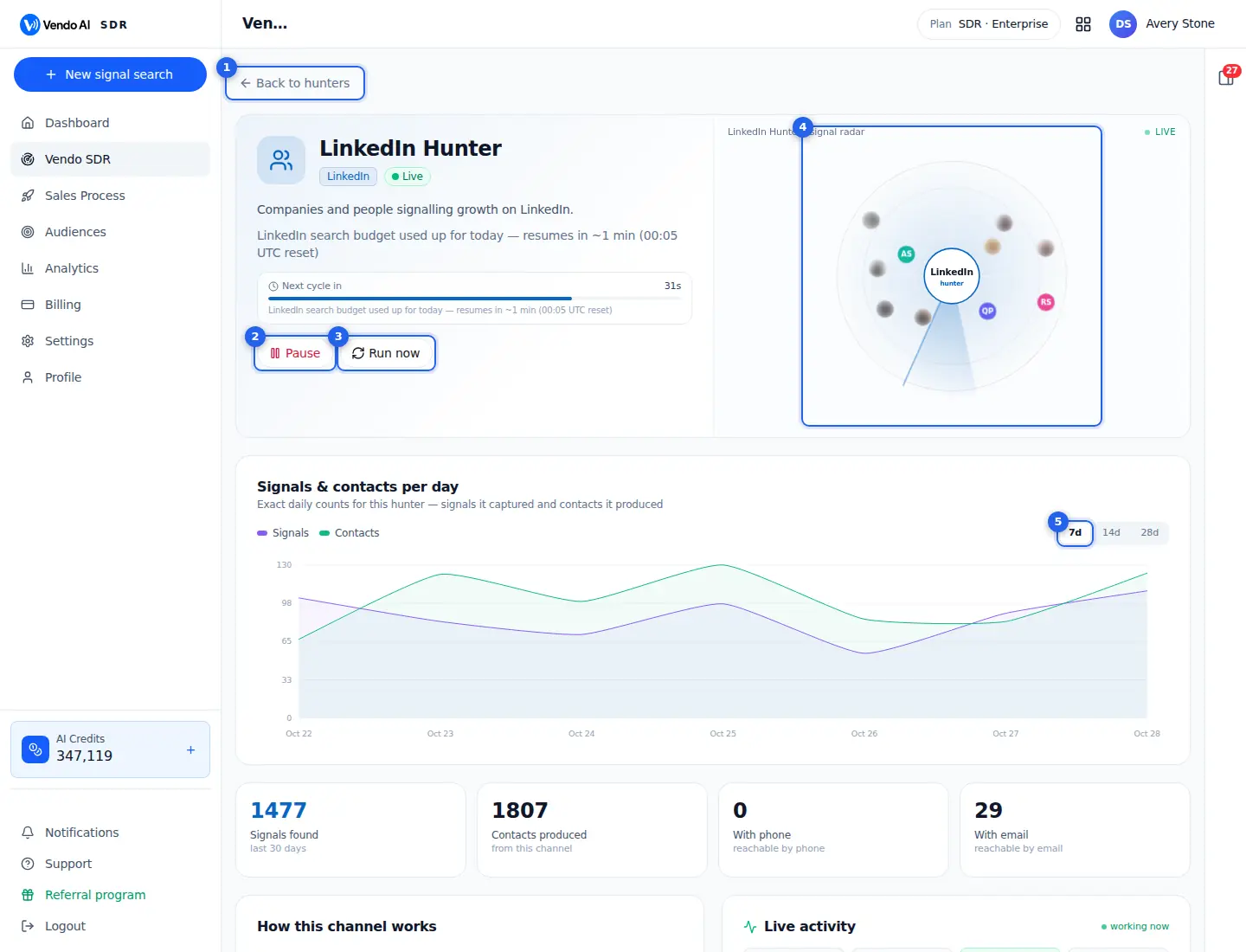
- BackReturns to the search monitor.
More details
Returns to the search monitor with all hunter cards of this search.
Leaving the page changes nothing: the hunter keeps its current state (running, cooling, paused) on the server. The monitor shows the same status on the hunter's card, so you can manage all hunters from there and open this page again by clicking the gauge on a card.
On the monitor you also see what this page does not show: the KPI cards of the whole search, hot companies, the latest signals from all hunters, the ICP review and the state of outreach. Come back to a hunter page when one card looks quiet and you want to know why.
- PauseStops this hunter for this search; the others keep running. The status line shows when its next cycle starts.
More details
Pauses this one hunter for this search. All other hunters and the outreach of the search keep running. The badge next to the hunter name turns to Paused and the button becomes Resume.
Pause a single hunter when it produces signals you do not want (for example the wrong kind of company) or when you want its share of a limited budget, such as LinkedIn searches, to go to other hunters. Contacts it already found stay in the search.
When the hunter is between cycles, a Next cycle in timer with a progress bar shows when it will start again, often with the reason for the wait. Resume clears the pause and the hunter continues on its normal schedule.
To stop the whole search including outreach, use Pause all on the monitor.
- Run nowStarts the next cycle immediately instead of waiting for the schedule.
More details
Starts the hunter's next cycle immediately instead of waiting for its schedule. If the hunter is already running and resting between cycles, Run now wakes it up so it skips the rest of the wait.
Useful right after you changed the search with Edit search and want to see results with the new settings, or when you want to check that a quiet hunter is working.
Limits still apply. Run now does not create extra budget: a hunter that waits for a provider budget, such as the daily LinkedIn search limit, can still find nothing until the budget resets. Pressing it repeatedly does not make the hunter faster.
The button itself costs nothing. Credits are charged only for usable contacts the hunter produces (5 credits each).
- RadarThe people this hunter found, orbiting the hunter; new finds fly in from the edge.
More details
A live radar of what this hunter found. The hunter sits in the centre, a sweep turns around it, and the people it found orbit on the rings as small avatars (their photo, or coloured initials). Up to 10 recent contacts are shown.
When the hunter saves a new signal or creates a new contact while you watch, a labelled dot with the name flies in from the edge. The top right corner says live when the real-time connection is open, or connecting while it starts.
The radar is a picture of activity, not a report. For exact numbers use the chart and the KPI cards below, and for the people use the Who this hunter found list.
- Chart periodSignals and contacts per day for 7, 14 or 28 days.
More details
Switches the Signals & contacts per day chart between 7, 14 and 28 days. The chart shows two lines for this hunter only: Signals (events it captured) and Contacts (people it produced). Click a line name to hide or show it.
How to read it: signals without contacts mean the hunter finds companies but no matching decision-makers are found there; check the Decision-makers roles in Edit search. Contacts close to zero for a whole week on an active hunter is a reason to open Vendo SDR thinking on the monitor.
The chart reloads every minute while the tab is visible.
Also on this screen
- Status and Next cycle inLive, Paused or Idle badge, what the hunter is doing and a countdown to its next cycle.
More details
Next to the hunter name you see the channel (for example LinkedIn) and a badge: Live with a pulsing dot while it works, Paused, or Idle. Below the description a line says what it is doing right now, or "Idle, waiting for the next cycle".
Between cycles, a Next cycle in box shows a countdown, a progress bar and, when known, the reason for the wait, such as a provider budget reset. Waiting is normal: hunters pace themselves to stay within source limits and to protect your LinkedIn accounts.
- KPI cardsSignals found (30 days), contacts produced, with phone, with email.
More details
Four numbers for this hunter in this search:
- Signals found: signals it captured in the last 30 days.
- Contacts produced: all contacts that came from this channel.
- With phone and With email: how many of the contacts loaded on this page (the latest 100) have a phone number or an email.
Because the last two are counted on the latest 100 contacts, they can be lower than the true totals for a very productive hunter. For complete numbers download the CSV from All found contacts.
- How this channel worksPlain description of the source, signal type, coverage and cadence.
More details
Explains in plain words what this hunter reads and how it turns that into a signal and a contact. Three facts follow:
- Signal type: what kind of event it captures, for example a funding event or a new executive.
- Coverage: where it works, for example global following the search regions, or a fixed list of countries.
- How it runs: its cadence, for example continuous, paced across regions or every few minutes while fresh stories keep coming.
Read it before switching a hunter off: some hunters are designed for specific ICPs, such as local businesses.
- Live activityReal-time events of this hunter with counters: Searches, Reviewed, Saved, Skipped.
More details
The feed shows what this hunter does in this search, live, newest on top, with the time of each event. Four counters above it come from the current run: Searches (queries run), Reviewed (candidates looked at), Saved (signals saved) and Skipped (candidates dropped).
A high Skipped count compared with Saved means the hunter sees many candidates that do not pass your regions, industries or Exclude words. That is the filter doing its job; if almost nothing is saved, the ICP may be too narrow for this source.
If the feed is empty, it says it is waiting for live activity; events appear as the system scans.
- Who this hunter foundThe people this hunter produced; click anyone to see why they were picked.
More details
Lists the contacts this hunter produced for the search, up to the latest 100, with name, title, company and, where available, phone and email. The header shows the total number of contacts from this channel.
Click a person to open the detail window with the full story: which hunter discovered them, the search that found them, the signal type, and how the contact was obtained.
Where these contacts are, above the list, groups the loaded contacts by country or location so you can check that the hunter stays inside your regions.
Contacts of a search
app.vendo-ai.com/vendo-sdr/search/{search}/people
Everyone the search found, with the ICP check result for each person.
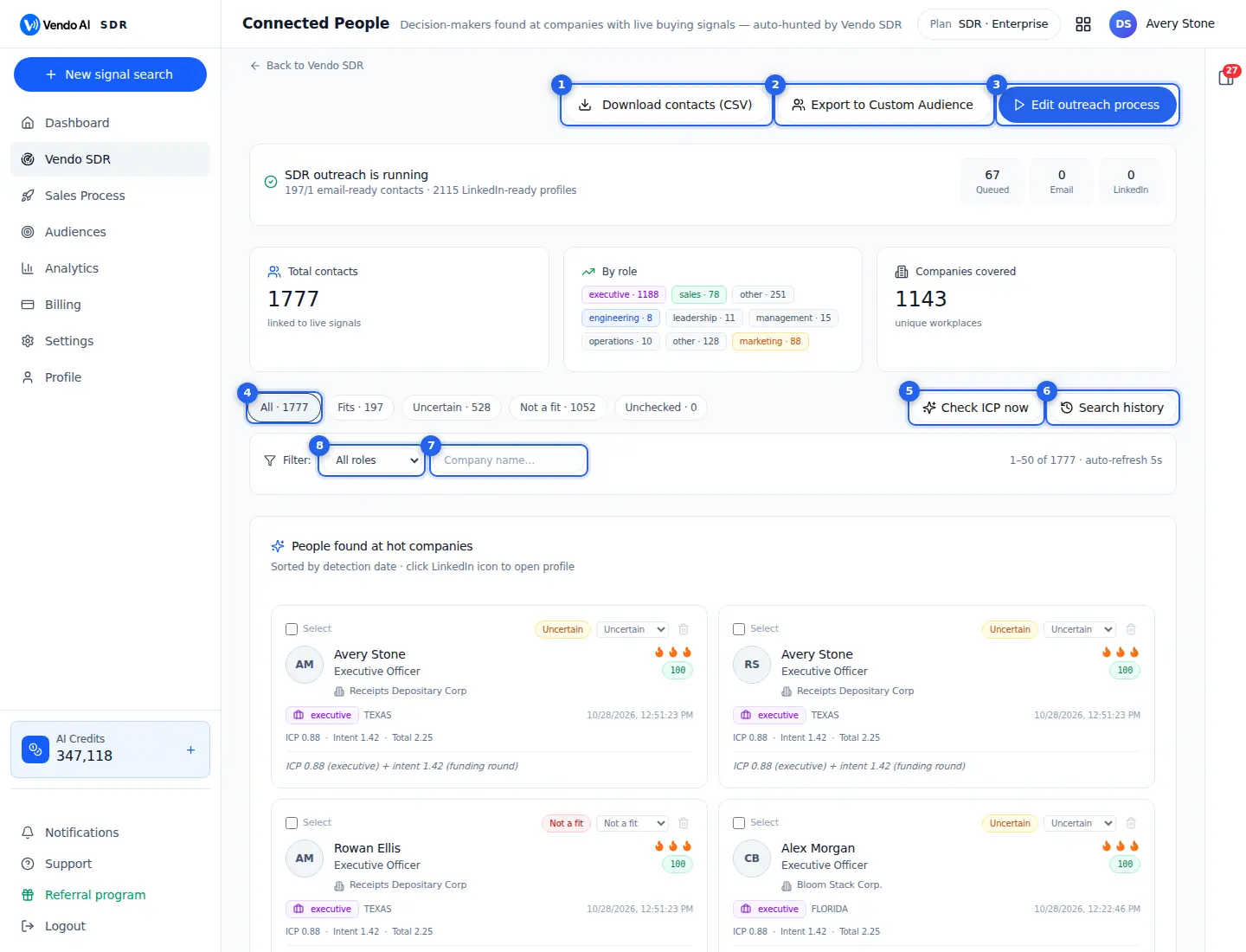
- Download CSVExports the contacts with company, role, LinkedIn and verified email.
More details
Downloads a spreadsheet of the contacts of this search, for teams that run outreach outside Vendo AI. The file opens in Excel or Google Sheets and non-Latin names display correctly.
Columns: First name, Last name, Job title, Headline, Email, LinkedIn URL, Location, Company, Company website, Company description, Added on.
What is in the file:
- exactly the contacts the list shows, without deleted or quality-blocked ones;
- one row per person: the same email, or the same LinkedIn profile without email, is exported once;
- up to 50,000 rows.
It contains contact data only, no signal reasoning or scores. The group tabs and filters on the page do not limit the file. The button is disabled while the search has no contacts. Downloading is free.
- Export to Custom AudienceCopies the contacts into My Audiences so you can run a classic campaign.
More details
Copies contacts of this search into My Audiences as a new, ready-to-use Custom Audience, so you can run a classic campaign from Sales Process.
Steps:
- choose the segment: Fit only (recommended), Fit + Uncertain, Uncertain only, Not a fit only or All; each option shows its count;
- name the audience (pre-filled with "Vendo SDR" and today's date);
- keep or untick Only contacts with an email.
Edge cases from the code:
- Fit only and Fit + Uncertain also include contacts not checked yet;
- only contacts with a verified email are exported in any case;
- without a role filter, only Sales, Executive and Marketing roles are exported; with the role filter set, only that role.
A confirmation shows how many contacts were exported, with email and with LinkedIn. Contacts stay in the search.
- Edit outreach processOpens the outreach setup of this search.
More details
Opens the outreach setup of this search. The button reads Edit outreach process when outreach is already running and Launch SDR outreach when it is not.
Launch SDR outreach first asks which contacts to reach: Fit only, Fit + Uncertain, Uncertain only, Not a fit only or All. Then it opens the setup with that segment selected. The button is enabled once the number of email-ready contacts reaches the minimum shown in the banner (ready/required).
The banner above the cards shows whether outreach is running, ready to launch or still collecting contacts, the email-ready and LinkedIn-ready counts, and what is queued in total, by email and by LinkedIn.
Choosing a segment with Uncertain contacts means each of them costs 5 credits when it enters the queue.
- ICP groupsFilter by verdict: Fits, Uncertain, Not a fit, Unchecked.
More details
Tabs that filter the list by ICP verdict, each with its count:
- All: every visible contact.
- Fits: matches your ICP. This is what outreach uses by default.
- Uncertain: the check could not decide. These are kept free until you accept them or an outreach segment includes them, and they are re-checked every Saturday.
- Not a fit: judged off-ICP. Kept visible and not charged.
- Unchecked: not judged yet.
Hover over the verdict badge on a person to see the reason.
Tip: open Not a fit from time to time. If good people land there, your Who buys text or Decision-makers roles are too strict; fix them with Edit search. If bad people land in Fits, add Exclude words.
- Check ICP nowRuns the ICP check on contacts that have not been judged yet.
More details
Runs one ICP check pass right now instead of waiting for the automatic one. It takes up to 20 of the newest contacts that have a verified email and no verdict yet, compares each with your Who buys text and sorts them into Fits, Uncertain or Not a fit, with a short reason.
The automatic pass runs on its own once enough new contacts have arrived (the first at 10 new contacts). Each pass is saved in Search history with its quality: the share of checked contacts that fit.
The check itself is not billed to you. If nothing is waiting, the pass does nothing. Contacts without a verified email are not part of this check. Press it again for the next batch.
- Search historyHistory of ICP check runs on this search, with the changes each run made and a rollback to an earlier state.
More details
Opens the ICP quality and search history panel. Despite the button name it is the history of the ICP check passes, not a log of hunter queries.
- Quality chart: one bar per pass, the percentage of checked contacts that fit your ICP. Green is 80% or more, amber 50-79%, red below 50%.
- Run list: date, quality, fit / uncertain / unfit counts and, when auto-correction changed keywords, the keywords added and removed with the reason.
- Auto-correct keywords: off by default. When on, and quality is below 90%, the system nudges the search's industry keywords toward the ICP. It stops by itself when corrections do not improve quality.
- Roll back to this version: restores the keywords from before that pass.
Every keyword change is reversible with one click.
- FiltersFilter by role or company name.
More details
Narrows the list.
- Role: All roles, Sales, Marketing, Executive, Engineering or Other. The role is the category Vendo AI assigned from the job title.
- Company name: type part of the name; matching is not case sensitive.
Filters work together with the ICP group tabs. The counter on the right shows the visible range out of the matching total, and the list refreshes every 5 seconds, so new contacts appear without reloading. The list is sorted by detection date, 50 per page, with First, Prev, Next and Last.
Note: the role filter is also passed to Export to Custom Audience, so the export then contains only that role. Download contacts (CSV) ignores the filters.
- Move to groupOverride the verdict for one person: Fits, Uncertain, Not a fit or Delete.
More details
The small drop-down on each person card overrides the verdict for that person: Fits, Uncertain, Not a fit or Delete. The change is saved immediately, marked as "manually set by user" and the counts in the tabs update.
Credits: moving a contact that was kept free (judged Uncertain or Not a fit by the pre-check) to Fits charges 5 credits, because you accept it. If the balance is too low the change is refused and the group stays as it was. Moving to Uncertain or Not a fit costs nothing and refunds nothing.
Delete removes the person from this list, from the counts and from outreach. It cannot be undone from the interface. The bin icon next to the drop-down does the same after a confirmation.
Also on this screen
- Person cardName, title, company, LinkedIn link, score and ICP verdict; click to see why this person was selected.
More details
Each card shows the person's photo or initials, name, job title, company, a link icon to the LinkedIn profile, a hot-lead indicator and a score badge (green from 80, amber from 65). The verdict badge (Fits ICP, Uncertain, Not a fit) shows its reason on hover.
Click anywhere on the card to open the detail window: which hunter discovered the person, the search that found them, the signal type and topic, why they matched and how the contact was obtained. From the detail window you can also remove the contact.
Use the detail window before overriding a verdict; the reason is often in the signal.
- Select and Delete selectedTick several cards and remove them in one go.
More details
Every card has a Select tick box. As soon as one is ticked, a bar appears above the list with the number selected, Clear and Delete selected.
Delete selected asks for confirmation and then removes all selected contacts. They disappear from this list and from outreach. This cannot be undone from the interface.
Deleting does not refund credits already charged for those contacts. If you only want to keep people out of outreach while keeping them for reference, move them to Not a fit instead: the default Fit only segment does not contact them.
- KPI cardsTotal contacts, contacts by role and companies covered.
More details
Three cards above the list:
- Total contacts: contacts linked to live signals in this search.
- By role: how many contacts fall into each role category, such as sales, marketing, executive, engineering or other.
- Companies covered: the number of unique workplaces among the contacts.
Many contacts in an unexpected role usually means the Decision-makers list of the search is too broad. Narrow it with Edit search on the monitor.
The cards count all contacts of the search, regardless of the group tab or filters you selected below.
- Outreach status bannerWhether outreach is running, ready to launch or still collecting contacts, with queue counts.
More details
The banner shows one of three states: SDR outreach is running, Ready to launch SDR outreach, or Collecting enough contacts for launch. Under it: email-ready contacts out of the required minimum and the number of LinkedIn-ready profiles.
On the right three small counters show what is queued: in total, by email and by LinkedIn.
A queue that does not shrink usually means sending is outside the working window, or no LinkedIn account or mailbox is available. Check it with Edit outreach process.
Outreach setup
app.vendo-ai.com/vendo-sdr/search/{search}/outreach
How the search contacts the people it finds. Hunting never stops; sending happens inside your working window and daily limits.
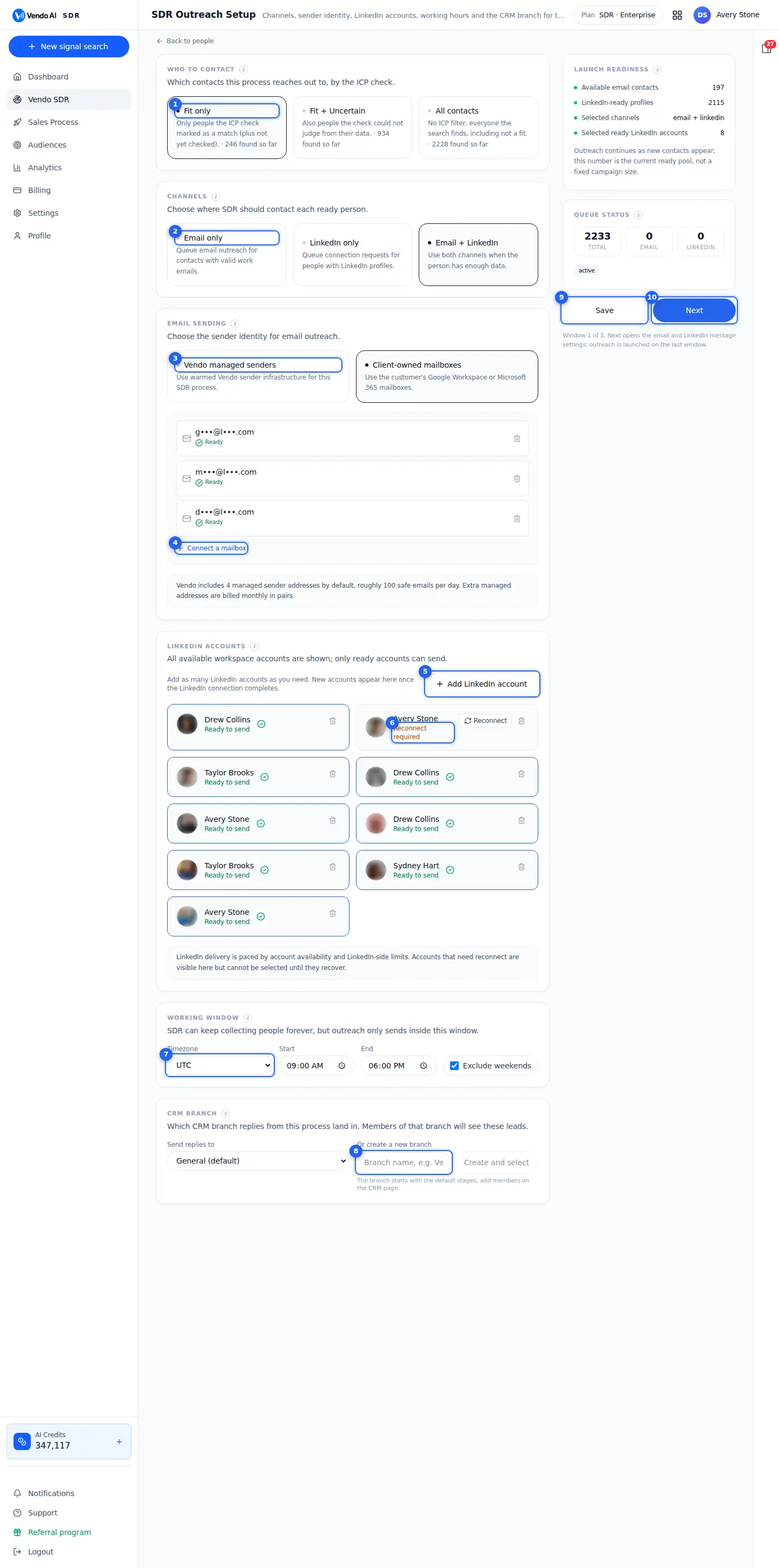
- Who to contactFit only is the safest. Fit + Uncertain and All contacts reach more people but less precisely; uncertain contacts cost 5 credits each when they enter the queue.
More details
Every contact your search finds is checked against your ideal customer profile (ICP) and marked Fit, Uncertain or Not a fit. This block decides which of those groups the process writes to.
- Fit only: people the check marked as a match, plus people not checked yet. The safest choice and the default.
- Fit + Uncertain: also people the check could not judge from their data. More volume, less precision.
- All contacts: no ICP filter, including people marked Not a fit.
Each tile shows how many people of that group the search has found so far.
Cost: Fit contacts are charged 5 credits when the search saves them as usable contacts. Uncertain contacts are free to see and are charged 5 credits only when they enter the outreach queue; if your balance is too low at that moment, the contact is skipped.
The setting can be changed on a running process. It only affects contacts that have not entered outreach yet; contacts already filtered out stay out. Common mistake: switching to All contacts to get volume and then wondering why replies say "not relevant".
- ChannelsEmail to verified work addresses, LinkedIn to people with a profile, or both. With both, each person gets the channel their data supports, never twice for the same step.
More details
Choose where this process reaches people: Email only, LinkedIn only, or Email + LinkedIn (the default for a new process).
- Email goes only to contacts with a verified work address.
- LinkedIn goes only to people with a LinkedIn profile, as a connection request from one of your connected accounts.
- With both, each person gets the channel their data supports, and nobody is contacted twice for the same step.
The choice also changes the rest of the setup. Email shows the Email sending block and the email window (step 2). LinkedIn shows the LinkedIn accounts block and the LinkedIn window (step 3). With LinkedIn only, Next skips the email window.
Launch readiness shows how many email contacts and LinkedIn-ready profiles you have, so check there before picking a channel your data cannot support. At least one channel must be selected to save. Later you can pause either channel separately from the process page.
- Email sendingManaged senders: warmed mailboxes on our domains, about 100 emails a day on the base plan. Client-owned: your Google Workspace or Microsoft 365 mailboxes, warmed up first and sending under your domain.
More details
Decides which mailboxes send your emails.
Vendo managed senders: warmed mailboxes on Vendo domains, ready immediately. Your plan includes 4 addresses, roughly 100 safe emails a day. If you need more, pick +2 to +10 extra addresses in the dropdown (billed monthly in pairs, the price is shown next to each option) and press Buy addresses. Buying needs an active subscription and opens a checkout page.
Client-owned mailboxes: your own Google Workspace, Microsoft 365 or other SMTP mailboxes. Emails go out under your domain and its reputation. Each mailbox is warmed up first and counts toward sending only once it shows Ready; a ready mailbox sends up to 50 emails a day.
If the workspace already has a connected mailbox, a new process starts in client-owned mode. In client-owned mode you cannot continue until at least one mailbox is connected. The Sending capacity card on the right shows the resulting emails per day.
- Connect a mailboxAdds your own mailbox with an app password.
More details
Appears in client-owned mode. Opens a short form to add your own mailbox for sending.
How to fill it in:
- Pick Google Workspace, Microsoft 365 or Other (SMTP).
- Enter the email address and, optionally, the From name.
- Enter an app password, not your normal login password. For Google: Google, Security, App passwords. For Microsoft: Microsoft account, Security, App passwords. Server settings for Google and Microsoft are filled in automatically; for Other you enter the SMTP and IMAP host and port yourself.
After Connect the mailbox is registered with the sending service and goes on warm-up automatically. Its status shows Connecting, then Warming up with a percentage, then Ready. Only Ready mailboxes send. Needs reconnect means the login stopped working; use the reconnect icon. The bin icon disconnects a mailbox.
The same mailboxes are used by classic campaigns, so you connect each one only once per workspace.
- LinkedIn accountsSelected accounts send invites and follow-ups for this process, each within its own daily limit. Accounts that need reconnect cannot be selected until you log in again.
More details
Shows every LinkedIn account connected to this workspace and lets you tick which ones send for this process. Selected accounts send the connection invites and follow-ups, with contacts spread across them, and each account stays within its own safe daily limit.
- Add LinkedIn account opens a LinkedIn login window in a popup. Allow popups for the app, otherwise it is blocked. The new account appears in the list once the login completes.
- Only accounts marked Ready to send can be ticked. Other states: Reconnect required, Connection error, Connecting, Stopped.
- The bin icon removes an account from the whole workspace and from every SDR process that used it. You can add it again later.
Accounts are shared across processes: pausing this process frees them for others. If LinkedIn is a selected channel, at least one ready account must be ticked before you can continue. LinkedIn invites cost 5 credits and LinkedIn messages 3 credits each.
- ReconnectLog in to LinkedIn again when the session expired.
More details
Shown on an account whose LinkedIn session has expired (status Reconnect required). LinkedIn ends sessions from time to time, for example after a password change or a security check, and the account then cannot send.
Press Reconnect and log in to LinkedIn again in the popup window. When the popup closes, the list refreshes and the account becomes Ready to send again, so you can tick it.
Until you reconnect:
- the account cannot be selected for this process;
- if it was the only selected account and LinkedIn is on, you cannot save or continue.
Allow popups for the app or the login window will not open. If reconnecting does not help, remove the account with the bin icon and add it again with Add LinkedIn account.
- Working windowTime zone, start and end hour and whether to skip weekends.
More details
Sets when this process may send. The search keeps finding people all the time; sending only happens inside this window.
- Timezone: the zone the hours are counted in. Pick your prospects' zone, not yours, so emails arrive in their working day. The default is UTC.
- Start and End: the first and last sending hour (whole hours). The default is 09:00 to 18:00. Start and End cannot be the same hour.
- Exclude weekends: when ticked (the default), nothing is sent on Saturday and Sunday.
The window applies to both emails and LinkedIn messages. Contacts that arrive outside the window simply wait in the queue and go out in the next window, at the daily limits.
Common mistake: leaving UTC for a US audience, which pushes emails into the early morning or night.
- CRM branchEvery reply becomes a lead in the CRM. Pick a branch (a separate pipeline) or create one here.
More details
Every reply this process gets, by email or LinkedIn, becomes a lead in the CRM. This block decides where those leads land.
- Send replies to: General (the default, visible to everyone in the workspace) or any other branch you can see. A branch is a separate pipeline with its own stages and members, and only its members see its leads.
- Or create a new branch: type a name (for example "Vendo SDR") and press Create and select or Enter. The branch is created with the default stages, selected right away and ready to use. Add members on the CRM page.
Use a separate branch when a different person or team works these replies, or when you want this process's pipeline kept apart from other sources. The choice is saved with Save or Next.
- SaveSaves the settings without launching.
More details
Saves everything on this page without launching anything: who to contact, channels, sender mode, selected LinkedIn accounts, working window and CRM branch.
- A new process stays a draft. Nothing is sent.
- A running process keeps running and picks up the new settings.
Save is disabled while something blocks it; the list under Before you continue says what to fix (no channel selected, no ready LinkedIn account with LinkedIn on, no mailbox in client-owned mode, invalid hours).
A note about too few email-ready contacts can also appear there, but it does not block saving: the contact minimum is checked only when you launch on the last window.
Note that the sender mode you click is remembered on this device until you save, so a page reload does not lose it.
- NextGoes to the messages step: the emails and LinkedIn texts the AI writes, which you can edit before launch.
More details
Saves this page and opens the next window. This page is window 1 of 3; outreach is launched only on the last window.
- With Email in the channels, Next opens the email window: how the emails are written (AI, fixed texts or your own HTML), follow-ups, signature and email auto-replies.
- With LinkedIn only, it goes straight to the LinkedIn window: invite text, the first message after they accept, smart replies and conversation rules.
Next is disabled for the same reasons as Save; see Before you continue. Nothing is sent when you press Next. You can come back here with Back from the next window at any time, and on a running process you can reopen this page to change settings.
Also on this screen
- Launch readinessLive check of what the process has to work with before launch.
More details
The card on the right shows, live:
- Available email contacts: people with a verified email who can enter email outreach.
- LinkedIn-ready profiles: people with a LinkedIn profile.
- Selected channels.
- Selected ready LinkedIn accounts.
A green dot means that line is fine, amber means it needs attention. The number of contacts is the current ready pool, not a fixed campaign size: after launch, outreach keeps picking up new contacts as the search finds them.
Use it before choosing channels. For example, if LinkedIn-ready profiles is high but email contacts is low, Email only will send very little.
- Sending capacityHow much this process can send per day with the current choices.
More details
Shown before the process has a queue. It counts:
- Email senders or Your mailboxes: managed addresses in your plan, or your connected mailboxes (ready plus warming).
- Emails/day: with managed senders, the estimate for your plan (about 100 by default); with client-owned mailboxes, 50 per mailbox that has finished warm-up. A line in amber says how many are still warming up and not sending yet.
- LinkedIn accounts: how many are ticked.
- Ready contacts.
If Emails/day is 0 in client-owned mode, your mailboxes are still warming up; the process can be set up, but email will not go out until at least one is Ready.
- Queue statusContacts already handed to outreach and how many still wait per channel.
More details
Replaces Sending capacity once the process has contacts in outreach. Total is every contact handed to outreach; Email and LinkedIn show how many are still queued on each channel. The badge shows the process status (draft, active, paused).
Queued contacts are sent inside the working window at the daily limits, so a large queue is normal right after launch or after a pause. A queue that never shrinks during working hours usually means a channel is paused, a LinkedIn account needs reconnect, or client-owned mailboxes are still warming up.
- Email Content (window 2)How the emails are written: AI by prompt, fixed texts, or your own HTML.
More details
The email window, opened with Next when Email is a channel. Three modes:
- AI generation (by prompt): a personalised email for each prospect. Choose a tone (formal, casual, friendly) and write Email writing rules (length, structure, one call to action, no pricing in the first email). The sales script is the source of what you sell; recipient data and the signal that found the person are added for personalisation.
- Fixed texts: up to 5 variants with a subject and body. Placeholders (First name, Last name, Full name, Company, Position, City, Country) are inserted with buttons.
- Your own HTML: one finished letter per step, uploaded or pasted, with a preview.
Press Preview to generate a sample email for a real contact of this process before launch. Changes save automatically. Each email sent, including every follow-up, costs 5 credits.
- Follow-ups (window 2)Extra emails in the same thread if the person does not answer.
More details
Add up to 7 follow-ups with + Add follow-up. Each one needs Send after: the number of days (1 to 90) after the previous email. A follow-up without a delay cannot be saved.
In AI mode each follow-up has its own writing rules (for example shorter, a new angle, one question). Follow-ups are written in the language of your script, in the same thread as the first email. In fixed mode you write each follow-up yourself; an empty subject keeps the same thread.
Important: on an outreach that has already sent emails, sequence changes are saved but not applied to contacts already in progress, because rewriting the sequence would send the first email again to everyone. Switching follow-ups off applies immediately. To run a new sequence, start a new outreach.
- Signature and Email auto-replies (window 2)Sign-off on every email and AI answers to replies.
More details
Signature: when switched on, the signature is added to every email of this process. Switch it off if your fixed texts or HTML already contain one.
Email auto-replies: when a contact answers, the AI replies from the sales script after the delay you set in Reply after (1 to 120 minutes, default 10). A person can take over the conversation at any time from the CRM. With auto-replies off, replies wait for you.
Pre-send validation note: when on, a note is logged in the activity feed each time a recipient is skipped by the pre-send checks, so you can see why someone was not emailed.
- Connection invite (window 3)The note sent with each LinkedIn connection request.
More details
The LinkedIn window, the last of the three. The invite note is limited to 200 characters.
- AI-written: a short personal line per person from their headline, the sales script and your Conversation rules. Pick a tone and describe your offer in one or two sentences in Invite writing rules; the AI compresses it. No pitch and no links in the invite.
- Fixed text: your own wording for everyone, sent exactly as written, with placeholders filled in.
Preview shows a real sample. Above it, tick the accounts that send for this process and set Daily invite limit (1 to 200): the maximum invites per day for the whole process across all selected accounts. Each account also keeps its own safe cap, so the real number is the lower of the two. Each invite costs 5 credits.
- Follow-up after connect (window 3)The first LinkedIn message after someone accepts.
More details
When a person accepts the invite, a first message goes out from the same account after the delay you choose: 1, 4, 12, 24 or 48 hours after accept.
With AI invites, the AI writes this message from the sales script and your Conversation rules, so your call to action and links apply here. You can add extra rules for the first message, for example "thank them for connecting, one soft question, no links".
With fixed-text invites you write this message yourself; leave it empty to let the AI write it.
Each LinkedIn message costs 3 credits.
- Smart auto-replies and Conversation rules (window 3)AI answers on LinkedIn and the rules it follows.
More details
Smart auto-replies: when a contact writes back on LinkedIn, the AI answers from the sales script and your Conversation rules. It answers questions, qualifies and sends the link your rules name; it does not invent facts and hands over to you when a person is needed. Off means replies are left to you; they still appear in the CRM. If a manager replies in the chat, the AI stops messaging that contact.
Conversation rules: free text about what you want from these conversations: the goal, the call to action, links to share, what not to promise. They apply to AI invites, the first message and smart replies. Example: "Goal: book a 20-minute demo at https://... Do not quote prices."
Message signature: a plain-text sign-off added to LinkedIn messages of this process.
- Save and LaunchThe only button that actually starts outreach.
More details
Found at the bottom of the last window: the LinkedIn window, or the email window when Email is the only channel. It saves all settings and starts sending. Before that, Save and Next never send anything.
After launch:
- immediately, contacts that match Who to contact are queued;
- inside the working window, emails and invites go out at the daily limits;
- over time, new contacts found by the search are added to outreach automatically;
- replies become leads in the chosen CRM branch.
On a process that is already running, the button reads Save and finish and applies the changes to the running outreach. Credits are charged per message actually sent, so keep enough balance.
Outreach: how the emails are written
app.vendo-ai.com/vendo-sdr/search/{search}/outreach/messages
Step 2 of the outreach setup. Choose how emails and follow-ups are written for this search. Nothing is sent until you launch.
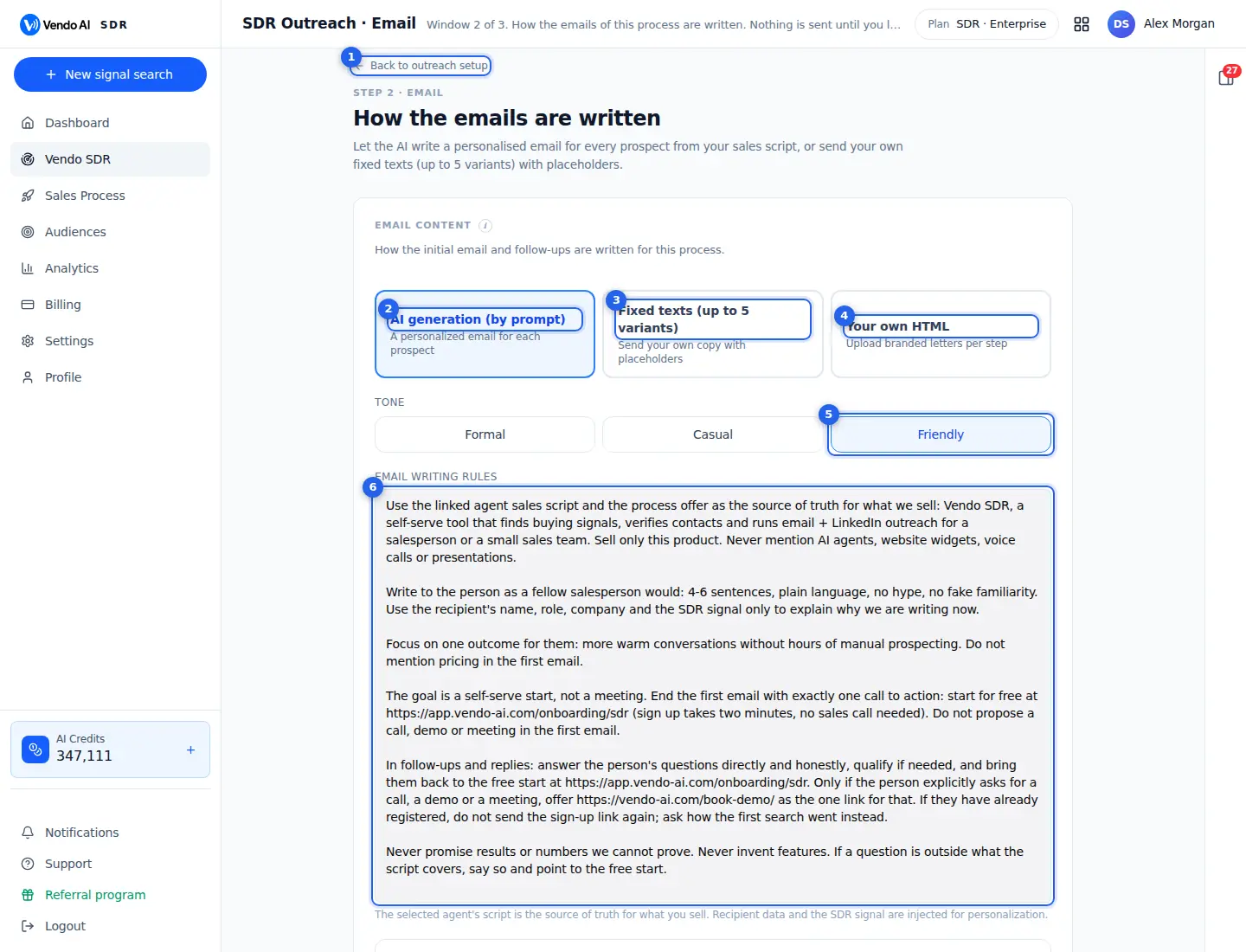
- BackReturns to step 1: mailboxes, volume and schedule.
More details
Returns to step 1 of the outreach setup, where you choose the mailboxes, the daily volume, the schedule and which contacts enter outreach.
Your changes on this step are not lost: the page saves by itself shortly after you change something, and the note next to the buttons shows when it last saved. Press Save if you want to be sure before you leave.
- AI generationThe AI writes a personal email for each prospect from your sales script and the signal that found them.
More details
The AI writes a separate email for every prospect. It uses the sales script of the agent linked to this search as the source of truth for what you sell, adds the person's name, role and company, and uses the signal that found them to explain why you are writing now.
You steer it with the Tone and the Email writing rules below, and with follow-up steps that each have their own delay and rules. Follow-up texts are written once per process, in the language of your script, in the same thread as the first email.
Writing costs nothing extra; each email sent, including every follow-up, costs 5 credits. Press Preview to see a real example before you launch.
- Fixed textsYour own copy, up to 5 variants, with placeholders such as first name and company.
More details
Sends your own wording instead of AI text. You can write up to 5 variants of the first email, each with a subject and a body. Placeholders such as First name and Company are filled in for every recipient; add them with the Insert buttons under a field.
Follow-up steps can be added too, each with its own delay in days and its own text. Leave a follow-up subject empty to send it in the same thread.
At least one variant must have both a subject and a body, or the page will not save. Each email sent costs 5 credits.
- Your own HTMLUpload branded HTML letters, one per step of the sequence.
More details
Upload finished, branded HTML letters, one per step of the sequence: Email 1 and as many follow-ups as you need, each with its own delay. You can choose an HTML file or paste the code.
A step left empty falls back to AI generation, so you can brand only the first letter. Placeholders like {{first_name}} and {{company}} work inside HTML too. Scripts and forms are removed when you save.
Use Preview on each step to check the layout. Each email sent costs 5 credits.
- ToneFormal, casual or friendly. Used by AI generation.
More details
The voice of AI-written emails: Formal, Casual or Friendly. It changes wording and greeting, not what you sell.
- Formal: for senior buyers, regulated industries or a first touch with large companies.
- Casual: short and relaxed, good for startups and founders.
- Friendly: warm and personal without being informal.
Tone is used only with AI generation. Fixed texts and your own HTML are sent as written.
- Email writing rulesRules the AI must follow: what to sell, what never to mention, length, the call to action.
More details
Free-text rules the AI must follow when it writes the emails of this process. Good rules say:
- what to sell and what never to mention;
- how long the email should be;
- the one call to action and the link to use;
- how to handle follow-ups and replies.
The agent's script stays the source of truth for facts about your product; the rules decide how the email is written. Recipient data and the signal are added automatically, so you do not need placeholders here.
Change the rules, press Preview and compare. Rule changes apply to emails not yet written.
Also on this screen
- Follow-upsExtra emails in the same thread, up to 7, each with its own delay.
More details
Add follow-up with the link under the steps. Each follow-up has Send after (1 to 90 days after the previous email) and, with AI generation, its own writing rules, for example "shorter, one question".
Each follow-up is one more email per contact, so 5 more credits each.
If the process has already sent emails, changes to the sequence are saved but do not apply to contacts already in progress, because that would send them the first email again. Switching follow-ups off applies at once.
- PreviewGenerates a real sample email from the current settings.
More details
Writes one example email for a sample contact with the settings you see, so you can read the subject and body before launch. Nothing is sent.
Preview again after you change the tone, the rules or the texts.
The preview uses a sample contact and the same script, tone, rules or fixed texts the real emails will use. With your own HTML, each step has its own preview of the layout. Previews cost nothing.
- SignatureA sign-off added to every email of this process.
More details
When the switch is on, the signature text is added under every email of this process. If it is on but empty, the page will not save.
Switch it off if your fixed texts or HTML letters already contain a signature.
Write it the way you sign your normal emails: name, role, company and, if you like, a phone number or website. Check it in Preview before you launch.
- Email auto-repliesThe AI answers incoming email replies after the delay you set.
More details
When on, a contact's reply is answered by the AI from the sales script after Reply after, between 1 and 120 minutes. A human can take over at any time from the CRM; once you reply yourself, the AI stops answering that contact.
When off, replies wait for you in the CRM.
A short delay of a few minutes makes the answer feel natural without leaving the contact waiting. Every reply and the AI's answer also appear in the conversation in the CRM.
- Pre-send validation noteLogs a note when a recipient is skipped by the checks before sending.
More details
Before each email goes out, the recipient is checked. With this switch on, every skipped recipient leaves a note in the activity feed with the reason, for example no email address.
Typical reasons are a missing email address or a contact that no longer passes the checks. Skipped recipients are sent nothing and are not charged for an email. Leave it on while you test a new process, so you can see why some contacts never received an email.
- Save and LaunchThe main button: Next, Save and Launch, or Save and finish.
More details
If LinkedIn comes next, the button is Next. If this is the last window, it is Save and Launch, which saves and starts outreach; a toast tells you how many contacts were queued. On a process that is already running it is Save and finish, which applies the settings to the running outreach.
Launch needs the sending settings from step 1 to be saved first.
Outreach: LinkedIn
app.vendo-ai.com/vendo-sdr/search/{search}/outreach/linkedin
Step 3 of the outreach setup: which LinkedIn accounts send invitations and what the invitation says.
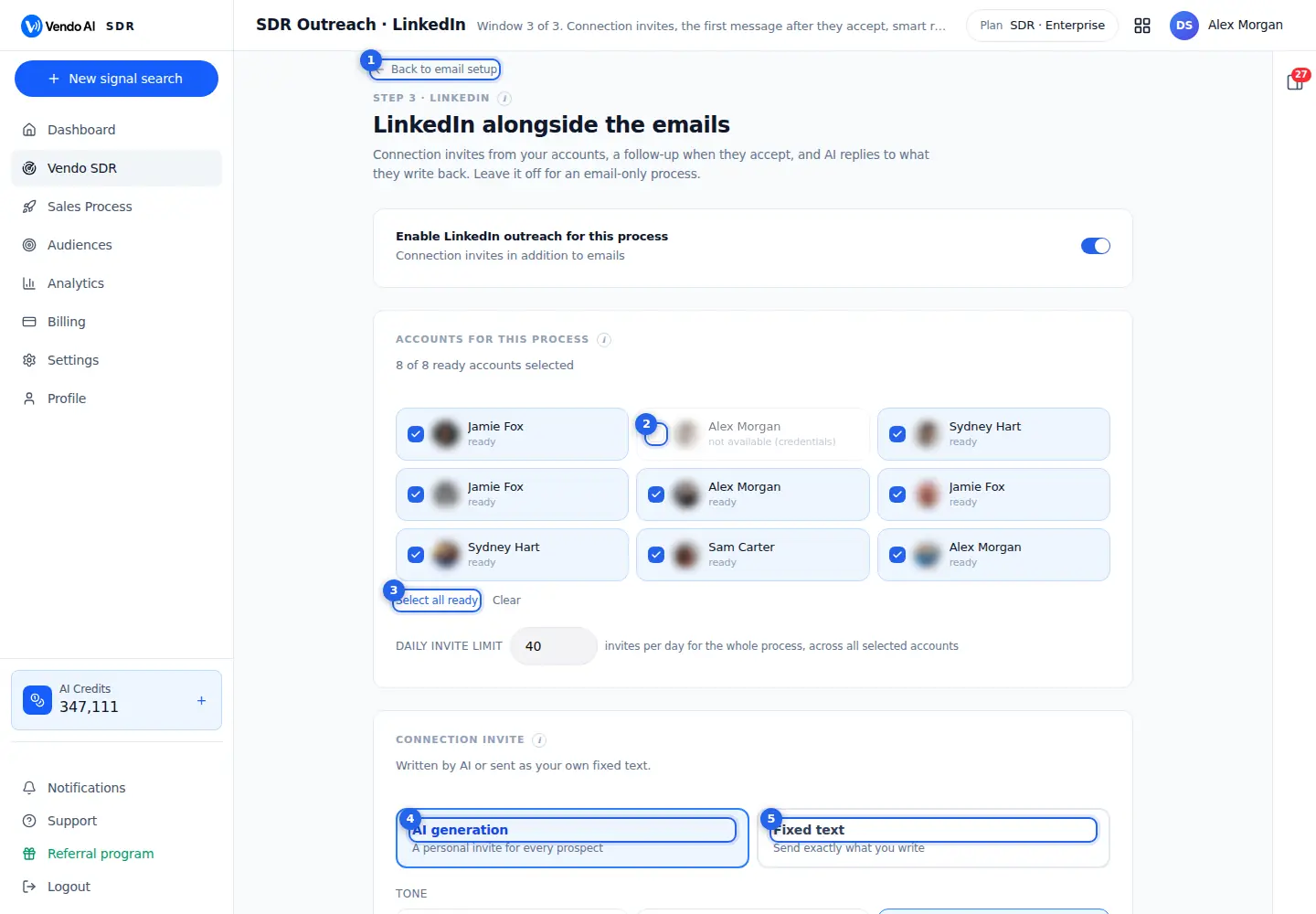
- BackReturns to step 2, the emails.
More details
Returns to step 2, the email setup. If email is switched off for this process, the link says Back to outreach setup and takes you to step 1 instead.
Your changes here are saved by themselves shortly after you make them, and the note next to the buttons shows when. You can also press Save before you go back.
Nothing is sent until you launch.
- AccountTick the LinkedIn accounts that send for this search. Connect accounts in Settings, LinkedIn.
More details
Tick the LinkedIn accounts that send invitations and messages for this process. Contacts are spread across the ticked accounts, and each account keeps its own safe daily invite cap.
An account shows "ready" when it can send. A greyed account cannot be ticked; the text says why, for example "not available (credentials)", which means LinkedIn asked to sign in again. Reconnect it in Settings, LinkedIn.
The line above the grid shows how many of the ready accounts are selected. Connect new accounts in Settings, LinkedIn, then come back.
- Select all readySelects every connected account that is ready to send.
More details
Ticks every connected account that is ready to send in one click. Clear next to it unticks them all.
Accounts that are not ready are skipped. More accounts means more invites per day in total, because each account has its own safe limit, but the process as a whole still stops at the Daily invite limit set under the accounts.
- AI generationA personal invitation for every prospect, written from their profile and signal.
More details
The AI writes a personal connection note for every prospect, up to 200 characters, from their LinkedIn headline, the sales script and your Conversation rules. It contains no pitch and no links: the goal is that the person accepts.
Set the Tone (formal, casual or friendly) and the Invite writing rules, a sentence or two about your offer that the AI compresses into the note. Press Preview to see a sample.
Each invite costs 5 credits. Free LinkedIn accounts can only add a note to about 5 invites a month; after that, invites go out without text until the month ends.
- Fixed textSends exactly what you write, with placeholders.
More details
Sends exactly the text you write as the invitation note, the same for everyone, with placeholders such as First name and Company filled in. Keep it under 200 characters, LinkedIn's limit for a note.
With fixed-text invites, you also write the first message after they accept. If you leave that message empty, the AI writes it.
Each invite costs 5 credits, each message 3 credits.
Also on this screen
- Enable LinkedIn outreachTurns LinkedIn on or off for this process.
More details
When on, contacts with a LinkedIn profile also get connection invites next to the emails. When off, the process is email only and the rest of this page is hidden.
Switching it on sends nothing by itself: invites start only after Save and Launch, or Save and finish on a running process. Contacts without a LinkedIn profile still get the emails. Each invite costs 5 credits and each LinkedIn message 3 credits.
- Daily invite limitInvites per day for the whole process, across all selected accounts.
More details
A cap from 1 to 200 invites per day for this process. Each account also keeps its own safe daily cap, so the real number can be lower when few accounts are selected or accounts are still warming up.
A new account warms up for 14 days with strict limits, so a high limit with one fresh account will not send more. Start lower and raise it as accounts warm up; LinkedIn restricts accounts that jump to full volume.
- Follow-up after connectThe first message after someone accepts, and when it goes out.
More details
Choose when the first message is sent: 1 h, 4 h, 12 h, 1 day or 2 days after the person accepts. It goes from the same account.
With AI invites, the AI writes it from the script and your Conversation rules, plus optional extra rules. With fixed-text invites you write it yourself. Each message costs 3 credits.
People who do not accept get no message.
- Smart auto-repliesThe AI answers incoming LinkedIn messages for this process.
More details
When on, the AI answers replies from the sales script and the Conversation rules: it answers questions, qualifies, sends the link your rules name and hands over to you when a person is needed. Each AI reply costs 3 credits.
When off, replies wait for you and still appear in the CRM. If AI replies are switched off for an account in Settings, LinkedIn, that switch wins.
- Conversation rulesGoal, call to action and links for all AI LinkedIn messages.
More details
Free text applied to AI invites, the first message and smart replies, for example the meeting link, what not to promise or which customers to mention. Keep it short and concrete.
Example: book a 20-minute demo at your booking link, do not quote prices, mention the kind of teams you work with. The rules apply to every account selected for this process. Emails have their own Email writing rules on step 2.
- Save and LaunchSaves the whole outreach setup and starts it.
More details
Saves and starts outreach; a toast says how many contacts were queued. If something blocks the start, you see "Outreach saved but not running" with the reasons. On a running process the button is Save and finish and applies your changes.
The note next to the buttons shows when the page last saved by itself; Save stores the settings without launching. Back returns to the previous step without losing anything.
Campaigns and audiences
Classic outreach to a fixed list, the marketplace of ready contact sets and your own uploaded lists.
Sales Process
app.vendo-ai.com/sales-process
Every sales process in one place: automated signal searches and classic campaigns.
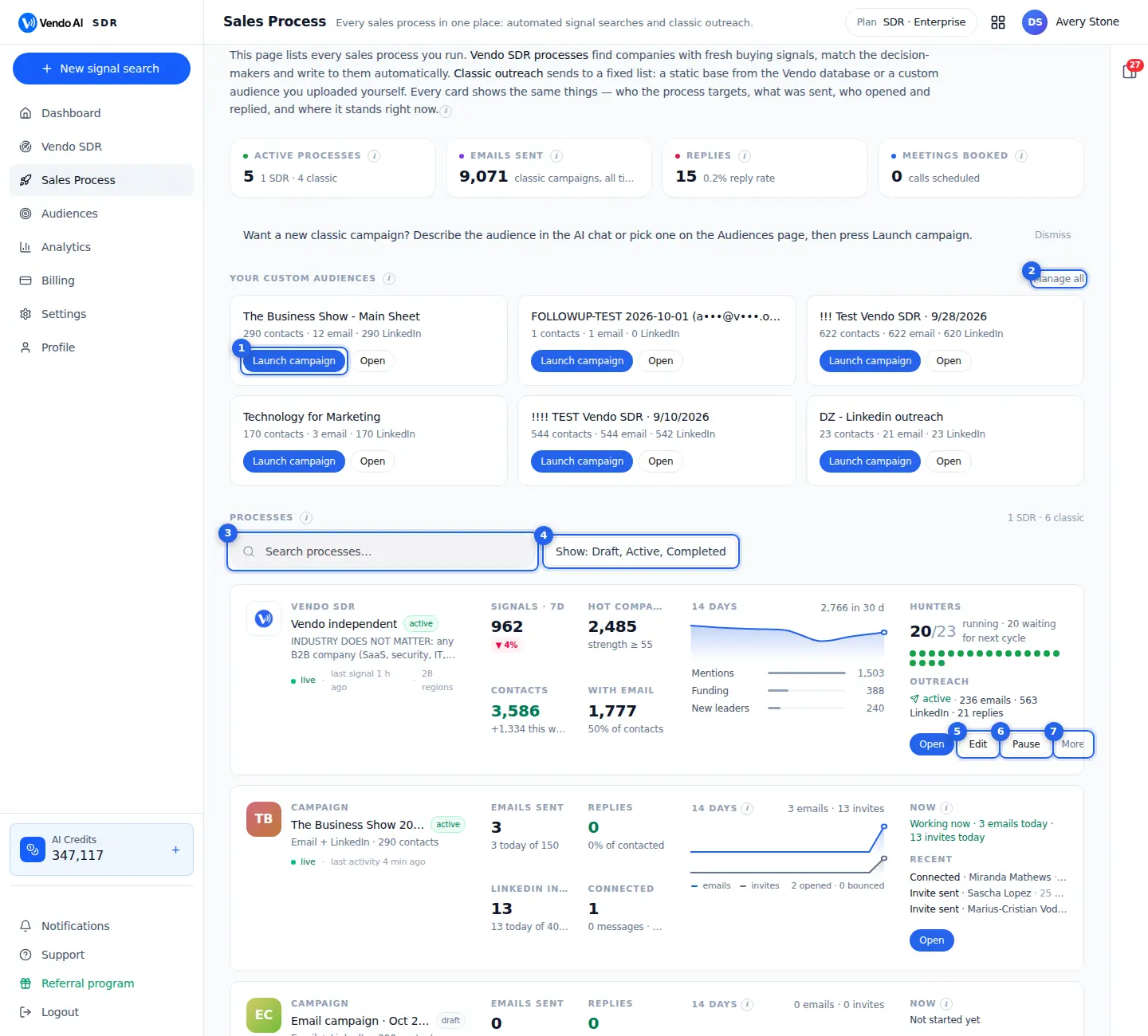
- Launch campaignOpens campaign setup with this custom audience attached.
More details
Starts a classic campaign from one of your custom audiences in a single click. The Your custom audiences block lists lists you uploaded or bought on the Audiences page that are ready to send.
What happens when you press it:
- Vendo prepares a sending audience from that list (the button shows Preparing...).
- Campaign setup opens with the audience already attached on the Basics step, so you only name the campaign and continue.
The button is disabled for a list with 0 contacts. Lists still processing or enriching are not shown here until they are ready. Pressing it costs nothing by itself; credits are charged later per email and LinkedIn message actually sent.
Next to it, Open shows the list itself (contacts, enrichment, export). If the list you expect is missing, open Audiences and check its status there.
- Manage allOpens Audiences.
More details
Opens the Audiences page, where all lists are managed. From there you can:
- browse and buy ready-made contact sets in the Marketplace;
- upload your own file (CSV or spreadsheet) in My Audiences and map its columns;
- enrich missing emails, export a list to CSV or remove it;
- launch any list straight into a campaign.
The block on this page only shows a short selection of ready lists for quick launching. Use Manage all when you need to add a new list, check why a list is not ready, or clean up old ones.
- SearchFind a process by name.
More details
Filters the list of processes by name as you type. It searches both kinds of processes at once: Vendo SDR processes (signal searches with outreach) and classic campaigns.
The search works together with the status filter next to it: a process hidden by the status filter does not appear even if its name matches. If you get "No processes match your filters", check the status filter first, for example archived processes are only shown when Archived is ticked.
Tip: give campaigns names that include the segment and month (for example "Manufacturing Poland Jan 2026") so they are easy to find here, in analytics and in the CRM.
- Status filterChoose which statuses to show (draft, active, paused, completed, archived). Remembered on this device.
More details
Chooses which statuses are shown in the list. Tick or untick: Draft, Active, Paused, Completed, Archived. By default Draft, Active and Completed are shown.
- The choice applies to both SDR processes and classic campaigns.
- It is remembered on this device and browser, not for your colleagues.
- Archived campaigns are loaded only when Archived is ticked.
- A campaign that is blocked by its configuration is shown as Draft; a cancelled one as Completed.
Use it to keep the list short, for example hide Paused and Archived during daily work and show them when you need to restart or review something. If the label reads Show: nothing, every status is unticked and the list will be empty.
- EditChange the process or campaign settings.
More details
Opens the settings of this process so you can change them.
- For a Vendo SDR process it opens the outreach setup (who to contact, channels, senders, LinkedIn accounts, working window, CRM branch), then the email and LinkedIn message windows.
- For a classic campaign it opens the campaign wizard (Basics, Offer, Settings, Email, LinkedIn, Review) with the saved values. For a draft the main button reads Set up and does the same.
Editing a running SDR process does not stop it; it picks up the new settings. For email sequences on an outreach that has already sent emails, follow-up changes are saved but contacts already in progress finish the sequence they started with.
- PauseStops sending; contacts wait in the queue until you resume.
More details
Stops sending for this process. Contacts that are queued stay in the queue and continue from where they stopped when you press Resume (the green button that replaces Pause).
- Classic campaign: both email and LinkedIn stop, the status becomes Paused, and the email sender accounts it used are released so other active campaigns can use them. A manual pause is not undone automatically when you top up credits.
- Vendo SDR process: emails, LinkedIn invites and follow-ups stop; the queue is kept. Its LinkedIn accounts become free for other processes.
Pause does not delete anything and costs nothing. Use it when you need to fix messaging or the audience, rather than deleting and rebuilding.
- MoreDuplicate, archive or delete.
More details
A menu with the less frequent actions.
For a classic campaign:
- View details: the campaign page with statistics, queues and conversations.
- Edit settings: the campaign wizard.
- Duplicate: creates a draft copy named "(Copy)" with the same settings, script and a copy of the audience, with statistics at zero. Handy for testing a new message on the same list.
- Archive: stops all email and LinkedIn outreach, marks the campaign completed and hides it from the list (show it again with Archived in the status filter).
- Delete: permanently removes the campaign, its settings, the associated audience and all email threads and conversation history. Cannot be undone.
For a Vendo SDR process: Open SDR process, Edit outreach, and Delete SDR outreach, which removes the outreach process and its queue but keeps the signal search in Vendo SDR.
Also on this screen
- Two kinds of processesVendo SDR processes and classic campaigns share one list.
More details
- Vendo SDR: hunters watch the market for buying signals, contacts are found continuously, and outreach follows them. The card opens the SDR process page.
- Classic outreach (campaign): one audience, one sequence, sent at a daily limit. The card opens the campaign page.
Both kinds are paused, edited and filtered the same way here, and the search and status filter apply to both. Choose SDR when you want a steady flow of new, signal-based contacts; choose a classic campaign when you already have a list (uploaded, bought in the Marketplace or built in the AI Assistant). Replies from both end up as leads in the CRM.
- Active processesHow many processes are sending right now.
More details
Counts SDR outreach processes with status active plus classic campaigns with status active, with the split shown below the number (SDR and classic). Drafts and paused processes are not counted. If the number is lower than you expect, look for paused processes by ticking Paused in the status filter. A process can also be active but quiet, for example outside its working hours or with an empty queue; the status line on each card tells you which. Paused processes keep their queue and resume where they stopped, so they do not need to be rebuilt.
- Emails sent, Replies, MeetingsTotals for classic campaigns.
More details
- Emails sent: emails delivered by classic campaigns. SDR sends are shown on each SDR card and in SDR Analytics, not here.
- Replies: replies classified as real, across classic campaigns. Auto-replies and bounces are excluded.
- Meetings: meetings booked through the campaign's booking link or confirmed by the agent in replies.
Use these for a quick health check across all classic campaigns. Detailed numbers per campaign (queued, sent, opened, clicked, replied, conversations) are on the campaign page, and SDR results are on each SDR card and in SDR Analytics. A low reply count with many emails sent is a signal to review the audience and the Communication Rules of the campaign.
- Campaign card and Live viewEach classic campaign's numbers, 14-day chart and recent events.
More details
A campaign card shows emails sent (today and the daily limit), replies, LinkedIn invites and connections, a 14-day chart (emails sent in blue, LinkedIn invites in grey, by UTC day) and the last few events with a status line such as Working now, Outside working hours or Waiting for the next batch.
Live view expands the card with KPI tiles, a 7, 14 or 28-day chart and a live activity feed. A collapsed card refreshes every 45 seconds, an expanded one every 6 seconds while the tab is visible.
- Campaign page (after launch)Statistics, queues, conversations and controls of one campaign.
More details
Opened from a card or View details. At the top: the status pill and actions (Start, Resume, Pause, Sync stats, Edit setup). Below: a row of KPIs (companies, contacts with email and LinkedIn, daily limit, today, progress, working hours) and tabs per channel.
The Email tab has sub-tabs Queued, Sent, Opened, Clicked, Replied, Conversations and Analytics; you can read each email and reply. The LinkedIn tab shows the accounts, the outreach list and conversations. Each channel can be paused and resumed on its own, and you can take over a conversation so the AI stops writing to that contact.
A campaign after launch
app.vendo-ai.com/sales-process/campaigns/da38cd8f-b543-4bd5-90f3-58b47fab40c7
Once a campaign runs, its page shows progress per channel, the live activity and every contact by status.
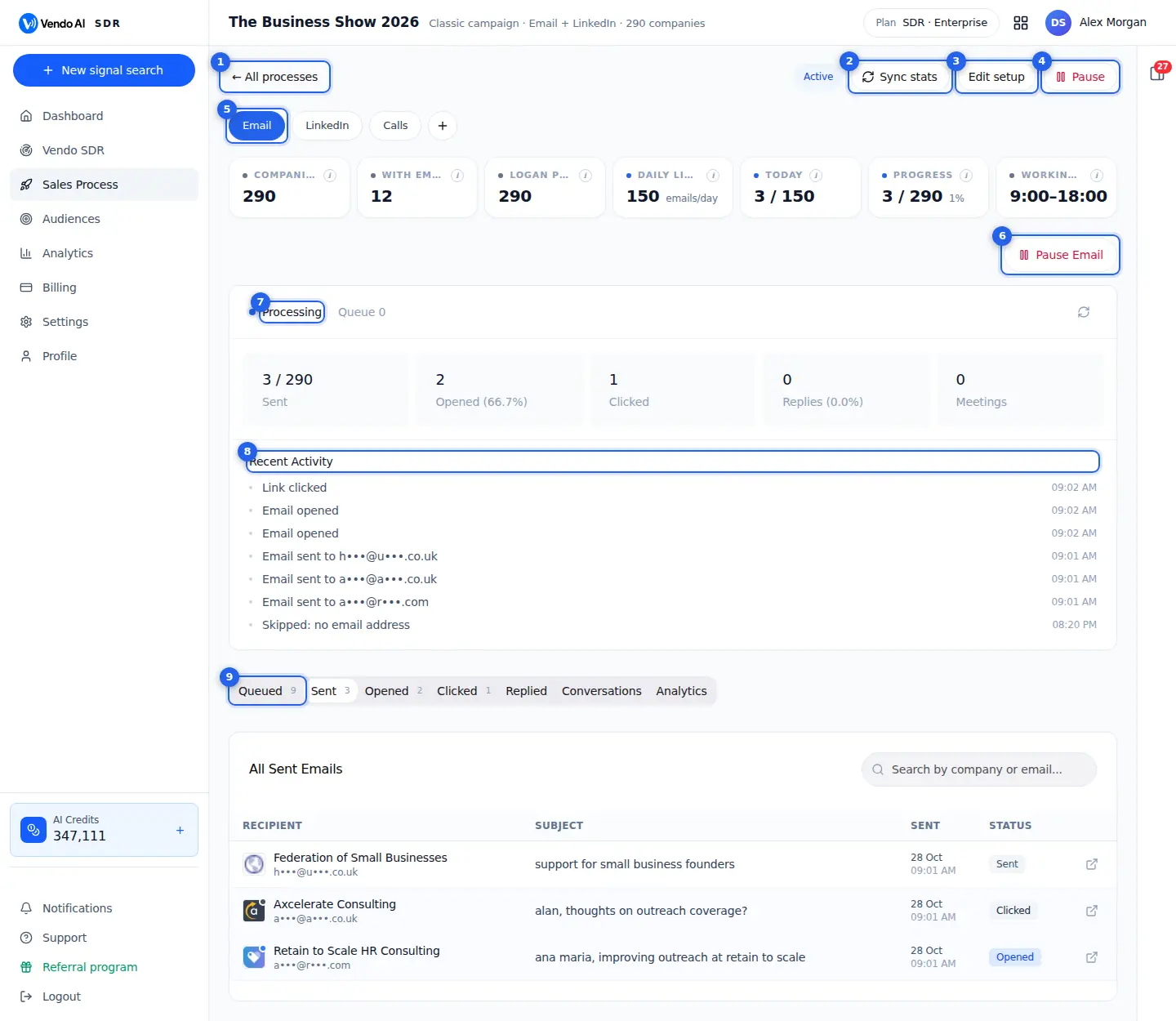
- All processesBack to the list of processes and campaigns.
More details
Returns to the Sales Process page with all your processes and campaigns.
The campaign keeps running while you are away: leaving the page changes nothing.
The list there shows each campaign and SDR process with its status, so you can open another one or start a new campaign. To come back here, click this campaign in that list. Leaving this page never pauses or changes the campaign.
- Sync statsPulls the latest opens, clicks and replies right now instead of waiting for the next sync.
More details
Asks the email sending service for the latest numbers right now: sent, opened, clicked and replied. When it finishes, a message shows what changed, for example "Stats synced: Opened: +3", or says the stats are already in sync.
Use it when you expect a reply or an open and do not want to wait for the next automatic update. It costs nothing and sends nothing. The button is shown only while the campaign is active.
- Edit setupOpens the campaign wizard to change the offer, settings or messages.
More details
Opens the campaign wizard to change the offer, audience, settings or messages.
Good to know: if the campaign has already sent emails, a changed email sequence is saved but not applied to contacts already in progress, because that would send them the first email again. They finish the sequence they started. A yellow note on the campaign page tells you when this happened. To run the new sequence for everyone, create a new campaign. Switching follow-ups off applies at once.
- PausePauses the campaign: emails and LinkedIn stop until you press Resume. Topping up credits does not resume it.
More details
Pauses the whole campaign: new emails and LinkedIn invitations stop, and the email accounts it used are freed for your other campaigns.
The button then becomes Resume, which starts the campaign again. A manual pause is not undone by itself, not even when you top up credits.
Contacts that already received messages stay where they are, and replies still arrive in the CRM. To stop only one channel, use the pause button inside that channel's tab instead.
- Channel tabsEmail, LinkedIn and Calls each have their own numbers and pause. The + lists channels that are coming soon.
More details
Each channel of the campaign has its own tab: Email, LinkedIn and Calls. The tab shows that channel's numbers, queue, activity and its own pause button. A paused channel shows "· paused" in its tab name.
The + button lists more channels, such as Facebook, Telegram, WhatsApp, Instagram, Booking, Forms and SMS. They are marked Coming soon and cannot be added yet.
- Pause EmailPauses only this channel; the others keep running.
More details
Pauses only the email channel; LinkedIn and calls keep running. You confirm before it happens. The button then becomes Resume Email.
Use it when you want to fix an email, check deliverability or slow down email while LinkedIn continues. The LinkedIn tab has the same kind of button for LinkedIn.
Emails already in the queue wait; nothing is lost. A paused email channel shows as Email · paused in the tab.
- ProgressSent, opened, clicked, replies and meetings, with the live queue.
More details
The live block of the email channel. The header says Processing while the campaign sends, or Paused, and Queue shows how many emails wait to go out, plus how many are in flight.
Below it:
- Sent: emails sent out of all planned;
- Opened and Clicked, with the open rate;
- Replies, with the reply rate;
- Meetings booked.
The block refreshes every 10 seconds while the campaign is active, and the round arrow refreshes it now. Opens are reported by the sending service and can be inflated or hidden by mail privacy features.
- Recent ActivityThe latest events of this channel: sent, opened, clicked, skipped.
More details
The latest events of the email channel, newest first, with their time: emails sent (the address is partly hidden), opened, clicked, and recipients skipped with the reason, for example "Skipped: no email address".
It shows up to 8 events and updates with the block above. A skipped recipient is not charged. For the full list of emails, use the tabs below.
- Contacts by statusQueued, Sent, Opened, Clicked and Replied lists, plus Conversations and Analytics.
More details
The lists of this channel's contacts:
- Queued: emails scheduled or waiting, not sent yet;
- Sent, Opened, Clicked: every email with recipient, subject, date and status, with search;
- Replied: real replies, with auto-replies and bounces sorted apart;
- Conversations: email threads where you can read and answer;
- Analytics: charts for the campaign.
The small number on each tab is its count. Click an email row to see the full message.
Also on this screen
- Campaign numbersCompanies, contacts with email and LinkedIn, daily limit, today, progress and working hours.
More details
The strip under the tabs shows the audience and the current channel at a glance:
- Companies, With email and With LinkedIn in the audience;
- Daily limit: emails or invites per day;
- Today: sent today against today's limit, reset at midnight in the campaign time zone;
- Progress: contacts reached on this channel out of all queued;
- Working hours: the sending window, in the campaign time zone.
- StatusActive, Paused, Draft or Completed, next to the buttons.
More details
The pill shows the campaign status. A draft shows Edit setup and Start campaign, or Continue setup if no sales agent is chosen yet. A paused campaign shows Edit setup and Resume. A finished campaign shows View setup.
The Pause button sets the whole campaign to Paused. Pausing a single channel keeps the campaign active and marks only that channel as paused, in the pill and in the channel tab.
New campaign
app.vendo-ai.com/sales-process/create
A classic campaign: one audience, one sequence, sent at a daily limit. Steps: Basics, Offer, Settings, Email, LinkedIn and Review; only the steps for your channels are shown.
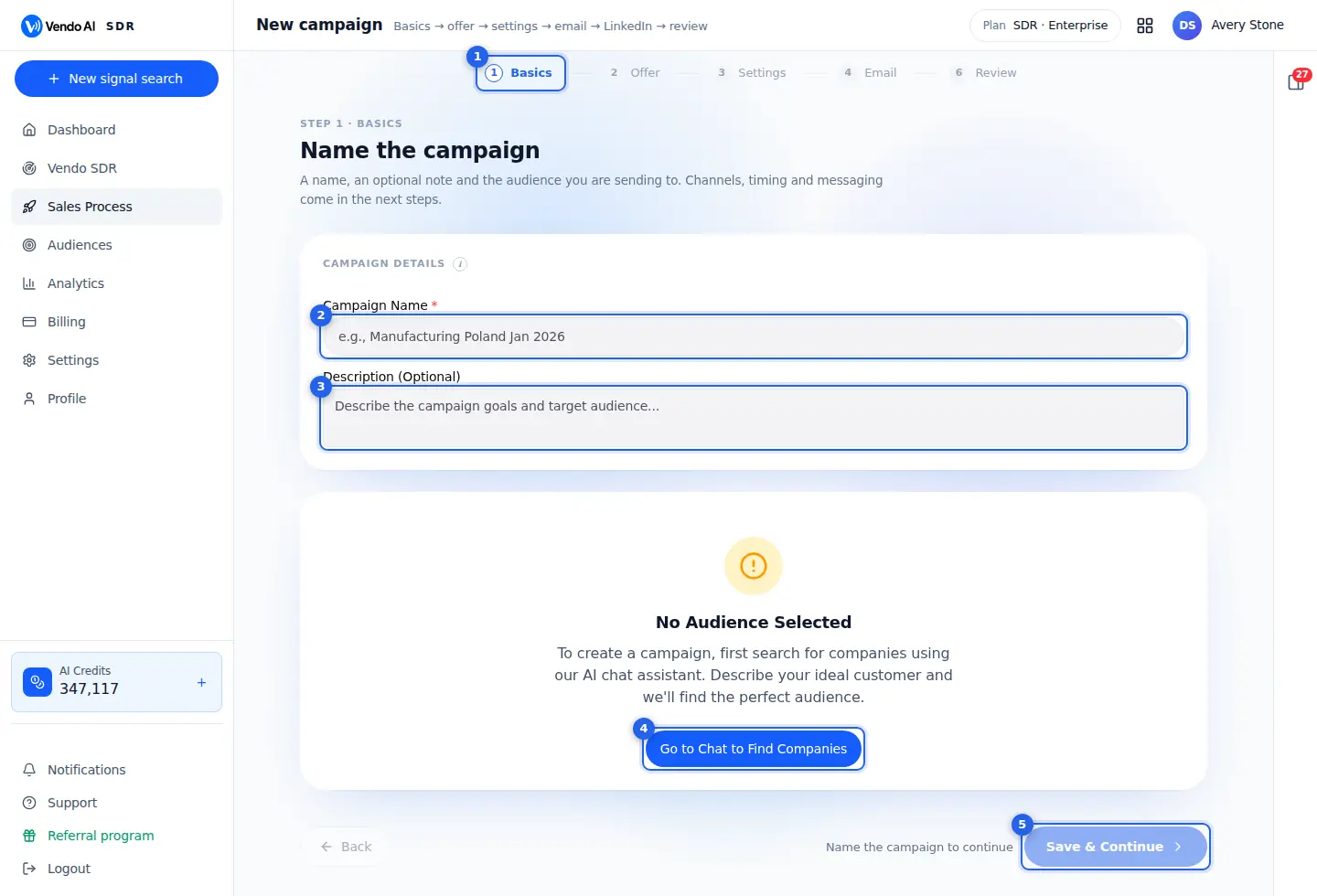
- StepsBasics (name and audience), Offer (the sales script), Settings (channels, sender, limits), Email (the sequence), LinkedIn (invite and follow-up) and Review. Email-only campaigns hide the LinkedIn step, LinkedIn-only campaigns hide Email.
More details
The stepper shows where you are in the campaign wizard. The full set is Basics, Offer, Settings, Email, LinkedIn and Review, but only the steps that apply to your channels are shown: Email only (the default) hides LinkedIn, LinkedIn only hides Email. You choose the channels on the Settings step.
- Basics: name, note and the audience.
- Offer: the sales script the AI writes from.
- Settings: CRM branch, channels, sender, daily volume, schedule, auto-replies, communication rules, notifications and signature.
- Email: how the emails and follow-ups are written.
- LinkedIn: accounts, invite text and the message after they accept.
- Review: summary, cost estimate and Launch.
Finished steps turn into ticks and can be clicked to go back. From step 2 on, changes are saved automatically shortly after you make them, and the wizard reopens on the same step after a reload. Nothing is sent until you press Launch on Review.
- Campaign nameShown in the campaign list, analytics and the CRM.
More details
Required. The name identifies the campaign everywhere: the Sales Process list, analytics and the CRM, where replies from this campaign arrive as leads. Prospects never see it.
A good name says who and when, for example "Manufacturing Poland Jan 2026" or "UK fintech CFOs, follow-up test B". This makes it easy to compare campaigns in analytics and to find the right one when a lead comes in.
You cannot continue without a name: the button stays disabled and the hint "Name the campaign to continue" is shown. You can rename the campaign later by editing it. When you duplicate a campaign, the copy gets the same name with "(Copy)" added, so rename it right away.
- DescriptionA note for your team.
More details
Optional note for your team, for example the goal of the campaign, the hypothesis you are testing or who owns the replies. It is shown in the Review summary.
The description is internal only: it is not sent to prospects and the AI does not use it to write emails. What the AI writes from is the sales script on the Offer step and the Communication Rules on the Settings step, so put instructions for the messages there, not here.
- Find companiesNo audience yet? Describe your ideal customer to the AI Assistant and it builds the audience.
More details
Shown instead of the audience card when no audience is attached yet. A campaign always sends to one audience, so you need one before you can continue.
The button opens the AI Assistant chat. Describe your ideal customer there (industry, country, company size, job titles) and the assistant searches and builds the audience, then you continue to campaign setup with it attached.
Other ways to get an audience into this step:
- On the Audiences page, press Launch campaign on a list you uploaded or bought.
- In the Marketplace, open a ready-made set and press Launch campaign.
- On the Sales Process page, press Launch campaign next to a custom audience.
Each of these opens this wizard with the audience already attached.
- Save & ContinueSaves the draft and goes to the next step.
More details
Checks that the campaign has a name and an audience, creates the campaign as a draft and moves to the Offer step. From this moment the campaign exists: it appears as Draft in the Sales Process list and can be reopened with Set up or Edit settings.
On later steps the button reads Next and saves the current step before moving on. In addition, every change is saved automatically about a second and a half after you make it ("Saved automatically" with the time is shown at the bottom).
If the button is disabled, the hint next to it says why: "Name the campaign to continue" or "Pick an audience to continue". Saving a draft costs nothing and sends nothing.
Also on this screen
- Your audience (Basics)Who the campaign will contact, with filters to exclude groups.
More details
Shows the attached audience grouped by position, location and company size, plus contact channels: how many contacts can be reached by email (addresses that pass validation) and LinkedIn (profiles that can receive an invite). Phone and WhatsApp are shown for reference only.
Click × on a position, city or company size band to exclude it, for example recruiters, junior roles or one-person companies. The counts recalculate automatically; excluded items stay visible crossed out until you reset. Contacts without a city are kept. Only contacts with a verified email or a LinkedIn profile can be reached.
- Campaign Budget (Basics)Credits the initial emails will need versus your balance.
More details
Each email costs 5 credits (1 credit is 1 cent). The card multiplies the contacts with verified email by 5 and shows Credits needed, Estimated cost and Your balance.
If the balance is short, a Top up button shows how many credits are missing and opens Billing. Note this card counts one email per contact; follow-ups and LinkedIn add more, and the full estimate is on the Review step. Credits are charged only for messages actually sent, so the balance does not need to cover everything at once. If it runs out mid-campaign, sending is paused for lack of credits and continues after a top-up. Top up before launch for larger lists.
- Offer: sales scriptWhat you sell, which the AI writes every message from.
More details
Step 2. Two options:
- Use a saved sales script: pick one of the scripts already in the workspace (from earlier campaigns, SDR processes or website analyses).
- Analyse my website: enter the company name and website and press Analyse. Vendo reads the site, works out what you sell and to whom, and writes a script. It takes about a minute, uses 15 credits, sends nothing to anyone, and you can leave the page while it runs.
The selected script opens in an editor with What you sell (company description) and How you sell (the outreach script: pitch, ideal customer, pains, proof, call to action). Edits are saved when you press Next and change the script for every campaign that uses it. You cannot continue without a script.
- CRM branch, Channels, Email Sending (Settings)Where replies go, which channels run and who sends.
More details
Step 3 starts with:
- CRM branch: replies become leads in this branch; General is the default and visible to everyone. One campaign, one branch.
- Channels: Email only, LinkedIn only (for a list with LinkedIn links and no emails, no mailbox needed) or Email + LinkedIn, where each person gets the channel their data supports. This choice shows or hides the Email and LinkedIn steps.
- Email Sending: Vendo managed senders (warmed Vendo addresses, roughly 100 safe emails a day included) or Client-owned mailboxes (your Google Workspace, Microsoft 365 or SMTP mailboxes, connected here with an app password and warmed up first). If the workspace has a connected mailbox, a new campaign starts in client-owned mode. In managed mode a warning lists any connected mailboxes that will not be used.
- Emails per day, LinkedIn invites per day, Campaign calculatorDaily volume and how long the campaign will take.
More details
- Emails per day: first emails per day, all senders together (50, 100, 200, 300 or 500). Follow-ups go out on top. The ceiling is your sending capacity: 50 per ready client-owned mailbox, or the sum of the daily limits of your managed addresses. Options above it are disabled. Start low on new domains.
- LinkedIn invites per day (when LinkedIn is on): a limit for the whole campaign across all accounts, not per account. Each account also keeps its own safe cap, so the real number is the lower of the two. Values above 50 appear only when you have enough accounts.
- Campaign calculator: contacts with email × (1 + follow-ups) ÷ emails per day, counting only working days when weekends are excluded. The tiles at the top show the duration with and without follow-ups.
- Delivery ScheduleTime zone, working hours and weekend sending.
More details
Choose the time zone, Working Hours Start and Working Hours End (whole hours) and whether to Exclude Weekends (skip Saturday and Sunday). Nothing is sent outside this window; emails due outside it wait for the next window.
Pick the time zone of your prospects, not your own; leaving the wrong zone pushes emails into their night. A typical setup is 9 to 17 in the prospects' zone with weekends excluded. Follow-up delays are set per follow-up on the Email step and are counted in days. The Review step and the campaign card use the same window to show Outside working hours.
- AI Auto-Response and Reply NotificationsAI answers to replies and who gets alerted.
More details
AI Auto-Response: when a prospect replies, the AI answers from the sales script and your Communication Rules after the Response Delay you choose (5, 10, 15 or 30 minutes, or 1 hour). Switch it off to handle every reply yourself. Either way the reply becomes a lead in the CRM branch.
Reply Notifications: add one or more email addresses (type and press Add or Enter). Each address receives the full reply conversation by email, in addition to the CRM, so nobody waits for a lead. Duplicates and invalid addresses are rejected.
- Communication Rules and Email SignatureThe most important field: your call to action and limits.
More details
Communication Rules override the built-in defaults in every email, follow-up, AI reply and LinkedIn message of this campaign. Write in plain sentences:
- the exact call to action (a 15-minute call with a booking link, or a sign-up link and never a meeting);
- whether links go in the first message or only after a reply;
- what to promise and never claim, pricing rules, how to answer objections, when to hand over to a person.
Two buttons insert an example to start from: sell by link and book a meeting. Replace the links and product with yours. If the rules are empty, the default call to action is a meeting.
Email Signature: added to every email. Keep it short (name, role, company, one link); images and heavy formatting hurt deliverability.
- Email Content (Email step)AI by prompt, fixed texts, or your own HTML.
More details
Step 4.
- AI generation (by prompt): a personal email for every prospect. Choose a tone (formal, casual, friendly) and write Email writing rules (length, structure, one call to action, no pricing in the first email).
- Fixed texts: up to 5 variants, each with a subject and body, with placeholders such as First name, Company and Position inserted by buttons.
- Your own HTML: upload or paste finished HTML for each step. A step left empty falls back to AI. Placeholders like {{first_name}} work inside HTML; scripts and forms are stripped on save.
Press Preview to see a real sample before launch. Each email sent costs 5 credits.
- Follow-ups (Email step)Up to 7 more emails in the same thread.
More details
Add follow-ups with + Add follow-up (up to 7). Each needs Send after: days after the previous email (1 to 90). The wizard will not move past the Email step, save or launch while a follow-up has no delay.
In AI mode each follow-up has its own writing rules (shorter, new angle, reference the previous email, one question) and its own Preview. In fixed mode you write the subject and body; an empty subject keeps the same thread. Every follow-up adds to the campaign length and cost: one more email per contact, 5 credits each.
- LinkedIn stepAccounts, invite note and the message after they accept.
More details
Shown when LinkedIn is a channel.
- Accounts for this campaign: tick connected accounts; contacts are spread across them. Customise opens that account's own settings (tone, reply delays, working hours, booking link, signature), shared by every campaign it sends for. No accounts? Connect one in Settings, LinkedIn.
- Connection invite: AI-written or fixed text, up to 200 characters, with Preview. Free LinkedIn accounts have few invitation notes a month; when they run out, invites go without text.
- Follow-up after connect: a first message 1, 4, 12, 24 or 48 hours after accept, then two automatic follow-ups 3 and 5 days later if they stay silent.
- Smart auto-replies: AI answers LinkedIn replies; off leaves them to you.
Invites cost 5 credits, messages 3.
- Review and LaunchFinal check, cost estimate and the start button.
More details
Step 6 summarises the audience, sales script, schedule, LinkedIn settings and senders. What this campaign costs estimates credits if everything sends: emails including follow-ups at 5 credits, plus LinkedIn contacts at 5 credits per invite and 3 per message. Only sent messages are charged. Sending Plan shows how many days the campaign runs.
Launch is blocked, with the reason listed, when there is no sales script, no channel, or client-owned mode without a connected mailbox. Save draft keeps everything without sending.
After Launch the email schedule starts and, with LinkedIn on, the LinkedIn queue is created on the selected accounts. You land on the campaign page, where you follow sends, opens, replies and conversations, and can pause each channel.
Audiences: marketplace
app.vendo-ai.com/audiences
Ready-made contact sets and your own lists. Any audience can be launched into a campaign in one step.
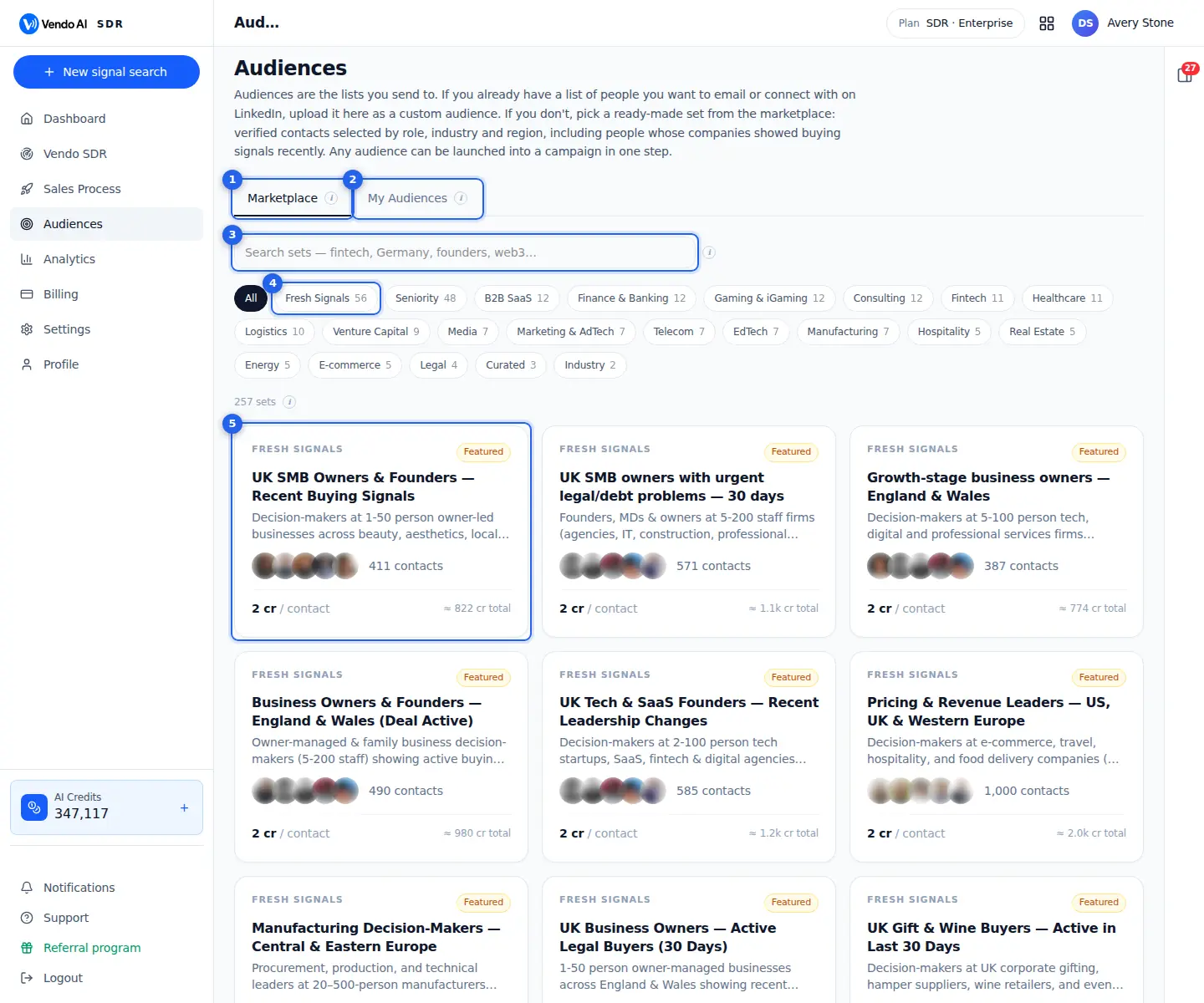
- MarketplaceReady-made sets by role, industry and region, including people whose companies showed buying signals recently.
More details
The default tab of the Audiences page: a catalogue of ready-made contact sets you can buy or launch into a campaign without building a list yourself.
Sets are slices of the Vendo people database by industry, country, seniority and curated combinations, plus Fresh Signals sets: people whose companies showed a buying signal in the last 30 days. Sets are built from contacts with a verified email.
Typical use: you want to test a new segment quickly. Search or pick a category, open a set to look at the people inside, then either Buy it (to own the list) or Launch campaign (to start sending). Prices are per contact and shown on every card, so you see the cost before you commit. Your purchases are marked Owned.
- My AudiencesUploaded files and purchased sets.
More details
Your own lists: files you uploaded, contacts exported from Vendo SDR searches and marketplace sets you bought. Each list shows its status (Processing, Ready, Enriching or Error), the number of contacts and how many have email, phone and LinkedIn.
From this tab you can:
- upload a new CSV, XLSX, XLS, TSV or TXT file and map its columns;
- open a list to see its contacts, enrich missing data, export it to CSV or delete single contacts;
- launch a ready list into a campaign;
- remove a list you no longer need.
A list can be launched into any number of campaigns.
- SearchMatches titles, descriptions and categories.
More details
Filters the marketplace as you type. It matches set titles, descriptions and category names, so you can search for an industry ("fintech"), a role ("CFO"), a country ("Germany") or a word from the description.
The search works together with the category chips below it: if a category other than All is selected, only sets in that category are searched. The line under the chips shows how many sets match. If you see "Nothing matches", switch the category back to All or try a shorter word.
- CategoriesGroup sets by industry, seniority or region. Fresh Signals are people whose companies showed a buying signal in the last 30 days, refreshed daily.
More details
Chips that group the catalogue. All shows everything; each other chip shows one category with the number of sets in it. Categories group sets by industry, seniority or region, plus curated sets.
Fresh Signals is different from the rest: these sets are built from people whose companies showed a buying signal (for example hiring, funding or a launch) in the last 30 days. They are rebuilt every day, so the contact count can change from one day to the next.
Note the difference when launching: launching a Fresh Signals set also buys its contacts, while launching any other set does not.
- Set cardWho is inside, sample contacts, number of contacts and price per contact. Buy copies the contacts into My Audiences; Launch opens campaign setup with the set attached.
More details
Each card is one set. It shows the category, a title (who is in the set), a short description, a few sample people, the number of contacts and the price per contact with the approximate total. Owned means you already bought it; Featured marks the largest fresh sets.
Click the card to open the set: a browsable preview of its contacts with role, company and location. Last names, emails and LinkedIn links are masked until you buy. Click a row for the full contact card, including why the person is in the set.
- Buy: after a confirmation with the total, charges price × contacts in one go and copies the contacts into My Audiences as a new list; the full list unlocks. Without enough credits you are asked to top up in Billing.
- Launch campaign: opens campaign setup with the set attached. For ordinary sets nothing is charged for the contacts; you pay per message sent. For Fresh Signals sets launching buys the contacts first (shown in a confirmation).
Also on this screen
- Price per contactWhat one contact costs when you buy a set.
More details
Shown on each card and in the set window, in credits per contact (1 credit is 1 cent). The standard marketplace price is 2 credits per contact. The total on the card (≈ N cr) is price × number of contacts and is charged once, when you buy.
Launching an ordinary set instead of buying it charges nothing for the contacts; you pay only for outreach (5 credits per email, 5 per LinkedIn invite, 3 per LinkedIn message). Fresh Signals sets are charged at the set price when you Buy or Launch.
- Contact preview and contact cardLook inside a set before you pay.
More details
In the set window you can scroll through the people in the set; more can be loaded, up to a browsing limit. Before purchase, names show only the first name and last initial, avatars are blurred, and emails and LinkedIn links are hidden. Click a row to see the contact card: role, company (website, industry, size, description), location, why the person is in the set (the dated event that put the company on the radar, or the facets of the pool), and which channels are available. A masked email means a valid mailbox exists. Everything unlocks after purchase, here and in My Audiences.
- Buy vs Launch campaignOwn the list, or go straight to sending.
More details
- Buy when you want the contacts as your own list: to export, enrich, check or use in several campaigns. The list appears in My Audiences and the card shows Owned.
- Launch campaign when you just want to start sending to the set. Campaign setup opens with the audience attached; you name the campaign, choose the script and settings, and launch.
Common mistake: buying a large ordinary set only to send one campaign; launching it directly avoids the purchase cost.
Audiences: your lists
app.vendo-ai.com/audiences
Your own lists: uploaded files, contacts exported from signal searches and purchased marketplace sets. Upload a file in the drop zone, map its columns, and the list appears here with its status and counts. Hover a list for Remove. You can also attach a file to the AI Assistant and ask it to create the audience.
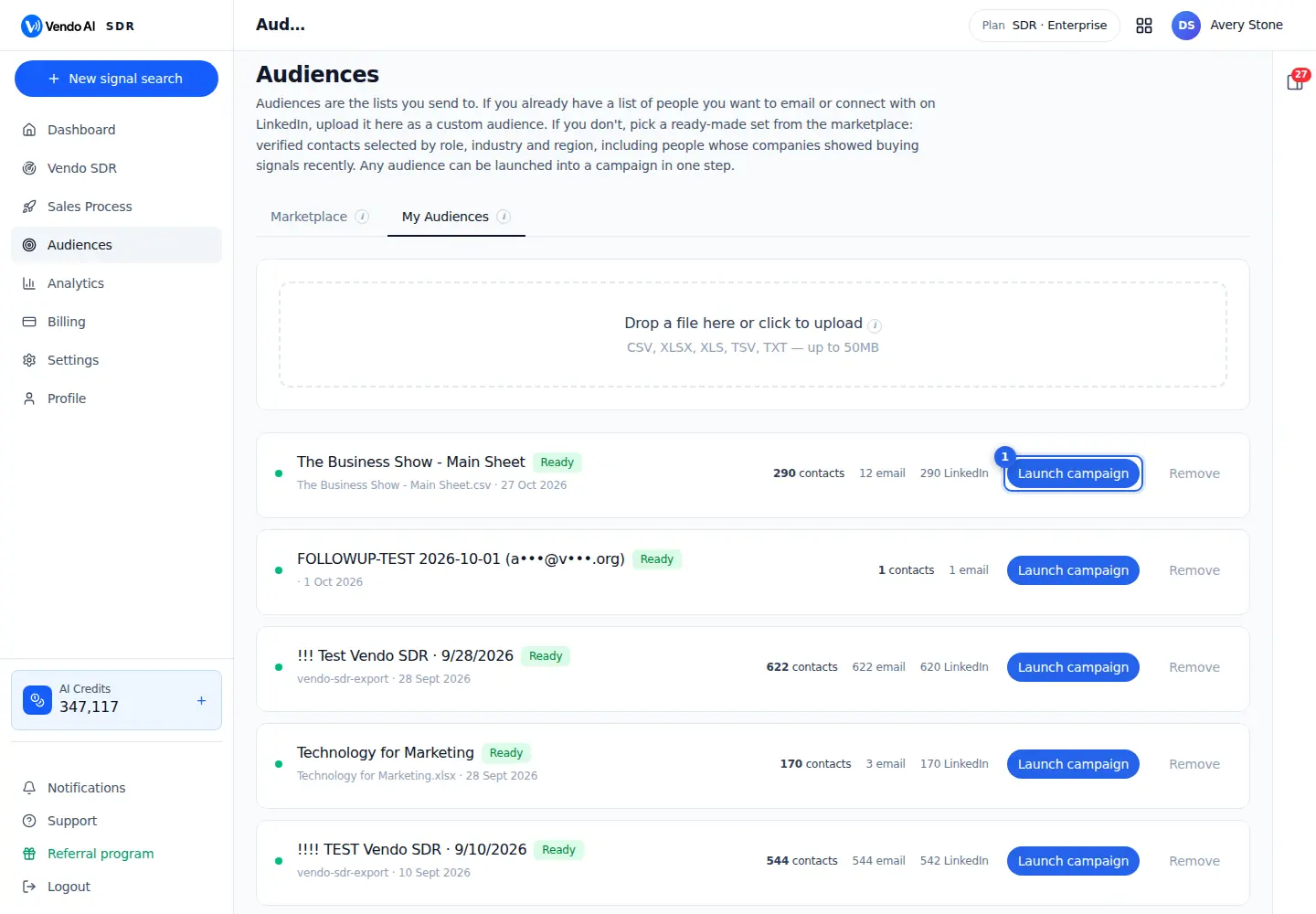
- Launch campaignOpens campaign setup with this list attached.
More details
Starts a classic campaign with this list as its audience. Vendo prepares a sending audience from the list (the button shows Preparing...) and opens campaign setup with the audience already attached on the Basics step. You then name the campaign, pick or build the sales script, choose channels and settings, and launch on the Review step.
The button appears only for lists with status Ready and at least one contact. A list that is still Processing, Enriching or in Error has no button until it is ready.
Pressing it costs nothing. Credits are charged later per message actually sent: 5 per email (including follow-ups), 5 per LinkedIn invite and 3 per LinkedIn message.
Tip: if many contacts lack an email, open the list and run Enrich Audience first, otherwise only contacts with a valid email or LinkedIn profile can be reached. The same list can be launched into several campaigns, for example to test two different messages.
Also on this screen
- Upload a listDrop a file or click to add your own contacts.
More details
The drop zone at the top of My Audiences accepts CSV, XLSX, XLS, TSV or TXT files up to 50 MB. Drop the file or click to choose it. Vendo reads the columns ("Reading columns...") and opens the mapping step.
Prepare the file with one person per row and clear column headers such as name, email, phone, linkedin, company, title, country, city, website. Separate first name and last name columns are fine. Rows without at least one of email, phone, LinkedIn or name are skipped. Split files larger than 50 MB.
- Map your columnsMatch each column of your file to a Vendo field.
More details
After upload, a window lists every column with a sample value and a field selector. Vendo pre-selects a field where the header is recognised (for example "e-mail" or "work email" becomes Email, "job title" becomes Position). Check each one, pick the right field or choose Ignore this column.
At least one column must map to Email, Phone, LinkedIn or a Name, otherwise Create audience stays disabled. You can also change the audience name (the file name by default). After Create audience the list shows Processing, then Ready with the contact count, and opens.
- List statuses and countsProcessing, Ready, Enriching or Error, with channel counts.
More details
- Processing: the file is being read; the list cannot be opened yet.
- Ready: usable; shows contacts and how many have email, phone and LinkedIn, and the Launch campaign button.
- Enriching: missing data is being filled in, with a percentage.
- Error: the file could not be processed; the message says why. Use a CSV or XLSX with columns like email, phone, linkedin, name, company.
Each list also shows the source file name and the date it was created.
- Enrich AudienceFill in missing emails and profile data.
More details
Open a list and press Enrich Audience. Vendo searches LinkedIn for each contact with missing data and fills in what it finds: email, phone, position, company, city, LinkedIn URL. Before starting, a window shows how many contacts will be processed and the estimated time.
Cost: 1 credit per successful enrichment, charged only when new data is found (a LinkedIn URL or an email). A progress bar shows done and total, credits used and a log of the latest contacts; you can stop at any time and keep what was found. Enrichment continues if you leave or reload the page.
- Remove, Export CSV, delete a contactKeep your lists clean.
More details
- Remove (on the list row): deletes the whole list after a confirmation. This cannot be undone.
- Export CSV (inside a list): downloads the contacts as a CSV file.
- Delete a contact (inside a list): opens a confirmation that shows, for contacts from Vendo SDR, why the person was found, and lets you give an optional reason (Not relevant, Wrong contact, Already a customer, Bad data, Other). Contacts imported from a file show that they have no signal context.
Cleaning a list before launch saves credits: every contact you remove is one email and its follow-ups that will not be sent or charged.
An audience list
app.vendo-ai.com/audiences/5b0d80ad-b8b6-40dc-9ae4-be73755fd088
Open a list to see every contact, edit or remove contacts, export it or fill in missing data.
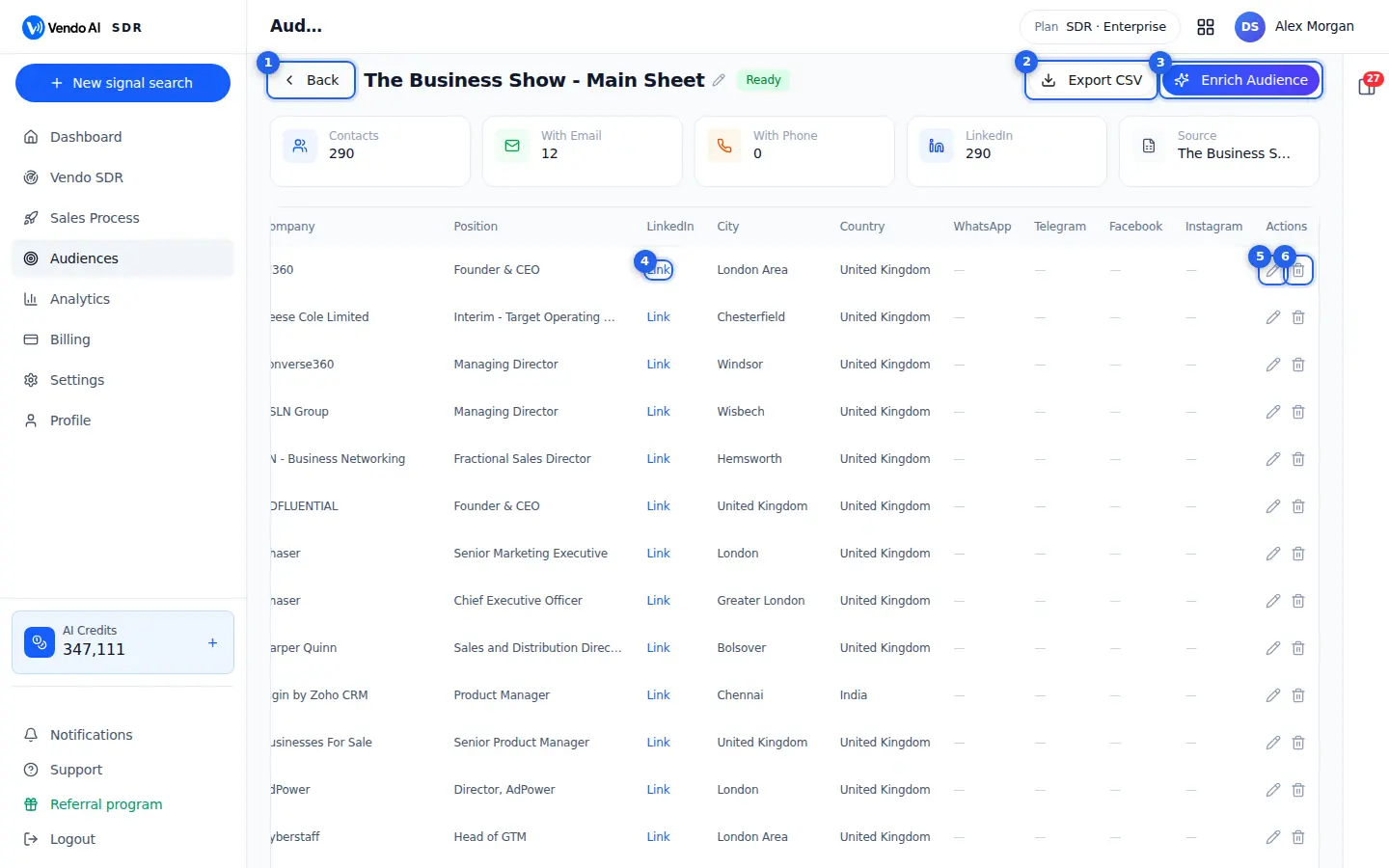
- BackBack to Audiences.
More details
Returns to the Audiences page with all your lists and the marketplace.
Nothing on this list changes when you leave. An enrichment that is running keeps running in the background.
From the Audiences page you can open another list, launch a campaign with a list or remove a list. What you changed here, such as edited or deleted contacts, is already saved; this page has no separate save button.
- Export CSVDownloads the list with every field.
More details
Downloads the whole list as a CSV file with every field: names, email, phone, LinkedIn, company, position, city, country and the messenger fields.
Use it to check the list in a spreadsheet, share it with a colleague or load it into another tool. The button is disabled while the list is empty. Export is free.
The file holds all contacts of the list, not only the page you see.
- Enrich AudienceLooks up missing data for the contacts. Credits are charged only for data found.
More details
Looks up missing data for the contacts by searching LinkedIn profiles: email, phone, position, company and city. A window first shows how many contacts will be processed and the estimated time; press Start Enrichment to begin.
Cost: 1 credit per successful enrichment, charged only when new data is found (a LinkedIn URL or an email). An email is found only when the LinkedIn profile shows one, so do not expect every contact to get an email.
While it runs, a bar shows done and total, credits used and the last lines of the log. Stop ends it and keeps what was found.
- Profile linkOpens the contact's LinkedIn profile.
More details
Opens the contact's LinkedIn profile in a new tab. The column shows "Link" when the contact has a profile URL and a dash when it does not.
Use it to check that the person is still in the role before you launch a campaign. Opening the profile is free.
Enrich Audience can look for missing LinkedIn profile links. A profile link also lets LinkedIn outreach reach the contact.
- Edit contactFix a name, title, company or email.
More details
Turns the row into editable fields: first and last name, email, phone, LinkedIn, company, position, city, country, WhatsApp, Telegram, Facebook and Instagram.
Press the green tick to save or the cross to cancel. Use it to fix a wrong title, a typo in the email or a company name before outreach. Editing is free.
Only this list changes. Editing never changes other lists.
- Delete contactRemoves the contact from this list.
More details
Removes the contact from this list after you confirm in a small window. If the contact came from a signal search, the window shows why it was picked and its relevance score.
You can pick a reason, such as Not relevant, Wrong contact, Already a customer or Bad data. The reason is optional and helps improve how contacts are selected.
Every contact you remove before launch is one email, and its follow-ups, that will not be sent or charged. Deleting does not refund credits already spent on that contact.
Also on this screen
- RenameThe pencil next to the list name renames the list.
More details
Click the pencil, type the new name and press Enter or the green tick. Escape cancels. The name is how the list appears on the Audiences page and when you choose an audience for a campaign.
Renaming changes nothing else: the contacts and the export stay the same. The new name shows in the title right away and a message confirms Renamed.
- StatusReady, or Enriching while an enrichment runs.
More details
The badge next to the name shows Ready when the list can be used, or Enriching with a spinner while an enrichment is running.
While a list is enriching, the progress block under the title shows how many contacts are done, the estimated minutes left and the credits used, with a Stop button. Leaving the page does not stop the enrichment; it keeps running in the background.
- List numbersContacts, with email, with phone, with LinkedIn and the source file.
More details
The cards above the table count the contacts in the list and how many have an email, a phone and a LinkedIn profile. Source shows the file the list came from. The email count tells you how many contacts an email campaign can reach.
With LinkedIn tells you how many contacts can get LinkedIn invites. The With Email card tells you how many contacts an email campaign can reach.
AI agents
Sales, support and information agents that work on your website, in messengers, on the phone and in video meetings.
Your AI agents
app.vendo-ai.com/my-agents
All agents of the workspace, where they work and how they perform.
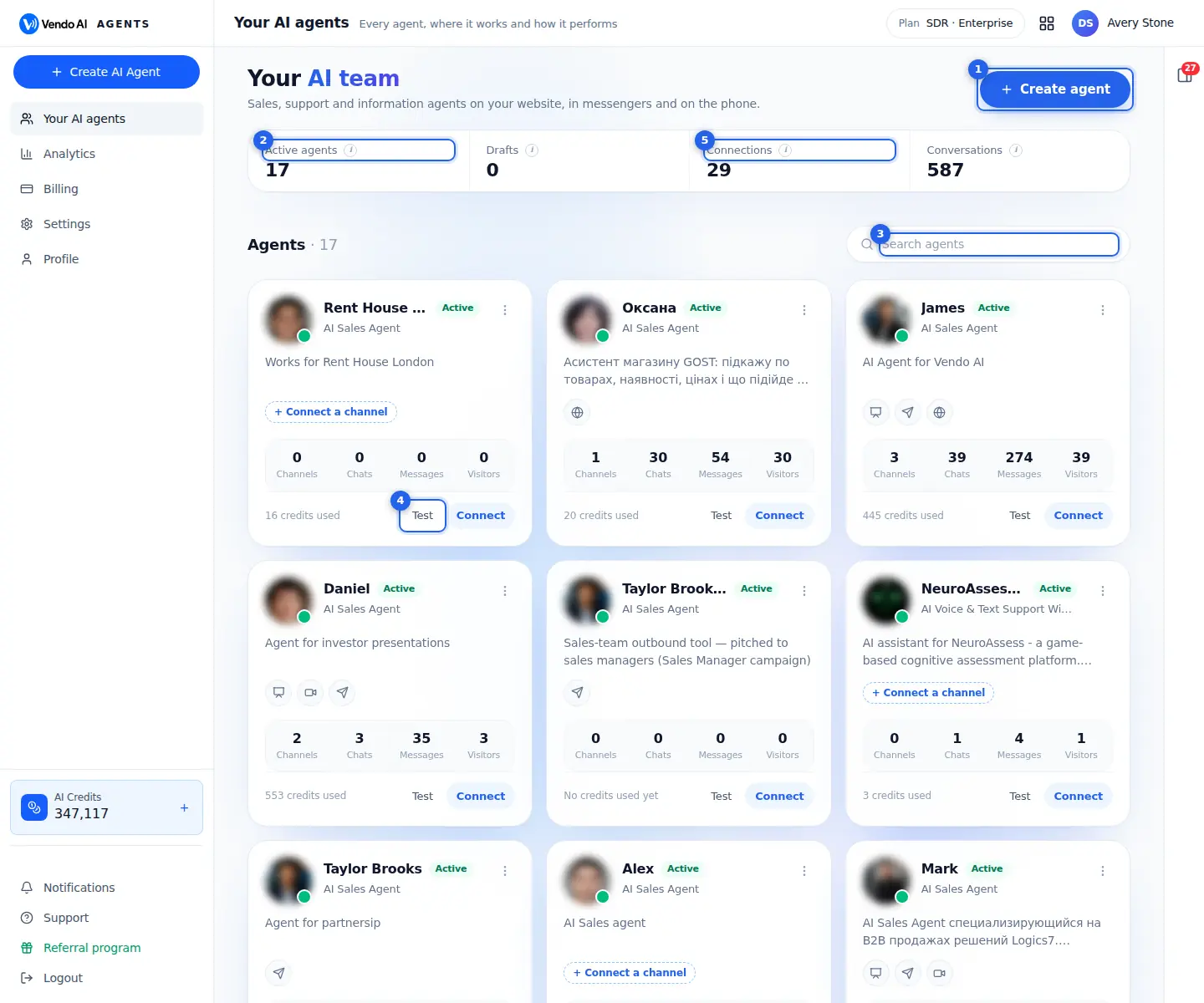
- Create agentStarts the 4-step agent builder.
More details
Opens the agent builder: four steps (Agent, Company, Script, Ready). Creating the agent itself is free; inside the builder, reading your website costs 15 credits and writing the script costs 1 credit.
Your plan limits how many agents a workspace can have. The bar under the figures shows "X of Y agents". When you are at the limit:
- if your plan allows add-on slots, Create agent opens a dialog to buy an extra slot for 20 a month in your currency. It is billed on the same cycle as your subscription, prorated for the current period, and can be removed on the Billing page;
- otherwise you see a message to upgrade the plan or archive an agent.
The agent is saved on the server as a draft as soon as you pass step 1. If you leave the builder and come back, it offers "Continue draft" or "Start new", so you do not lose work.
- OverviewActive agents, drafts, connections (places agents work) and conversations handled.
More details
Four totals for the whole workspace, each with an (i) explanation:
- Active agents: agents with status Active. Only these answer people.
- Drafts: agents you started but did not activate. An agent you switch off with Pause on its page also goes back to Draft status, so it is counted here too.
- Connections: the number of active places your agents work (website widgets and buttons, presentations, Google Meet, Telegram, WhatsApp, phone numbers), added up over all agents.
- Conversations: all conversations your agents have handled in every channel, all time.
Use it as a health check: many drafts and few connections usually means agents were built but never put to work. For figures over a chosen period, open Analytics > Agents.
- SearchFind an agent by name.
More details
Filters the agent cards as you type, instantly and without upper or lower case mattering. It looks in the agent name and in its description (the "About" note from step 1).
Results are ranked: names that start with your text come first, then names that contain it anywhere, then agents that only match in the description. Inside each group agents are sorted alphabetically. The counter next to "Agents" shows how many cards match.
Tip: if you run several agents for different products or sites, put the product or site in the About note (for example "Website chat for the clinic"). Then you can find the right agent by typing the product name even when the agent names are simple first names.
- TestTalk to the agent by chat or voice before customers do.
More details
Opens the test page so you can check the agent before customers meet it.
- Sales and Support agents open a test page with one tab per channel. Email and LinkedIn tabs are always on and show sample messages written from the agent's script. Browser Voice lets you talk to the agent through your microphone once a voice has been set up (for example by saving a website widget in Voice & text mode). Tabs for Website Widget, Button, Slide Presentation, Google Meet, Telegram, Voice Call and WhatsApp work only after that channel is connected. The script is shown on the right.
- Information agents open their presentation player instead.
Voice tests are billed like real use: a browser voice minute is 15 credits, a test phone call 25 credits per minute.
- ConnectPut the agent on your website, in Telegram, WhatsApp, on a phone number or in Google Meet.
More details
Opens the page where you choose where this agent works: Website Widget, Website Button, Slide Presenter, Google Meet, Telegram Bot, Voice Call (phone) and WhatsApp. Each card says what you need and opens a short setup.
An agent with no channels yet shows "+ Connect a channel" on its card. After you connect something, small channel icons appear on the card, and the Channels figure grows. If the agent is used in Sales Process campaigns, an Email Outreach icon is shown as well.
An agent only answers people after it is connected somewhere and its status is Active. You can connect one agent to several channels; they all share the same knowledge and script.
Also on this screen
- Agent cardOne agent: photo, status, description, channels and four figures.
More details
Each card shows the agent's photo and name, a status badge (Active, Paused or Draft), the About note (or "Works for <company>" if there is no note), icons of the channels it is connected to, and four figures: Channels, Chats, Messages and Visitors.
Click anywhere on the card to open the agent page with the last 30 days, every channel and the main actions. The Test and Connect buttons at the bottom of the card work without opening it.
If a card says Draft, the agent does not answer anyone yet: open it and either finish the builder (Activate on step 3) or press Turn on on the agent page.
- Agent menu (three dots)Open, Test agent, Connect channels, Edit, Duplicate, Delete.
More details
The three-dot button in the corner of a card opens a short menu:
- Open: the agent page.
- Test agent: the same test page as the Test button.
- Connect channels: the channel picker.
- Edit: the builder with all four steps reachable from the step bar; changes save automatically.
- Duplicate: a copy of the agent (see Duplicate).
- Delete: removes the agent after a confirmation (see Delete).
The menu is the quickest way to manage an agent without opening its page.
- DuplicateMakes a copy of the agent with the same knowledge and script.
More details
Creates a new agent with the same settings: role, face, company knowledge, uploaded materials, script and tone, and voice pace settings. The copy gets " (Copy)" after the name and opens in the builder so you can change it.
What is not copied:
- the copy starts as a Draft;
- no channels are connected; set them up again;
- the voice set-up is not copied, so the voice is created again when you save a voice channel;
- figures start from zero.
The copy counts toward your plan's agent limit like any other agent. A good use: one tested agent as a template for a second site, language or product line.
- DeletePermanently removes the agent after a confirmation.
More details
Deletes the agent permanently after you confirm. Its settings, script, voice set-up and channel connections are removed, the website widget stops working, and uploaded materials, the photo and its presentations are deleted. Conversations and leads already in your CRM stay.
Delete is refused while the agent is still used by active work, for example a running campaign. You then see which process uses it; pause that process or switch it to another agent first, then delete.
There is no undo. If you only want the agent to stop for a while, use Pause on the agent page instead.
- Agents of your planShows how many agents you have out of what your plan allows.
More details
The bar "X of Y agents" shows your current agent count against the plan limit, including any extra slots you bought. Archived agents are not counted.
When the bar is full it turns orange. If your plan supports add-on slots, the button "Add a slot" buys one more agent for 20 a month in your currency, billed with your subscription and prorated for the current period; you can remove the slot on the Billing page. If your plan does not support slots, upgrade the plan or archive an agent you no longer use. Duplicating an agent also needs a free slot.
Create an agent
app.vendo-ai.com/create-universal-agent
Four steps: Agent (role, name, voice, face), Company (what it knows), Script (how it talks) and Ready (connect channels).
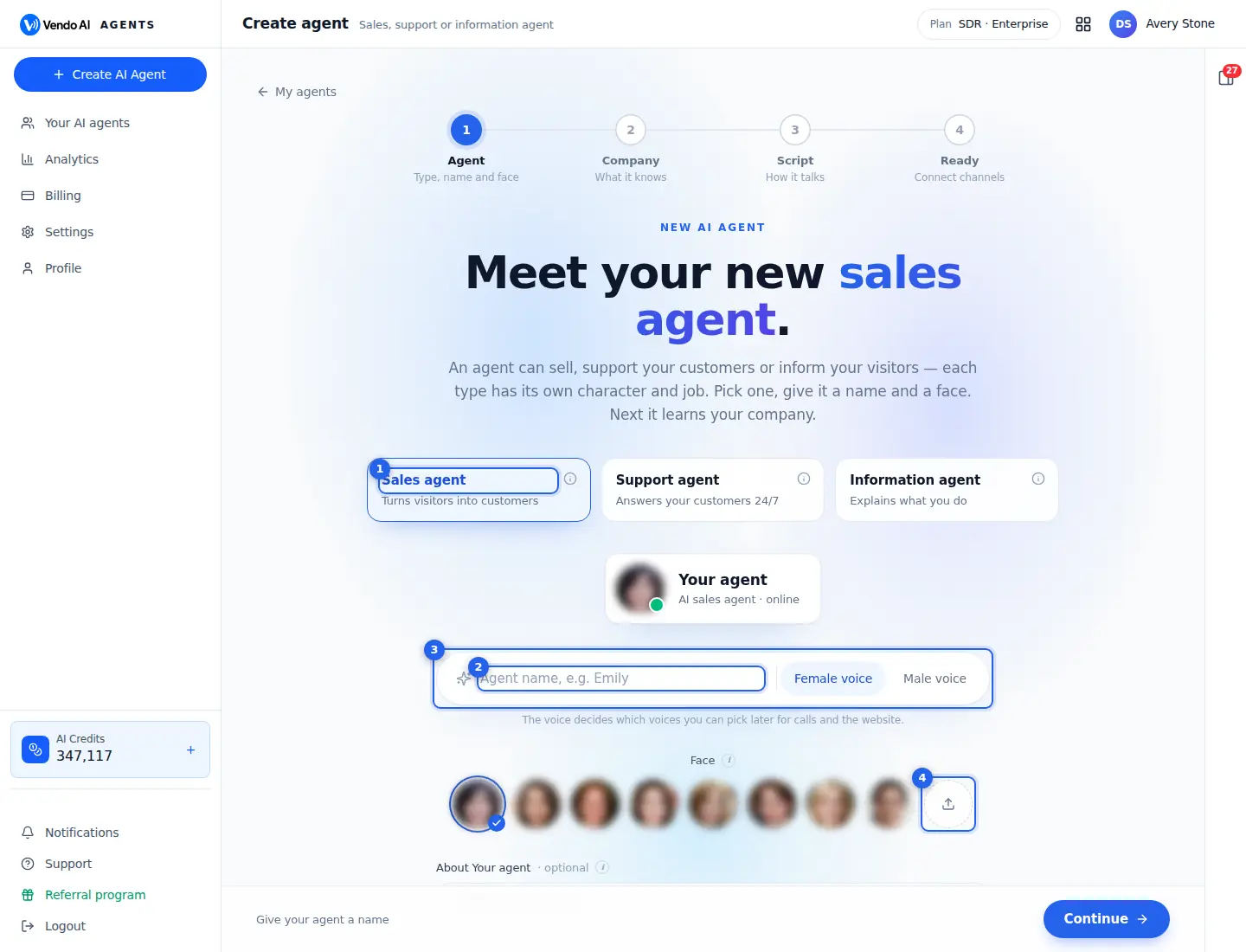
- RoleSales agent turns visitors into customers; Support agent answers customers 24/7; Information agent explains what you do.
More details
The role decides the agent's job, character and the structure of its script.
- Sales agent: qualifies leads, answers objections, books meetings and collects contacts. Confident and proactive, always moves to the next step.
- Support agent: answers questions, solves problems, explains orders, policies and next steps. Patient and calm; hands complex cases to your team.
- Information agent: explains products and services, guides visitors through the site and presentations, with no pressure to buy.
Each role gets its own 8-stage script on step 3 (for example Sales: welcome, rapport, discovery, presentation, pricing, objections, closing, follow-up). The (i) on each card lists the details.
If you change the role later in Edit, the existing script is not rewritten automatically: go to step 3 and press Rewrite (1 credit) so the stages match the new role.
- NameThe name visitors see.
More details
The name the agent uses for itself and that people see in the widget, messengers and your CRM. It is required: 2 to 40 characters.
The script uses the name once, in the greeting, and the live card above the field updates as you type. Pressing Enter in the field is the same as Continue.
Tips:
- A simple first name ("Emily", "Alex") sounds more natural in voice calls than a brand name.
- Match the name to the voice and face you choose, so visitors are not surprised.
- You can rename the agent any time in Edit. An existing script keeps the old name in its greeting, so edit the first stage or press Rewrite on step 3.
- VoiceFemale or male voice; the exact voice can be changed later in voice settings.
More details
Female voice or Male voice. Female is selected by default.
This choice does not lock one exact voice. It decides which voices you are offered later: in the voice settings of the website widget, the slide presenter and Telegram, only voices of this gender are shown, so the voice matches the agent's photo. There you can listen to each voice and pick one.
Changing the voice here also resets a preset face of the other gender (the face picker shows one gender at a time); the first face of the new gender is selected for you. Your own uploaded photo is kept.
- FaceChoose a photo or upload your own, shown in the widget, messengers and CRM.
More details
The photo of the agent, shown in the website widget, in messengers and in your CRM. A face is required to continue.
You see eight preset faces that match the chosen voice. The last round button ("More faces or upload a photo") opens the full picker with all presets of that gender and an upload option. Upload accepts JPG, PNG or GIF up to 5MB; a square photo works best because it is shown in a circle.
Your photo is uploaded when you press Continue. If the upload fails, the agent is still saved and you see a warning; try another image. In the widget you can also choose a voice look that uses this photo with a glow that moves with the voice.
Also on this screen
- About the agentAn optional note for your team; visitors never see it.
More details
A short internal description of what this agent is for, for example "Answers website visitors about our clinic". It is optional and is not shown to visitors.
It is shown on the agent card and on the agent page, and the search on Your AI agents also looks in it. That makes it useful when you run several agents: write the site, product or language each one is for, and you will find the right one quickly. Changing it does not affect how the agent talks.
- Company name and Read websiteStep 2: the agent reads your site and fills in what it learned. 15 credits.
More details
Enter your company name and website (for example acme.com) and press Read website. The agent reads the site in about a minute and shows its progress: your website and offer, your team, company size, contacts, prices and offers, then puts it together. The results fill the cards below, where you can correct everything.
Costs and rules:
- 15 credits per reading, charged when it starts. Pressing Stop ends the reading but the credits are already used. Without 15 credits the reading is refused.
- Only public web addresses are accepted.
- "Read again" repeats the reading and costs 15 credits again.
After a reading, check the cards and press Continue; that saves the company.
- No website? Describe your company yourselfSkip the website reading and write the knowledge by hand.
More details
For businesses without a site, or when you do not want the agent to learn from it. The website field disappears and you fill in "What the agent knows" yourself. No credits are spent on reading.
Write it in the language you want the agent to speak: the script language is detected from this text. Include what you sell, for whom, prices or how pricing works, how to start, opening hours and contacts.
Automatic re-reading ("Keep up to date") is not available without a website. You can switch back with "I have a website, read it".
- What the agent knowsThe main knowledge text about your company. Up to 10,000 words.
More details
The main text the agent answers from: what your company does, products and services, who they are for, prices, how to start. The website reading fills it in; you can edit it freely. A counter shows words used out of 10,000; text beyond that is cut.
Why it matters:
- the script on step 3 is written from it (plus team, prices, contacts and materials);
- the agent's language is detected from it by common words, so write it in your customers' language. Without enough clear words of another language the agent defaults to English.
Common mistakes: leaving marketing slogans instead of facts, missing prices or conditions, and mixing languages. Saving needs some text here.
- Prices & offersPackages, prices, discounts and trial terms the agent may quote.
More details
Put here the prices, packages, discounts and trial terms the agent is allowed to quote, for example "Starter $30/month, Growth $70/month, 14-day trial". The website reading fills it in when it finds prices.
If you leave it empty because prices are discussed individually, the agent offers a call instead of inventing numbers. These prices are also used when the script is written, so after changing them press Rewrite on step 3 if you want the pricing stage updated.
Keep it current: outdated prices are the most common reason an agent gives a wrong answer.
- TeamPeople the agent can name when someone asks who to talk to.
More details
People the agent may mention when a visitor asks who to talk to: founder, sales lead, support. Each person has name, position, email, phone and LinkedIn. The website reading fills in people it finds; "Add person" adds more and the cross removes one.
Team members are included in the script as key team members. Only list people who agreed to be named and whose contacts you want shared, and remove anyone who has left the company. Team changes reach the script when it is written, so press Rewrite on step 3 after big changes. The Ready step shows how many people the agent knows.
- Contacts for visitorsBooking link, presentation, phone, email, messengers and links the agent shares.
More details
What the agent shares when someone asks: meeting or booking link (Calendly, Cal.com, HubSpot or your own page), presentation link, address, phone, email, WhatsApp and Telegram. In the website widget they appear as buttons to open or copy, in chat and during voice calls.
- Empty fields are never offered and the agent never invents contacts.
- Links must be full web addresses; email and phone are checked for a valid format.
- "Links the agent can share": up to 10 extra buttons, each with a name (up to 60 characters), an address and a note when to share it (for example "Price list, when someone asks about prices").
- Social profiles (LinkedIn, Facebook, Instagram, X) can be shared and help the agent recognise your brand.
The most valuable field is the booking link: without it a Sales agent cannot hand over a meeting.
- MaterialsUpload presentations, documents and price lists to the agent's knowledge.
More details
Drop a file or click to choose: PDF, PowerPoint, Keynote, Word, text, Excel or CSV. Files are added to the agent's knowledge: when the script is written, their text is read and used together with the company description.
Files can be removed with the cross. The Ready step shows how many files the agent has.
Tips: upload the documents customers ask about most (price list, product sheet, terms). Files are read when the script is written, so after adding a new file press Rewrite on step 3 if you want its content reflected in the script.
- Keep up to dateRe-reads your website on a schedule. 15 credits per reading.
More details
Turn on "Re-read the website automatically" and choose how often: Daily, Weekly, Every 2 weeks, Monthly or Quarterly. The agent reads your site again on that schedule and learns new products and prices.
- Each reading costs 15 credits, so Daily is about 450 credits a month and Weekly about 65.
- It switches itself off if credits run out.
- Contacts you corrected by hand are never overwritten.
- It is only available when the agent has a website.
Weekly or monthly suits most businesses; daily is only worth it if prices change every day.
- Tone (How should the agent talk?)Step 3: Professional, Friendly, Expert or Consultative.
More details
Four tones, each with an example in its (i):
- Professional: clear, polite business language. B2B, finance, law.
- Friendly: warm, everyday words. Shops, consumer services, startups.
- Expert: exact terms and numbers. Software, engineering, medical.
- Consultative: asks first, then recommends. Complex or high-value offers.
The tone changes the words and manner, not the structure: every script of a role has the same stages. Choose a tone, then press "Write <name>'s script" (1 credit, usually 30 to 60 seconds). Picking another tone after the script exists asks to rewrite it; your edits are replaced and it costs 1 credit.
- Script stagesThe 8-stage playbook the agent follows in every channel; edit, reorder, add.
More details
The written script has 8 stages for the chosen role, in the language detected from your company text. A Sales script runs welcome, rapport and agenda, discovery, presentation, pricing and value, objection handling, closing with contacts, follow-up. Support and Information scripts have their own 8 stages. A separate version for email and LinkedIn is written at the same time.
In the editor:
- click a stage to read and edit its name and text;
- drag the handle to reorder, "Delete stage" to remove, "Add your own stage" for topics like warranty;
- Copy, Download PDF, Rewrite (1 credit, replaces edits).
Edits save automatically. Text chat uses the saved script at once; voice channels are set up from it when you save their voice settings, so save a voice channel again after big changes.
- Activate and ReadyStep 3 button turns the agent on; step 4 sends you to connect channels.
More details
"Activate <name>" on step 3 saves the script and switches the agent to Active. In Edit mode the button is "Save & finish" and never turns a paused agent back on; only a draft is activated.
Step 4 (Ready) shows a summary: how many words it knows, script stages, team members and files. Then:
- Connect channels: opens the channel picker for this agent;
- Back to my agents: returns to the list;
- Keep editing (edit mode): back to step 1.
Active alone is not enough: the agent answers only in channels you connect. Without credits on the workspace balance, agents stop answering.
Agent page
app.vendo-ai.com/agents/{agent}
One agent: what it did in the last 30 days and where it works.
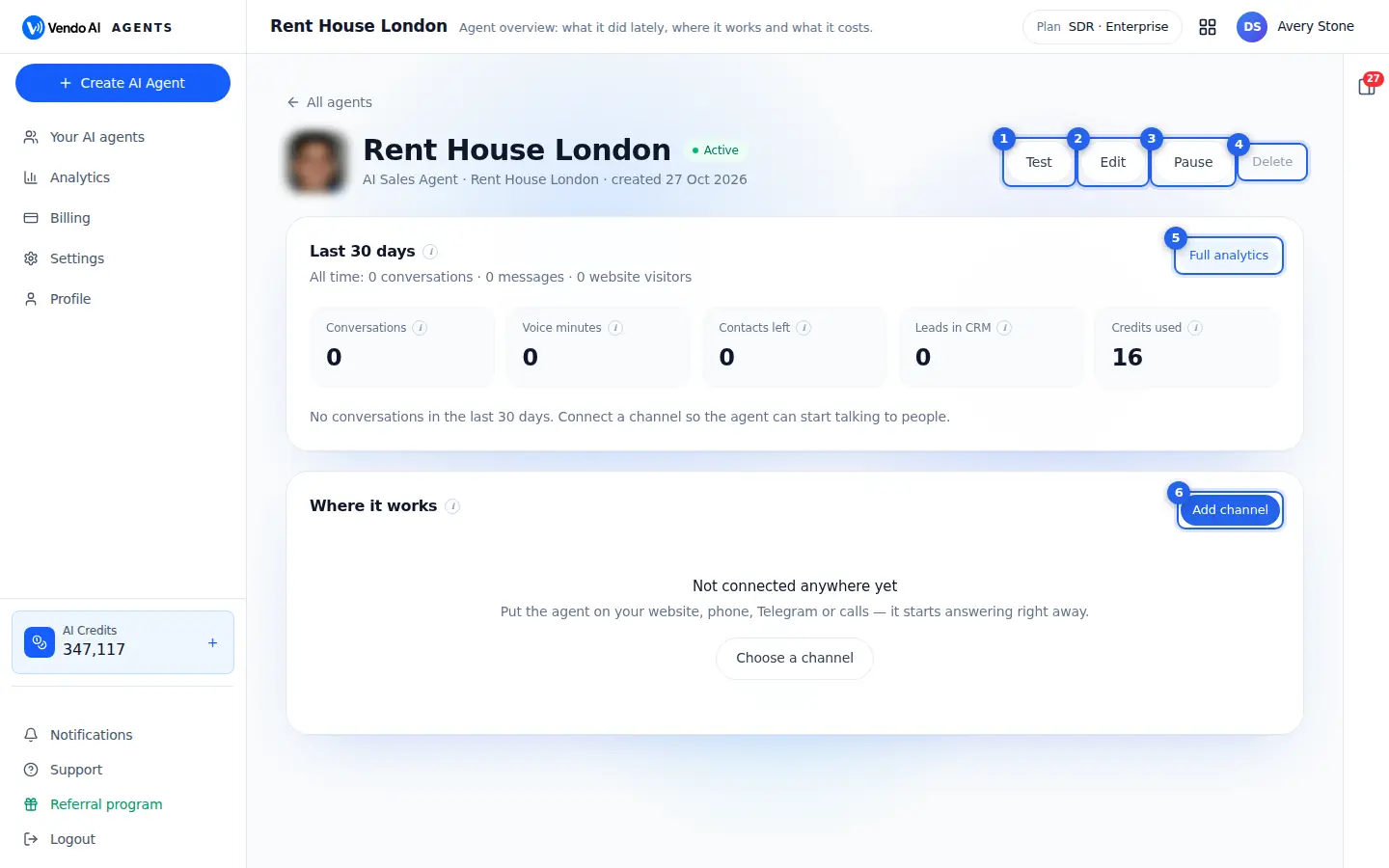
- TestChat or call the agent yourself.
More details
Opens the test page for this agent.
- Sales and Support agents: a page with a tab per channel. Email and LinkedIn tabs show sample messages written from the script. Browser Voice lets you talk through your microphone once a voice has been set up (for example by saving the website widget in Voice & text mode). Website Widget, Website Button, Slide Presentation, Google Meet, Telegram, Voice Call and WhatsApp tabs work after that channel is connected. In Voice Call you enter your own number and the agent calls you. The script is shown on the right.
- Information agents open the presentation player, with full screen and "open in a new tab".
Testing is billed like real use: 15 credits per browser voice minute, 25 credits per minute for a test phone call, 1 credit per chat reply.
- EditChange role, knowledge, script, voice and face.
More details
Opens the agent builder with all four steps reachable from the step bar: Agent (role, name, voice, face, note), Company (knowledge, prices, team, contacts, materials, auto-update), Script (tone and stages) and Ready.
In Edit mode changes are saved automatically a second or two after you stop typing, and only valid content is saved; a badge shows the save state. Editing never switches a paused agent back on.
What costs credits: reading the website again (15) and rewriting the script (1). Changing the role or knowledge does not rewrite the script by itself; press Rewrite on step 3 when the stages should change. Voice and look of each channel are changed in that channel's Settings, not here.
- PauseSwitches the agent off: the status shows Draft and the button reads Turn on. The website widget and Telegram stop answering; settings, script and history are kept.
More details
Switches the agent off. The button then reads "Turn on", and the status shows Draft until you turn it on again.
While it is off:
- the website widget no longer loads the agent, and messages get a neutral "technical difficulties" reply;
- the Telegram bot ignores incoming messages;
- no credits are spent on its replies.
Channel settings, the script and history are kept, so Turn on restores everything at once.
Good to know: when the workspace balance reaches zero, the system pauses all active agents of the workspace by itself, and agents paused that way are switched back on when credits are available again. Agents you paused yourself stay off until you press Turn on.
- DeleteRemoves the agent and its connections. Conversations and CRM leads stay.
More details
Deletes the agent after you confirm. This cannot be undone. The agent's settings, script and voice set-up are deleted and every channel is disconnected; on a website the widget stops working. Uploaded materials, its photo, presentations and its Google Meet connection are removed too. Conversations and leads already in your CRM stay.
Delete is refused while the agent is still used by active work, for example a running campaign; the message names the process. Pause or switch that process to another agent first.
If you only need a break, use Pause. If you want to keep a version, Duplicate the agent first from the agent list.
- Full analyticsAgent analytics for any period.
More details
Opens Analytics > Agents filtered to this agent, where you can pick any period and see daily charts and reach (widget views and opens).
The "Last 30 days" block on this page is a summary of the same numbers: Conversations, Voice minutes, Contacts left, Leads in CRM and Credits used, each compared with the 30 days before, and a daily chart of chats, voice calls, Telegram chats and leads. The line under the title shows all-time totals: conversations, messages, website visitors and credits.
If the numbers do not load, open Full analytics or refresh the page.
- Add channelConnect the agent to another place.
More details
Opens the channel picker for this agent: Website Widget, Website Button, Slide Presenter, Google Meet, Telegram Bot, Voice Call and WhatsApp.
Every connected channel then appears as a row in "Where it works" with its name, type, status (Live or another state) and its own figures. One agent can work in several channels at once with the same knowledge and script.
If nothing is connected yet the block says "Not connected anywhere yet" with a "Choose a channel" button. An agent answers nobody until at least one channel is connected and its status is Active.
Also on this screen
- Last 30 daysWhat the agent did in 30 days, compared with the 30 days before.
More details
Five figures, each with a change against the previous 30 days:
- Conversations: website chats and voice calls that started, plus Telegram chats with a message. Phone-number calls are counted on the phone channel.
- Voice minutes: minutes of website voice conversations.
- Contacts left: website conversations where the visitor left an email or phone.
- Leads in CRM: CRM leads created from this agent's conversations.
- Credits used: see Credits used.
Below is a daily chart of chats, voice calls, Telegram chats and leads. A low Contacts left compared with Conversations usually means the agent does not ask for contacts; turn on Visitor details in the widget or add a booking link.
- Credits usedCredits charged for this agent in the last 30 days.
More details
Credits charged for this agent in the last 30 days. 1 credit = 1 cent. Typical prices from the product:
- chat reply on the website or in Telegram: 1 credit;
- website voice minute: 15 credits (counted in 10-second steps);
- presentation voice minute: 17 credits;
- Google Meet minute: 7 credits, or 20 with a presentation; Telegram voice minute: 14 credits;
- phone call minute: 25 credits, plus 200 credits a month per phone number;
- AI writing: website reading 15, script 1, presentation slide script 1 to 2 per slide.
Credits come from the one workspace balance. When it reaches zero, agents are paused automatically. Per-channel all-time credits are shown in Where it works.
- Where it worksEvery channel this agent is connected to, with its own figures.
More details
One row per channel with name, type, status and figures:
- website widget and button: views and opens in the last 30 days, conversations;
- presentation: views, plays and watch time;
- phone: calls and successful calls;
- Google Meet: meetings and minutes, with the agent's invite address and a copy button;
- Telegram: chats and messages.
Credits are shown all time when there are any. Sales Process email campaigns that use this agent appear as rows too, with sent, opened and replies.
Click a row to open its conversations (Telegram chats, phone calls, Meet meetings, widget conversations). Each row has Settings and Remove.
- Settings (channel row)Opens the setup of that channel to change it.
More details
Opens the same setup you used to connect the channel, with your saved values: voice, look, greeting and behaviour for the website widget, the voice and buttons for Telegram, the phone wizard for a phone channel, and so on.
For the website widget the embed code stays the same after you update it, so changes appear on your site at once without touching the site. Saving the voice settings again also rebuilds the voice set-up from the agent's current script, which is useful after you rewrote it.
- Remove (channel row)Disconnects one channel; history is kept.
More details
Disconnects only this channel after a confirmation. The agent stops working there (on a website the widget disappears even if the code is still on the page). Conversation history is kept, and you can connect the channel again later.
Use it instead of Delete when you want to stop the agent in one place but keep it in others. If you connect the website widget again later, it is a new connection with its own code: copy the code shown for it.
- Status (Active, Paused, Draft)Whether the agent answers people right now.
More details
The label next to the name:
- Active: the agent answers in all its connected channels.
- Draft: it was never activated, or you pressed Pause (Pause sets the agent back to Draft).
- Paused: it was paused, for example automatically when the workspace ran out of credits.
Only Active agents answer. Turn on makes a Draft or Paused agent Active again; with a zero balance it still cannot answer until credits are added. Each channel row in Where it works also has its own status; "Live" means that channel is active.
- Test page tabs (Browser Voice, Email, LinkedIn, channels)One test page with a tab for every channel.
More details
The test page for Sales and Support agents has tabs in a fixed order:
- Email and LinkedIn: always available. They show a sample email and a sample LinkedIn invite with its follow-up, generated from the script.
- Browser Voice: available once the agent has a voice set-up. Press Start voice test, allow the microphone and talk; a live transcript appears. 15 credits a minute.
- Website Widget, Website Button, Slide Presentation, Google Meet, Telegram, Voice Call, WhatsApp, Zoom: enabled only when that connection exists, otherwise "Add this connection to enable". Voice Call places a real call to the number you enter (international format, like +447...), charged per minute.
The agent's script is shown on the right, stage by stage.
- Presentation test (Information agents)Information agents test in the presentation player.
More details
For Information agents and presentation narrators, Test opens the presentation player inside the app instead of the tab page. It loads the same player your viewers see, with buttons for full screen and for opening it in a new browser tab.
Use it to watch the narration slide by slide, ask questions by voice or chat, and check the buttons and call to action. It is billed like a real view: 17 credits per voice minute and 1 per chat answer. Information agents also have their own agent page focused on the presentation.
An agent at work
app.vendo-ai.com/agents/e28a5615-8a65-402a-86ab-a4895508e1c7
The page of an agent that already talks to people: its results for the last 30 days and every channel where it works.
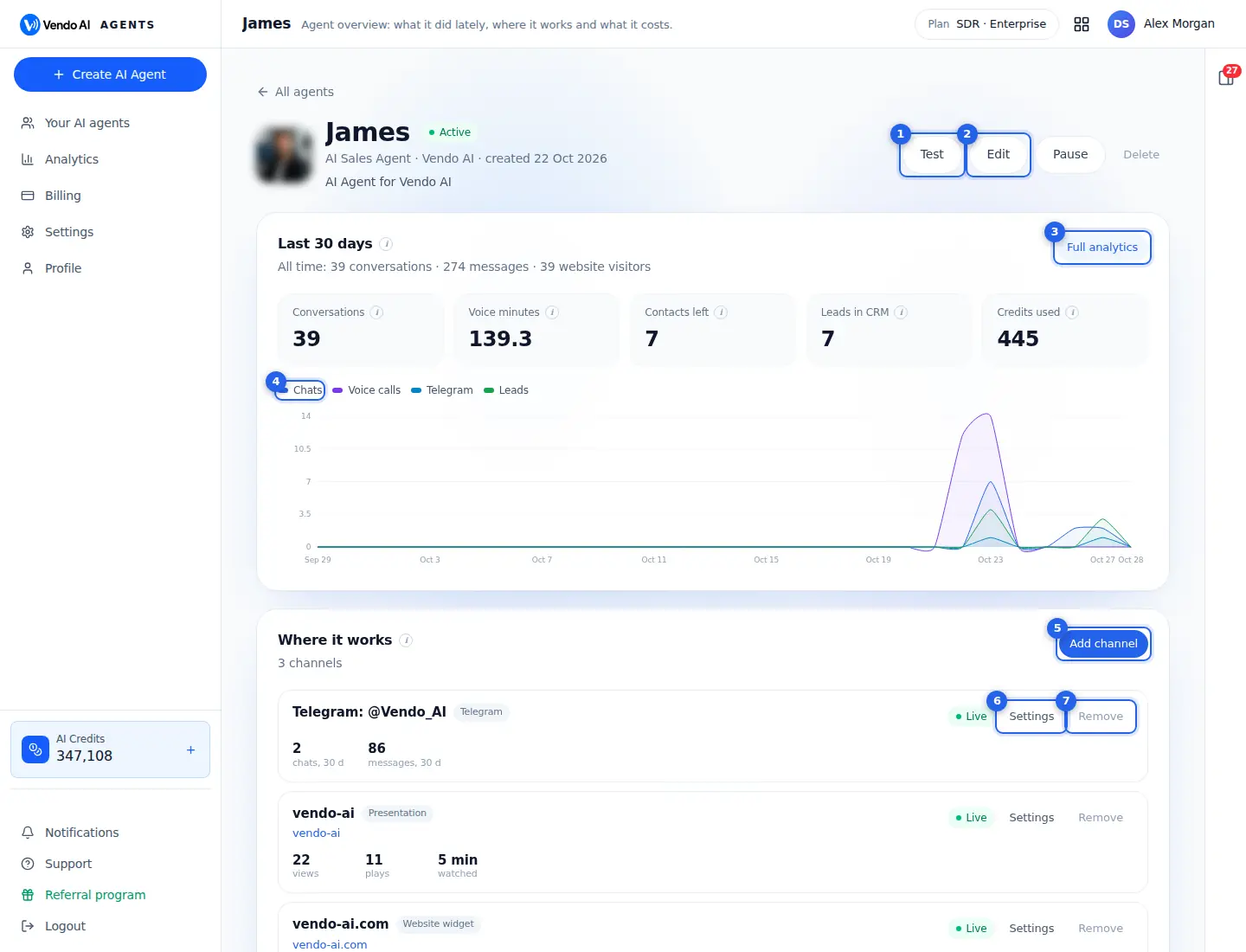
- TestTry the agent yourself in every channel before customers do.
More details
Opens the test page of this agent, where you can try it yourself in every channel: a sample email, LinkedIn messages, browser voice, the website widget, slides, Telegram and the other channels it is connected to. Tabs for channels without a connection are greyed out.
Tests that use AI voice or chat are billed like real use, for example 15 credits per browser voice minute and 1 credit per chat reply. Email and LinkedIn previews send nothing.
- EditChange the role, voice, face, company knowledge and script.
More details
Opens the agent builder with the current settings: step 1 for role, name, voice and face, then company knowledge, the script and channels.
In edit mode, changes save by themselves a moment after you make them, so there is no separate save button to remember.
What costs credits in the builder: reading the website again (15 credits) and rewriting the script (1 credit).
- Full analyticsOpens Agents analytics for this agent.
More details
Opens Agents analytics filtered to this agent. There you can pick any period, compare channels and see conversations, voice minutes, contacts, leads and credits in more detail.
The numbers on this page are the same as there, for the last 30 days.
Use Full analytics when you want to compare this agent with your other agents, or look at a longer period than 30 days. Opening it costs nothing.
- Chart seriesChats, voice calls, Telegram and leads per day. Click a series to hide or show it.
More details
The chart shows per day, over the last 30 days:
- Chats: website chat conversations;
- Voice calls: website voice conversations;
- Telegram: Telegram chats;
- Leads: CRM leads created from this agent's conversations.
Click a name above the chart to hide or show that line; the scale adjusts to the lines left. If nothing happened in 30 days, the chart is replaced by a short note.
The cards above show the 30-day totals, with the change against the 30 days before: Conversations, Voice minutes, Contacts left, Leads in CRM and Credits used.
- Add channelConnect the agent to one more place: website, slides, Google Meet, Telegram, phone or WhatsApp.
More details
Opens the channel picker to connect this agent to one more place: your website (widget or button), a slide presentation, Google Meet, Telegram, phone calls or WhatsApp.
Each channel has its own short setup and its own prices, for example 1 credit per chat reply and 15 credits per website voice minute. Connecting a channel is free, except a WhatsApp account, which costs 500 credits a month; other credits are spent only when the agent talks to people.
- Channel settingsOpens the settings of this channel.
More details
Opens the settings of this channel: for a website widget the look, greeting, pages and embed code; for a phone line the number and call settings; for Telegram the bot settings.
Clicking anywhere else on the row opens the channel's own page with its conversations and figures instead.
Settings of one channel apply only to that channel. Opening the settings costs nothing.
- RemoveDisconnects the agent from this channel.
More details
Disconnects the agent from this channel after you confirm. The agent stops working there; on a website the widget disappears.
The conversation history is kept, and you can connect the channel again later from Add channel. Removing a channel does not delete the agent and does not affect its other channels.
If you only want a short break, pause the agent instead.
Also on this screen
- Pause / Turn onStops the agent everywhere, or starts it again.
More details
Pause stops the agent in every channel at once; the status turns to Paused. Turn on makes it Active again. The system also pauses agents by itself when the workspace runs out of credits, and turns them back on when credits are available again.
While paused, the agent does not answer in any of its channels. A paused agent keeps its script, face and channels, so Turn on brings it back as it was.
- DeleteDeletes the agent after a confirmation.
More details
Asks you to confirm, then deletes the agent. Check the agent name in the confirmation window before you confirm.
If you only want the agent to stop for a while, use Pause instead: it keeps the role, script, face and channels ready, and Turn on brings it back as it was. The Delete button is shown in grey text, apart from the other buttons.
- All time lineTotals since the agent was created.
More details
The line under Last 30 days shows all-time conversations, messages, website visitors and credits of this agent.
These totals do not reset. The cards below show the last 30 days with the change against the 30 days before, so you can tell whether the agent is getting busier. Credits on this line are all time; the Credits used card is the last 30 days.
- Where it worksEvery channel the agent is connected to, with its figures.
More details
Each row is one channel with its status (Live or not) and figures: website numbers are for the last 30 days, while phone, Meet, Telegram and presentations show their own history. Email campaigns that use the agent are listed too; click one to open the campaign.
The line under the title counts the channels. Live means the channel is active.
Editing an agent
app.vendo-ai.com/agent/e28a5615-8a65-402a-86ab-a4895508e1c7/edit
The same builder as for a new agent, filled with the current settings. Step 1: role, name, voice and face.
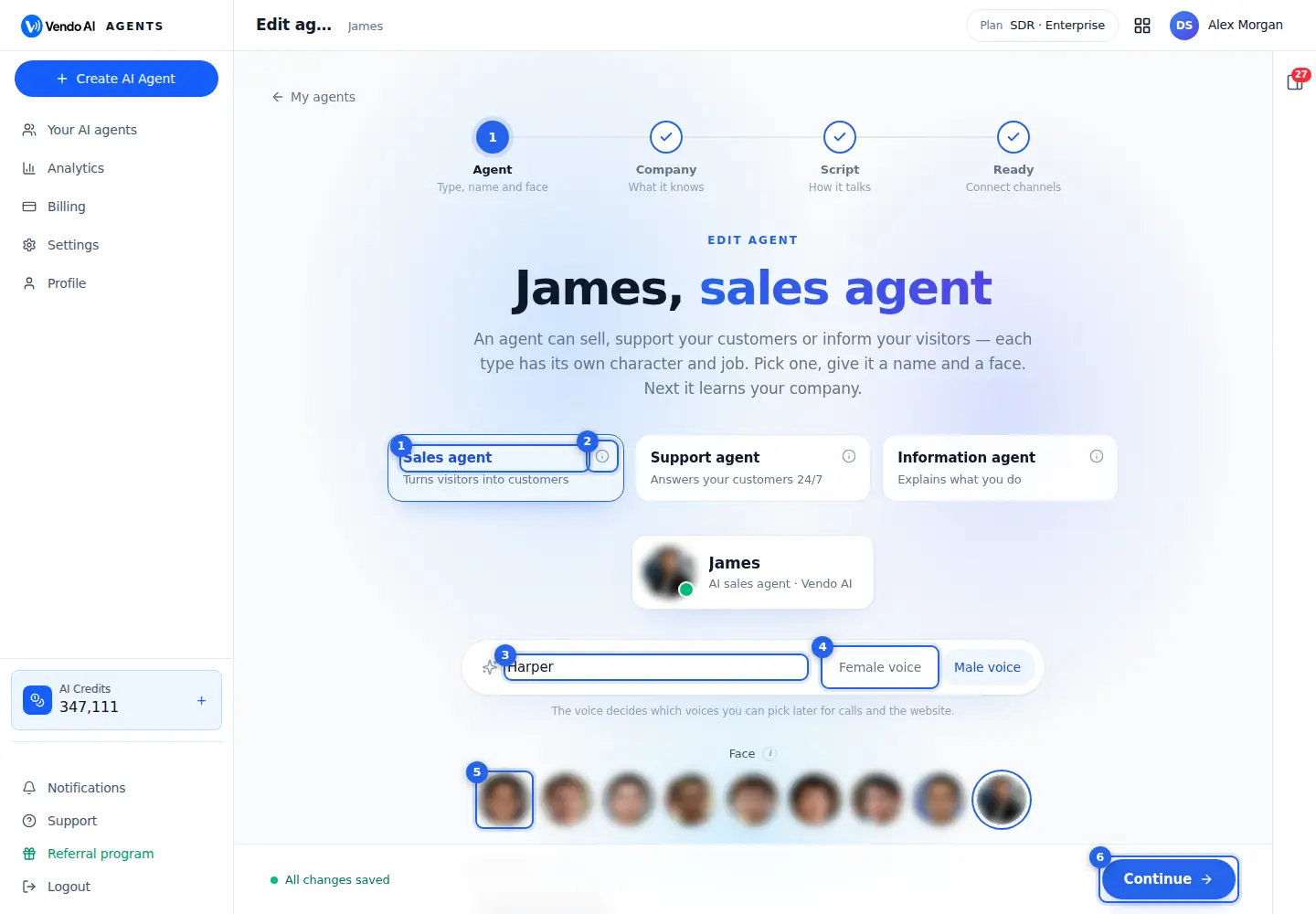
- RoleSales agent turns visitors into customers, Support agent answers customers 24/7, Information agent explains what you do.
More details
The agent's role. It sets its character, its job and how its script is written:
- Sales agent turns visitors into customers: qualifies leads, answers objections, books meetings and collects contacts.
- Support agent answers your customers day and night: questions, problems, orders, policies, and hands complex cases to your team.
- Information agent explains what you do, guides visitors through your site and can narrate presentations, without pressure to buy.
If you change the role of an existing agent, the script is not rewritten by itself. Go to the Script step and press Rewrite (1 credit) so the stages match the new role.
- AboutWhat this role does and where it fits.
More details
Opens a short description of the role: what it does, its character and where it works, for example "on your website, in messengers and on the phone".
Reading it changes nothing. Use it when you are not sure which of the three roles fits.
Support agent and Information agent have the same kind of description behind their own info icons.
- Agent nameThe name people see in chats and calls.
More details
The name people see in chats, calls and in your CRM, for example Emily. Up to 40 characters.
Pick a name that sounds natural in your market and fits the chosen voice. Press Enter in the field to go to the next step.
The card above shows a preview of how the agent will look, with its role and company.
- VoiceFemale or male voice for calls and voice chat.
More details
Female or male voice. This choice decides which voices you can pick later for phone calls and voice on your website, so choose it to match the name and face.
Changing it on an existing agent changes the voice family used in voice channels.
The exact voice is picked later, in the settings of the voice channels, from the voices that match this choice.
- FaceThe face shown in the widget and video. More faces or upload a photo opens the full gallery.
More details
The face shown in the website widget, in messengers and in your CRM. Click one of the faces to choose it; a blue tick marks the current one.
The round button at the end opens the full gallery with more faces, and lets you upload your own photo. A square photo works best.
The face is the same in every place the agent appears.
- ContinueSaves this step and opens step 2, company knowledge. While editing, changes also save by themselves.
More details
Goes to step 2, company knowledge, and saves this step if needed.
When you edit an existing agent, you do not have to press anything to save: changes are saved by themselves a moment after you make them, as long as the step is valid, and the note at the bottom shows "All changes saved". If something is missing, for example the name, the note says what.
Creating or editing an agent is free; only reading the website again and rewriting the script cost credits.
Also on this screen
- StepsAgent, Company, Script and Ready, at the top.
More details
The four steps of the builder. When you edit an agent you can jump to any step: Company for what it knows, Script for how it talks, Ready to connect channels.
Each step saves on its own. When you create an agent, the steps open one after another; when you edit one, the finished steps show a tick. The step you are on is shown in blue with its number.
- About the agentAn optional note for you and your team. Visitors do not see it.
More details
A short internal description of what this agent is for, for example "Answers website visitors about our clinic". It is shown on the agent page, not to visitors.
You can leave it empty. A good note helps your team tell agents apart when you have several, for example one for the website and one for presentations. You can change it at any time.
- My agentsThe back link above the steps.
More details
Returns to your list of agents. In edit mode your changes are already saved, so you can leave at any time.
If you are still typing, wait for the note at the bottom to show All changes saved before you leave, so the last change is kept. When you create a new agent and leave early, the builder offers to continue the unfinished draft next time.
Testing an agent
app.vendo-ai.com/agent/e28a5615-8a65-402a-86ab-a4895508e1c7/test-voice
Talk to the agent in any channel before your customers do.
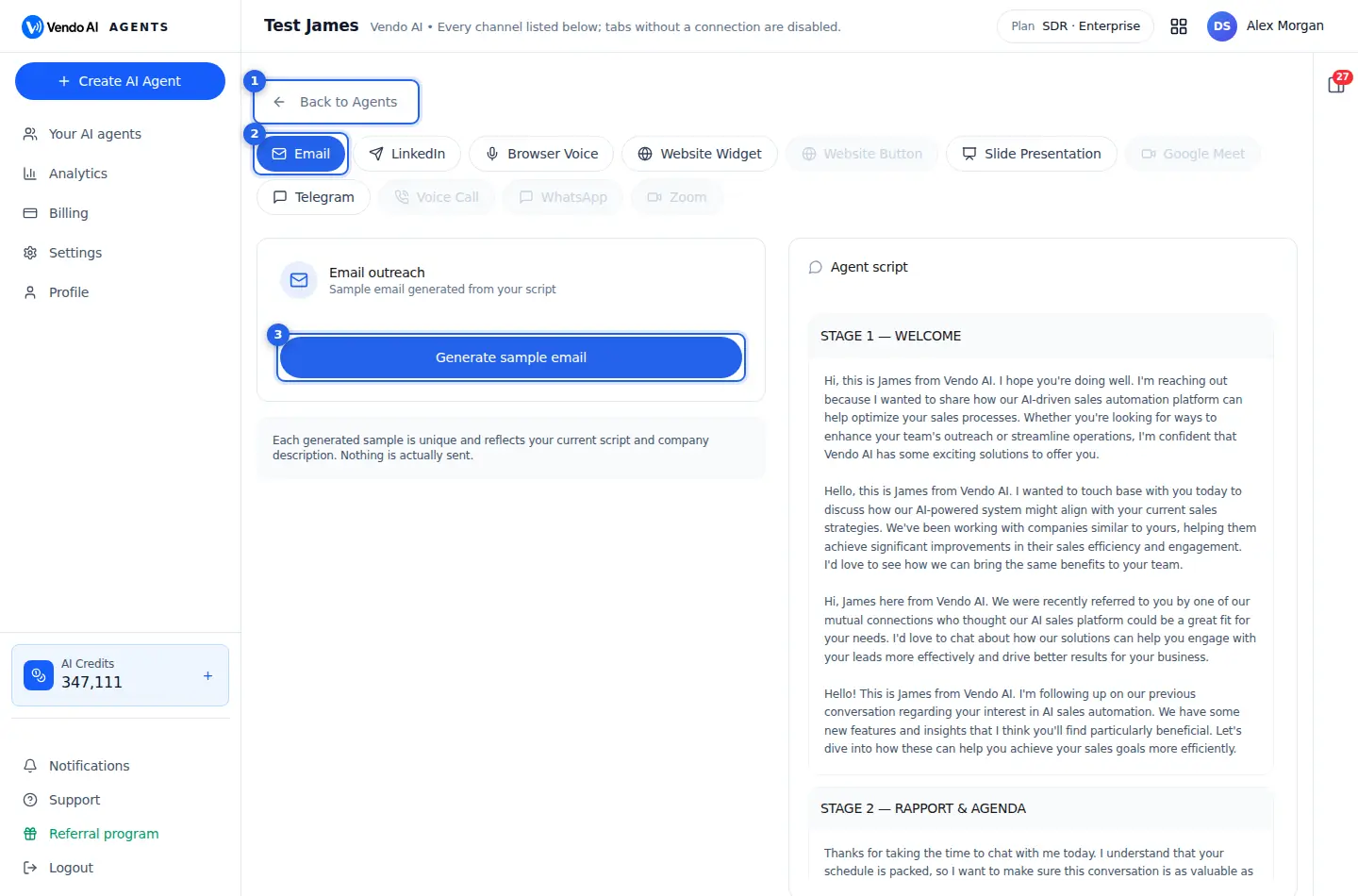
- BackBack to your agents.
More details
Returns to your list of agents.
Nothing you did on the test page changes the agent: tests do not edit its script or settings.
To change what you saw in a test, open the agent page and press Edit. Voice and chat tests use credits like real conversations. The test page itself costs nothing to open; only voice and chat tests use credits, and email and LinkedIn previews send nothing.
- ChannelsEmail, LinkedIn, browser voice, website widget and button, slides, Google Meet, Telegram, phone call, WhatsApp and Zoom.
More details
One tab per channel: Email, LinkedIn, Browser Voice, Website Widget, Website Button, Slide Presentation, Google Meet, Telegram, Voice Call, WhatsApp and Zoom.
Email and LinkedIn are always available. Browser Voice needs the agent's voice to be set up. The other tabs work only when the agent is connected to that channel; otherwise they are greyed out. Connect channels with Add channel on the agent page.
Tests are billed like real use: for example 15 credits per browser voice minute, 25 credits per minute for a test phone call and 1 credit per chat reply.
- Generate sample emailWrites a sample email the way the agent would, for a test prospect.
More details
Writes one sample outreach email the way this agent would write it, from its current script and company description, so you can read the subject and body.
Each sample is different, and nothing is sent to anyone. It costs no credits.
Use it after you change the script or company knowledge, to see whether the email says what you want. If it reads wrong, fix the script in Edit, then generate again.
Also on this screen
- Agent scriptThe agent's current script, stage by stage, on the right.
More details
The panel shows the script the agent follows, split into stages such as Welcome or Rapport and agenda. Keep it open while you test to see which stage the agent is using. To change it, use Edit, step Script.
Long scripts scroll inside the panel. When a test answer sounds wrong, find the stage that caused it; that is the part to rewrite.
- LinkedIn tabSample connection invite and first message after accepting.
More details
Generates a sample LinkedIn connection note and a sample first message after the person accepts, from the agent's script. Nothing is sent.
Each press writes a new sample, so press again to see variations. The samples come from the same script and company description as real outreach, so they show what contacts would read. This tab is always available, even without a connected LinkedIn account.
- Greyed-out tabsChannels the agent is not connected to yet.
More details
A grey tab means there is no connection for that channel. Connect the channel first from the agent page, then come back to test it.
For example, Voice Call works once a phone line is connected, and Google Meet once the agent is connected to Meet. Email, LinkedIn and Browser Voice do not need a connection. When you come back after connecting, the tab is active.
Connect an agent
app.vendo-ai.com/agents/{agent}/connect
Seven places an agent can work. Each card shows what you need and opens a short setup.
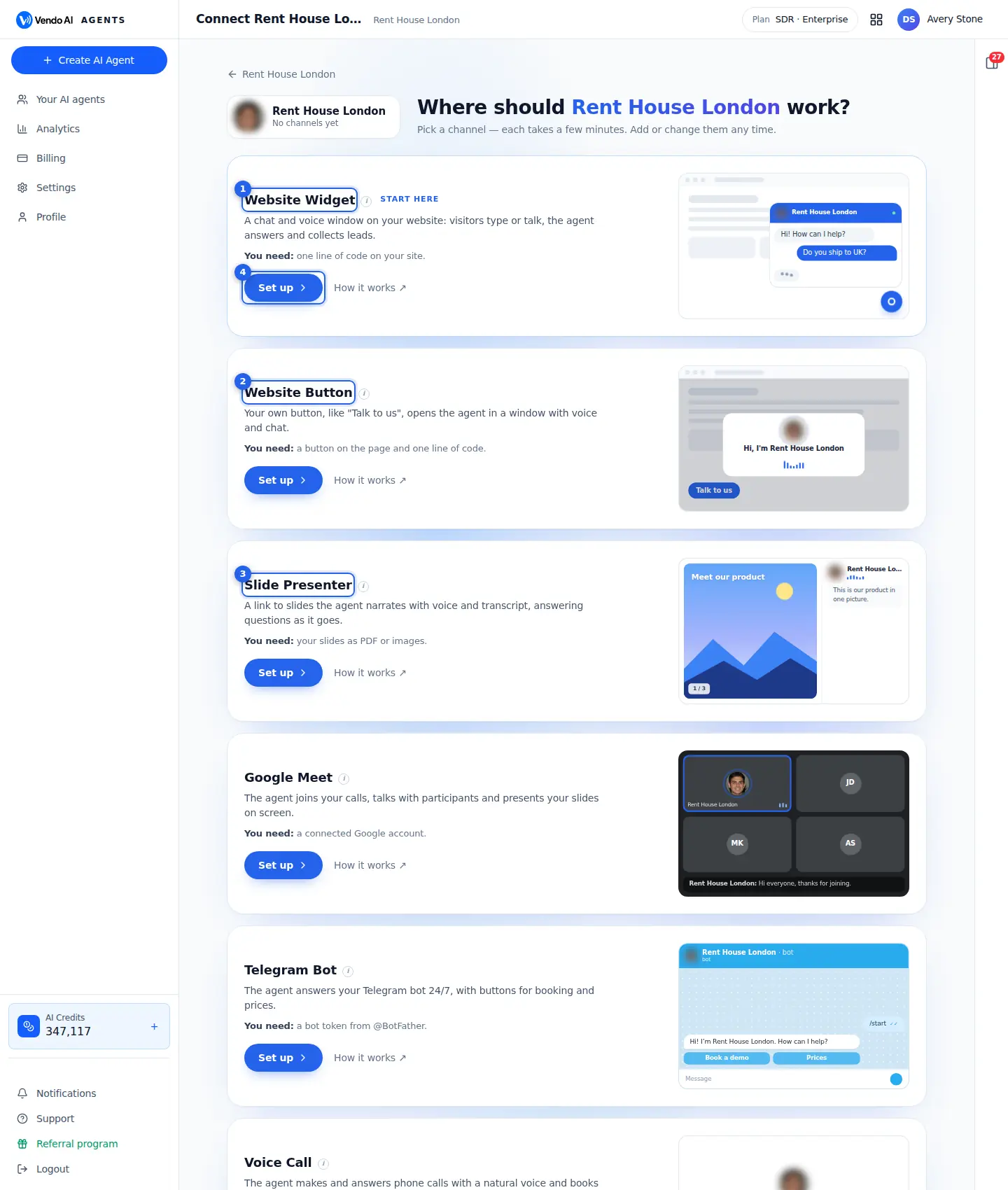
- Website WidgetA chat and voice window on your website: one line of code.
More details
A round button on your site that opens a chat and voice window. Visitors type or talk; the agent answers from its knowledge, shares your contacts as buttons, collects name, email and phone and sends leads to your CRM. Marked START HERE because it suits almost any site.
Setup has two steps:
1. Voice: mode (Voice & text or Text only), languages, voice, how it speaks, conversation, behaviour, sound, thinking model and instructions.
2. Widget: your website address (required, one widget per site or page), style, position, colours, button, visitor details form, greeting, notifications, invite to chat, smart navigation. Save, then copy the one-line code and paste it before </body>.
Costs: 1 credit per chat reply, 15 credits per widget voice minute. Later changes apply instantly; the code stays the same.
- Website ButtonYour own button opens the agent in a window with voice and chat.
More details
Your own button, for example "Talk to us", placed exactly where a visitor is ready: next to prices, a product or a form. A click opens the agent in a window with voice and chat. Good for landing pages where a floating widget feels too much.
Setup: button text, size (small, medium, large), button background and text colours, the window's main colour and corner rounding, with a live preview. Save the connection, then copy the embed code: a button tag plus a script line. Paste it where the button should appear; you can also put the open call on your own button.
After saving, analytics are tracked for the button: Loaded, Activated, Chats, Voice and Credits, all time or for chosen dates. Until you save, the code works but nothing is counted.
- Slide PresenterA link to slides the agent narrates with voice and answers questions on.
More details
A link to your slides that the agent presents with voice and a transcript, answering viewers' questions as it goes and collecting contacts. Good to send after a call, for investor decks, demos and onboarding.
Three steps:
1. Slides: upload a PDF; every page becomes a slide and the presenter's script is written for each one (1 credit per slide, 2 when the slide picture is read). Edit, rewrite, reorder, add a picture slide.
2. Voice: how viewers take part (Voice & chat, Voice only, Chat only), languages, voice and the other voice settings, buttons next to the slides, presenter's instructions. Saved for the presentation only.
3. Publish: look, behaviour, texts, call to action (contact form to CRM or a link), then share the direct link or paste the code on your site.
Viewing costs 17 credits per voice minute, 1 per chat answer.
- Set upOpens the setup of that channel. Every channel has a How it works guide next to it.
More details
Opens the setup of that channel on the same page; "Back" or "All channels" returns to the list. Next to it, "How it works" opens a guide for that channel on vendo-ai.com in a new tab, and the (i) explains the channel in short.
Each card says what you need before you start, for example one line of code, a PDF, a bot token from @BotFather or a phone number. A card already in use shows "Connected" and how many connections it has.
You can set up several channels for one agent; they share the same knowledge and script. Zoom is shown as coming soon and cannot be set up yet. The link at the bottom lets you skip and connect later.
Also on this screen
- Google MeetThe agent joins your Meet calls as a participant, talks and can present slides.
More details
The agent gets its own address (agent-<id>@meet.vendo-ai.com). Add it as a guest to any Google Calendar event with a Meet link, your own or one you were invited to. The agent accepts and joins at the scheduled time.
Settings:
- Meeting mode: Voice (joins, listens and talks) or Voice + presentation (shares this agent's presentation and walks through the slides). The second needs a presentation created first.
- Join automatically: off means it accepts invitations but does not enter calls.
- Join on time, or 1, 2 or 5 minutes early.
- Greeting posted in the meeting chat.
Calls cost 7 credits a minute in Voice mode and 20 in Voice + presentation mode. "So far" shows meetings joined, minutes, completed, missed (for example the host did not admit it) and credits.
- Telegram BotThe agent answers your Telegram bot 24/7, by text and optionally by voice.
More details
You need your own bot. Open @BotFather in Telegram, send /newbot, choose a name and a username ending in "bot", and copy the token. Paste it and press Connect. It is free, you keep control of the bot, and the token is used only to receive and answer its messages.
After connecting, the page shows the bot's username, a link to open it, and figures: chats, messages, voice calls, people, credits.
- Voice calls: "Let people call the agent" adds a Call button that opens a voice call inside Telegram with the agent's photo and transcript. 14 credits per minute.
- Step 2: voice, languages, model, buttons and instructions, the same options as the website widget.
Each text reply costs 1 credit. A paused agent's bot ignores messages.
- Voice Call (phone)The agent makes and answers phone calls from a number you get here.
More details
A five-step wizard:
1. Voice: voice, language mode, speed, emotion, background sound, listening sounds, silence handling.
2. Phone number: pick one of your numbers or buy a US number, 200 credits a month (renewed every 30 days). Optionally turn on "Accept incoming calls" so the agent answers calls to that number with the same script and voice.
3. Objective: Book a Meeting, Direct Sale, Qualify Lead, Introduce & Inform or Survey / Collect Data. It shapes how the call runs and what is collected.
4. Script: an opening line and full call script written from the agent's script for the objective; edit or Regenerate.
5. Save & Activate, then Test Call: enter your own number and the agent calls you.
Calls cost 25 credits per minute, counted in 10-second steps, outgoing and incoming. Outgoing calls to lists run from Sales Process campaigns.
- WhatsAppThe agent replies to messages on your WhatsApp number.
More details
Connects a WhatsApp account the way WhatsApp Web does: as a linked device.
Steps:
1. Click "Connect WhatsApp"; a connection window opens.
2. Scan the QR code with WhatsApp on your phone.
3. The agent starts answering incoming messages.
What it can do: text conversations, sending and receiving images, documents and files, and collecting names and phone numbers. It works with WhatsApp Business.
Important: your phone must stay connected to the internet, the agent answers only incoming messages (it does not start chats), and you can disconnect at any time. You can connect another account from the same page.
- Voice settings (widget, presenter, Telegram)Languages, voice, how it speaks, conversation, behaviour, sound, thinking, instructions.
More details
Shared by the website widget, slide presenter and Telegram; each channel keeps its own copy.
- Languages: only the script language (most accurate), or several chosen languages and the agent answers in the visitor's one.
- Voice: voices of the agent's gender only; press Play to listen.
- How it speaks: speed 0.8x to 1.2x, volume, emotion (Calm, Neutral, Warm, Energetic), adapt pace, expressive voice.
- Conversation: reply speed, interruptions, smart timing, listening sounds, nudge a quiet visitor after 10, 20 or 30 seconds, end the call after 10 to 60 seconds of silence.
- Behaviour: natural conversation, filler words, extra empathy, confirm details, numbers said naturally, stay on topic, honest about being AI.
- Sound: noise filter and background.
- Thinking: Fast, Balanced (recommended) or Smartest.
- Instructions: plain-language rules, editable.
- Code for your site and Test page (widget)Copy the one-line code; try the widget on a private page first.
More details
Both unlock after you press Save widget.
Code for your site: press Copy and paste it just before </body> on every page where the widget should appear. On WordPress, Shopify, Webflow, Wix or Tilda look for "Custom code", "Footer scripts" or "Code injection". Save and refresh the site. You paste it once: colours, greeting and behaviour come from the settings, so updates need no new code.
Test page: creates a private page with your widget already installed. Try the agent live and share the link with your team before the code goes on your site. Conversations there use credits like real ones.
Common mistake: trying to copy before saving. The code is greyed out until the widget is saved.
- Visitor details and Greeting (widget)Ask for name, email or phone before chatting; set the first two messages.
More details
Visitor details: switch on Name, Email and Phone to show a short form before the first message. Leads with these details land in your CRM so you can follow up. "Form wording" lets you write the form in your visitors' language; empty fields keep the English text.
Greeting: the first and second message the agent sends when someone opens the chat. Leave them empty to use the default, translated automatically into the agent's language.
Trade-off: a form brings more contacts per chat but fewer people start chatting. Many sites ask only for email, or nothing, and let the agent ask for contacts during the conversation.
- Invite to chat (widget)Lets the widget start the conversation by itself.
More details
Four options:
- Off: the widget waits for a click.
- Message: a short line from the agent appears next to the closed button, with a soft sound and a badge; one click opens the chat with that line as the first message.
- Message, then open: also opens the widget if the visitor does not react.
- Open: opens the widget right away after a delay.
You set the delay before the message and before opening, the message text (write it in your visitors' language) and the sound. Every option runs once per visitor; returning visitors and people who already chatted are not disturbed again. On phones the widget never opens by itself, but the message still shows.
- Smart navigation (widget)The agent suggests or opens the right page of your site.
More details
With "Guide visitors to the right page" on, when a visitor asks about prices, contacts or another topic, the agent finds the matching page on your site, live from your sitemap, and offers it. No setup is needed.
- Ask first: the agent shows a link; nothing changes until the visitor clicks.
- Open automatically: the agent opens the page by itself; faster, but some visitors prefer to be asked.
- Keep the conversation: the chat stays open on the new page and continues where it left off.
It works best when your site has a sitemap and clear page titles.
A website widget connection
app.vendo-ai.com/agents/e28a5615-8a65-402a-86ab-a4895508e1c7/connections/d7161dd8-c383-4c52-bde4-1fa027f732dc
Each connection has its own page with results. Slide presentations have the same layout.
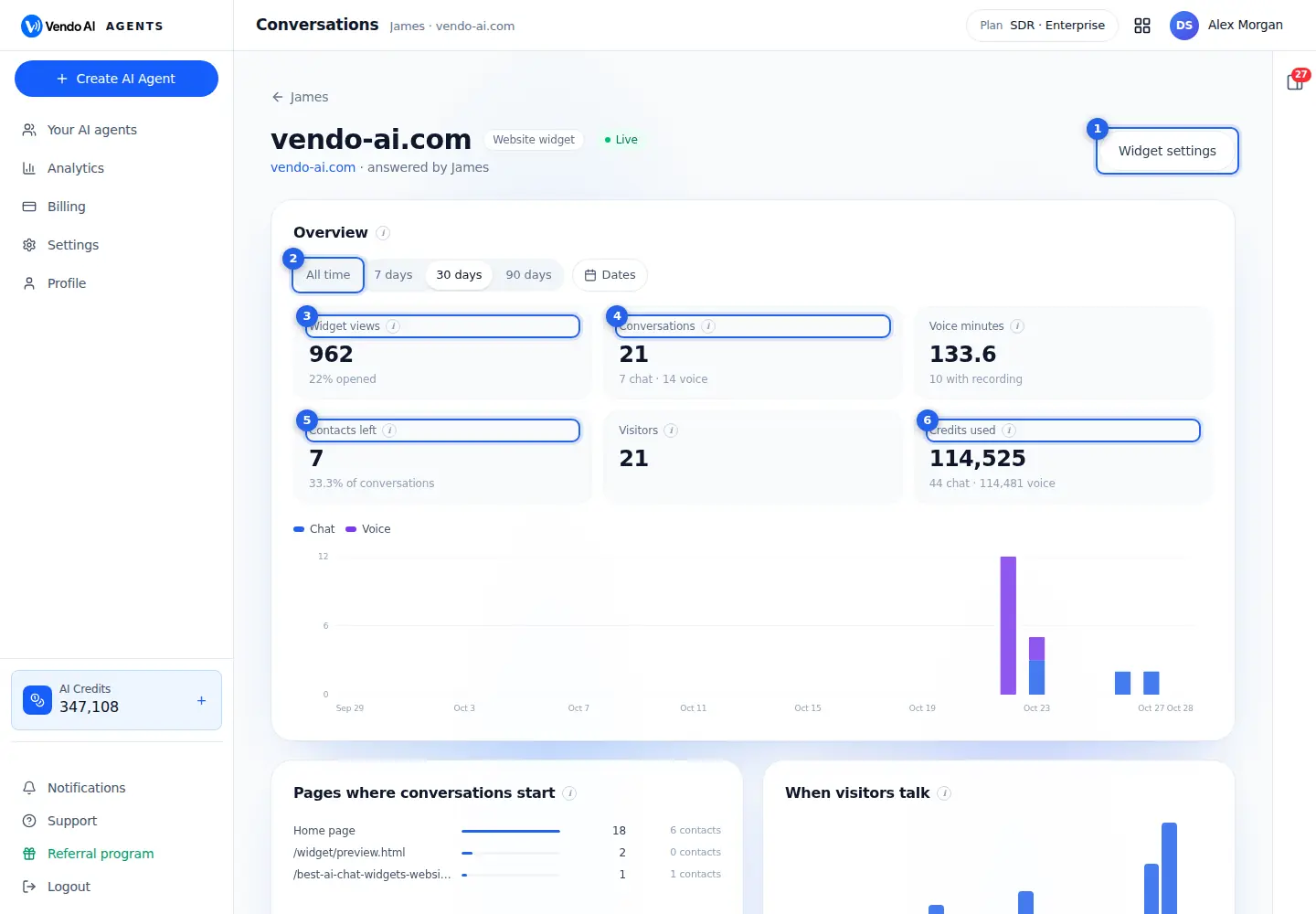
- Widget settingsLook, greeting, visitor details, pages and the code to paste on your site.
More details
Opens the settings of this widget: how it looks, the greeting, which visitor details it asks for, on which pages it appears and the embed code to paste into your site.
Changes there apply to the live widget on your site. The title of this page shows the site, the channel type and its status, for example Live.
Opening the settings costs nothing.
- PeriodAll time, 7, 30 or 90 days, or exact dates.
More details
The period for every figure, chart and list on this page: All time, 7 days, 30 days or 90 days. Dates opens a calendar to pick an exact range.
Changing the period only changes what you see; it costs nothing.
The period applies to the cards, the chart, the pages and hours blocks and the conversation list. All time shows everything since the widget was connected.
- Widget viewsHow many times the widget loaded and how many visitors opened it.
More details
How many page views loaded this widget in the period, and the share of them where the visitor clicked the widget button to open it, for example "22% opened".
A low opened share usually means the widget is not visible enough or its greeting does not invite a click. Try another greeting or look in Widget settings.
Views count page loads, not people.
- ConversationsChats and voice conversations started from the widget.
More details
Conversations that started on this widget in the period, split into chat and voice. Voice means the visitor talked to the agent.
The chart below shows chat and voice conversations per day, and the Conversations list at the bottom of the page has every conversation with its transcript.
Credits are charged per chat reply and per voice minute, so many short chats cost little.
- Contacts leftVisitors who left their contact details; they also land in the CRM.
More details
Conversations in which the visitor left an email or a phone number, with their share of all conversations.
Widget conversations also become leads in your CRM, where you can follow up. In the Conversations list at the bottom, the filter "Left a contact" shows just these.
A visitor who leaves a contact gives you a way to follow up even after they close the page.
- Credits usedCredits spent by this connection, chat and voice.
More details
Credits spent by this widget in the period, split into chat and voice: 1 credit per chat reply and 15 credits per voice minute. 1 credit is 1 cent.
Voice is far more expensive than chat, so this number mostly follows the voice minutes. Credits come from the same workspace balance as SDR and CRM.
The figure covers the period you selected.
Also on this screen
- Voice minutesMinutes of voice conversations, and how many have a recording.
More details
Total minutes visitors talked to the agent by voice in the period. Recordings exist for calls the voice service recorded; you can play them in the conversation.
Each voice minute costs 15 credits, so this card explains most of the widget's spend. Voice conversations are marked Voice in the list at the bottom, where you can read the transcript and play the recording when there is one.
- VisitorsDifferent visitors who started a conversation in the period.
More details
Counts people, not conversations: one visitor who comes back twice is counted once.
Visitors who only saw the widget without starting a conversation are not counted here; they are part of Widget views. Compare Visitors with Contacts left to see how many people who talked to the agent also left a way to reach them. A low share is a reason to have the script ask for contact details earlier.
- Pages where conversations startWhich pages of your site start the most conversations.
More details
Each page with its number of conversations and how many of them left a contact. Use it to see which pages bring real interest.
Paths are shown as in the address, with Home page for the start page. A page with many conversations but no contacts is a hint that visitors there have questions, but no reason to leave their details. The list follows the period you chose.
- When visitors talkConversations by the hour they started, in UTC.
More details
Shows the hours the agent covers, including when your team is away.
Each bar is one hour of the day, counting the conversations that started in that hour during the chosen period. Bars outside your office hours show the conversations the agent handled while your team was away. Times are in UTC, so shift them to your own time zone.
- ConversationsEvery conversation in the period, newest first.
More details
Filter by All, Chat, Voice or Left a contact, and search by name, email or words. Open a row to read the transcript; voice conversations also have the call recording, which only you can open.
Each row shows the date, the visitor's name and contact or "no contact left", Chat or Voice, the number of messages and, for voice, the duration.
Telegram chats
app.vendo-ai.com/agents/e28a5615-8a65-402a-86ab-a4895508e1c7/telegram/chats
Every Telegram conversation of the agent's bot.
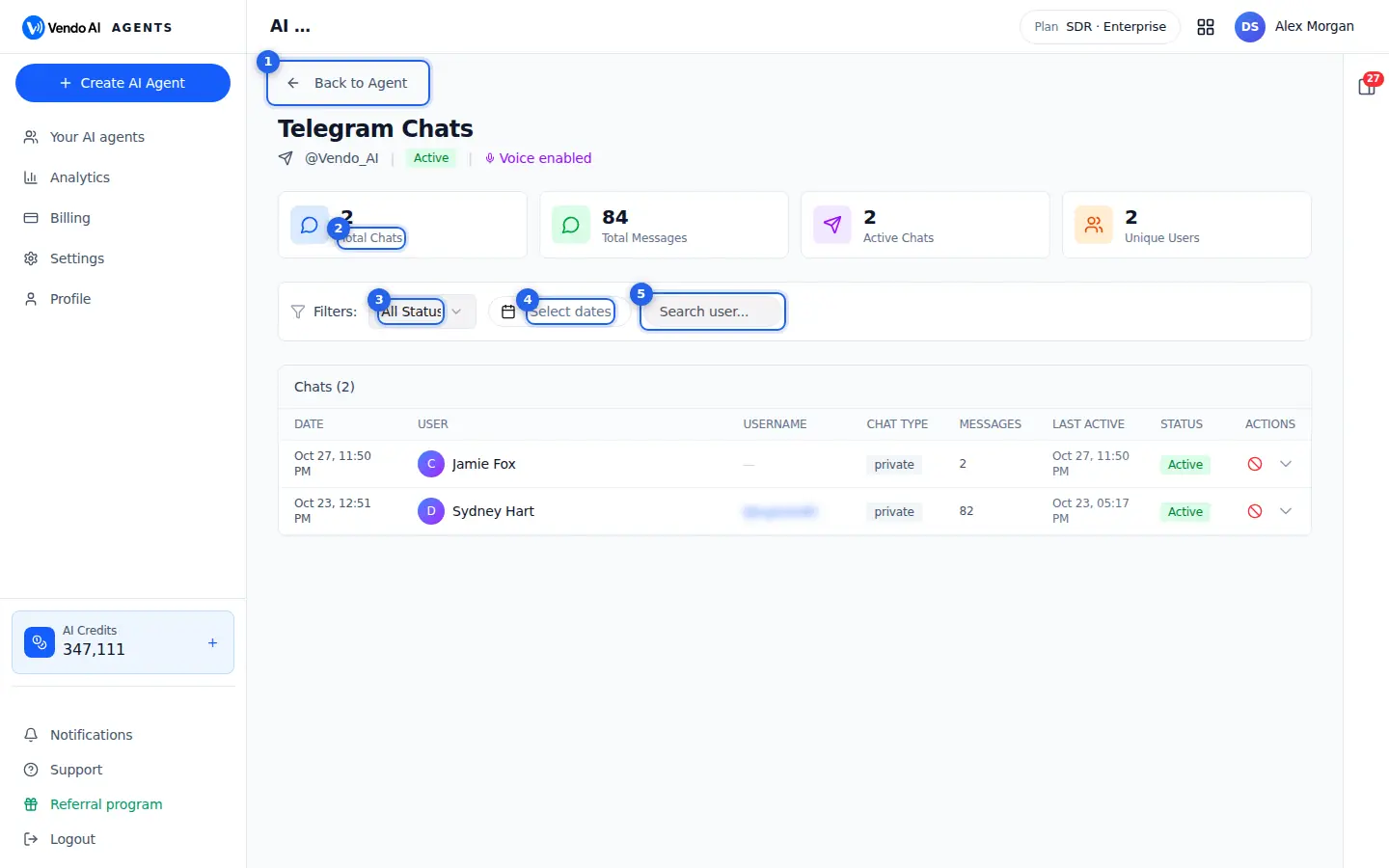
- BackBack to the agent.
More details
Returns to the agent's page with its results and channels.
The header of this page shows the bot's username, whether the bot is Active and whether voice is enabled for it.
Leaving this page changes nothing in the bot; it keeps answering in Telegram. To change the bot or disconnect it, use Settings on the Telegram row of the agent page.
- TotalsChats, messages, active chats and unique users.
More details
Four figures for this bot:
- Total Chats: all chats with the bot;
- Total Messages: messages in the chats loaded on the page;
- Active Chats: chats marked active;
- Unique Users: different Telegram users among them.
Message, active and user counts are calculated from the chats loaded on the current page (up to 25), so with many chats they describe that page. Each text reply by the agent costs 1 credit.
- StatusShow all chats, only active ones or only inactive ones.
More details
Filters the list by chat status: All Status, Active or Inactive.
The filter works on the chats loaded on the page. Combine it with dates and search to find a conversation quickly.
The Status column of the table shows each chat's status. Set the filter back to All Status to see every chat again. Filtering only changes what you see.
- DatesChats from a date range.
More details
Shows only chats that started within a date range. Pick the first and last day in the calendar.
The filter uses the day the chat started, not the last message. Clear the dates to see all chats again.
Combine it with the status filter and search. Like the other filters, it works on the chats loaded on the current page and changes only what you see.
- SearchFind a chat by user name.
More details
Finds a chat by the user's Telegram username or first or last name. Type part of the name; the list narrows as you type.
The search does not look inside the messages. To read a conversation, click its row: the messages open below it, including voice messages with their recordings.
Clear the field to see all chats again. The table also shows each chat's message count and last activity.
Also on this screen
- Open a chatClick a row to read the whole conversation.
More details
The row expands and shows every message with its time. Voice calls in Telegram show their recording when one exists, with a download button.
Click the row again to fold it. Each row shows the start date, the user's name and username, the chat type, the number of messages, the last activity and the status. Messages load the first time you open a chat, so a long chat can take a moment.
- Send message as operatorWrite to the user yourself, inside the chat.
More details
Under an open chat you can type a message and send it. It goes to the user from the bot, marked as Operator so they know a person is writing.
Press Enter or the send button. The message appears in the chat on the page right away. Use it when a customer needs a person, for example for a complaint or a special request.
- Pages25 chats per page.
More details
When there are more than 25 chats, use the page buttons under the list.
The page buttons show the first and last page and the pages around the current one. Filters and search apply to the chats loaded on the page, so if you cannot find a chat, move to another page and search again. Changing a filter takes you back to page 1.
CRM
Every reply from outreach and every lead from your agents lands here.
Pipeline
app.vendo-ai.com/crm
Leads by stage. Drag a card to another column to change its stage; tick cards to move or remove several at once.
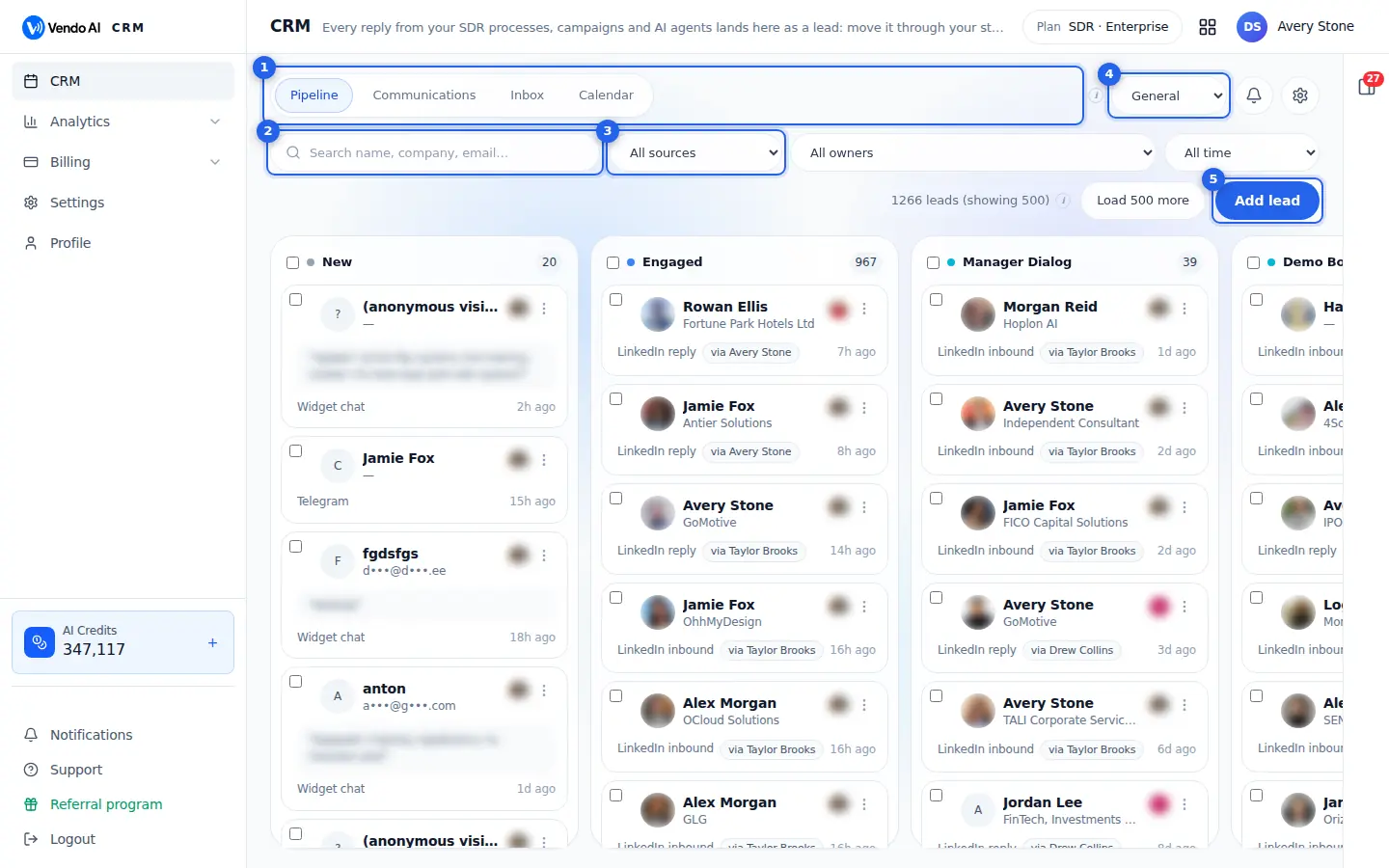
- TabsPipeline (kanban), Communications (every process and campaign with its conversations), Inbox (every lead of the branch, newest activity first) and Calendar (meetings).
More details
CRM has four tabs. The tab you open is kept in the page address, so a refresh or a shared link returns to it.
- Pipeline: the kanban board of leads by stage.
- Communications: every campaign and SDR process that has sent something, with sent and reply counts. Open one to see each contact it wrote to, read the full thread and turn a contact into a lead with Convert to lead.
- Inbox: every lead of the selected branch in one list, newest activity first. Open a row for the full lead card.
- Calendar: a week view with meetings booked by your AI agents, campaign working-hour windows and your own follow-up events. Open a meeting to read its transcript.
The gear button on the right opens CRM settings: stages, default period, exclusions, notifications and the stale-lead alert.
- SearchFind a lead by name, company or email.
More details
Type part of a name, company or email to narrow the board. Search works together with the source, owner and period filters, so a lead outside the selected period stays hidden even if the name matches. If you cannot find someone who you know replied, set the period to All time first. Clear the box to see all leads again. The Inbox tab has its own search box that works the same way.
- FiltersSource (email, LinkedIn, website chat, Telegram...), owner and period.
More details
Three drop-downs narrow the board:
- Source: where the lead came from. LinkedIn reply, LinkedIn inbound, Email reply, Widget chat, Widget voice, Widget form, Narrator form, Telegram, WhatsApp, Phone call, Meeting, External CRM or Manual.
- Owner: the team member the lead is assigned to.
- Period: leads with activity in the last 24 hours, 7, 30 or 90 days, 6 months, a year, or all time. The period you see first is set in CRM settings, Default time window.
The counter next to the filters shows how many leads match and how many are loaded; Load more fetches the next batch of up to 500. Filters change only the view, never the data.
- BranchA branch is a separate pipeline with its own stages and members. General is open to everyone.
More details
A branch is a separate pipeline with its own stages and its own members, for example one per product line, region or client. General is the default branch and is open to everyone in the workspace. Other branches are visible only to the people added to them; admins and the owner see every branch. The branch you pick applies to Pipeline and Inbox, and the left menu lists your branches too.
- Create branch: give it a name and tick who can access it. It starts with the standard stages New, Engaged, Manager Dialog, Qualified, Meeting, Won and Lost.
- Manage this branch: rename it, change members or delete it. Deleting moves its leads back to General; General itself cannot be deleted.
One lead can sit in several branches at once; see Pipelines in the lead card.
- Add leadCreate a lead by hand.
More details
Adds a contact by hand. Choose Add one contact or Upload a file.
- One contact: fill in at least one field (name, company, title, email, LinkedIn, Instagram, Facebook, phone) and pick an owner. Paste a LinkedIn profile URL and fetch to fill name, title, company and sometimes an email. It fills only empty fields; a guessed email is marked unverified, so check it before outreach.
- Upload a file: CSV, TSV or TXT with one contact per row (export XLSX to CSV first). Download file template shows the expected columns. Only rows with a name, email, phone or company are imported, and columns that were not recognised are listed.
Select one or more pipelines: the lead appears on the first stage of each. If a lead with the same email already exists, it opens instead of a duplicate.
Also on this screen
- Lead cardClick a lead to open its card with the conversation, notes, timeline, details and documents.
More details
The card opens on the right. The header shows the owner (click to reassign), the stage selector, Send email, the LinkedIn profile link and Delete lead. Tabs: Conversation (the full thread from email, LinkedIn, widget or Telegram), Notes (internal notes your team sees; @mention a colleague to notify them), Timeline (every stage change and action), Details (who the person is, why they are in the CRM, company data) and Documents. Delete lead removes it from the pipeline but keeps the conversation history; support can restore it. If your role does not include contact details, email and phone show as hidden.
- Reply from the lead cardAnswer the lead by email or LinkedIn without leaving the CRM.
More details
At the bottom of the Conversation tab write your answer and press Send, or Cmd/Ctrl+Enter. It goes out on the lead's channel: LinkedIn message or email reply. Replying as a human moves the lead to the Manager Dialog stage, which tells the team and the automation that a person has taken over the conversation. Send email in the header writes a new email instead: it is sent as "Your name via Vendo AI", and replies come back to your own email address.
- Bulk actionsTick cards to move, save or remove several leads at once.
More details
Tick the box on each card, or the box at the top of a column to select all its cards. A bar appears with the number selected and four actions: Move to stage (pick the target stage), Save to audience (add the selected people to an existing audience or a new one; duplicates and people without contact data are skipped and the leads stay in the CRM), Remove (takes them off the pipeline) and Clear. If some leads fail, a message says how many were done.
- Drag a cardDrag a lead card to another column to change its stage.
More details
Grab a card and drop it on another stage column. The change is saved immediately, recorded in the lead's Timeline and visible to everyone in the branch. Use stages to show where each conversation stands: New when a lead arrives, Engaged while you talk, Manager Dialog when a person took over, Qualified, Meeting, and finally Won or Lost.
- Pipeline stagesCRM settings: the columns of the board for the selected branch.
More details
Open the gear button, Pipeline stages. Add a stage by name, rename one, give it a colour, or drag the handle to reorder. The new order is saved at once for everyone; an open board picks it up when its tab is next focused or reloaded. New and Manager Dialog are system stages: they cannot be renamed or removed but can be moved. A stage that still holds leads cannot be deleted, so move its cards first. Each branch has its own set of stages.
- CRM settingsDefault period, notifications and the stale-lead alert.
More details
- Default time window: the period the Pipeline shows when you open CRM.
- Notifications: get notified when a new lead is assigned to you, when someone reassigns a lead to you, or when someone @mentions you in a note, in the app (bell), by email, or both.
- Stale lead alert: marks a lead as stale when there has been no inbound activity for the number of days you set, so forgotten conversations stand out.
- ExclusionsKeep chosen agents, channels or LinkedIn accounts out of the CRM.
More details
In CRM settings three lists stop noise before it becomes a lead. Agents to exclude from CRM: new leads from these agents are not added. Source channels to exclude: for example widget chats if they bring too much noise. LinkedIn accounts to exclude: replies received on these accounts do not create leads, useful for personal accounts that are not part of sales. Existing leads stay visible; the rule applies to new ones.
- CRM notificationsThe bell next to the branch selector.
More details
Lists CRM events for you: leads reassigned to you, mentions in notes and stage changes. Unread ones have a blue dot. Click an item to open that lead's card. What triggers these alerts, and whether they also come by email, is set in CRM settings, Notifications.
- Pipelines (Spaces)In the lead card: which branches the lead belongs to.
More details
Shows every pipeline the lead is in. Add to another puts a copy of the card on the entry stage of another pipeline while keeping it where it is. Move to another moves it, after a confirmation, and the card disappears from the old pipeline. Everyone can move a lead to any branch of the workspace, even one they cannot open.
- DocumentsFiles attached to a lead.
More details
In the lead card, Documents tab, Upload adds one or several files: PDF, images, Word, Excel, CSV, text, presentations or ZIP, up to 25 MB each. Use it for proposals, contracts or deliverables tied to this contact. Click a file to preview it (or download when preview is not available) and delete it with the bin icon.
- Convert to leadCommunications tab: turn a contact from a campaign thread into a CRM lead.
More details
Open a campaign or SDR process in Communications, find the contact and press To lead or Convert to lead. The contact is added to the pipeline with its conversation; if it is already there, you see Already in pipeline. The button is disabled for contacts without an email, LinkedIn profile or phone.
- Colour labelThe menu on a card that marks it with a colour.
More details
Use the menu on a lead card to give it a coloured bar: green, red, amber, blue, purple, pink or grey, or no colour. Colours have no built-in meaning, so agree on one with your team, for example red for urgent or green for hot. Everyone in the branch sees the same colour.
A lead card
app.vendo-ai.com/crm
Click any lead to open its card: the whole conversation, notes, timeline, details and documents, and a reply box.
- Delete leadRemoves the lead from the CRM.
More details
Removes the lead from the pipeline after you confirm. The conversation history is kept, and support can restore the lead if you deleted it by mistake.
Deleting a lead does not stop a campaign or SDR outreach that is still writing to this person. To keep the lead but move it out of the way, change its stage instead.
A confirmation window comes first.
- CloseCloses the card.
More details
Closes the lead card and returns to the pipeline or inbox. You can also press Escape or click the dark area to the left.
Everything you did in the card, such as stage, owner, notes and replies, is already saved.
Closing the card also removes the lead from the page address. Open the lead again from the pipeline or inbox at any time.
- StageMoves the lead to another pipeline stage. Owner next to it assigns the lead to a teammate.
More details
Moves the lead to another stage of the pipeline. The list shows the stages of the lead's branch in board order.
Next to it, Owner shows who is responsible for the lead. Click it to reassign the lead to a teammate; they get a notification.
Stages New and Manager Dialog are system stages. A lead moves to Manager Dialog by itself as soon as someone replies by hand.
- ChannelsThe envelope opens an email form to the lead; the LinkedIn icon opens their LinkedIn profile.
More details
The envelope opens a form to write an email to this lead: To, Subject and Body. The email is sent from Vendo AI on your behalf, and replies go to your own email address.
The LinkedIn icon opens the lead's LinkedIn profile in a new tab. A phone icon appears when there is a phone number.
If your role hides contact data, you see "Contacts hidden" instead of the email and phone buttons.
- TabsConversation, Notes, Timeline, Details and Documents.
More details
The card has five tabs:
- Conversation: the whole thread with the lead on its channel, with the number of messages;
- Notes: internal notes for your team; mention a teammate with @ to notify them;
- Timeline: everything that happened to the lead, such as stage moves and reassignments;
- Details: what is known about the person and where they came from, for example the campaign, the signal or the AI agent;
- Documents: files attached to the lead, which you can upload, open and delete.
- ReplyYour reply goes out on the lead's channel. Replying as a human moves the lead to the manager stage and the AI stops answering.
More details
Write your answer and press Send, or Ctrl+Enter (Cmd+Enter on Mac). The reply goes out on the lead's channel: as a LinkedIn message from the account that talks to them, or as an email reply.
Replying as a human moves the lead to the Manager Dialog stage, and the AI stops answering this person, so you are in charge of the conversation from here.
Also on this screen
- Source tagsWhere the lead came from, under the name.
More details
Tags such as LinkedIn reply, Widget chat or Telegram show the source. "via" names the LinkedIn account that talks to the lead, and "AI:" the agent that handled the conversation.
The source tells you why the lead is in the CRM: it replied to outreach, wrote first, talked to a widget or messaged your Telegram bot. Use it to judge how warm the lead is before you answer.
- NotesInternal comments your team sees; leads never do.
More details
Add a note at the bottom of the Notes tab. Use @ to mention a teammate; they get a CRM notification.
Each note shows its author and time, and the tab shows how many there are. Notes are for your team only, so you can write freely about budget, next steps or who should call. Every note also appears on the Timeline.
- DocumentsFiles attached to the lead.
More details
Upload proposals, contracts or call notes. Click a file to open it; the bin deletes it after a confirmation.
You can upload several files at once, and the tab shows how many are attached. Files stay with the lead, so a teammate who takes over the lead finds the latest proposal right there. Click a file to open it; the bin deletes it after a confirmation.
CRM Inbox
app.vendo-ai.com/crm
Every lead of the branch in one list, newest activity first, with the channel and the last message.
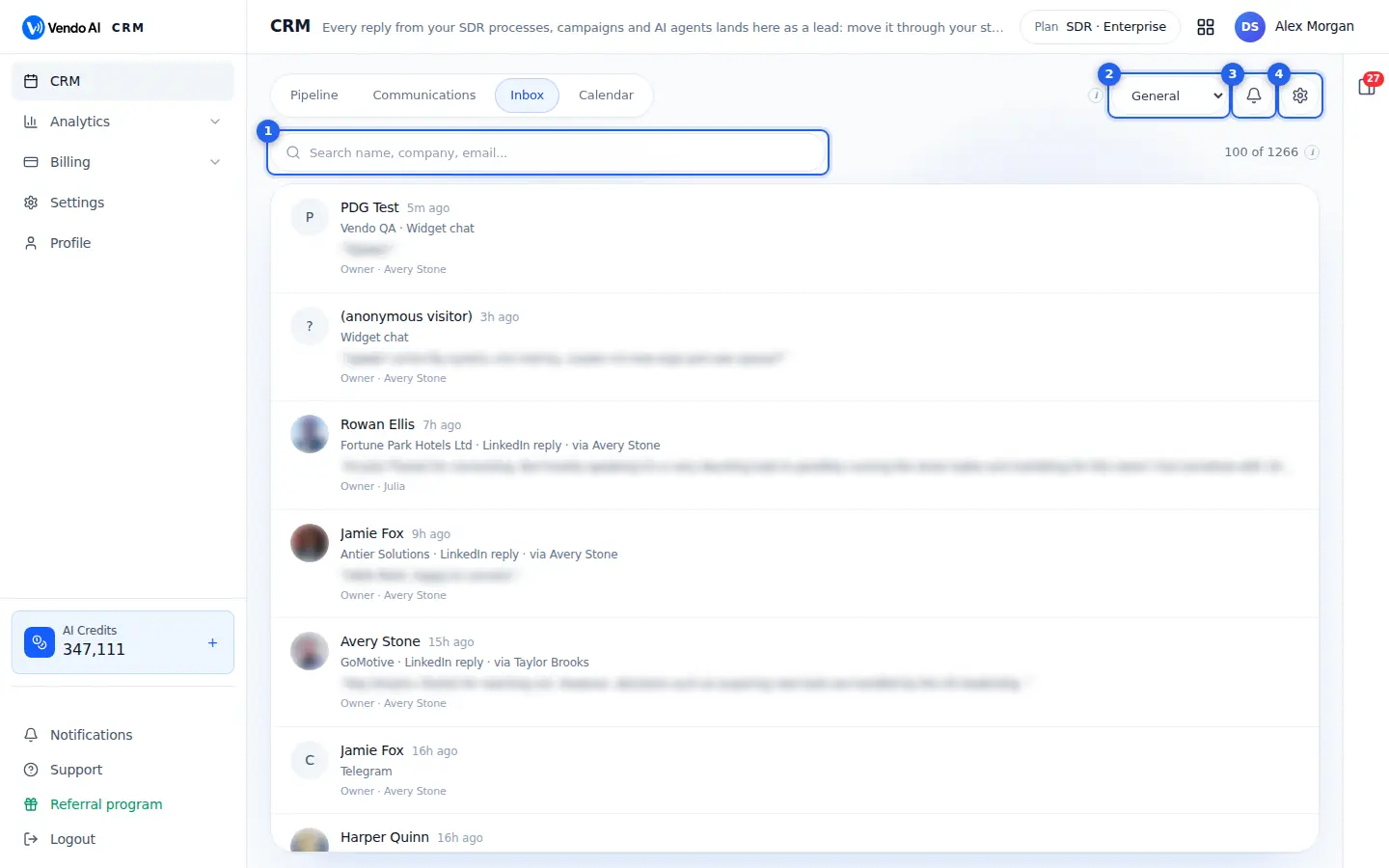
- SearchFind a lead by name, company or email.
More details
Finds leads by name, company or email in the selected branch. The list updates a moment after you stop typing.
The counter on the right shows how many leads are listed out of all that match, for example 100 of 1266. The inbox loads 100 at a time; scroll down to load more.
Click a row to open the full lead card with the conversation, notes, stage and owner.
- BranchSwitch between branches (separate pipelines).
More details
Switches the CRM to another branch. A branch is a separate pipeline with its own stages and members. General is open to everyone in the workspace; other branches only to the people added to them.
Every tab, Pipeline, Communications, Inbox and Calendar, shows the branch selected here, and the choice stays in the page address so you can share a link. Owners and admins can create a branch with the + next to it and manage it with the gear.
- CRM notificationsNew leads assigned to you, reassignments, @mentions and stage changes. Click one to open the lead.
More details
The bell shows CRM notifications with a blue badge for unread ones:
- a new lead from a source, for example LinkedIn or Widget chat;
- a lead reassigned to you;
- someone mentioned you in a note;
- a stage change.
Click one to open that lead; it is marked read. Mark all read clears the badge. The list refreshes every 30 seconds.
Which events notify you, and whether by bell or email, is set in CRM settings.
- CRM settingsPipeline stages, default period, what to keep out of the CRM, notifications and the stale lead alert.
More details
Opens the CRM settings for the selected branch:
- Pipeline stages: add, rename, delete and drag to reorder the columns. New and Manager Dialog cannot be renamed or removed, and a stage with leads cannot be deleted.
- Default time window of the Pipeline.
- Agents, source channels and LinkedIn accounts to exclude: their new leads are not added to the CRM.
- Notifications: new lead, reassigned, mentioned; in-app bell and email.
- Stale lead alert: after how many days without activity a lead counts as stale.
Press Save settings at the bottom.
Also on this screen
- CRM tabsPipeline, Communications, Inbox and Calendar.
More details
Pipeline is the board of stages, Communications lists everything your campaigns and SDR processes sent, Inbox is every lead in one list, and Calendar shows meetings and events.
All four tabs follow the branch selected on the right. Use Inbox to go through the newest activity one lead at a time, and Pipeline when you plan by stage. Switching tabs costs nothing.
- Lead rowName, company, source, last message and owner.
More details
Each row shows how long ago the lead last had activity, the company, the source and the LinkedIn account it came via, a line of the last message and the owner. Newest activity is on top.
Click the row to open the full card with the conversation and the reply box. Answering there moves the lead to Manager Dialog and stops the AI for that person.
CRM Communications
app.vendo-ai.com/crm
Every SDR process and campaign that brings leads into this CRM, with its status, sent and reply counts and last activity.
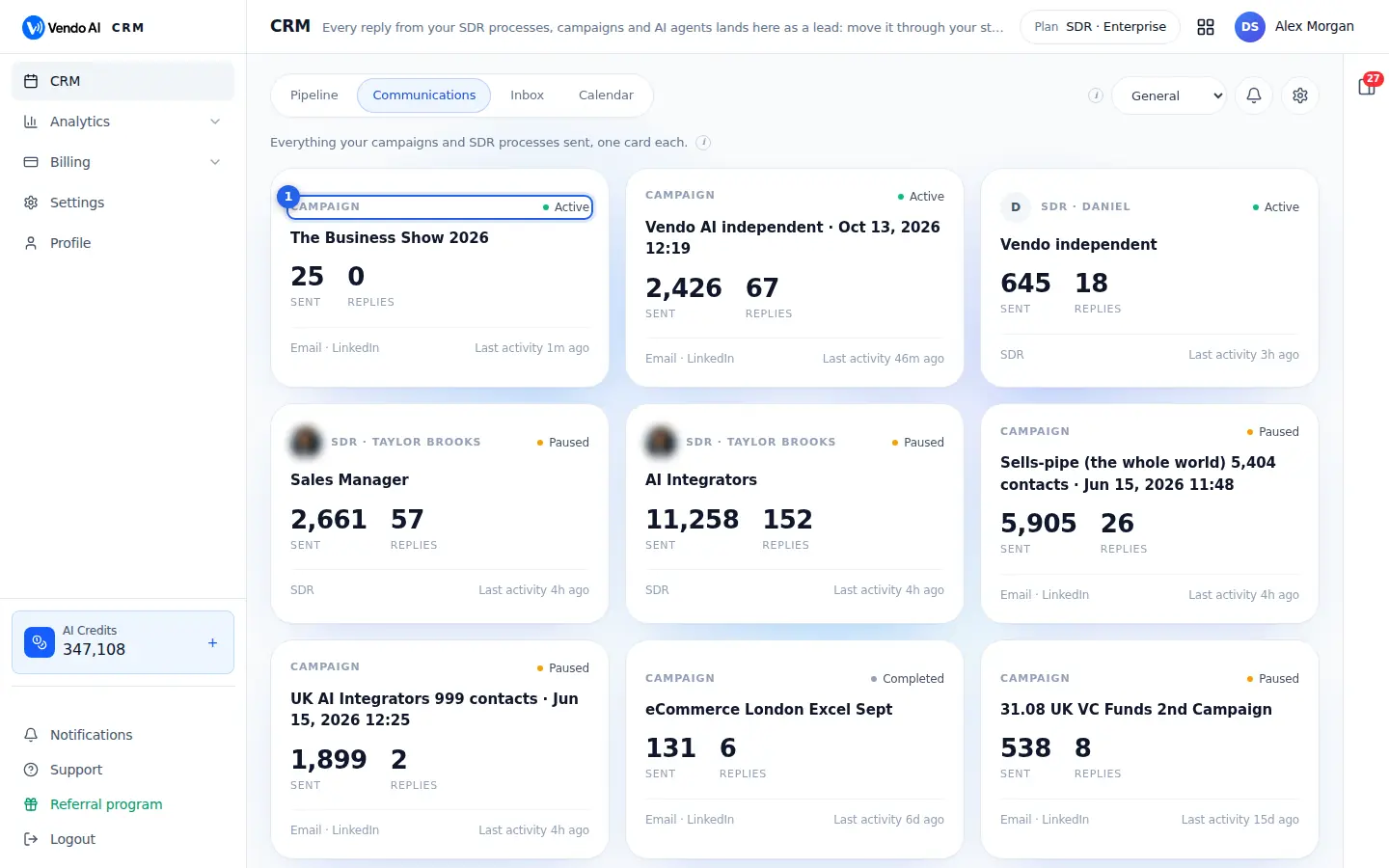
- CampaignA campaign with its status, audience and sent and reply counts. Click to see its conversations.
More details
Each card is one campaign or SDR process that has sent something, whatever its status now. It shows:
- the kind (Campaign, or SDR with the person who runs it) and the status, such as Active, Paused or Completed;
- the name;
- Sent and Replies;
- the channels and the last activity.
Click a card to see every contact it wrote to, with the channel and whether they replied. Filter by channel and by Replied or No reply. Open a contact to read the whole thread, then press Convert to lead to add the person to the pipeline. Drafts that never sent anything are not listed.
Also on this screen
- Contact threadThe full conversation with one contact, from a card.
More details
Shows every message sent and received with this contact. The footer says whether they replied. Convert to lead works when the contact has an email, a LinkedIn profile or a phone.
Messages your campaign sent and the contact's answers are shown in order. If no message text was recorded for a contact, the thread says so. Close it to return to the contact list.
- Convert to leadAdds a contact from a campaign to the CRM pipeline.
More details
Use it for people who did not reply but are worth following up by hand, for example after a phone call. Contacts who replied usually become leads by themselves.
Converting sends nothing to the person. You then work with the lead in Pipeline or Inbox like any other: set a stage, assign an owner and add notes. The button is grey when the contact has no email, LinkedIn or phone.
- All communicationsThe back link from a card's contact list.
More details
Returns from the contact list of one card to all cards.
The contact list of a card can be filtered by channel, such as email or LinkedIn, and by Replied or No reply, and it is split into pages. Use the cards to compare which campaign or process gets the most replies. Opening a card or a thread costs nothing and sends nothing.
CRM Calendar
app.vendo-ai.com/crm
Meetings booked with your agents, the hours your campaigns send and your own events, one week at a time.
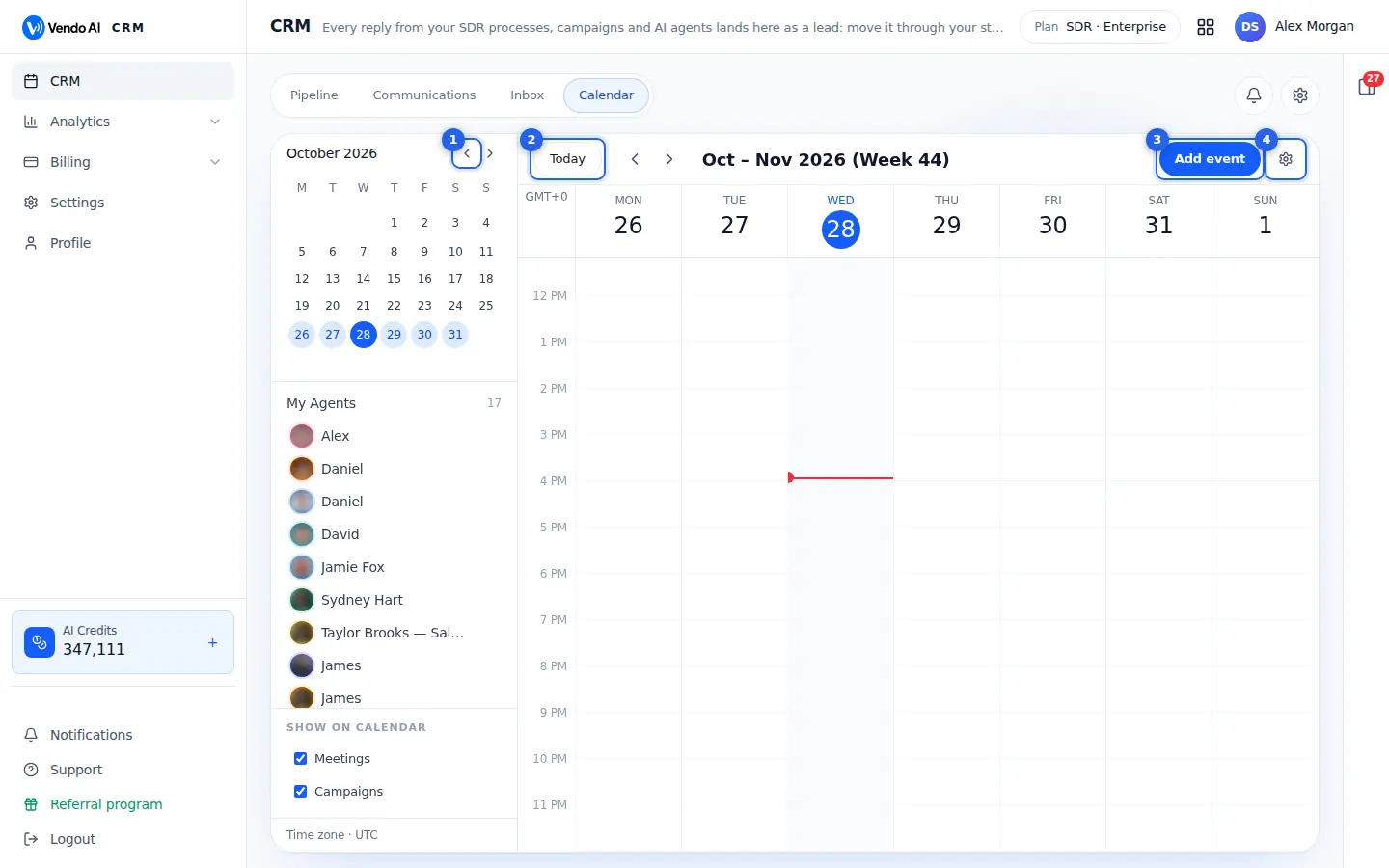
- PeriodMoves the small month calendar back or forward. Click a day to show its week.
More details
The arrows of the small month calendar on the left move it one month back or forward. Days of the week you are looking at are highlighted, and today is a blue circle.
Click any day to show its week in the big calendar. To move the big calendar a week at a time, use the arrows next to its title.
- TodayJump to today.
More details
Brings both calendars back to the current week and month. The red line in today's column marks the current time.
Useful after you browsed far into the past or the future.
The title shows the month and the week number. Use the arrows next to the title to move one week at a time. Today's column is highlighted in the week view.
- Add eventAdd a meeting or a reminder.
More details
Opens a form for your own event: Title, Description, Date, Start and End time, and a colour. Use it for follow-up reminders, calls you booked by hand or internal meetings.
Your events appear in the calendar next to the meetings booked by agents. Click an event to edit or delete it. The title is required.
The colour helps you tell your events apart.
- Calendar settingsWeek start day and which layers to show: meetings and campaign sending hours.
More details
A small menu with:
- Week starts on: Monday or Sunday, for both calendars;
- Layers: show or hide Meetings and Campaigns. Campaigns are the working-hour windows when your campaigns send emails, LinkedIn messages or calls.
The menu also says which time zone the times are shown in. Your choices are remembered in this browser.
Changing the week start does not move any meeting.
Also on this screen
- My AgentsYour agents, each with a colour, to show or hide their meetings.
More details
Click an agent to hide or show its meetings and campaign blocks. The menu next to an agent lets you change its colour.
The number next to My Agents is how many agents you have. Hiding an agent hides its meetings and campaign blocks, which helps when many agents share the calendar. Showing it again brings them back; nothing is deleted.
- Show on calendarMeetings and Campaigns check boxes.
More details
The same layers as in the settings menu. Untick Campaigns to see only meetings.
Meetings are the meetings booked with your agents; Campaigns are the hours when your campaigns send. Untick Meetings to see only when your campaigns work. Both are on by default, your choice is remembered in this browser, and the time zone is shown under the boxes.
- Meeting detailsClick a meeting to see its time, attendees and details.
More details
Opens the meeting with its date, time and attendees. Campaign blocks open the campaign's sending window and channel.
Your own events open in the form you used to create them, where you can change or delete them. In the week view, timed items sit in their hours and all-day items at the top of the day. Nothing changes until you save.
Analytics
What the hunters, outreach and agents did, for any period.
SDR analytics
app.vendo-ai.com/analytics/sdr
Signals, ICP checks, contacts, emails found, messages and replies of all SDR processes and campaigns.
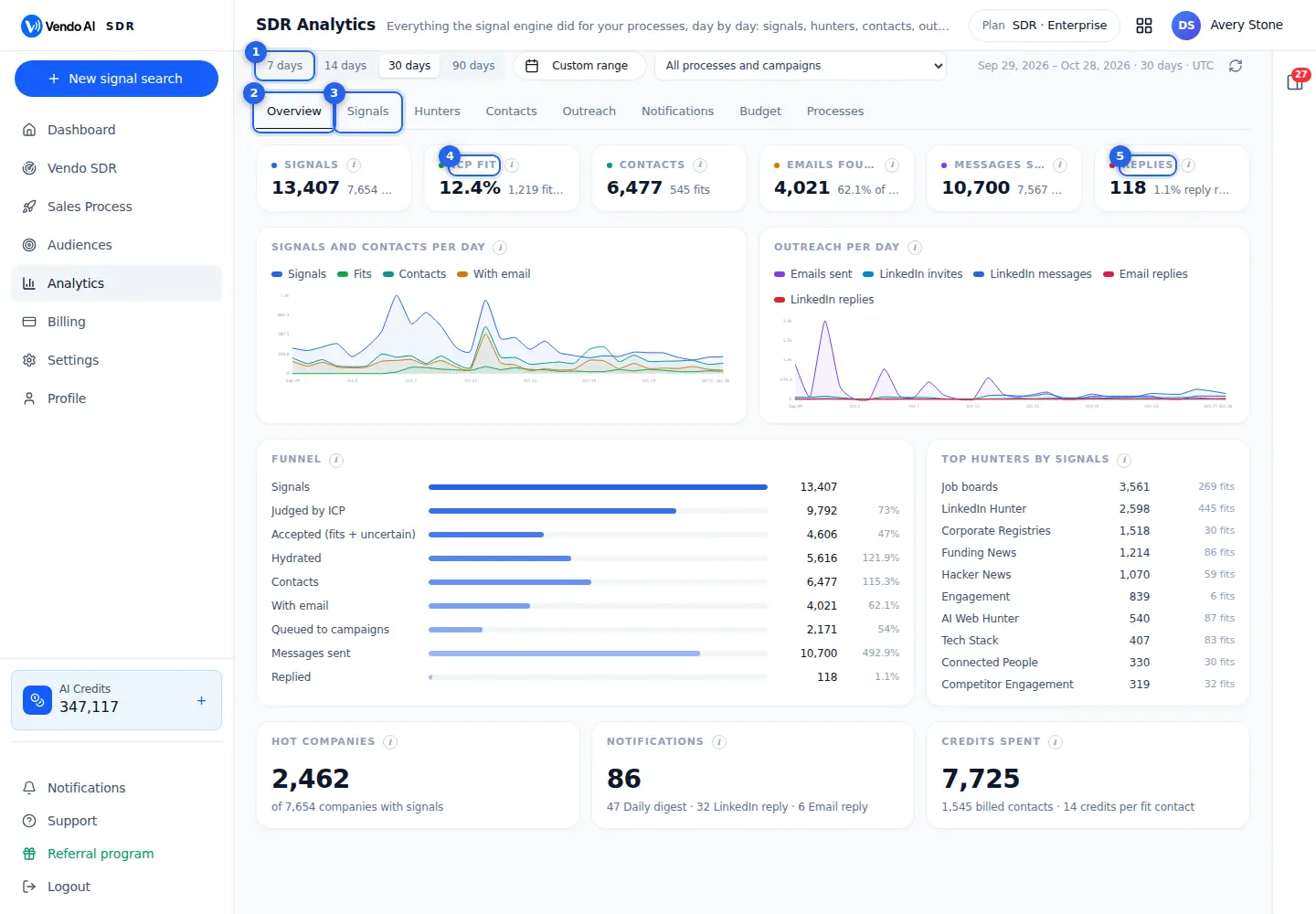
- Period7, 14, 30 or 90 days, or a custom range. Every chart and number on the page follows the period.
More details
Choose 7, 14, 30 or 90 days (30 is the default) or Custom range to pick a start and end date on a two-month calendar; future dates cannot be chosen. Presets always end today. Days are counted in UTC, and the line at the right of the filters shows the exact dates and the number of days.
The choice is stored in the page address, so you can bookmark a view or send it to a colleague. The selector next to it narrows every tab to one SDR process or one Sales Process campaign; by default all of them are added together.
- TabsOverview, Signals, Hunters, Contacts, Outreach, Notifications, Budget and Processes.
More details
- Overview: headline numbers, signals and contacts per day, outreach per day, the end-to-end funnel, top hunters, hot companies, notifications and credits spent.
- Signals: signals per day by ICP verdict, by signal type and by hunter.
- Hunters: a scoreboard per hunter (signals, fits, companies, contacts, paid queries and their cost, LinkedIn lines, last find) with a daily chart for each.
- Contacts: contacts per day by ICP group, emails found, where contacts come from, how mailboxes were found and enrichment outcomes.
- Outreach: messages, opens, replies and bounces, email delivery with the inbox placement test, LinkedIn per day, the send queue, and SDR versus Sales Process.
- Notifications: chat notifications by type.
- Budget: credits, credits per fit contact, paid index queries and LinkedIn pool lines.
- Processes: every active or paused process and campaign with its numbers; click a row to open it.
- SignalsDated events found at companies that could be your customers.
More details
A signal is a dated event at a company that may be ready to buy: hiring, funding, a launch, a leadership change, a post, a tech change and similar. Hunters (LinkedIn, job boards, registries, funding news, web, social, tech stack and others) save them for your processes. The line under the number shows how many companies they came from. Contacts added from a list are not counted as signals.
Use it to check your searches are alive. A flat or falling line usually means paused hunters, an empty budget or a search that is too narrow. Companies with two or more signals in the range appear under Hot companies on the Overview; several events at one company are the strongest timing cue.
- ICP fitShare of judged signals that fit your ICP. Unfit signals are kept for audit but never turned into contacts.
More details
Before any contact is created, the ICP judge checks every signal against the ideal customer profile of its process and marks it fit, uncertain or unfit. ICP fit is fits divided by all judged signals (fits + uncertain + unfit); the line below gives the counts.
Unfit signals are kept for audit but hidden from feeds and never turned into contacts, so no contacts are bought for them.
- A low share means the hunters find events at the wrong companies: sharpen the ICP description or the keywords of the process.
- Signals saved before the judge was introduced have no verdict and are left out of the share.
- RepliesEmail and LinkedIn replies; reply rate = replies / messages sent.
More details
Real email replies plus LinkedIn replies received in the range, from SDR outreach campaigns and Sales Process campaigns together. The line below is the reply rate: replies divided by all messages sent (emails, LinkedIn invites and LinkedIn follow-up messages). Replies also arrive in the CRM as leads, unless excluded in CRM settings, and as cards in the AI Assistant chat.
To see where replies come from, open Outreach (email versus LinkedIn, SDR versus Sales Process) or Processes (per campaign). Open rate is shown separately and is less reliable, because email privacy proxies can inflate or hide opens.
Also on this screen
- Process selectorAll processes and campaigns, or one of them.
More details
Narrows every tab to one SDR process or one Sales Process campaign; paused ones are marked. A Sales Process campaign sends to an audience you chose, so for it the page shows only outreach, replies and email delivery: there are no signals, hunters, contacts or budget for it.
- ContactsPeople saved for your processes in the range.
More details
Decision-makers found at companies with a signal, authors of relevant posts and founders named in news, matched to your ICP roles. Rows blocked by the quality gate are excluded. The line below shows how many contacts the ICP pre-check marked as fit. The Contacts tab splits them by ICP group and by source.
- Emails foundContacts that got a working mailbox.
More details
Counts contacts with an email address: an exact address from the People database, the company's address pattern, or an address from an external source, all checked against the mail server records (MX). The line below is the share of contacts with email. The Contacts tab shows how each mailbox was found and why enrichment failed for the rest (no company website, no mail on the domain, person left the company, off-ICP, insufficient credits and so on).
- Messages sentEmails plus LinkedIn invites and follow-up messages.
More details
Everything sent in the range by the SDR outreach campaigns of your processes and by all Sales Process campaigns of the workspace. The line below splits it into email and LinkedIn, or into SDR and Sales Process when you have both. Follow-up emails are included. This is the base of the reply rate.
- FunnelSignals to replies, step by step.
More details
Signals, judged by ICP, accepted (fits and uncertain), hydrated (a person was searched for), contacts, with email, queued to campaigns, messages sent and replied. Each step shows the conversion from the step before, so you see where volume is lost: a big drop after judging points to the ICP, after hydration to contact search, after with email to enrichment, after queued to sending limits.
- Hunter scoreboardHunters tab: what each hunter produced and cost.
More details
One row per hunter in the range: signals saved, how many the ICP judge accepted, companies, contacts produced from its signals (and with email), paid index queries and their cost, LinkedIn pool lines used, active processes it runs on and when it last found something. Contacts are credited to the hunter whose signal produced them. Use it to switch off hunters that cost a lot and bring few fits.
- Email deliveryOutreach tab: delivered versus bounced, plus the inbox placement test.
More details
Delivered means the recipient's mail server accepted the email; not delivered means it bounced. Mail providers do not say whether a delivered email landed in the inbox or in spam, so the inbox placement test sends seed emails from the same mailboxes to monitored inboxes and shows the inbox share, the spam share and the sender reputation over the last 7 days. It measures the sender's reputation, not each email. Results appear after the first daily check.
- Credits per fit contactBudget tab: what one useful contact costs.
More details
Credits charged divided by contacts judged fit. Credits are charged once per usable contact, when it gets a mailbox or is accepted for LinkedIn outreach. This is the number to watch: it falls as the ICP and the search get sharper. The Budget tab also shows credits per day.
- LinkedIn pool linesBudget tab: LinkedIn search capacity used.
More details
Search result lines taken from the LinkedIn account pool by the LinkedIn hunters and the contact factory. The pool resets at 00:00 UTC. If it runs out early every day, connect more LinkedIn accounts in Settings, LinkedIn; the chart LinkedIn lines by hunter shows who uses it most.
- QueuedOutreach tab: contacts sent to campaigns versus blocked.
More details
SDR contacts queued to outreach campaigns, and the contacts the quality gate blocked before sending (unfit, deleted, or outside the segment you chose). Many blocked contacts mean the campaign's Who to contact setting or the ICP filters out most of what the hunters find.
SDR Analytics: hunters
app.vendo-ai.com/analytics/sdr
Which hunters find the signals, the fitting companies and the contacts, and what they cost.
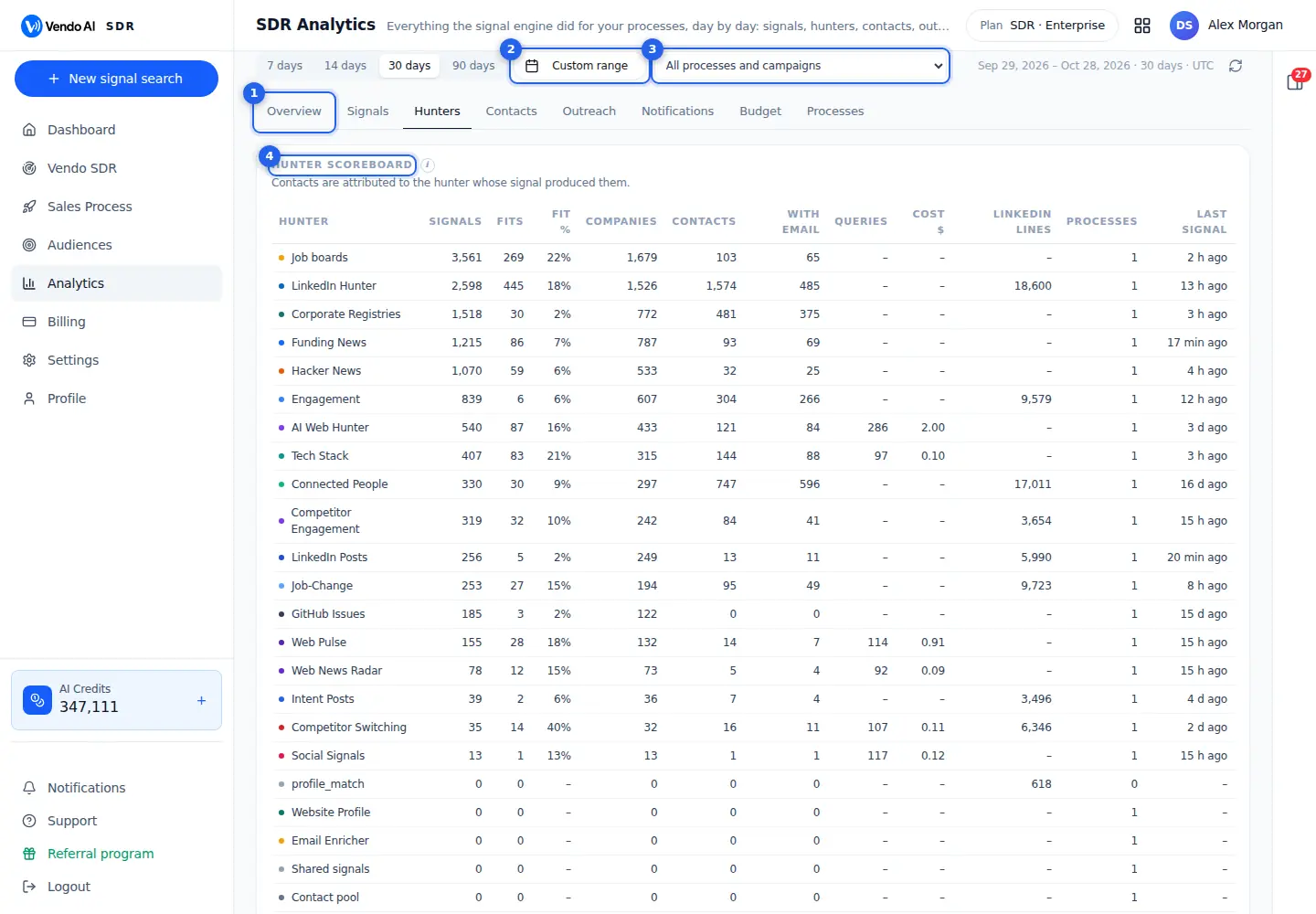
- TabsOverview, Signals, Hunters, Contacts, Outreach, Notifications, Budget and Processes.
More details
The sections of SDR Analytics:
- Overview: headline numbers, the funnel from signals to replies, top hunters, hot companies;
- Signals: what was found, by type and day;
- Hunters: this scoreboard and a chart per hunter;
- Contacts: contacts, fit, emails found and enrichment results;
- Outreach: emails and LinkedIn over time, delivery and the queue;
- Notifications: what the assistant reported;
- Budget: credits, credits per fit contact, paid queries;
- Processes: each process and campaign side by side.
When you pick a single Sales Process campaign, tabs that only apply to SDR are hidden.
- Custom rangePick exact dates.
More details
Pick exact dates in a two-month calendar instead of the 7, 14, 30 or 90 day buttons. Days after today cannot be chosen.
The chosen range is shown next to the filters, with the number of days. All dates are in UTC.
Pick the first and last day; the page loads as soon as both are chosen. The 7, 14, 30 or 90 days buttons bring you back to a preset.
- Process filterAll processes and campaigns, or one of them.
More details
Shows all processes and campaigns together, or one of them. The list has two groups: SDR processes (your signal searches) and Sales Process campaigns. Paused ones are marked.
The choice stays in the page address, so you can bookmark or share a filtered view.
The filter applies to every tab. Pick one process to see only its hunters, contacts and outreach.
- Hunter scoreboardPer hunter: signals, fits and fit rate, companies, contacts, contacts with email, cost and last signal.
More details
One row per hunter for the chosen period, sorted by signals:
- Signals: buying signals it found;
- Fits and Fit %: how many the ICP check accepted, out of those it judged;
- Companies: different companies behind the signals;
- Contacts and With email: people found from its signals;
- Queries and Cost $: paid search queries and their cost, for hunters that use them;
- LinkedIn lines: LinkedIn pool lines used;
- Processes and Last signal.
Contacts count for the hunter whose signal produced them. Look for hunters with many signals but few fits: they may need different settings.
Also on this screen
- Period7, 14, 30 or 90 days.
More details
Quick buttons for the most common periods. Every tab follows the chosen period.
The chosen range is shown on the right with its dates and number of days, in UTC. Every tab, chart and table follows it, and the choice stays in the page address, so a refresh keeps it. A longer period helps judge hunters that find few but strong signals.
- Hunter chartsSignals and contacts per day for each hunter that found something.
More details
Under the scoreboard, each active hunter has a small chart with its signals and contacts per day. The info icon on each explains how that hunter works.
Hunters with no signals and no contacts in the period have no chart. Compare the two lines: a hunter whose signals rarely turn into contacts finds companies where no matching decision-maker was found.
- RefreshThe round arrow reloads the numbers.
More details
Loads the latest data for the current filters. The page does not refresh by itself.
Use it after you changed a search or when the page has been open for a while. If loading fails, a yellow note appears with a Retry button. Refreshing only reads data; it does not run any hunter and costs nothing. The numbers are counted per day in UTC.
SDR Analytics: outreach
app.vendo-ai.com/analytics/sdr
Outreach in numbers: emails sent, opened, clicked, replied and bounced per day, LinkedIn invites and replies, delivery and the sending queue.
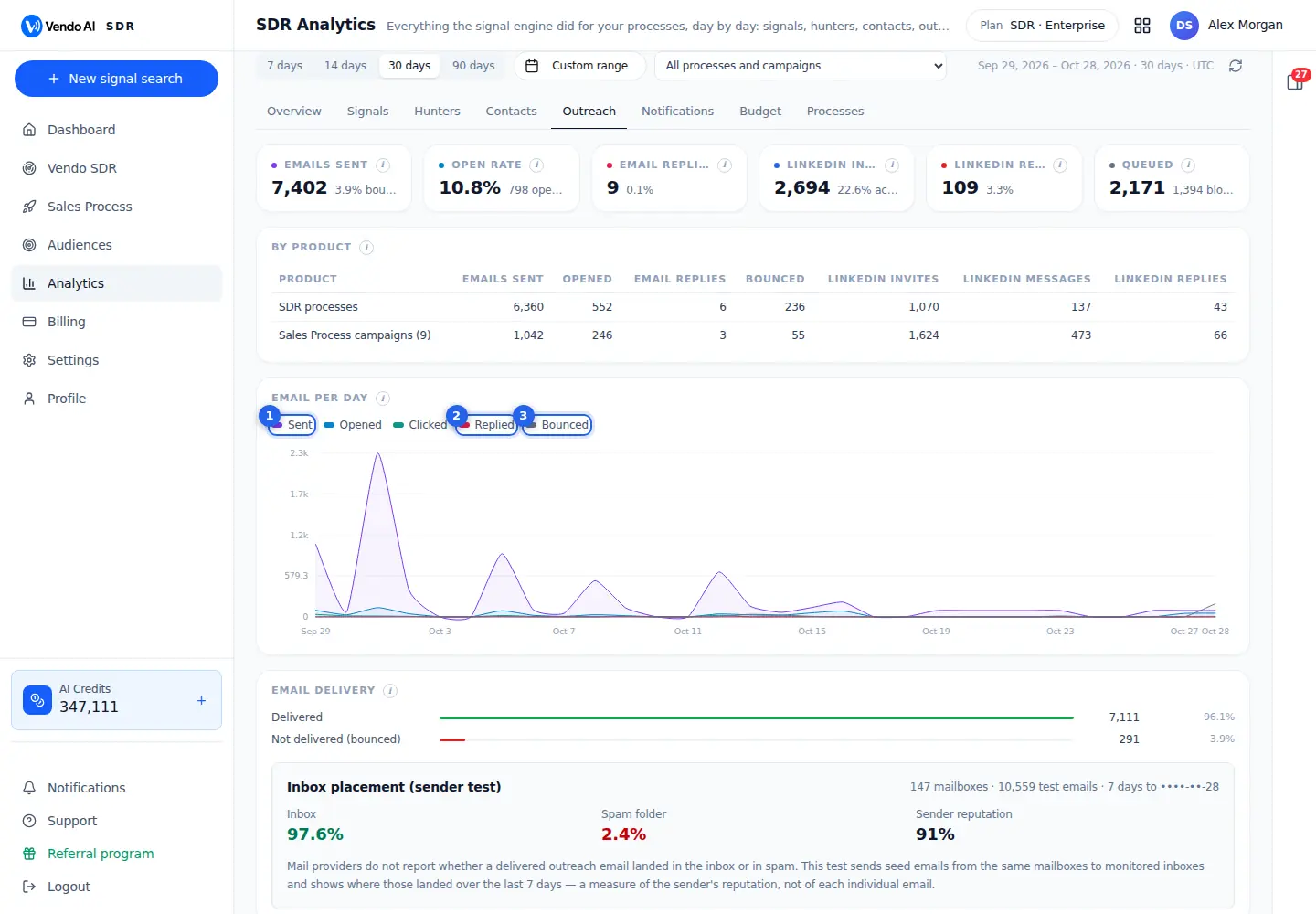
- SeriesClick a series to hide or show it on the chart.
More details
The Email per day chart has five lines: Sent, Opened, Clicked, Replied and Bounced. Click a name to hide or show its line; the scale adjusts to the lines left.
Hide Sent to see the smaller lines clearly, since sent emails are usually far more than opens or replies. Hover a day for its exact numbers.
The numbers include SDR processes and Sales Process campaigns, unless you pick one in the filter at the top.
- RepliedReplies, the number that matters most.
More details
Real replies per day. Auto-replies and bounces are not counted as replies.
The Email replies card at the top shows the total for the period and the reply rate: replies divided by emails sent. Replies are the number that matters most; opens can be inflated or hidden by mail privacy features.
Every reply also lands in the CRM as a lead.
- BouncedEmails that did not reach the inbox. Keep it low to protect your mailboxes.
More details
Emails the recipient's mail server rejected, per day. The Emails sent card shows the bounce share for the period.
A high bounce rate hurts the reputation of your mailboxes and can push future emails to spam. If it rises, check the contact source and pause the process or campaign that bounces most.
The Email delivery block below shows delivered against bounced, and the inbox placement test of your sending mailboxes.
Also on this screen
- Outreach cardsEmails sent, open rate, email replies, LinkedIn invites, LinkedIn replies and queued.
More details
The cards at the top give the period totals. LinkedIn invites shows the accepted share, counted as follow-up messages divided by invites, since a follow-up is only possible after acceptance. Queued shows contacts waiting in the queue and how many the quality gate blocked.
Open rate is opens divided by emails sent, and Email replies counts real replies only. Hover the info icon of a card for its exact definition.
- By productThe same numbers split into SDR processes and Sales Process campaigns.
More details
Shown when you have Sales Process campaigns and look at all processes. All other blocks show the sum.
SDR processes are the outreach of your signal searches; Sales Process campaigns are audience-based campaigns without signals. Compare emails sent with replies on each line to see which brings more conversations. The table is hidden when you filter to one process or campaign.
- Email deliveryDelivered against bounced, plus the inbox placement test.
More details
Delivered means the recipient's server accepted the email. Mail providers do not report whether it landed in the inbox or spam, so the sender test sends seed emails from your mailboxes and shows inbox and spam shares over the last 7 days, plus sender reputation.
The test measures the reputation of your sending mailboxes, not each single email. Keeping bounces low protects it.
- LinkedIn per dayInvites, follow-up messages, replies and failed invites per day.
More details
Failed invites are usually daily limits or LinkedIn refusing to resend an invite yet.
Replies are messages received in LinkedIn chats. Many failed invites on the same days usually mean the accounts hit their limits; more connected accounts, or a lower daily limit in the process, spread the load. The LinkedIn replies card at the top divides replies by the invites and messages sent in the period.
- Queue per dayContacts queued to campaigns and contacts blocked by the quality gate.
More details
Shows the SDR outreach queue per day. Sales Process campaigns have no queue here.
A contact enters the queue when it is chosen for outreach. The quality gate blocks contacts before sending, for example when they are unfit, deleted or outside the chosen segment. A growing blocked line means many contacts do not match the segment you picked. Check the ICP groups on the search when it grows.
Agents analytics
app.vendo-ai.com/analytics/agents
Widget reach, conversations, voice minutes, contacts left, leads and credits of your agents.
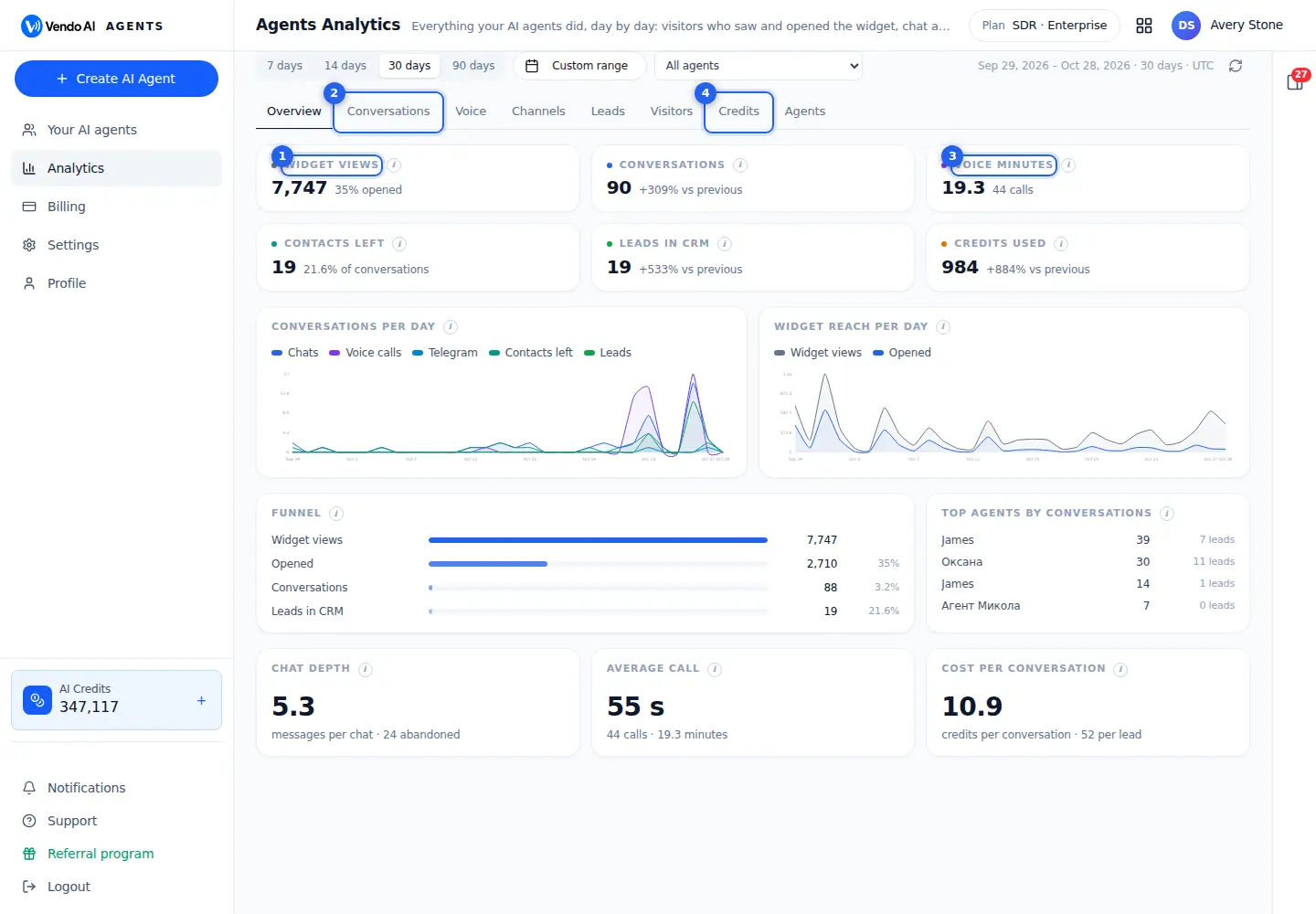
- Widget viewsPages where the widget loaded, and how many visitors opened it.
More details
How many page views loaded your website widget in the range. The line below shows the share of those views where the visitor clicked the widget button (opened). It is the top of the agent funnel: views, opened, conversations, leads in CRM.
A low open share usually means the button is easy to miss or the greeting does not invite a click, so test a clearer greeting or a different position. Numbers come from the widget itself, so pages without the widget are not counted. The Visitors tab shows where talking visitors came from and on which pages conversations started.
- ConversationsWebsite chats and calls plus Telegram chats in the range.
More details
Website chats and website voice calls that started in the range, plus Telegram chats with at least one message. Calls to a phone number are not counted here; you find them on the agent's Phone page. The line below compares with the same number of days right before the range, for example "+40% vs previous", or "new vs previous" when the earlier period had none.
The Conversations tab adds visitor messages and agent replies, the start rate (conversations divided by widget opens), when visitors talk (by hour, UTC), conversation length and languages.
- Voice minutesMinutes of website voice conversations.
More details
Total minutes of website voice conversations in the range; the line below shows how many calls connected. A session longer than 2 hours is capped, because it is treated as abandoned.
A website voice minute costs 15 credits (a voice presentation minute 17), so this number drives most of the agent spend. The Voice tab shows calls and minutes per day with a comparison to the previous period, the average call length and minutes per agent.
- CreditsChat replies 1 credit, website voice minutes 15 credits, Google Meet 7 or 20 a minute, plus Telegram replies and AI writing.
More details
Credits charged for your agents' work in the range, with the change against the previous period of the same length. 1 credit = 1 cent.
- Website chat reply: 1 credit. Telegram reply: 1 credit.
- Website voice minute: 15 credits. Voice presentation minute: 17. Google Meet minute: 7, or 20 with a presentation. Telegram voice minute: 14. Phone call minute: 25.
- AI writing (company descriptions, website scans), script generation and phone calls are charged as they happen.
The Credits tab splits the spend by type per day and per agent; Overview shows the cost per conversation. Agent credits come from the same workspace balance as SDR and CRM.
Also on this screen
- Agent selectorAll agents or one agent.
More details
Narrows every tab to one agent; agents that are not active show their status in brackets. Together with the period (7, 14, 30, 90 days or a custom range, counted in UTC) it is kept in the page address, so you can bookmark or share the view. Without any agents the page offers Create AI Agent.
- Contacts leftConversations where the visitor left an email or phone.
More details
Website conversations in which the visitor shared an email or a phone number, whether in the form, a screen card or in the chat itself. The line below is the share of conversations. If it is low, ask for contact details earlier in the agent script or offer something in return, such as a call-back.
- Leads in CRMLeads your agents created.
More details
CRM leads created from your agents' conversations in the range: website chat and voice, Telegram, presentation forms and Meet calls, with the change against the previous period. A lead can exist without an email or phone, because the CRM card keeps the transcript. The Leads tab shows leads per day by source and the latest leads; click a name to open the card.
- FunnelWidget views, opened, conversations, leads.
More details
Each step shows the conversion from the step before. A drop between views and opened is about visibility of the button; between opened and conversations about the greeting and first message; between conversations and leads about how the agent qualifies and asks for contact details.
- Cost per conversationCredits used divided by conversations.
More details
Shows what an average conversation costs. 100 credits = 1 dollar. Voice conversations cost far more than chats (15 credits a minute against 1 credit a reply), so a rise usually means more or longer calls.
- Chat depthAverage messages per website chat, and abandoned chats.
More details
The average number of messages in a website chat, counting both the visitor and the agent. Abandoned means the visitor left before the agent answered. Short chats with many abandons often point to a slow or unclear first reply.
- ChannelsEvery connection of your agents with its results.
More details
Website widgets, buttons, presentations, phone numbers, Telegram and Meet, each with what happened on it in the range. Website numbers come from the widget; phone calls and Telegram chats open on the channel's own page. Click a row to open the connection.
- VisitorsWhere talking visitors came from and on which pages.
More details
Where visitors who talked to your agent came from: the campaign tag (utm_source) when present, otherwise the referring site; direct means no referrer. Pages with conversations lists the pages where conversations started and how many ended with a contact, which tells you where the agent earns its place.
- Agents tabAll agents side by side.
More details
Every agent of the workspace with its numbers in the range, busiest first. Click a name to open the agent and change its script, voice or channels.
Billing, settings and account
Plans and credits, workspace settings, your profile, support and referral links.
Billing
app.vendo-ai.com/billing
Your plan, credit balance, other plans, additional credits and invoices.
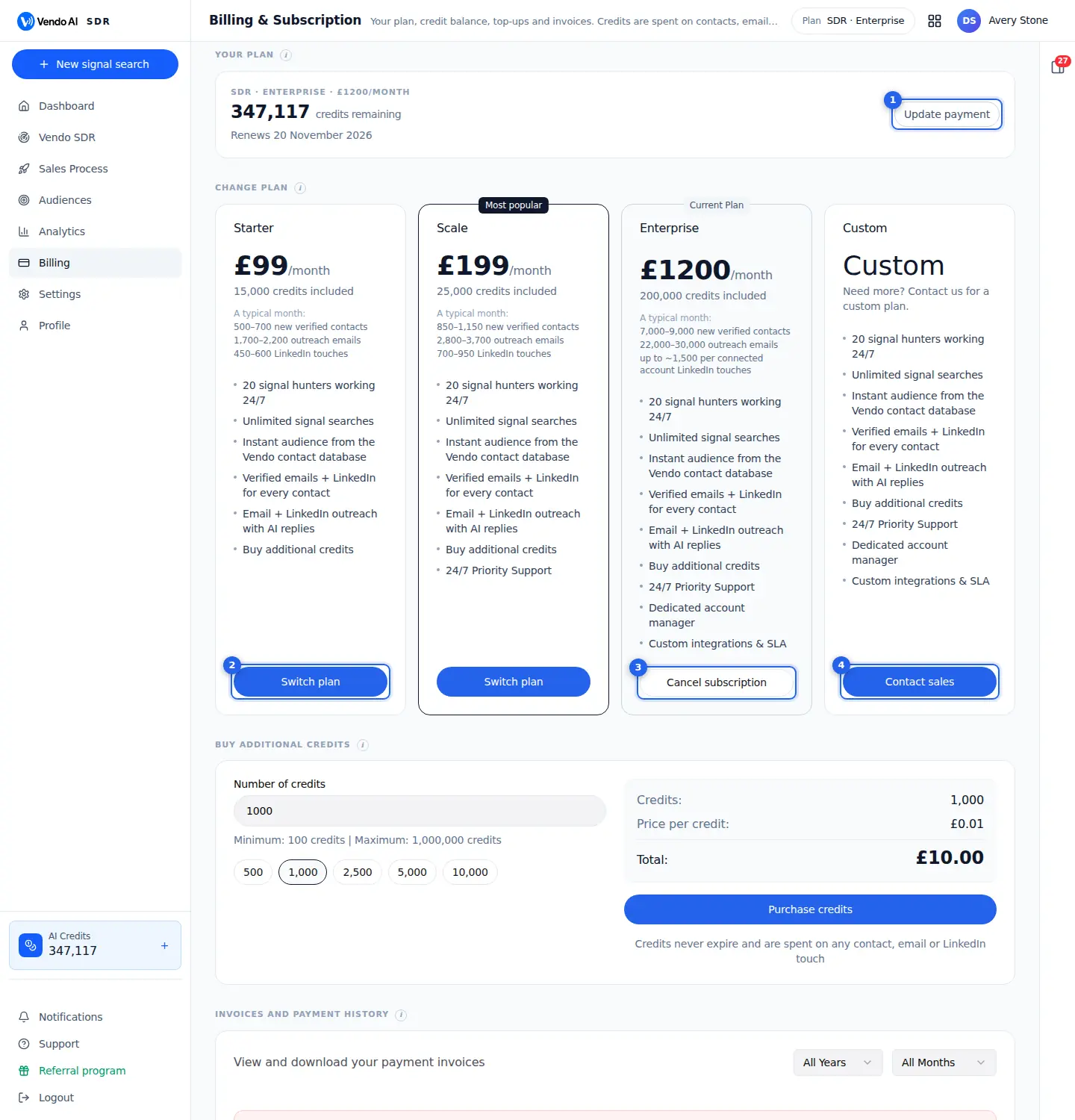
- Update paymentOpens the secure card settings.
More details
Opens the secure customer portal of the payment provider (Stripe) in a new tab. There you change or add the card and manage payment details. Vendo AI never sees or stores your card number.
Update the card before the renewal date shown under your plan to avoid a failed charge. If a renewal was declined, the invoice shows as unpaid under Invoices with Pay now and Update payment; once it is paid the plan continues and the monthly credits are added.
- Switch planChanges the plan through secure checkout.
More details
Plans differ in the monthly credit allowance and the level of support; the product features are the same.
- SDR plans: Starter $99 (15,000 credits a month), Scale $199 (25,000), Enterprise $1,200 (200,000).
- Agent plans, on Agents billing: Starter $30 (4,000 credits, 1 agent), Growth $70 (10,000, 2 agents), Scale $140 (20,000, 5 agents).
Prices are the same number in USD, EUR or GBP. Switch plan asks you to confirm and then opens secure checkout. The new plan starts today and replaces the current one for the whole workspace (agents, SDR and CRM). Credits already on your balance stay. The typical-month line on each card is only an estimate of what the allowance covers.
- Cancel subscriptionKeeps access until the end of the paid period.
More details
Shown on the plan you are on. After you confirm, the subscription stops renewing but stays active until the end of the period you already paid; the plan line then says Expires with the date instead of Renews. The button turns into Resume subscription, which undoes the cancellation if you change your mind before that date.
When the period ends, no more monthly credits are added. Credits left on the balance are not removed, but without a plan the balance only goes down, additional credits cannot be bought and new API keys cannot be created.
- Custom planTalk to us about a custom plan for larger volumes.
More details
The Custom card is for teams that need more than Enterprise: larger volumes, custom integrations, an SLA or a dedicated account manager. Contact sales opens the conditions for companies page on vendo-ai.com in a new tab, where you get in touch with the team. Nothing changes in your account until a custom plan is agreed and set up for you.
Also on this screen
- Your planCurrent plan, price, credits left and the renewal date.
More details
Shows the package and plan (for example SDR · Scale), its monthly price, the credits left and the next renewal or expiry date. On each renewal the plan's monthly allowance is added to the balance. Credits pay for contacts, emails and LinkedIn touches in SDR, and for chat replies and voice minutes in Agents; 1 credit = 1 cent. Without a subscription the card shows Free and the balance only goes down.
- Additional creditsOne-time top-up at 1 cent per credit.
More details
Type a number of credits or pick 500, 1,000, 2,500, 5,000 or 10,000. Minimum 100, maximum 1,000,000 per purchase. The summary shows the price per credit and the total in your currency; payment goes through secure checkout. The credits land on the same workspace balance, never expire and can be spent on anything. Buying credits requires an active plan; on Free the section offers View plans instead.
- InvoicesEvery subscription charge and credit purchase.
More details
Newest first, with amount, date and status, and a Receipt link from the payment provider. Filter by year and month to find one for your accountant. An unpaid invoice means the card was declined on renewal: press Pay now to retry or Update payment to change the card, and the plan continues once it clears.
- Resume subscriptionUndo a cancellation before the period ends.
More details
Appears instead of Cancel subscription after you cancel. Press it before the expiry date and the plan renews as usual, with nothing to pay now and no change to your balance.
- Free trial7 days on Scale, offered only during onboarding.
More details
New SDR users can start the Scale plan with a 7-day free trial from the onboarding plan step. The trial gives 3,000 credits; if you do not cancel, Scale is charged after 7 days and the rest of the monthly allowance is added. The trial is available once per user and not from this Billing page. The top bar shows trial while it runs.
- Agents billingThe agents version of this page.
More details
Agents have their own plans page with the agent packages (Starter, Growth, Scale, Custom). It is the same subscription and the same credit balance: buying or switching on either page replaces the workspace plan. Examples on each agent plan show what its allowance covers as chat replies (1 credit) or voice minutes (14).
Billing: invoices
app.vendo-ai.com/billing
Every invoice of the account with its status.
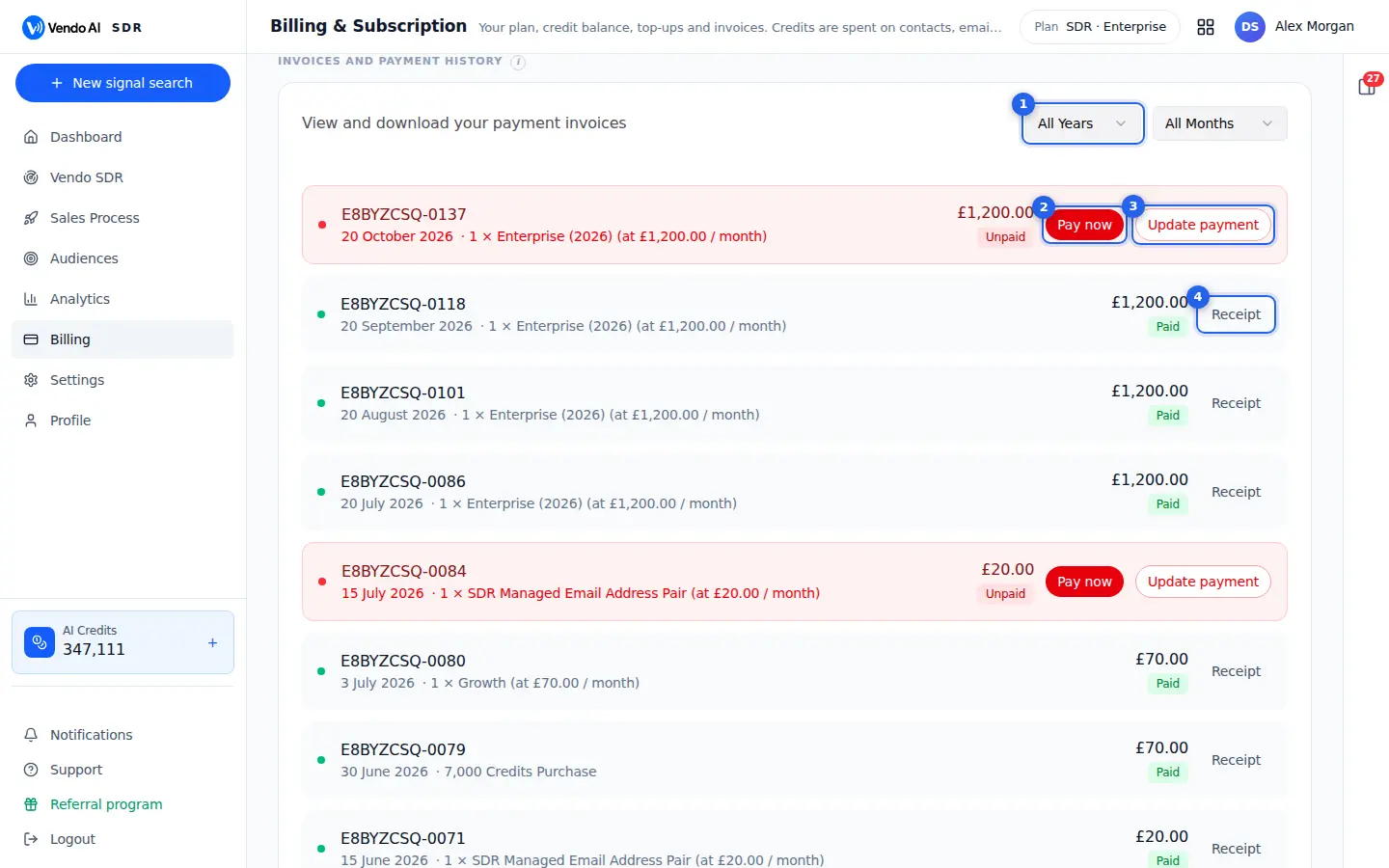
- FilterBy year and by month.
More details
Filters the invoices by year, and with the second list by month. All Years and All Months show everything, newest first.
Use it when your accountant asks for the invoices of one month or year. Filtering costs nothing.
Changing a filter reloads the list for that period, and each row keeps its Receipt or Pay now button. Filtering costs nothing.
- Pay nowPays an unpaid invoice by card.
More details
Shown on an unpaid invoice, which usually means the card was declined at renewal. Pay now charges the invoice to your saved payment method right away.
If the payment works, you see "Payment successful! Credits will be added shortly." and the plan continues with its monthly credits. If the card is declined again, use Update payment first, then press Pay now.
- Update paymentChange the card used for payments.
More details
Opens the secure payment settings of the payment provider in a new tab, where you can add or change the card used for your subscription and invoices.
After you change the card, come back and press Pay now on the unpaid invoice. The same button is also in the Your plan block at the top of Billing.
Card details are entered on the payment provider's page, not in Vendo AI.
- ReceiptDownloads the receipt of a paid invoice.
More details
Opens the receipt of a paid invoice from the payment provider in a new tab, usually as a PDF you can download or print.
Each row shows the invoice number, date, what was bought (a plan, an add-on or a credit purchase), the amount and the status: Paid in green or Unpaid in red.
Unpaid invoices have no Receipt button.
Also on this screen
- Invoice rowNumber, date, item, amount and status.
More details
Every subscription charge and credit purchase is listed with what it was for, for example a monthly plan or a credits purchase. Unpaid rows are shown in red.
The dot on the left is green for paid and red for unpaid. Amounts are in the currency you paid in. A credit purchase shows how many credits were bought, for example 7,000 Credits Purchase.
- Load moreLoads older invoices.
More details
The list shows 20 invoices at a time. Use the button under the list to load more.
To find an old invoice faster, pick its year and month in the filters instead of loading page after page. Older invoices have the same Receipt button as recent ones, and the newest are always at the top. Each press adds older invoices to the list.
Settings
app.vendo-ai.com/settings
Workspace settings in tabs.
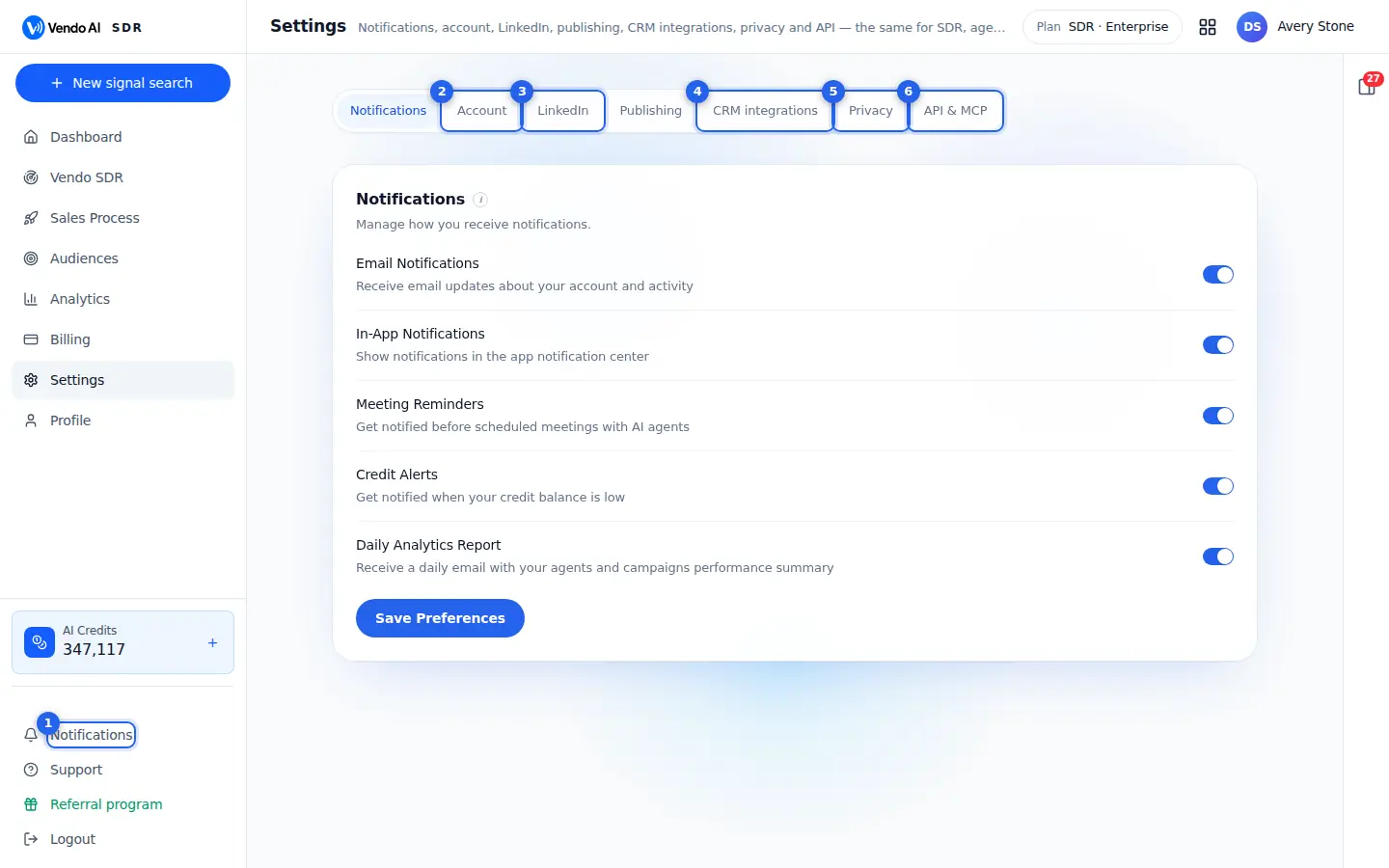
- NotificationsEmail and in-app notifications, meeting reminders, credit alerts and the daily analytics report.
More details
Five switches decide what Vendo AI sends you; press Save Preferences to apply them. They are personal, so each team member sets their own.
- Email Notifications: emails about your account and activity.
- In-App Notifications: messages on the Notifications page.
- Meeting Reminders: a reminder before meetings scheduled with your AI agents.
- Credit Alerts: a warning when the balance is low, for example when SDR stops saving contacts because credits ran out (at most once a day).
- Daily Analytics Report: an email at 8:00 London time on weekdays with the previous day's results of your agents and campaigns, sent for workspaces with active campaigns or agents.
CRM alerts (lead assigned, reassigned, mentions) are set separately in CRM settings.
- AccountYour name, login email (locked), company and password change.
More details
Your own profile and password, the same in SDR, Agents and CRM.
- Profile: Name and Company; press Save. The Email field is locked because the email is your login and cannot be changed here.
- Password: enter the current password, then the new one twice, and press Change Password. The new password needs at least 8 characters with one uppercase and one lowercase letter and must differ from the current one.
Job title and photo are edited in Profile. If this page says your settings could not be loaded, press Try again before saving, so you do not overwrite your data with empty fields.
- LinkedInConnected LinkedIn accounts: warm-up safe limits, today's prospecting load, the AI replies switch, Reconnect and Remove.
More details
LinkedIn accounts that Vendo SDR uses for signal search and that outreach uses for invites and messages. Add account opens a secure connection window; Vendo AI never sees your password. Each account shows its status (Active, Connecting, Reconnect needed, Error, Stopped), Premium or Sales Navigator, how many SDR searches and campaigns use it, messages sent in the last 7 days and today's prospecting load.
- Warm-up: a new account runs at strict limits for 14 days, from about 15 searches and 5 profile views on day 1, because LinkedIn restricts fresh accounts that jump to full volume. For steady volume connect 2 or 3 accounts; LinkedIn Premium is strongly recommended.
- AI replies: when on, Vendo AI answers incoming LinkedIn messages on that account.
Members see the accounts they connected; admins see all of them.
- CRM integrationsSync leads with HubSpot or Kommo. Salesforce and Zoho are coming soon.
More details
Sends leads and conversations from your AI agents to your own CRM. Available now: Kommo and HubSpot CRM. Salesforce and Zoho CRM are marked Coming Soon.
- HubSpot: Connect opens HubSpot's sign-in window; approve access.
- Kommo: create a private integration in Kommo first (name Vendo AI, access All, paste the Redirect URI shown in the dialog), then paste its Integration ID and Secret key and approve. Settings then lets you pick the Kommo pipeline, stage and responsible user for new leads.
After each conversation ends, the contact is created or updated (name, email, phone), a lead is created and the full transcript is attached as a note. The card shows the connected account and how many conversations, contacts and leads were synced. Error means the connection broke: press Reconnect. Disconnect stops syncing.
- PrivacyCookie preferences (Google Analytics, Microsoft Clarity) and links to the policies. Account deletion is in Profile.
More details
Controls analytics cookies in this browser. Manage cookies reopens the consent banner, where you allow or refuse the analytics cookies (Google Analytics and Microsoft Clarity) used to improve the product. The choice is stored in this browser only, so repeat it on other devices. The tab also links to the Privacy Policy and the Cookie Policy on vendo-ai.com.
Deleting your account and its data is not done here but in Profile, Danger Zone.
- API & MCPCreate your access key for the REST API and the MCP server. A key has full access to your workspace; keep it secret.
More details
Creates access keys so other tools can work with your account: Claude, ChatGPT or any MCP client through https://api.vendo-ai.com/mcp, and your own code, Zapier or Make through the REST API at api.vendo-ai.com/v1. You need an active plan; the 7-day free trial counts.
- Create my key (later Add another key): give it an optional nickname such as "Claude" and press Create key. The key is shown once: copy it and keep it safe, because Vendo AI stores only a fingerprint.
- Every key has full access to your account; there are no scope checkboxes. Launching campaigns, deleting agents and similar actions still need a preview step first.
- Send the key as a Bearer token. Each key can make up to 60 requests per minute.
- Delete a key to cut off every app using it at once. The list shows each key's prefix, creation date and last use.
Also on this screen
- PublishingConnect Instagram so the content factory can publish posts for you.
More details
The Publishing tab connects social accounts for the content factory. Add Instagram opens a secure connection window; your password is never stored. Instagram needs a Business or Creator account, and every Instagram post must include an image or a video. Each connected account shows its status (Connected, Connecting, Reconnect needed, Error, Stopped); Disconnect removes it from publishing after a confirmation. LinkedIn posts do not need anything here: they go out through the accounts on the LinkedIn tab.
- Daily Analytics ReportWeekday morning email with yesterday's results.
More details
Sent at 8:00 London time, Monday to Friday, to workspace members who have this switch on, for workspaces with active campaigns or agents. It summarises the previous day. The same report also appears as a Daily report card in the AI Assistant chat. Turn it off if a teammate only needs the CRM, then press Save Preferences.
- Credit AlertsWarns you when credits run low.
More details
When the balance gets too low for the work running, for example SDR has to skip contacts because there are no credits, you get a warning; it is sent at most once a day. Keep it on: without credits SDR stops saving contacts, and the warning gives you time to top up in Billing.
- Meeting RemindersA reminder before meetings with your AI agents.
More details
Sends you a reminder before meetings scheduled with your AI agents. The meetings themselves are listed in CRM, Calendar.
- Change PasswordAccount tab: set a new password.
More details
Enter your current password, then the new password twice. Requirements: at least 8 characters, one uppercase and one lowercase letter, different from the current password. If you forgot the current one, sign out and use Forgot password? on the sign-in screen.
- Add accountLinkedIn tab: connect a LinkedIn account.
More details
Opens a secure pop-up where you sign in to LinkedIn. When you close it, the list refreshes and the account joins the workspace pool used by signal search and outreach. It starts in warm-up for 14 days with low daily limits. Team members can add their own accounts; more warm accounts means more daily volume for the workspace.
- AI repliesLinkedIn tab: let Vendo AI answer incoming messages on an account.
More details
A switch on each LinkedIn account. When on, Vendo AI answers incoming LinkedIn messages on that account with AI. Turn it off to keep the account for your own manual conversations. You can change it for your own accounts; admins can change it for all of them.
- Reconnect neededLinkedIn tab: an account LinkedIn restricted.
More details
LinkedIn restricted the account and it must be reconnected; press Reconnect and sign in again. Fresh accounts without Premium get restricted more often because of prospecting load (searches and profile views), even with no invites sent. After reconnecting, the account continues at its warm-up level. Remove takes an account out of search and outreach completely.
- Kommo Integration SettingsWhere leads land in Kommo.
More details
Available after Kommo is connected. Choose the Kommo pipeline, the stage inside it and the responsible user for leads created from AI agent conversations. Leave the responsible user as Not assigned if your Kommo team distributes leads itself.
- With Claude or ChatGPTUse your key through the MCP connector.
More details
In Claude or ChatGPT add a custom MCP connector pointing to https://api.vendo-ai.com/mcp and paste your key as the Bearer token. The AI can then create agents, build audiences, launch campaigns and read analytics the same way you do in the app. Destructive actions such as launching campaigns or deleting agents need a preview step first, so the AI shows what will happen before it runs them.
- From your own code or Zapier / MakeUse your key with the REST API.
More details
Send the key as a Bearer token to api.vendo-ai.com/v1, for example to read the balance at /v1/billing/balance. See all available actions opens the full API reference. Keep the key out of shared documents and public code; if it leaks, delete it here and create a new one.
Settings: Account
app.vendo-ai.com/settings?tab=account
Your name, company and password.
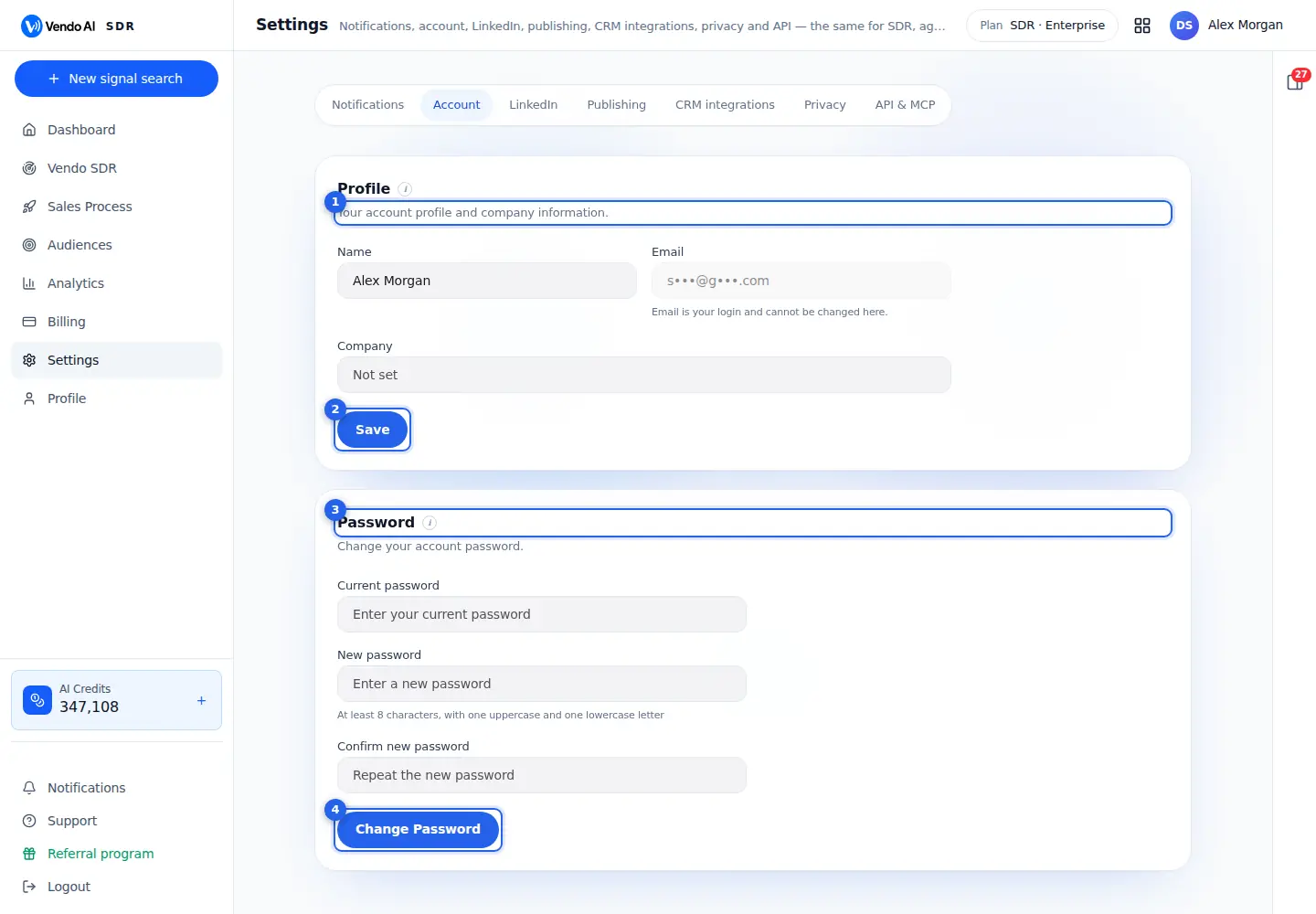
- ProfileName and company. The login email cannot be changed here.
More details
Your name and company. The name is split into first and last name and shown to your team, for example as the owner of CRM leads.
The email is your login. It cannot be changed here, and receipts, sign-in codes and invitations go to it. Company is optional.
The fields show your current details. Changes take effect when you press Save.
- SaveSaves the profile.
More details
Saves the name and company. A message confirms "Profile saved". The name cannot be empty.
Changes show across the app, for example in the top bar and in the CRM owner list.
If saving fails, a message says so and nothing changes; try again. This button does not change the email or the password; the password has its own block below.
- PasswordCurrent password, then the new one twice.
More details
Change your password in three fields: Current password, New password and Confirm new password.
The new password needs at least 8 characters with one uppercase and one lowercase letter, and must be different from the current one. Both new password fields must match.
After the change, use the new password the next time you sign in, on the web and in the mobile app.
- Change PasswordSaves the new password.
More details
Checks the fields and saves the new password. You see "Password changed successfully", and the fields are cleared.
If something is wrong, a message says what, for example that the new passwords do not match, the password is too short, or the new password is the same as the current one.
The button shows a spinner while it saves. Nothing else in your account changes.
Also on this screen
- Settings tabsNotifications, Account, LinkedIn, Publishing, CRM integrations, Privacy and API & MCP.
More details
The same settings apply to SDR, Agents and CRM. Each tab opens its own page; the tab stays in the address, so you can share a link to it.
Notifications sets which alerts you get, LinkedIn manages the connected accounts, CRM integrations sends leads to HubSpot or Kommo, Privacy holds your analytics cookie choice, and API & MCP gives you an access key.
Settings: LinkedIn
app.vendo-ai.com/settings?tab=linkedin
LinkedIn accounts used by outreach and the hunters.
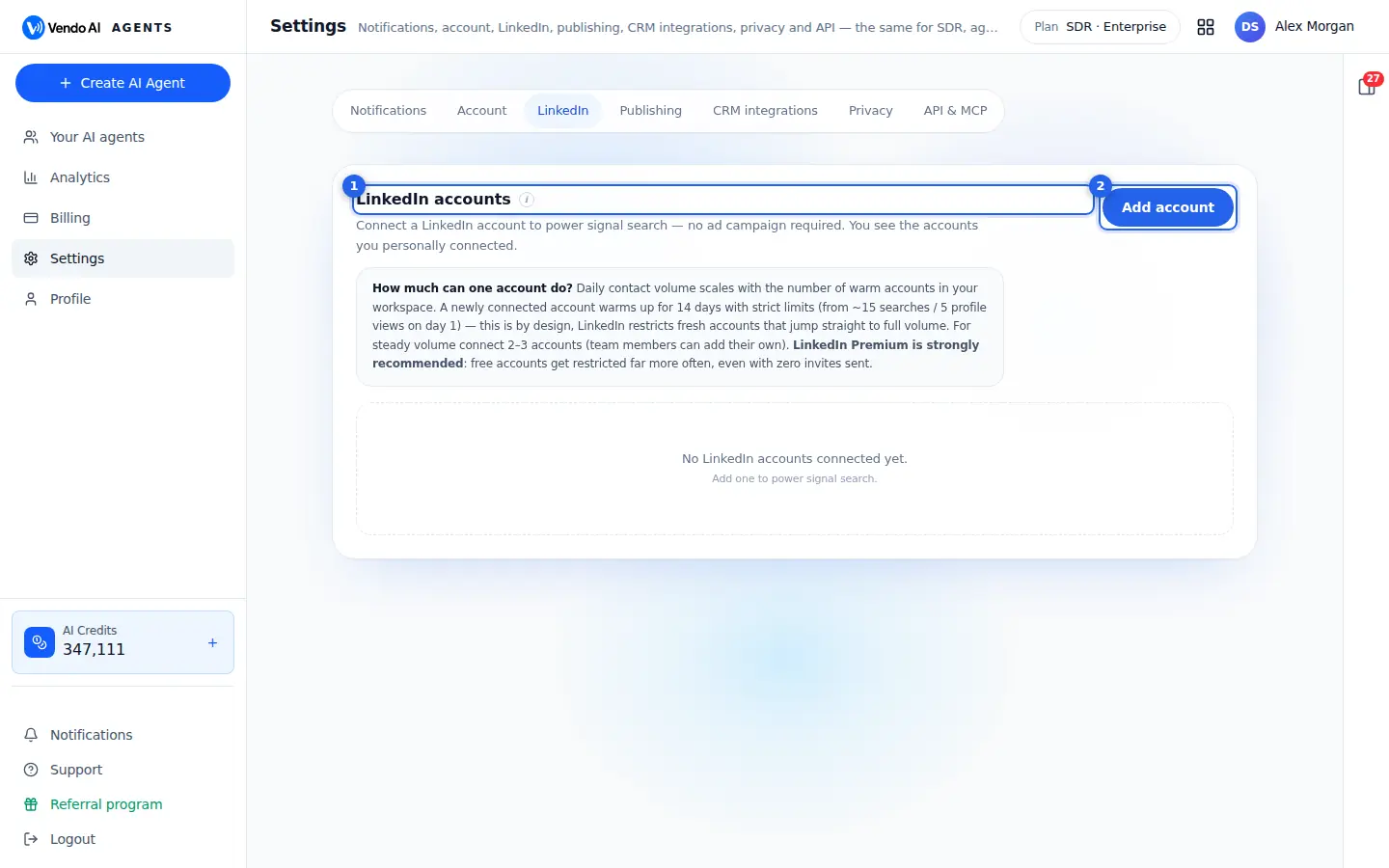
- LinkedIn accountsEach account with its warm-up safe limits, today's load and the AI replies switch.
More details
Every LinkedIn account connected to your workspace that you can see, with:
- where it is used: SDR searches and campaigns;
- what it sent in the last 7 days;
- Prospecting today: LinkedIn searches and profile views made through it, and either "warm account" or its warm-up day with the safe daily limits;
- badges such as Premium or Sales Navigator, and its country.
A new account warms up for 14 days with strict limits, because LinkedIn restricts fresh accounts that jump to full volume. For steady volume connect 2 to 3 accounts. LinkedIn Premium is strongly recommended: free accounts get restricted far more often.
- Add accountConnect one more LinkedIn account.
More details
Opens a LinkedIn sign-in window to connect one more account. Sign in there; when the window closes, the list refreshes and the new account appears.
The account joins your workspace's pool and can be used for signal search and outreach. Team members can add their own accounts the same way, which raises the daily volume your workspace can handle.
Each connected account costs 500 credits a month: the first month is charged when you connect it, then once a month. You need at least 500 credits on the balance to connect one.
Also on this screen
- AI repliesThe switch on each account: AI answers incoming LinkedIn messages.
More details
When on, Vendo answers messages on this account with AI. Turn it off to keep the account for manual conversations; this switch wins over the auto-reply setting of any process.
When the switch is off, incoming messages on this account wait for you and still reach the CRM. Each AI reply costs 3 credits, so turning it off on an account you use personally also avoids those charges.
- ReconnectShown when LinkedIn restricted the account.
More details
LinkedIn sometimes asks an account to sign in again, often because of prospecting load on fresh non-Premium accounts. Reconnect opens the sign-in window; after it, the account continues at its warm-up level.
A yellow note on the account explains it. Until you reconnect, the account cannot send and shows as not available in the outreach setup. Reconnecting costs nothing. The account's history stays.
- Remove accountStops using the account for search and outreach.
More details
Asks for confirmation, then removes the account from the workspace.
It stops being used for search and outreach right away, so make sure your processes and campaigns have other ready accounts selected, or their LinkedIn outreach has no sender. The confirmation names the account. You can connect it again later with Add account. Removing an account costs nothing, and the confirmation window lets you cancel.
Settings: CRM integrations
app.vendo-ai.com/settings?tab=crm
Send leads to your existing CRM.
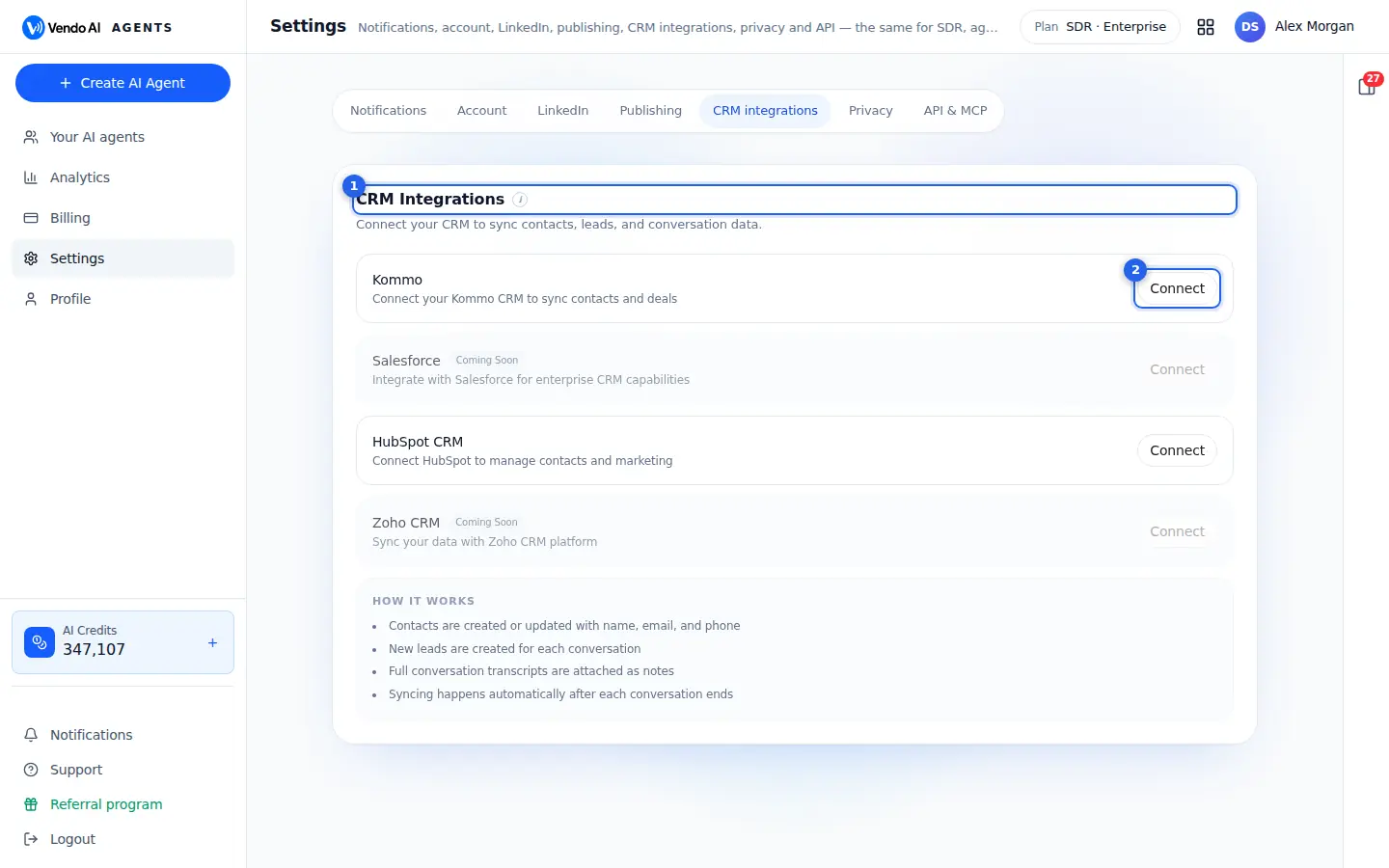
- CRM integrationsHubSpot and Kommo can be connected; Salesforce and Zoho are coming soon.
More details
Send contacts, leads and conversations to the CRM you already use. You can connect HubSpot and Kommo; Salesforce and Zoho are marked Coming soon.
How it works:
- contacts are created or updated with name, email and phone;
- a new lead is created for each conversation;
- the full conversation transcript is attached as a note;
- syncing happens by itself after each conversation ends.
A connected CRM shows the account name, a link to open it, and how many conversations, contacts and leads were synced.
- ConnectHubSpot: sign in and allow access. Kommo: enter your integration keys first, then sign in.
More details
Starts the connection.
HubSpot: a HubSpot window opens; sign in and allow access. When it is done you see "HubSpot connected successfully!".
Kommo: first a window explains how to create a private integration in Kommo (Settings, Integration marketplace) and asks for its Integration ID and Secret key. After that, sign in to Kommo. Once connected, Settings lets you choose the pipeline, the stage and the responsible user for new leads.
Disconnect stops the sync at any time.
Also on this screen
- Kommo settingsPipeline, stage and responsible user for new leads.
More details
Shown on a connected Kommo integration. Choose where new leads land in Kommo and who owns them.
The lists come from your Kommo account, so create the pipeline and stages there first. You can change these choices at any time. Open them with the Settings button next to Disconnect; HubSpot has no extra settings here. Pick a pipeline first, then a stage in it.
- DisconnectStops syncing to that CRM.
More details
New conversations are no longer sent. Data already in your CRM stays there.
The card shows Connect again and a message confirms it. Leads keep arriving in the Vendo AI CRM as before; only the copy to the outside CRM stops. You can connect again later. Disconnecting costs nothing. If a sync has a problem, the card shows Error next to the CRM name instead of Connected.
Settings: API & MCP
app.vendo-ai.com/settings?tab=api
Your key for the REST API and the MCP server.
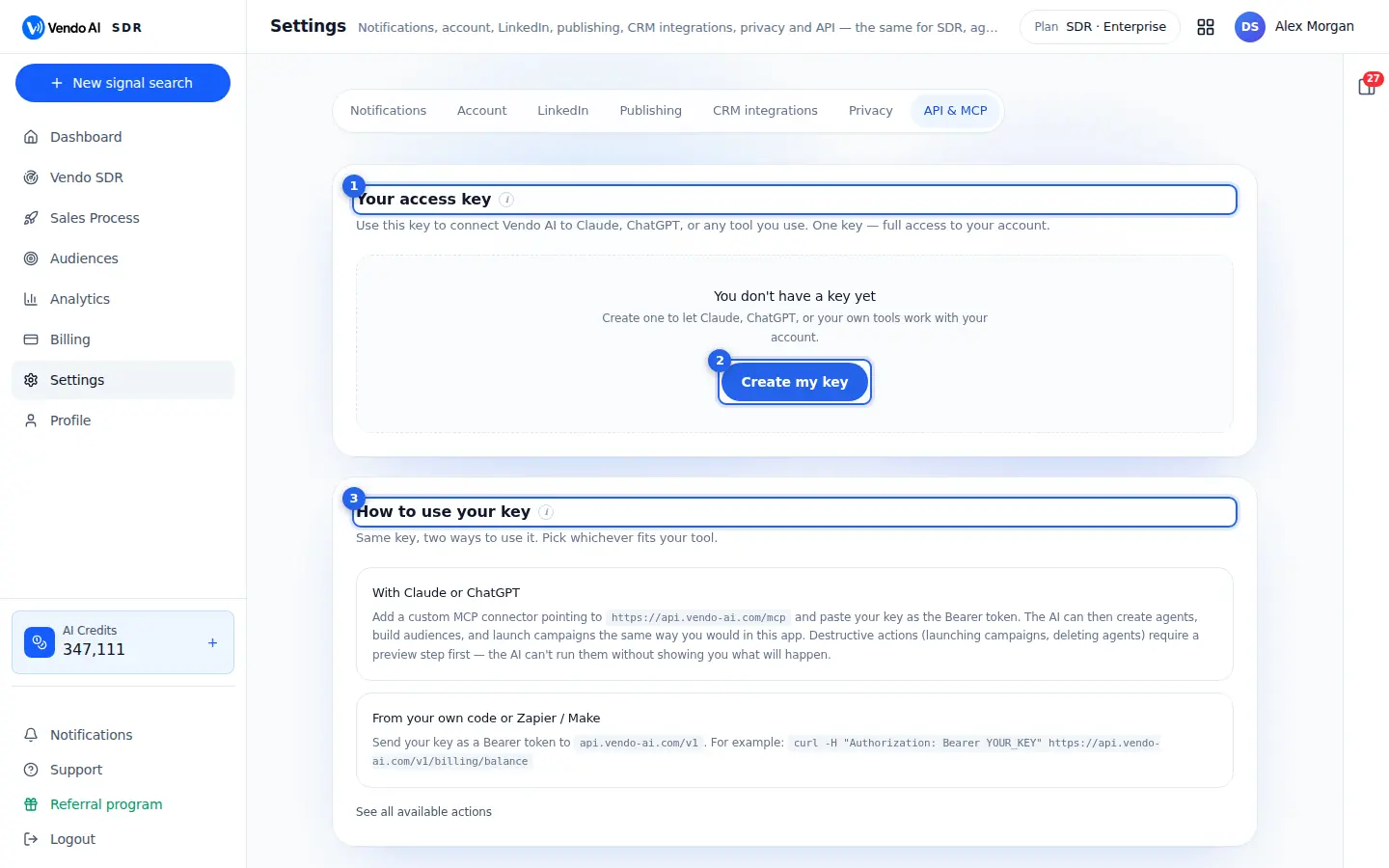
- Access keyOne key with full access to your workspace. Keep it secret.
More details
One key that lets Claude, ChatGPT, Zapier, Make or your own code work with your Vendo AI account. A key gives full access to your workspace, so treat it like a password: never paste it into a public place or share it in chat.
Creating a key needs an active plan; the 7-day free trial counts. Without a plan you see Subscription needed with a link to Billing.
You can create more than one key, for example one per tool, and delete any of them at any time.
- Create my keyCreates the key and shows it once.
More details
Asks for an optional nickname so you recognise the key later, for example "Claude" or "My laptop", then creates it.
The full key is shown only once, in a banner with a Copy button. Save it somewhere safe right away. Vendo AI keeps only an encrypted fingerprint and cannot show the key again; if you lose it, delete it and create a new one.
Press "I've saved it" to close the banner.
- How to useExamples for the REST API and for connecting Claude or another AI app over MCP.
More details
Two ways to use the same key:
- With Claude or ChatGPT: add a custom MCP connector pointing to https://api.vendo-ai.com/mcp and paste the key as the Bearer token. The AI can then create agents, build audiences and launch campaigns as you would in the app. Actions such as launching a campaign or deleting an agent need a preview step first, so the AI shows what will happen before doing it.
- From your own code, Zapier or Make: send the key as a Bearer token to api.vendo-ai.com/v1.
"See all available actions" opens the public API documentation.
Also on this screen
- Your keysEach key with its name; Add another key creates more.
More details
Active keys are listed with their nicknames. Add another key starts the same create flow.
Give each tool its own key, for example one for Claude and one for Zapier. Then, if one tool should lose access, you delete only its key and the others keep working. The full key is never shown again in this list. Each key has its own row with a delete button.
- Delete keyStops a key immediately.
More details
After a confirmation, any app or AI assistant using the key stops working at once. Deleted keys are kept in a folded list for history.
Use it when a key may have leaked, when a tool is no longer used, or when someone who has a copy of the key leaves. Then create a new key for the tools that still need one.
Profile
app.vendo-ai.com/profile
Your account details, sign-in protection and team.
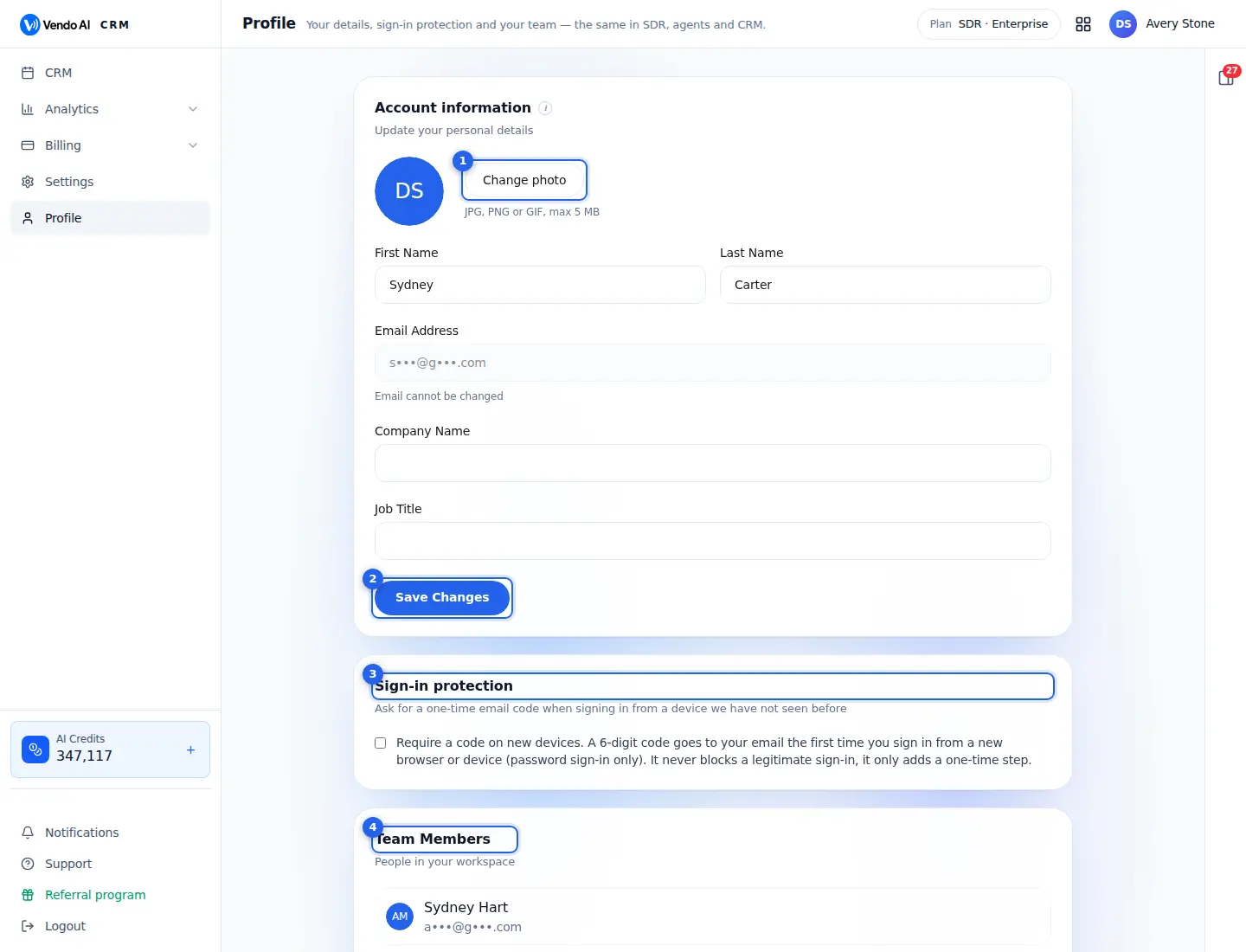
- PhotoJPG, PNG or GIF up to 5 MB.
More details
Click Change photo and choose a JPG, PNG or GIF image up to 5 MB. It uploads straight away and replaces your initials in the top bar, on your team's screens and on the CRM leads you own. A square photo with your face in the centre looks best in the small round frames. Other file types or larger files are refused with a message.
- Save ChangesSaves name, company and job title; they appear on your team's screens and in emails sent on your behalf.
More details
Saves First Name, Last Name, Company Name and Job Title. Your name, title and company show in the top bar and to your team, and your name is used in emails you send from the CRM. The Email Address field is locked: it is your login and cannot be changed. Changes apply at once. Company is the same field as in Settings, Account.
- Sign-in protectionRequire a 6-digit email code when signing in from a new browser or device.
More details
When this switch is on, signing in with your password from a browser or device Vendo AI has not seen before needs one extra step: a 6-digit code sent to your email, valid for 10 minutes. The email names the browser and IP address, so you can spot an attempt that was not yours. After the code, that browser counts as known and is not asked again while you keep using it.
- It never blocks a correct sign-in; it only adds the code step.
- Google sign-in does not ask for the code.
- It is off by default and covers only your own account, so each teammate turns it on for themselves.
- TeamInvite people and set their role and access per feature.
More details
Lists everyone in the workspace, with pending invitations below. Admins see Invite: enter a colleague's email and an invitation link is emailed. It is valid for 7 days and can be cancelled while pending. The colleague signs in or registers from the link and joins your workspace, sharing its agents, campaigns, CRM and credit balance.
- Access (admins): checkboxes per member for Dashboard, Your AI agents, Sales Process, Vendo SDR, Audiences, CRM, Analytics, Billing, Settings, and CRM: contact details (email / phone). Unchecked items are hidden from that member; without contact details, emails and phones are masked in the CRM.
- Administrator (owner only): gives a member full access and the right to manage other members.
- The bin removes a member. The owner cannot be restricted or removed.
Also on this screen
- Delete AccountDanger Zone: permanently delete your account and all data.
More details
Opens a confirmation where you type DELETE. It permanently deletes all your AI agents, stops all active agent connections, removes meeting recordings and transcripts, cancels your subscription, removes all credits and billing history and deletes the account. This cannot be undone. Export anything you need first, for example leads or contacts to CSV through the AI Assistant.
- Invitation pendingAn invitation that has not been accepted yet.
More details
Shows the invited email under the team list. The invitation link works for 7 days. Cancel invitation withdraws it, so the link stops working; send a new invitation if the colleague missed the email or it expired.
- Recent ActivityYour latest account events.
More details
Shows when the account was created and whether it was registered by email or through Google.
Notifications
app.vendo-ai.com/notifications
Account news: payments, credits, meetings, invitations and product updates.
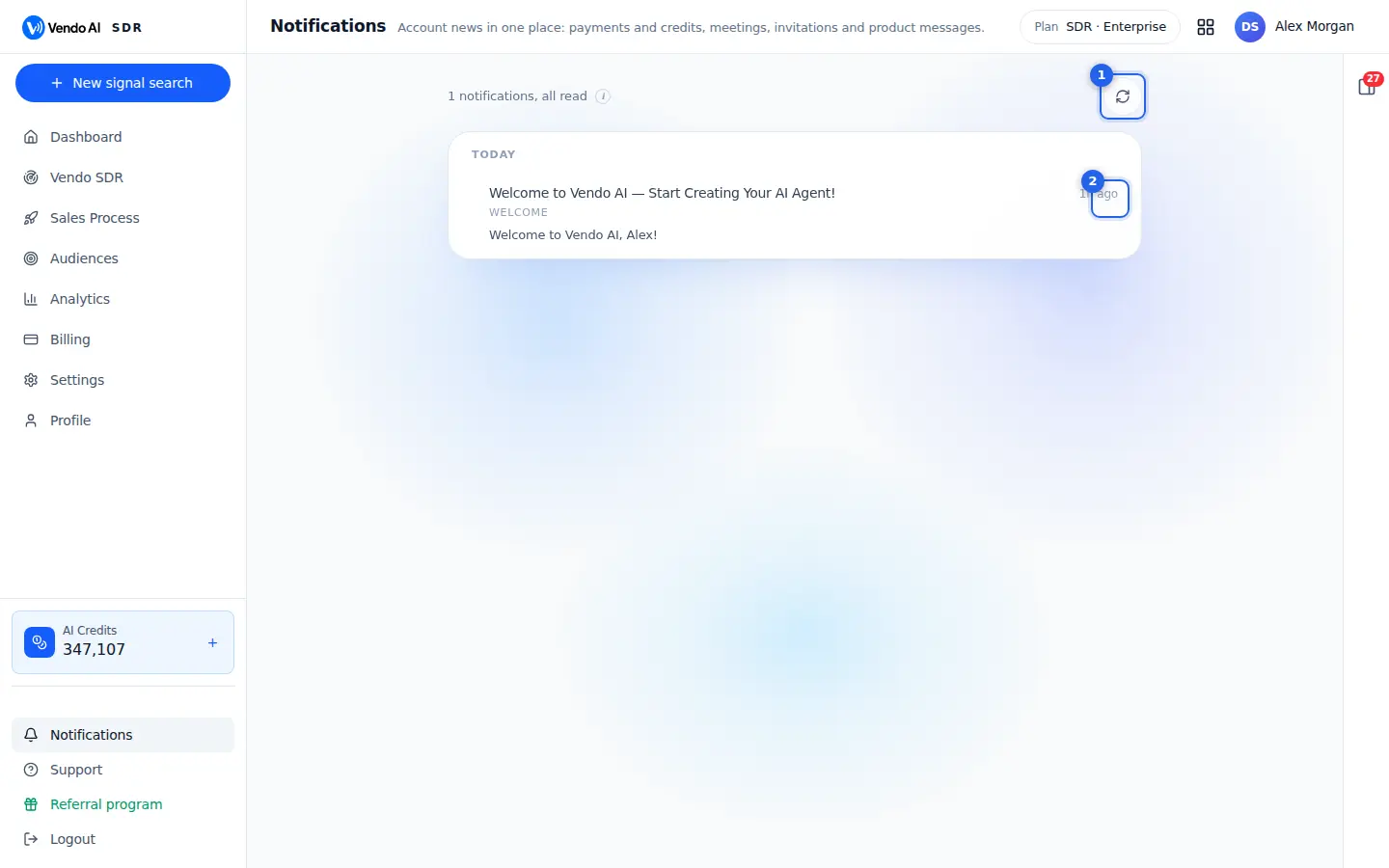
- RefreshLoads new notifications.
More details
Loads the latest notifications now. The page does not refresh by itself while it is open.
The line next to it shows how many are unread and the total, or "all read". When there are unread ones, a Mark all read button appears next to Refresh.
Lead and CRM alerts, such as new leads and mentions, are not here: they live in the bell inside the CRM.
- DeleteRemoves a notification.
More details
Deletes this one notification. The button appears when you hover a row, next to Mark read on unread rows.
Deleting only removes the message from this page; it does not undo anything it was about, such as a payment or an invitation. A message confirms "Notification deleted".
Use it to keep the page short; the total at the top updates.
Also on this screen
- Mark read and Mark all readClear the blue dot of one or all notifications.
More details
Unread notifications have a blue dot. Hover a row and press Mark read, or use Mark all read at the top.
Marking as read clears the dot and lowers the unread count at the top; the notification stays until you delete it. Mark all read shows how many were marked. Reading a notification does nothing else. Unread rows are shown in bold.
- Pages20 notifications per page, grouped by day.
More details
Notifications are grouped under Today and earlier days. Use Previous and Next at the bottom for older ones.
Groups are labelled Today and by earlier days, so you can find a payment or an invitation by when it arrived. The total at the top counts all notifications, not only this page. Press Refresh to see new ones. Each page holds 20 notifications.
Support
app.vendo-ai.com/support
The AI Assistant answers most questions instantly; anything else goes to the team.
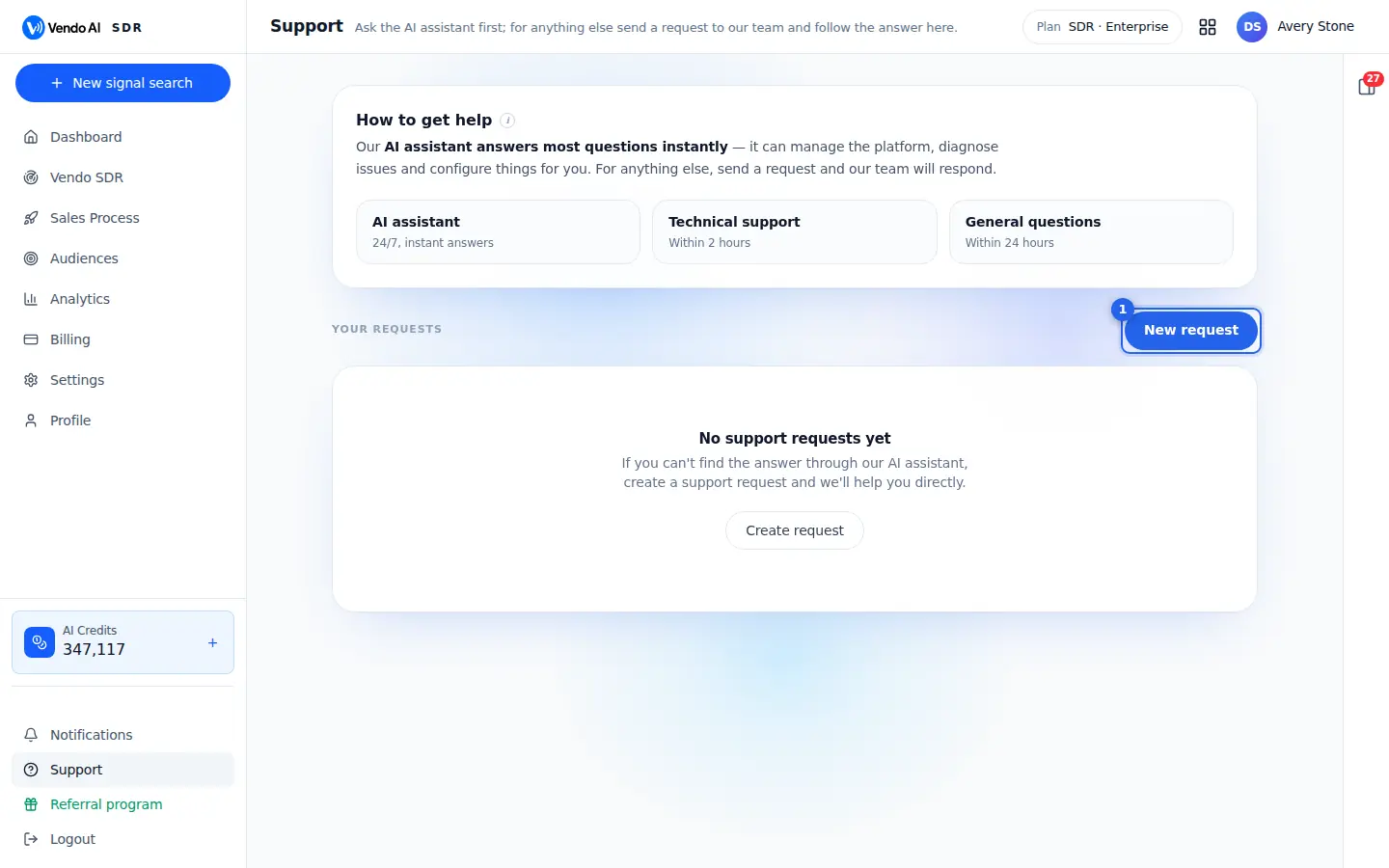
- New requestOpens a request to the team. Replies appear here, in Support.
More details
Opens the request form. Your email is filled in automatically. Pick a category (General question, Billing & payments, Technical issue, Bug report, Feature request, Account & settings), write a short subject of up to 200 characters, and describe what happened, what you expected and the steps to reproduce it, up to 10,000 characters. The team is alerted as soon as you send it.
The request then appears under Your requests with its status: Open, In progress once the team answers, Resolved or Closed. Open it to read the answers and reply; a reply to a resolved request reopens it. Typical response: technical issues within 2 hours, general questions within 24 hours. Files cannot be attached, so describe screenshots in words, or show them to the AI Assistant, which can read images.
Also on this screen
- Your requestsAll your support requests and their status.
More details
Every request you sent, with its category, the last message and its status (Open, In progress, Resolved, Closed). Click one to open the conversation with the team and add a message. Closed requests can be read but not answered; send a new request if the problem comes back.
- Try the AI assistant firstThe right-hand panel answers most questions instantly.
More details
The AI Assistant knows the product and can act in it: change settings, explain a number, find a lead or pause a campaign. Ask it before opening a request; each message costs 1 credit. If it cannot solve the problem, open a request here and paste what it told you, which helps the team answer faster.
- Response timesHow fast each kind of request is answered.
More details
The page lists the expected response: AI Assistant instantly, technical issues within 2 hours, general questions within 24 hours. Choose the right category so the request reaches the right queue.
Referral program
app.vendo-ai.com/referral
Earn 40% of every payment of the customers you bring, for life.
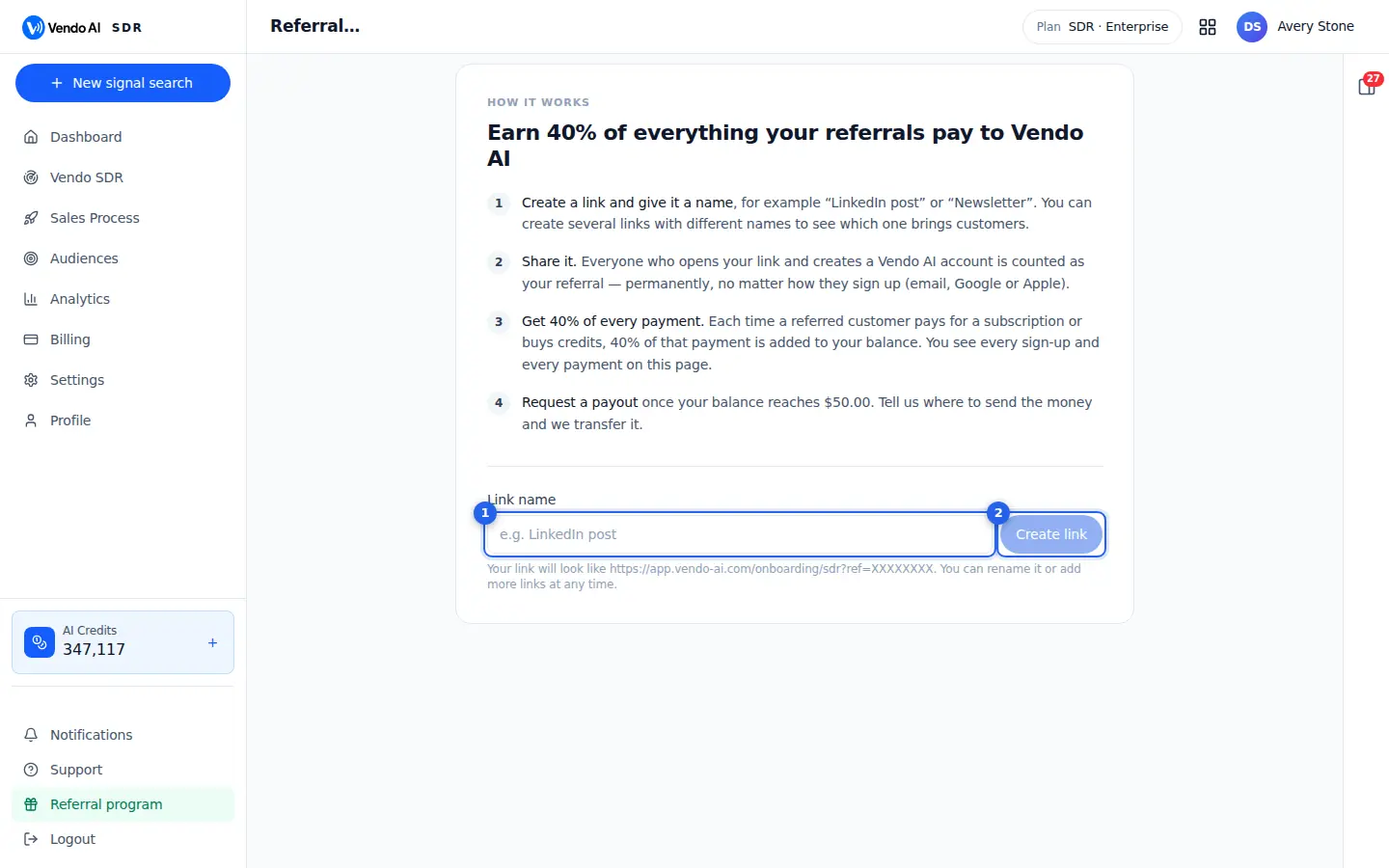
- Link nameName each link by channel to see which one works.
More details
Name each link after the place you will share it, for example LinkedIn post, Newsletter or Partner X. The name is only for you, up to 80 characters, and the people who click never see it. Separate links per channel let you compare visits, sign-ups, paying customers and your earnings per channel and see which one really brings customers. You can rename a link later by clicking its name.
- Create linkCreates your link and opens a share card with a QR code.
More details
Creates a new personal link ending in an 8-character code and opens the share card right away: a branded image with a QR code and your link, which you can download as a picture or as the QR code alone. You can keep up to 20 active links; Archive hides old ones (Restore brings them back, history stays).
How it counts: anyone who opens your link and creates a Vendo AI account becomes your referral permanently, whether they sign up by email, Google or Apple. The link is remembered in their browser for 30 days. You earn 40% of every subscription payment and credit purchase they make; the totals update about every 15 minutes. Your own account cannot be your referral.
Also on this screen
- Copy linkCopies the full link to the clipboard.
More details
Copies the link exactly as it must be shared, including its code. People who open it land on the Vendo AI sign-up flow; the link is remembered in their browser for 30 days, so they can register later. Each link shows its own visits, sign-ups, paying customers, revenue and your share.
- QR codeOpens the share card for a link.
More details
A ready-made 1080 by 1350 image in Vendo AI style with the QR code, a short product description and your link. Download image gives the whole card for social posts; QR code only gives just the code for slides, print or event badges.
- TotalsLifetime results across all your links.
More details
Visits are opens of your links; sign-ups are accounts created after such a visit; paying customers are sign-ups with at least one payment. Revenue is what they paid Vendo AI, and your share is 40% of it. Available for payout is your earned share minus what was already paid out or is pending in an open request.
- Sign-upsThe people who registered through your links.
More details
Each referral with a masked email, the link they used, the sign-up date, their status, the revenue they brought and your share. Payments made outside online checkout, such as manual invoices, and refunds are not counted.
- Request payoutAsk for your earnings once you have at least $50 available.
More details
Enter the amount in USD (between $50 and your available balance), a contact email and the payout details, such as IBAN, PayPal or a USDT wallet, plus an optional message. Only one request can be open at a time; it shows as pending until the team pays it, and you get a confirmation by email.
What things cost
Everything is paid from one credit balance shared by SDR, Agents and CRM. 1 credit = 1 cent. Plans and prices are on the pricing page.
| Action | Credits | Notes |
|---|---|---|
| Buying signal found by Vendo SDR | 1 credit | Only signals that fit your profile; 2 credits from hunters on paid data |
| Usable contact found by Vendo SDR | 5 credits | Only contacts that pass the ICP check; 10 credits from hunters on paid data |
| Email sent | 5 credits | |
| LinkedIn invitation | 5 credits | |
| LinkedIn message | 3 credits | AI replies on LinkedIn included |
| Connected LinkedIn, WhatsApp or Instagram account | 500 credits a month | Charged when you connect the account, then monthly |
| Chat reply by an AI agent | 1 credit | Website chat, Telegram, WhatsApp |
| Voice minute in the website widget | 15 credits | 17 with a presentation; billed per 10 seconds |
| Google Meet minute | 7 credits | 20 with a presentation |
| Telegram voice minute | 14 credits | |
| Phone call minute | 25 credits | Billed per 10 seconds; a phone number is 200 credits a month |
| Deep website scan for an agent | 15 credits | |
| Additional credits | 1 cent per credit | Never expire; bought in Billing |
FAQ
How do I start?
Create an account, add your website and follow onboarding: Vendo AI builds your first signal search or AI agent from your site. The AI Assistant on the right can do most steps for you.
What is the difference between SDR, Agents and CRM?
SDR finds companies with buying signals and contacts their decision-makers. Agents talk to people who come to you, on your website, in messengers, on the phone and in meetings. CRM collects every reply and lead from both. All three share one account and one credit balance.
Why does my search not collect contacts?
Searches that use LinkedIn need at least one working LinkedIn account in Settings, LinkedIn. Without it the search monitor shows a red warning. Two or three warmed accounts, ideally with LinkedIn Premium, give the best daily volume.
What am I charged for?
Credits are charged for usable contacts, messages, chat replies, voice minutes and scans. See the cost table on this page and Billing for your balance and invoices.
How do I get help from a person?
Open Support and create a request. The team replies there and by email. You can also write to info@vendo-ai.com.
Still stuck? Open Support in the app or write to info@vendo-ai.com.